


CSS & JavaScript Toolbox
Add CSS, JavaScript, PHP and HTML code snippets to your site.

Safe pick
Yes — CSS & JavaScript Toolbox is a safe, well-maintained plugin to use in 2026. It runs on 10K+ sites, is rated 4.8/5 and was last updated 1 month ago, and scores 84/100 on our health check.
- Proven at scale on 10K+ active sites
- Loved by users — 4.8/5 from 84 reviews
How does it stack up?
Side-by-side on installs, updates, ratings & support


Daily downloads
Download spikes usually follow a new release — each site that auto-updates counts as a download.
Rankings
Where CSS & JavaScript Toolbox stands todayWordPress.org search rankings
Live position in the plugin search, top 100| Keyword | Position |
|---|---|
| code | >100 |
| javascript | #1 |
| php | #31 |
| scripts | #23 |
| snippets | #29 |
Version adoption
Share of active sites per release.
Rating breakdown
★★★★★★★★★★ 4.8 from 84 reviews
About CSS & JavaScript Toolbox
From the official readme · v12.0.7Description
Safely add CSS, JavaScript, PHP or HTML to unique code blocks, then choose where it goes on your site.
IDEAL FOR:
- Making CSS front-end changes – No need to modify theme files or work with tedious built-in theme options. Just create a CSS code block.
- Adding site functionality – Stop adding plugins for simple tasks as they can slow down your site. Create a JavaScript or PHP code block instead.
- Adding widgets, code snippets and third-party scripts – Code blocks are perfect for adding scripts such as Google Analytics and chat widgets to your website.
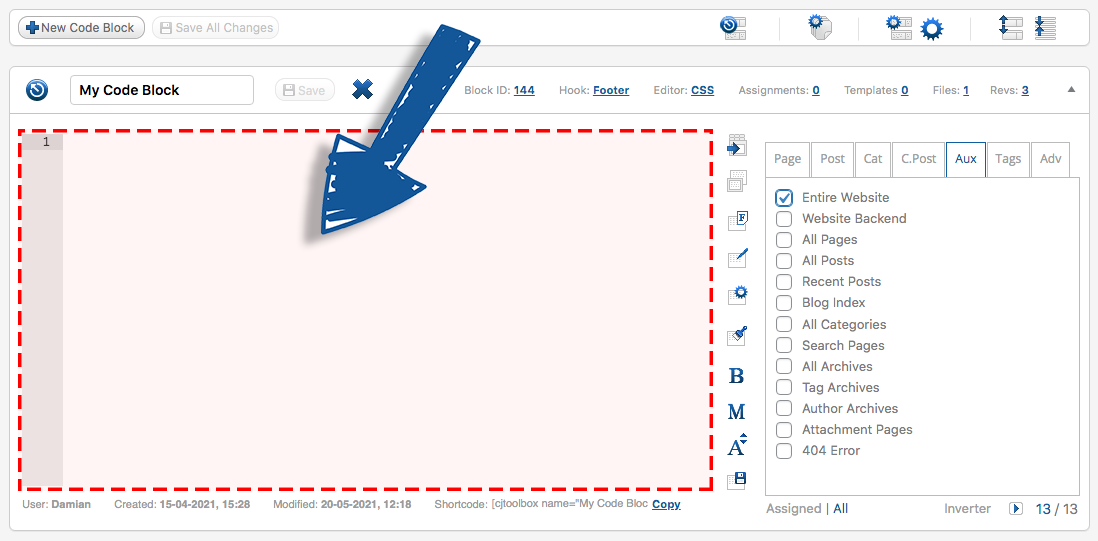
CJT is built on the concept of a code block. Each code block is more than just a code editor. It also contains a location editor so you can click the sections of your website you want your code to run.
It was designed for super-fast development without any cumbersome page refreshing. Create as many code blocks as you need and see all of your code and locations in the one dashboard. Don’t worry, CJT has been optimised to handle 100’s of code blocks and thousands of locations (i.e. Pages, Posts, Categories, Custom Posts, etc).
Click for CSS & JavaScript Toolbox PLUS
FEATURES:
- Easy to use ‘code blocks’ interface
- Powerful code editor
- Intuitive assignment panel (click where your code goes)
- Code/script library management
- Add code to the header or footer hook
- PREMIUM Add code to entire website, all posts, etc
- PREMIUM Add code via shortcodes, widgets, Gutenburg blocks, etc
- PREMIUM Add code via tags, URLs, regular expressions
- PREMIUM 8 additional hooks for more precise assignments
- PREMIUM Invert feature (run code everywhere but …)
- PREMIUM Editor tools (code auto complete, beautify/minify, etc)
- PREMIUM Code revisions system
- PREMIUM Backup and export/import system
Click for CSS & JavaScript Toolbox PLUS
OVERVIEW VIDEO
Installation
- If you’re upgrading from older versions its highly recommended to backup your database before upgrading.
- Upload the ‘css-javascript-toolbox’ folder to the ‘/wp-content/plugins/’ directory
- Activate the plugin through the ‘Plugins’ menu in WordPress
- Click ‘CSS & JavaScript Toolbox’ link in the main navigation (left side of your Dashboard).
Frequently asked questions
Why was the CJT plugin developed and what is it used for?
The CJT plugin was created to help website authors write or add their own code. The plugin allows you to contribute to your WordPress installation code via a simple web interface, where you can modify and extend the functionality and appearance of your website by writing code directly into CJT code blocks. Some typical examples can include changing the look of a specific page by adding some CSS code; adding functionality to a page with PHP; or making a page more interactive by adding some JavaScript.
What is a CJT ‘code block’?
The CJT code block is the most fundamental unit for writing code and to associate it with specific WordPress requests via the assignment panel.
What is the assignment panel?
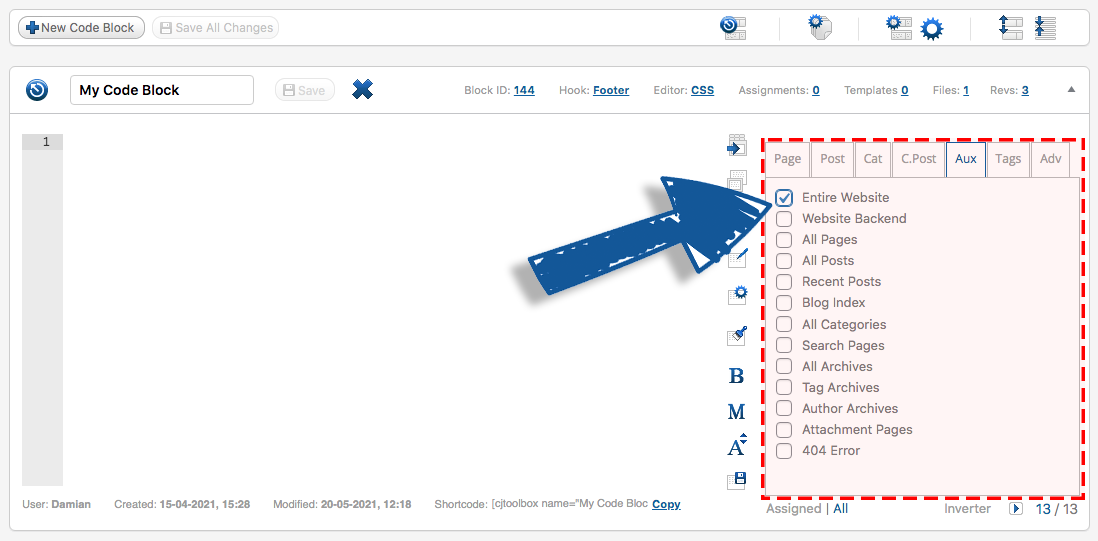
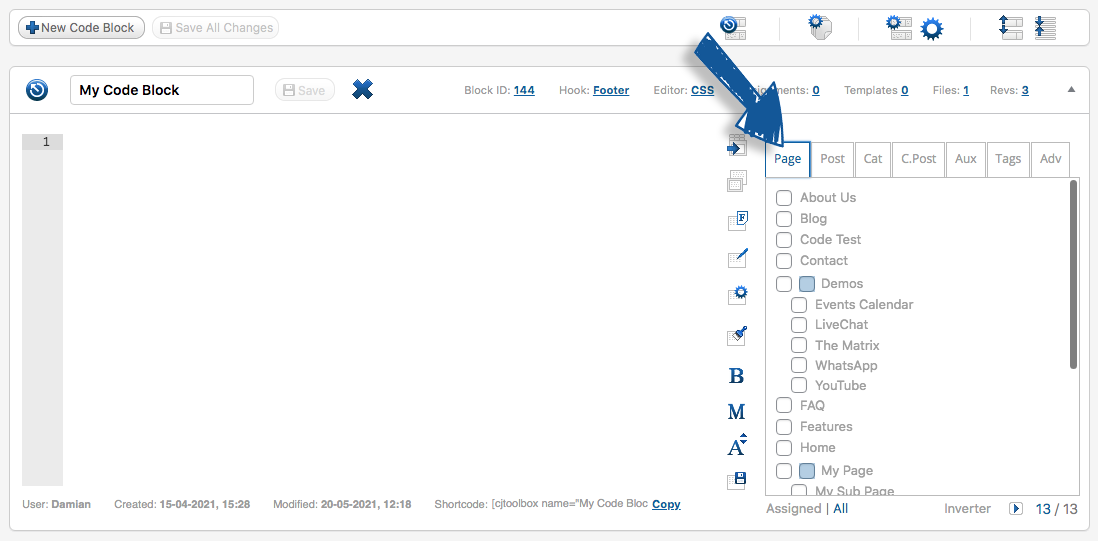
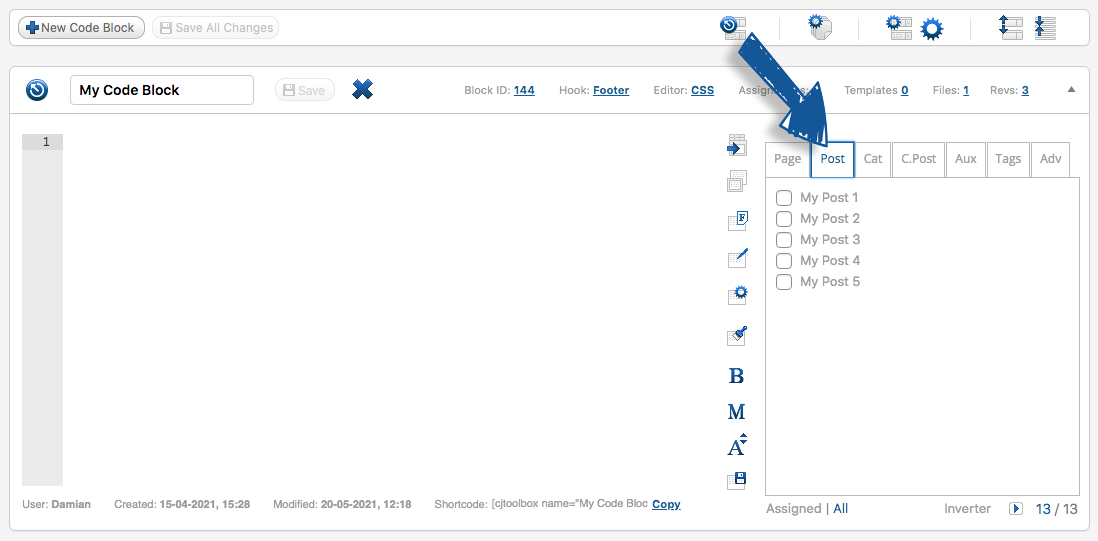
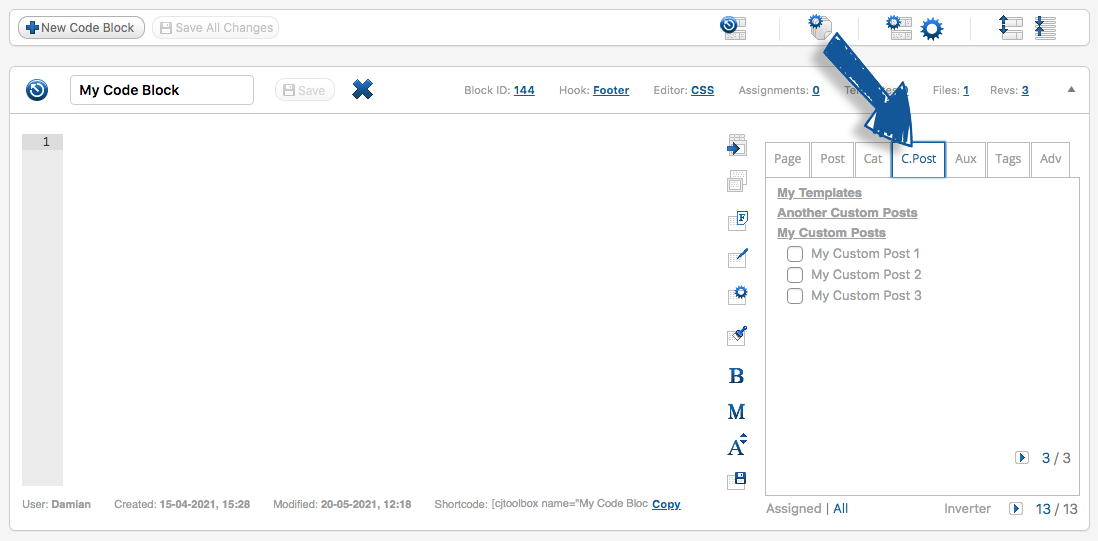
The assignment panel is a tabs window, which appears on the right side of the code block editor and is used to assign/apply the code block into specific requests. These assignments include: Pages, Posts, Custom Posts, Tags, and Categories. Auxiliary sections such as Entire Website, Website Backend, All Pages, All Posts, Recent Posts, Blog Index, All Categories, Search Pages, All Archives, Tag Archives, Author Archives, Attachment Pages, 404 Error Pages. Advanced sections such as URLs, or Regular Expressions (Regex).
I have noticed a bunch of question marks appear during mouse hover – what are they?
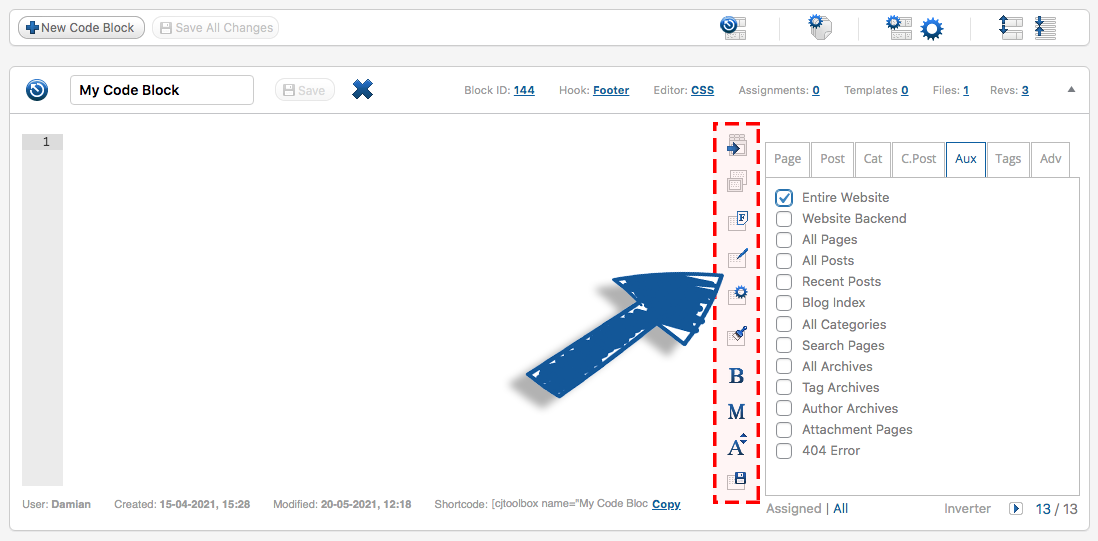
These are premium features, which are only available for our CJT PLUS plugin. Click here to purchase a license for any of our premium CJT PLUS products.
Can you select more than one item from the assignment panel?
Yes. You can select any number of items you need, there is no limitation regarding this.
Can you assign multiple blocks to the same items from the assignment panel?
Yes. It’s one of the most useful features that CJT supports as it allows you to manage/split your codes into several code blocks, allowing you to override code in a former (or lower-ordered) code block.
What is Pages, Posts, Categories and Custom Posts tabs?
These lists with checkboxes represent all of your WordPress Pages, Posts, Categories and Custom Posts that your entire website contains. It also supports sub-pages and sub-categories, which you will find in there.
What is the Auxiliary tab?
As there are a number of requests that are not available as normal WordPress items (e.g. Pages, Posts, etc) but since it’s commonly required and most likely to be used, you will find them pre-defined in the Auxiliary tab. In the Auxiliary tab you can find things like: Entire Website, Blog Index, Author, 404 error, Front-end, Admin backend and much more!
Is it better to use the URLs tab, or select items if found through other tabs?
Pages, Posts, Custom Posts and Categories tabs are created to simplify the assignment process for all types of users. Using URLs is great for fast performance as it requires less time to evaluate/identify the request! However, not all things can be done through the URLs tab. For example, applying a single block to a Category index page and all its sub-categories.
What is the Advanced Expressions tab?
The Advanced Expression tab allows you to fully control what requests to integrate into the code block by using Regular Expressions. In other words, allowing CJT users to define more requests to assign the code block to.
Can I move the blocks around?
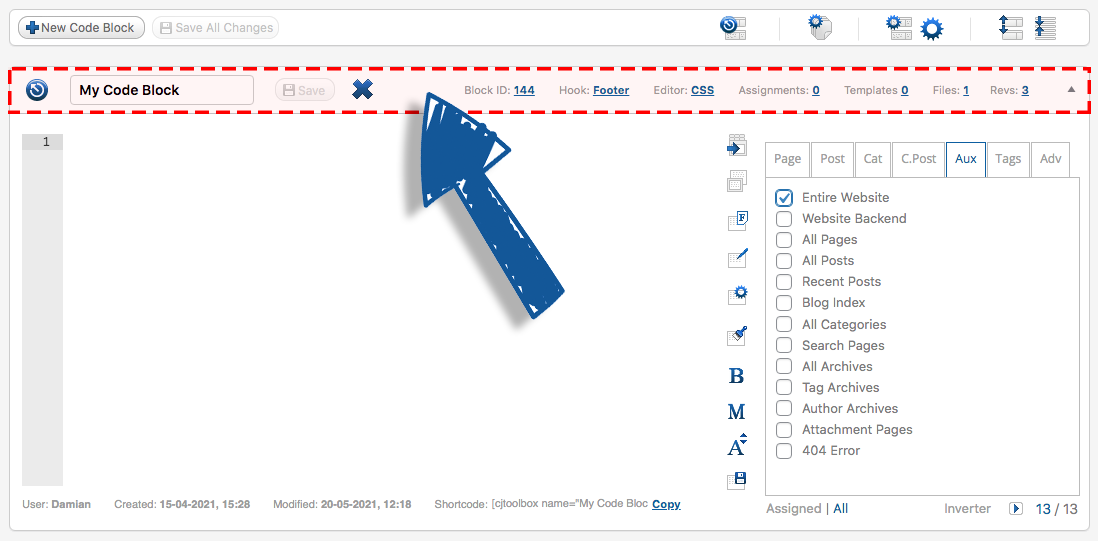
Yes by hovering your mouse cursor over the code block title bar until it turns into a four-sided arrow, this allow you to move the blocks. Clicking the block title bar allows you to open and close the blocks.
Is a code block saved after I click ‘Create’ in ‘Create New Code Block’ form?
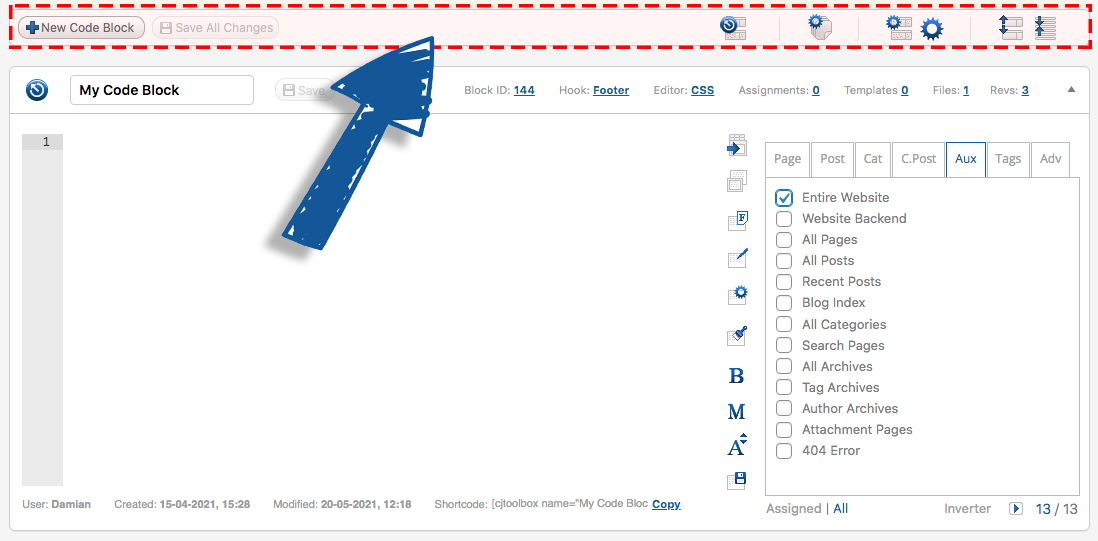
Yes. The block is created and saved in your database. In order to discard the block, you have to delete it, then click the ‘Save All Changes’ button.
After shuffling the order of the code blocks using drag-and-drop, is the new code block order immediately saved?
No. In order to save the code blocks order, you need to click the ‘Save All Changes’ button.
Is a code block permanently deleted from the blocks list page after a code block delete icon is clicked?
No. After you delete a code block, you then need to click the ‘Save All Changes’ button.
I’m using the URLs tab and my code is not working?
Make sure you have copied and pasted the Page, Post, or Category URL exactly as it appears in the browser address bar. For example, you may have inadvertently included an extra forward slash at the end of your URL.
Why use the Hook switch in the code block bar?
The hook location feature gives you further control over the outputting of your CSS and JavaScript code. This is useful in case overriding another plugins’ CSS code is required. Also, it’s sometimes better to put your JavaScript code in the footer to avoid slowing down your page load.
I received a weird error, what do I do now?
Due to the overwhelming amount of emails we get for users requesting support for our CJT plugins, we cannot provide support for the CJT Free plugin (hosted here on WordPress.org) at this stage unfortunately. If you wish to receive priority support, please visit our CJT website and then purchase a license for any of our premium CJT PLUS products.
Changelog
Security: Hardened the AJAX access point against unvalidated module and action names Security: Removed the last use of create_function(), removed in PHP 8.0 Maintenance: Dead files, unused images and a duplicate PHP version check removed from the package
12.0.7
- Security: Fixed a stored XSS in the [cjtoolbox] shortcode (CVE-2025-14814) – the user-supplied
tagattribute is now validated against a strict allow-list of inert HTML elements, so it can no longer be set toscript(or any other executable/dangerous element) to wrap shortcode content in an executable tag - Security: Fixed authenticated stored XSS in the code-block admin screens (CVE-2025-13533) – the block name, assigned URLs and assignment expressions are now HTML-escaped everywhere they are rendered in the admin (esc_attr/esc_html/esc_textarea), and the block name is additionally sanitized server-side on save/create so quotes and angle brackets can no longer be persisted by bypassing the client-side validation
- Security: Hardened the AJAX access point – the module prefix and action name from the request are now strictly validated, and an unrecognised module can no longer register a loader or redirect the controller lookup path
- Security: Removed the last use of the
create_function()API, which was removed in PHP 8.0 - Fixed: The dashboard “Latest News” headline now links to the news item itself instead of a hardcoded destination
- Fixed: The update hook no longer reads missing array keys or queries the database during unrelated plugin updates
- Fixed: The unsupported-PHP admin notice now reports the real minimum version (7.4) instead of 7.3
- Changed: The dashboard header banner now promotes CSS & JavaScript Toolbox PLUS, and is hidden for users who already have PLUS installed
- Enhancement: Removed unused images, dead stylesheet rules, stray OS metadata files and a duplicate PHP version check from the plugin package
12.0.6
- Security: Fixed sanitization vulnerability in Template Manager
- Security: Fixed sanitization vulnerability in Blocks Coupling controller
- Enhancement: Improved plugin security and stability
12.0.5
- Fixed: Improved plugin security and stability
12.0.4
- Fixed: Improved plugin security and stability
12.0.3
- Security: Fixed path traversal vulnerability in controller routing
- Security: Added input validation to prevent arbitrary file inclusion
- Enhancement: Improved plugin security and stability
12.0.2
- Fix: Text domain header issue
- Fix: Old PHP notices and warnings
- Enhancement: Improved plugin stability
Screenshots

For developers
Is this your plugin? Show off the numbers.
Add a live badge to your site, docs or GitHub README. It updates on its own — no account needed.
Best CSS & JavaScript Toolbox alternatives
All code plugins →



FAQ
CSS & JavaScript Toolbox: quick answers
Straight answers, pulled from live WordPress.org data.
Live data from WordPress.org · checked Sep 27, 2026
Is CSS & JavaScript Toolbox free?
Yes. CSS & JavaScript Toolbox is free to download and use from the official WordPress.org plugin directory.
Is CSS & JavaScript Toolbox safe to use in 2026?
Yes — CSS & JavaScript Toolbox is a safe, well-maintained plugin to use in 2026. It runs on 10K+ sites, is rated 4.8/5 and was last updated 1 month ago, and scores 84/100 on our health check.
How many websites use CSS & JavaScript Toolbox?
CSS & JavaScript Toolbox is active on 10K+ WordPress websites and has been downloaded 548,611 times since it launched in September 2011. It was downloaded 3,745 times in the last 30 days.
Does CSS & JavaScript Toolbox work with WordPress 7.1?
CSS & JavaScript Toolbox is officially tested up to WordPress 7.0.6, while the latest release is 7.1.2. It may still work, but try it on a staging site first.
What PHP version does CSS & JavaScript Toolbox need?
CSS & JavaScript Toolbox requires PHP 7.4.0 or higher. Most hosts run PHP 8.x today, so it works on any modern WordPress hosting.
When was CSS & JavaScript Toolbox last updated?
The latest version, 12.0.7, was released on August 26, 2026 (1 month ago).
Who makes CSS & JavaScript Toolbox?
CSS & JavaScript Toolbox is developed and maintained by wipeoutmedia.
What are the best alternatives to CSS & JavaScript Toolbox?
The most popular alternatives to CSS & JavaScript Toolbox are WPCode (3M+ installs), Code Snippets (1M+ installs) and Head & Footer Code (100K+ installs).
Powered by PageForge
Want thousands of pages that rank like these? Build them in an afternoon.
This directory runs on the same engine as PageForge. Turn any spreadsheet, CSV or API into thousands of fast, SEO-ready WordPress pages — with schema, internal links and AI-written copy baked in.
- CSV, Google Sheets & API data sources
- AI content, schema & internal links per page
- Works with Elementor, Gutenberg, Yoast & Rank Math
- Free on WordPress.org — no credit card


