


Zen Login & Authentication
Frontend login, registration, and password recovery for WordPress and Elementor, with rate limiting, honeypot, and AJAX forms.

Solid choice
Zen Login & Authentication is a solid plugin choice in 2026, with a few things worth checking first. Was last updated 3 weeks ago, and scores 64/100 on our health check.
- Actively developed — last update 3 weeks ago
- Tested with the latest WordPress (7.1)
- Small user base (<10 active installs)
- Very few reviews so far
How does it stack up?
Side-by-side on installs, updates, ratings & support



Daily downloads
Download spikes usually follow a new release — each site that auto-updates counts as a download.
Rankings
Where Zen Login & Authentication stands todayWordPress.org search rankings
Live position in the plugin search, top 100| Keyword | Position |
|---|---|
| authentication | >100 |
| elementor | >100 |
| Frontend | >100 |
| login | >100 |
| registration | >100 |
About Zen Login & Authentication
From the official readme · v2.3.3Description
Zen Login & Authentication replaces the default wp-login.php experience with clean, accessible, theme-integrated forms that live on your actual site. It works out of the box on any WordPress theme and ships with first-class Elementor support: five drag-and-drop widgets that fit any page-builder layout, with full Theme Builder compatibility.
The plugin works with no configuration and adds no tracking or “phone home” behaviour. Every feature that contacts an external service is opt-in — Google sign-in, breached-password checking (Have I Been Pwned), and Cloudflare Turnstile — so out of the box the plugin makes no external calls at all. See External services below.
What it does
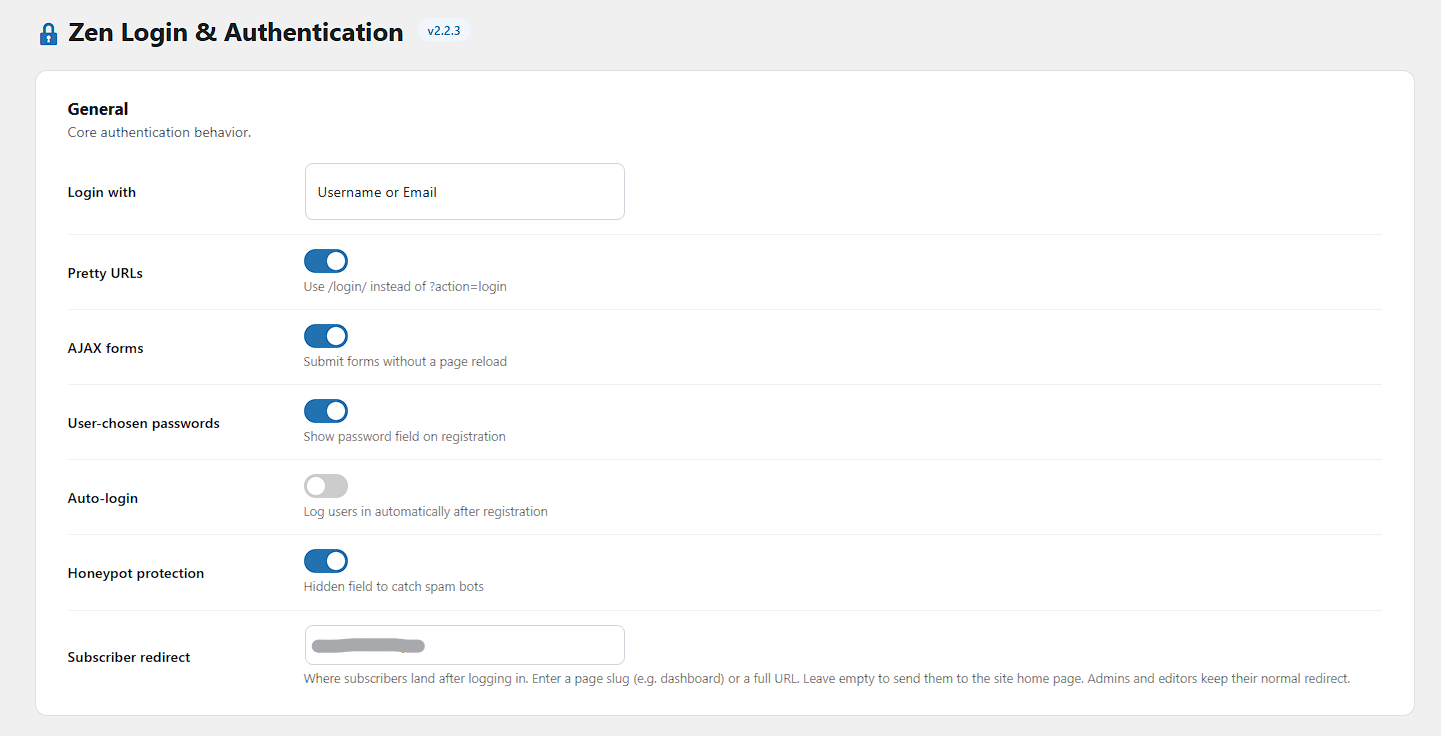
- Login with username, email, or either (configurable).
- Registration with optional user-chosen passwords and auto-login.
- Lost Password / Reset Password with the full WordPress email flow.
- Account page — logged-in users edit their first/last name, public display name, email, and password from the frontend, without ever seeing wp-admin. Guests visiting the account page are sent to the login form and return after signing in.
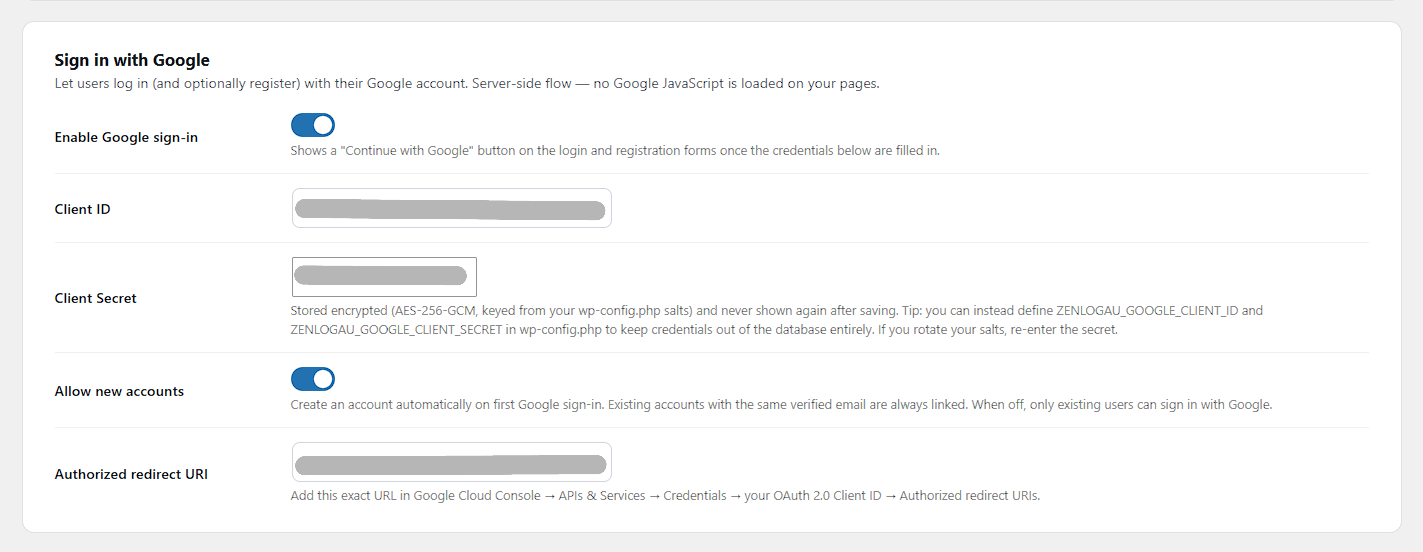
- Sign in with Google (optional) — a server-side OpenID Connect flow with no Google JavaScript on your pages. New accounts can be auto-created (toggleable) and existing accounts are linked by verified email.
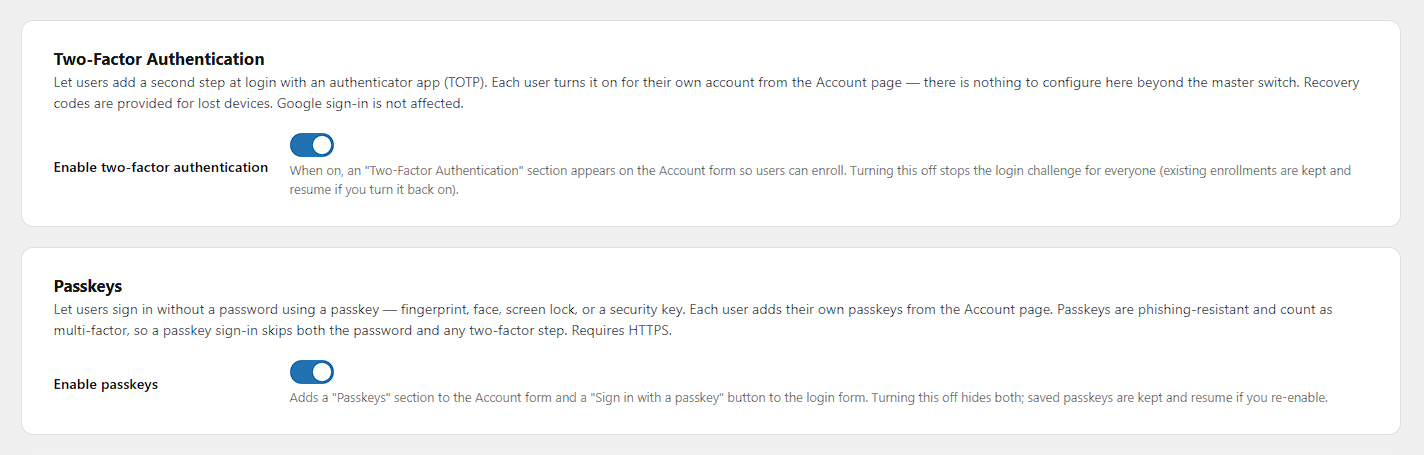
- Two-factor authentication (optional, opt-in per user) — app-based TOTP with local QR enrollment and one-time recovery codes, managed from the Account page. Once a user turns it on, a second-factor step is required at login.
- Sign out of other devices — from the Account page, a logged-in user can end every other active session for their account in one click; the current device stays signed in.
- Passkeys (WebAuthn) (optional, opt-in per user) — users add passkeys from the Account page and sign in with no password using Face ID, a fingerprint, Windows Hello, or a security key. Passwordless sign-ins are phishing-resistant and count as multi-factor, so they skip both the password and any two-factor step. Verified locally; requires HTTPS.
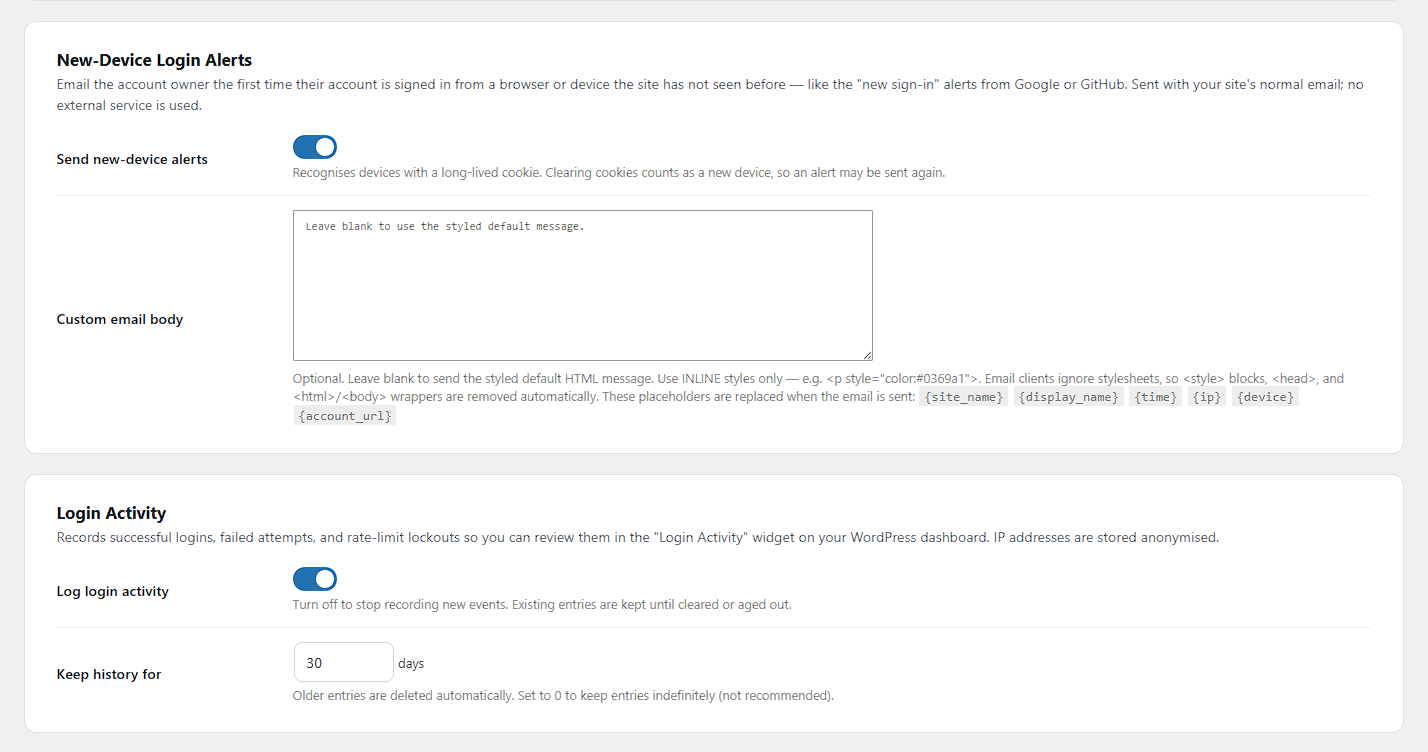
- New-device login alerts — emails the account owner the first time their account is signed in from an unrecognised device or browser, using your site’s normal email. On by default.
- URL rewriting so every site-wide
wp-login.phplink is transparently redirected to your frontend pages. - Multisite support — network-activated, per-site settings, signup/activation flow handled.
- Smart redirects —
?redirect_to=is honoured everywhere. Subscribers are kept out of wp-admin and sent to a destination you set in Settings → Zen Login & Authentication → Subscriber redirect (a page slug or URL; empty = site home). That setting takes one destination per line — the first is the default, and the others are pages a subscriber may also be sent to when a link asks for one, so a site with several subscriber dashboards can route each person to the right one. Privileged users always land where they intended. - Login activity dashboard — a “Login Activity” widget on your WordPress dashboard summarising successful logins, failed attempts, and rate-limit lockouts over the past week, with the top failed usernames, the most-blocked IPs, and a recent-events feed. IP addresses are stored anonymised, history is auto-pruned, and the data is removed on uninstall.
- Cache exclusion — auth pages are automatically excluded from LiteSpeed Cache, Super Page Cache, WP Rocket, W3 Total Cache, and WP Super Cache.
Security
- Nonce verification on every form submission.
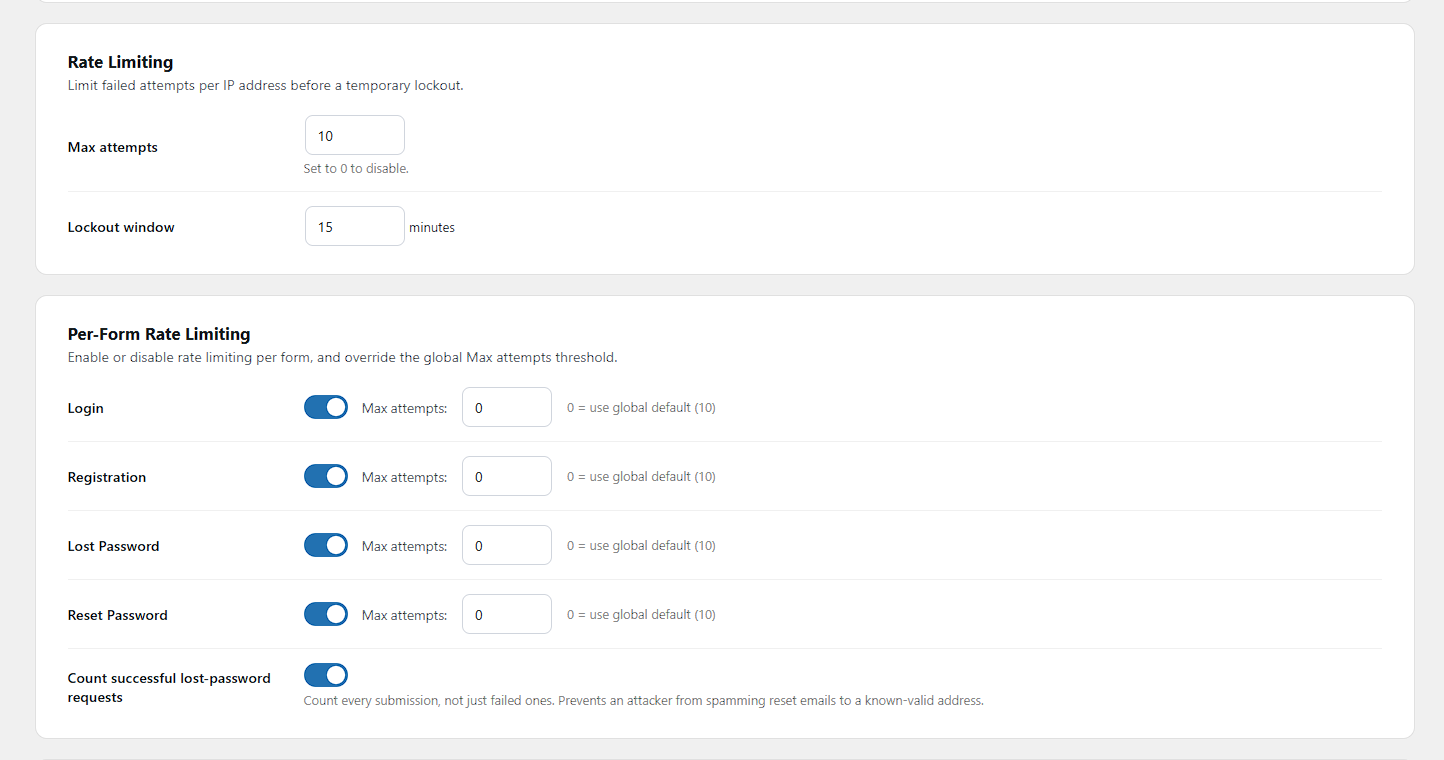
- Rate limiting — configurable max attempts per IP with a lockout window, per form (login, register, lost-password, reset-password), with optional per-form thresholds.
- Honeypot spam protection — rotating hidden field (hourly key rotation via HMAC) catches bots; trapped submissions get a fake success response.
- Spoof-resistant IP detection — rate-limit keys use the real socket address (
REMOTE_ADDR) by default; forwarded headers are opt-in via a filter for sites genuinely behind Cloudflare. - No password pre-population, bcrypt-compatible (
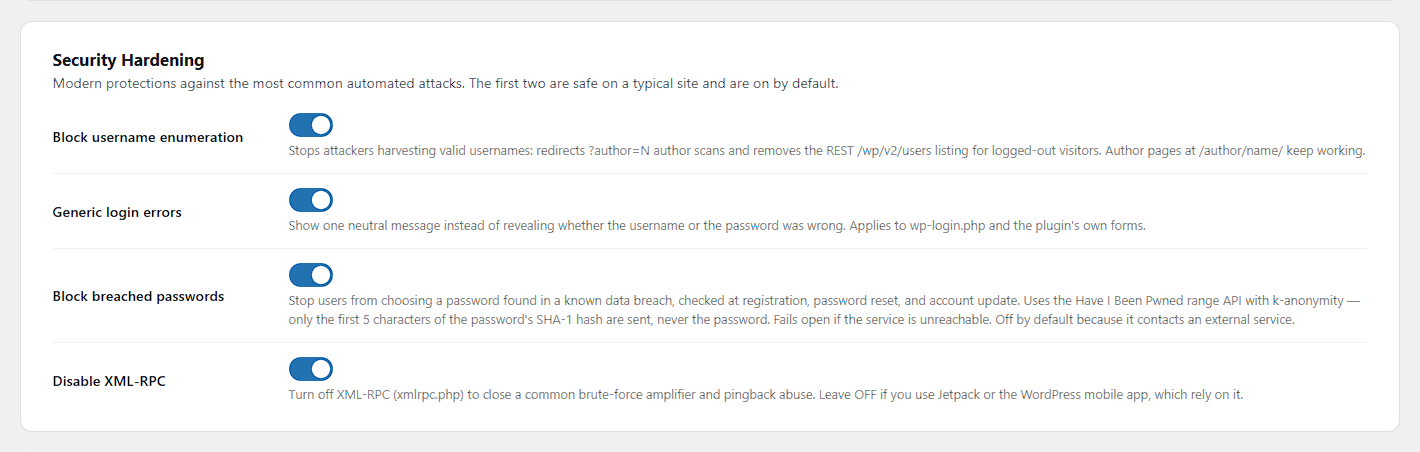
wp_set_password()/wp_signon()), and an 8-character minimum on new passwords. - Username-enumeration hardening (on by default) — blocks
?author=Nauthor scans and the REST/wp/v2/userslisting for logged-out visitors, and collapses login errors to one neutral message so a valid username is never confirmed. A separate Hide empty author pages switch makes the author page and feeds of an account that has published nothing answer exactly like a name that doesn’t exist (WordPress otherwise uses them to confirm every login name, administrators included), and an Author URL profile field lets an author who publishes have a page address that doesn’t show their login. Everything for logged-in users is unaffected. - Breached-password blocking (optional) — reject passwords found in the Have I Been Pwned corpus at registration, reset, and account update, using k-anonymity: only the first 5 characters of the password’s SHA-1 hash are sent, never the password. Fails open if the service is unreachable.
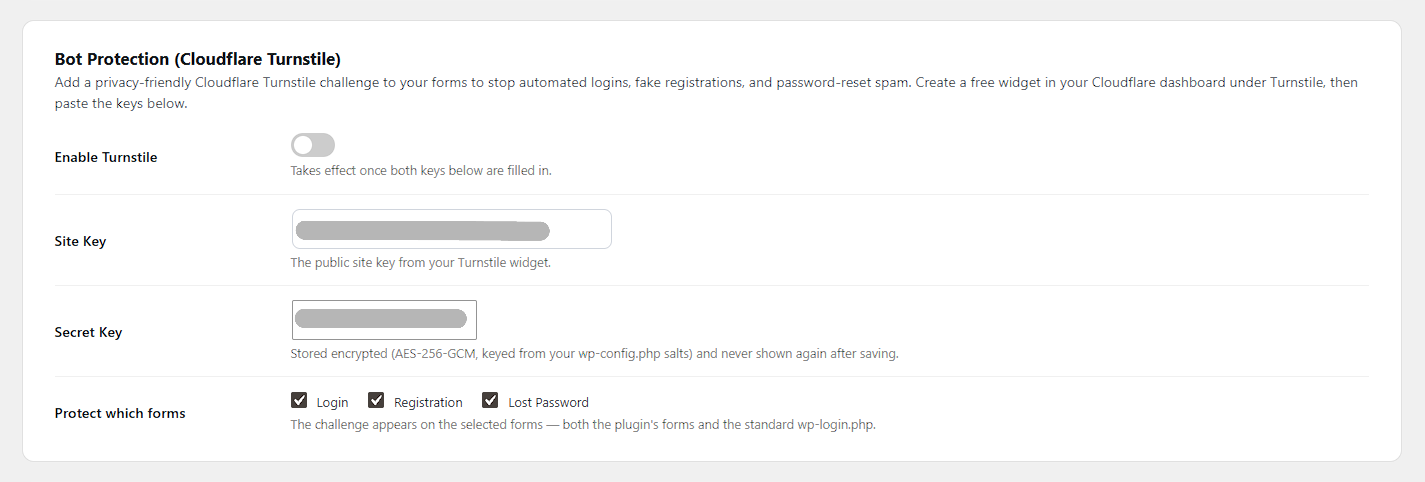
- Cloudflare Turnstile (optional) — a privacy-friendly bot challenge on the login, registration, and lost-password forms, on the plugin’s forms and wp-login.php alike.
- XML-RPC lockdown (optional) — disable XML-RPC to close the
system.multicallbrute-force amplifier and pingback abuse. - Two-factor authentication (TOTP) — opt-in per user; the shared secret is stored encrypted, recovery codes are hashed and single-use, and the login challenge sets no auth cookie until the second factor verifies.
External services
This plugin contacts an external service only when you enable one of the optional features below. Out of the box it makes no external calls.
- Google OAuth / OpenID Connect (accounts.google.com and oauth2.googleapis.com). When a user clicks “Continue with Google”, they are redirected to Google’s consent screen, and the plugin’s server then exchanges the one-time authorization code for an ID token. The data involved: the OAuth client credentials you configured, the single-use authorization code, and — returned by Google — the user’s verified email address, name, and Google account ID, which are used solely to log the user in or create their account on your site. This service is provided by Google LLC: Terms of Service, Privacy Policy.
- Have I Been Pwned — Pwned Passwords (api.pwnedpasswords.com). Enabled only when “Block breached passwords” is turned on. When a user sets or changes a password (registration, password reset, or account update), the plugin sends the first 5 characters of the password’s SHA-1 hash to the range API and checks the returned list locally. The password itself, the full hash, and any user identity are never transmitted (k-anonymity model), and the request is cached. This service is provided by Have I Been Pwned: Terms of Use, Privacy Policy, Pwned Passwords.
- Cloudflare Turnstile (challenges.cloudflare.com). Enabled only when Turnstile is configured. The challenge script is loaded on the protected forms, and on submission the resulting challenge token and the visitor’s IP address are sent to Cloudflare’s siteverify endpoint to confirm the visitor is not a bot. This service is provided by Cloudflare, Inc.: Terms of Service, Privacy Policy.
If none of these features are enabled (the default), the plugin makes no external calls whatsoever.
Elementor integration
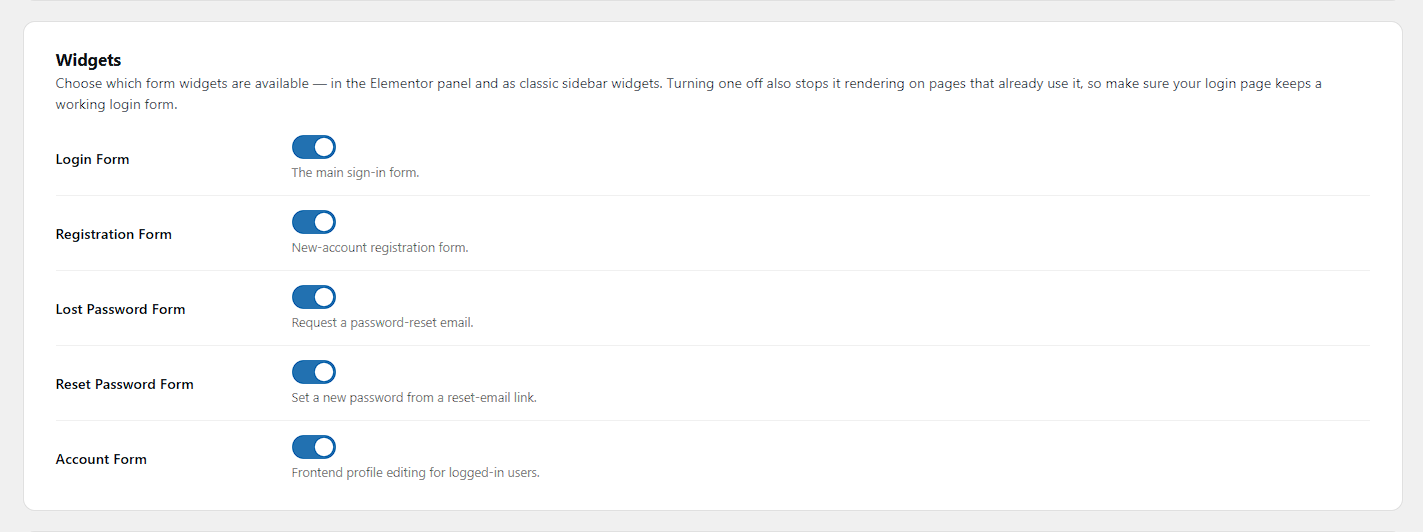
Five native widgets registered under a “Zen Login & Authentication” category:
- Login Form — custom labels, placeholders, toggle text, and link overrides; hidden when logged in (unless
reauth=1); picks up?redirect_to=from the URL. - Registration Form — password + confirm fields when user-chosen passwords are enabled, with a live strength meter.
- Lost Password Form — password-recovery request form.
- Reset Password Form — reads
?key=&login=from the URL and shows a friendly message when the link is missing or expired. - Account Form — frontend profile editing (first/last name, public display name, email, optional password change) for the logged-in user, with the same label/placeholder/style controls as the other widgets.
Every widget has a full style panel (container, title, labels, fields with focus glow, button normal/hover, links, messages, password toggle, strength meter).
Classic widgets
Five WP_Widget subclasses are also registered for classic / block-based widget areas: Login, Register, Lost Password, Reset Password, and Account.
Pages
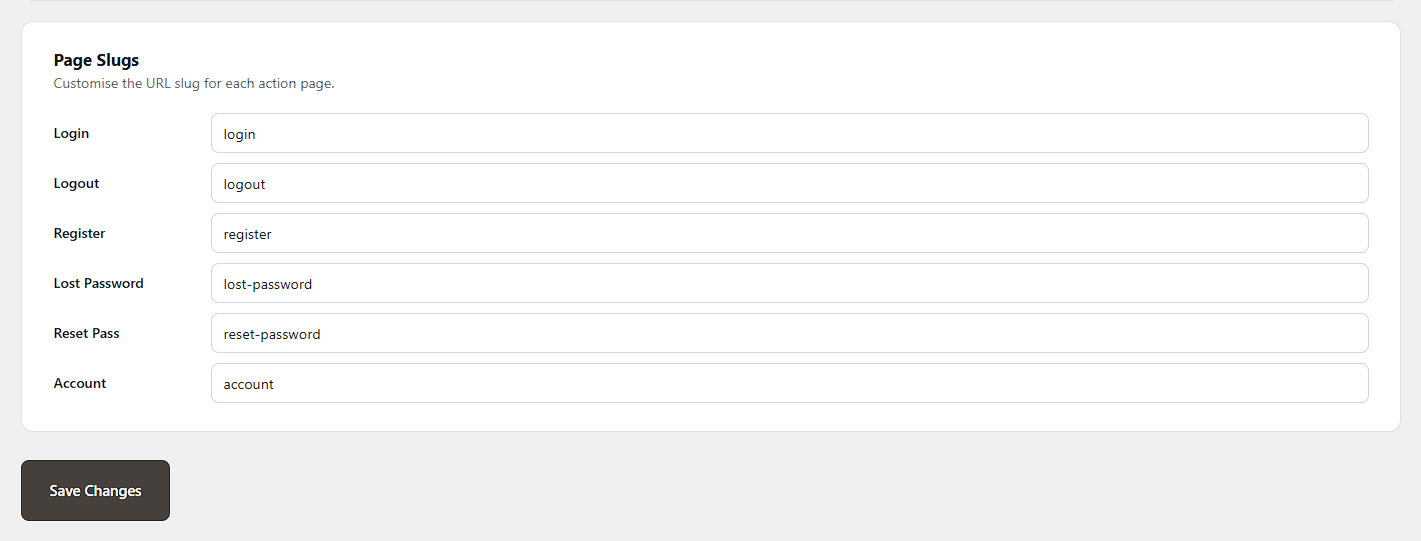
On activation the plugin sets up a real WordPress page for each auth action so Elementor Theme Builder targeting works. For each default slug it reuses an existing page if one is there (never modifying or deleting it), otherwise creates one. The process is idempotent, so activate/deactivate cycles never duplicate pages, and the plugin also works with no real pages via its virtual URL-rewrite fallback.
Installation
- Upload the
zen-login-authenticationfolder to/wp-content/plugins/, or install it from Plugins → Add New. - Activate the plugin through Plugins → Installed Plugins.
- Go to Zen Login & Authentication in the admin sidebar to configure options.
- Auth pages are created automatically on activation. If you delete some and want them back, use Create Missing Pages in the Page Management section.
- Rewrite rules flush automatically on the first page load after activation. If a frontend URL 404s, visit Settings → Permalinks and click Save Changes.
- (Elementor users) Open a page in the Elementor editor and search the widget panel under the Zen Login & Authentication category.
Frequently asked questions
Does it require Elementor?
No. The plugin works on any theme via its built-in forms and URL rewrites. Elementor only adds the optional drag-and-drop widgets.
Does it disable wp-login.php?
No. It rewrites the links across your site to your frontend pages, but wp-login.php remains available for administrators and recovery flows.
How do I let users choose their own password when registering?
Enable User-chosen passwords under Settings → Zen Login & Authentication → General. You can also enable Auto-login to log users in immediately after they register.
Where do users go after logging in?
?redirect_to= is always honoured. Subscribers (who can’t reach wp-admin) go to the Subscriber redirect you configure — a page slug or full URL, or the site home page if left empty.
I’m behind Cloudflare. How do I get the real visitor IP for rate limiting?
By default the plugin uses REMOTE_ADDR only, because forwarded headers are spoofable. If your origin firewall is locked to Cloudflare’s IP ranges, opt the header back in: add_filter( ‘zenlogau_rate_limit_ip_headers’, fn() => [ ‘HTTP_CF_CONNECTING_IP’, ‘REMOTE_ADDR’ ] );
How do I set up Sign in with Google?
In Google Cloud Console, create an OAuth client: APIs & Services → Credentials → Create credentials → OAuth client ID → Web application. Copy the Authorized redirect URI shown under Settings → Zen Login & Authentication → Sign in with Google, and add it to the OAuth client. Paste the Client ID and Client Secret into the same settings panel and switch the feature on. A “Continue with Google” button then appears on the login and registration forms (each Elementor widget has a toggle and style controls for it). The flow is entirely server-side — no Google JavaScript is loaded on your pages.
Can users edit their profile without going to wp-admin?
Yes. The Account page (created on activation, default slug /account/) lets a logged-in user change their display name, email address, and password from the frontend. Changing the password keeps the user’s current session logged in and signs out every other session, exactly like the wp-admin profile screen. Leave both password fields blank to keep the current password. Guests who open the page are redirected to the login form and brought back after signing in.
Is it multisite compatible?
Yes. It is network-activatable, with per-site settings and signup/activation handling.
What happens to my pages when I uninstall?
Only pages the plugin created that you never edited (no content, no Elementor data) are removed. Pages you edited, or pre-existing pages the plugin merely reused, are always kept.
Changelog
Author pages stop confirming login names: a new setting hides the pages and feeds of accounts that have published nothing (usually administrators), and a new Author URL profile field stops a publishing author's page address from showing their login.
2.3.3
- Security: new Hide empty author pages setting (Security Hardening). WordPress gives every account a page at
/author/<name>/— where the name is its login, lowercased — and shows it even when the account has published nothing, while a made-up name gets “not found”. So anyone could confirm login names one guess at a time, administrators included, even with?author=Nscans and the REST user list already blocked. With the setting on, logged-out visitors get the same answer for an account that has published nothing as for a name that doesn’t exist — page, RSS, Atom and RDF feeds, paged and?author_name=forms alike — down to the status, headers and page content. Pages of people who publish are unchanged, and logged-in users see everything as before. - The request is answered as a name that doesn’t exist, rather than given a 404 of its own. What a non-existent author gets depends on the other plugins on the site — Yoast SEO, for example, turns its feeds into a “not found” page, and redirects a real author’s feeds instead — so a 404 of our own would still have been distinguishable from it. Letting WordPress and the site’s other plugins answer is the only way to match them all.
- The setting starts in the same state as “Block username enumeration”: on by default, and off on sites that had turned enumeration hardening off, so pages an owner chose to keep public stay public. Turn it off if your site links to the author pages of people who don’t publish, such as team profiles.
- New: the
zenlogau_hide_empty_author_archivefilter keeps a particular author page public, andzenlogau_harden_empty_authorsoverrides the setting in code. - Security: new Author URL field on the profile screen. WordPress builds the address of an author’s page from their login and offers no way to change it, so an author who publishes shows their login to every visitor — in the page address, and everywhere that address appears. The field sets a different address. It refuses anything that contains the login, and gives the same “already taken” message for another account’s address and another account’s login, so it can’t be used to test whether a login exists. The Security Hardening screen lists which publishing authors still have an address that shows their login, each linked to their profile. Changing an address moves the page: the old one stops working and is not redirected, because a redirect would confirm the old name. WordPress keeps these addresses in Latin letters, digits and hyphens only.
- Tweak: the XML-RPC lockdown’s code listed
system.multicallas removed, but WordPress adds that method back after plugins run. Nothing changes in practice — with XML-RPC off, every login inside a multicall batch is still refused before a password is checked — so the line was dropped and its comment corrected.
2.3.2
- Fixed: signing in to an account that has two-factor authentication was recorded as a failed login. The password had been accepted — the sign-in was simply waiting for the code — but handing it over to the second step looked like a failure to the rest of the plugin. The login activity dashboard filled up with failures for people who signed in perfectly normally, and the per-account throttle counted them too, so a few ordinary sign-ins in a row started adding a delay. Only genuine failures are counted now.
- Fixed: entering the wrong two-factor code was not recorded at all, which is the one attempt that really is a failure. It now appears in the activity log and counts against the account like any other failed sign-in.
- Improved: the Two-Factor Authentication panel on the Account page no longer reloads the page. Setting it up, confirming the code, regenerating recovery codes, cancelling, and turning it off all update the panel in place, so new recovery codes appear right where you are instead of after a full page reload. Without JavaScript the panel works exactly as before.
- Improved: the QR-code library is now only downloaded when a QR code actually needs drawing, instead of on every Account page view.
2.3.1
- Fixed: the new-device alert email pointed people to the wrong place. It now names the exact link to use — “Sign out of all other devices” on the account page — instead of vaguely saying to sign out of other devices from there.
- Fixed (Georgian): the same sentence in the Georgian translation was grammatically broken, using a past-tense verb where an instruction was needed. Retranslated, and the quoted link text now matches the link on the account page exactly.
2.3.0
- New: the Subscriber redirect setting now accepts more than one destination — one per line. The first line is still the default, so an existing single-line setting behaves exactly as it did. Every other line names a page a subscriber is also allowed to be sent to when a link asks for it. A site with two kinds of subscriber — say a teacher dashboard and a venue dashboard — could not be described by a single value before: everyone was funnelled to the same page whichever one they were heading for.
- Fixed: a subscriber who was already signed in and followed a sign-in link was dropped on the Subscriber redirect page instead of the page the link asked for, because that path discarded redirect_to outright. It now honours any listed destination, while still never allowing wp-admin. The sign-in handler already behaved this way, so the two paths now agree.
- New: filter
zenlogau_subscriber_redirectsfor adding destinations in code, pluszenlogau_get_subscriber_redirects()andzenlogau_subscriber_redirect_allows()for reading them.
2.2.5
- Fixed: on the Account widget the Form Container controls for Background, Padding, Border, Border Radius and Box Shadow had no effect. A stylesheet rule that stops the account layout drawing a card around its own cards used “!important”, which overrode the values Elementor generates. The rule now relies on ordinary CSS precedence, so it still suppresses the extra card by default while leaving all five controls working.
- Improved: the Account Cards controls for Card Headings and Card Descriptions alignment now also align the Two-Factor Authentication and Passkeys headings and descriptions, so the whole page is aligned from one place. The separate heading-alignment controls in those two sections have been removed as they are no longer needed; their body-text alignment controls remain.
- New: typography for the Passkeys “Remove” link.
- Fixed: the Passkeys “Remove” link colour and hover colour could be overridden by the general Action Links styling. They are now scoped to the Passkeys section so the specific setting wins.
2.2.4
- New: every heading, description, button, and link on the Account page can now be rewritten from the Elementor panel. A new “Account Sections” area under the Content tab covers the Profile Information and Change Password cards, the Current Password label and hint, the Passkeys section (heading, description, empty-state, Add button, Remove link), Two-Factor Authentication (heading, description, turned-off message, set-up button), and Session Management (heading, description, sign-out note, Log Out and “Sign out of all other devices” links). Leave a field blank to keep the translated default.
- New: alignment controls for the Account card headings, card descriptions, and the sign-out note, plus typography for card descriptions and colour/typography for the note (Style tab, “Account Cards”). All are responsive.
- Fixed: the Profile Information and Change Password card headings could not be overridden at all. Their markup was assembled when the form was registered, before any override could be applied, so custom text was ignored. Card markup is now assembled when the form renders.
- Improved: text on the sign-in divider no longer has letter-spacing applied in Georgian, Hebrew, Arabic, Thai, and CJK. Those scripts have no uppercase forms, so the Latin-style tracking only loosened the word.
- Improved: refreshed the translation template (.pot) so translators on translate.wordpress.org get every new string.
- Developer: the section text is filterable outside Elementor too — zenlogau_profile_card_title, zenlogau_password_card_sub, zenlogau_sessions_title, zenlogau_passkeys_intro, zenlogau_2fa_off_text and friends. A form field of type “html” may now be a closure, resolved at render time.
Screenshots
For developers
Is this your plugin? Show off the numbers.
Add a live badge to your site, docs or GitHub README. It updates on its own — no account needed.
Best Zen Login & Authentication alternatives
All authentication plugins →




FAQ
Zen Login & Authentication: quick answers
Straight answers, pulled from live WordPress.org data.
Live data from WordPress.org · checked Oct 15, 2026
Is Zen Login & Authentication free?
Yes. Zen Login & Authentication is free to download and use from the official WordPress.org plugin directory.
Is Zen Login & Authentication safe to use in 2026?
Zen Login & Authentication is a solid plugin choice in 2026, with a few things worth checking first. Was last updated 3 weeks ago, and scores 64/100 on our health check.
How many websites use Zen Login & Authentication?
Zen Login & Authentication is active on <10 WordPress websites and has been downloaded 508 times since it launched in July 2026. It was downloaded 135 times in the last 30 days.
Does Zen Login & Authentication work with WordPress 7.1?
Yes. The developer has tested Zen Login & Authentication up to WordPress 7.1.3, the latest release. It requires WordPress 6.5 or newer.
What PHP version does Zen Login & Authentication need?
Zen Login & Authentication requires PHP 8.0 or higher. Most hosts run PHP 8.x today, so it works on any modern WordPress hosting.
When was Zen Login & Authentication last updated?
The latest version, 2.3.3, was released on September 24, 2026 (3 weeks ago).
Who makes Zen Login & Authentication?
Zen Login & Authentication is developed and maintained by Guram Zhgamadze.
What are the best alternatives to Zen Login & Authentication?
The most popular alternatives to Zen Login & Authentication are Limit Login Attempts (300K+ installs), WPS Limit Login (100K+ installs) and Two Factor (100K+ installs).
Powered by PageForge
Want thousands of pages that rank like these? Build them in an afternoon.
This directory runs on the same engine as PageForge. Turn any spreadsheet, CSV or API into thousands of fast, SEO-ready WordPress pages — with schema, internal links and AI-written copy baked in.
- CSV, Google Sheets & API data sources
- AI content, schema & internal links per page
- Works with Elementor, Gutenberg, Yoast & Rank Math
- Free on WordPress.org — no credit card


