



CYAN Backup
Backup your entire WordPress site and its database into a zip file on a schedule. Remote storage options include FTP, SFTP and FTPS.

Use with caution
CYAN Backup works, but test it on a staging site before relying on it in 2026. It runs on 300+ sites, is rated 4.1/5 and was last updated 11 months ago, and scores 49/100 on our health check.
- Small user base (300+ active installs)
- Only tested up to WordPress 6.8 (latest is 7.1)
How does it stack up?
Side-by-side on installs, updates, ratings & support



Daily downloads
Download spikes usually follow a new release — each site that auto-updates counts as a download.
Rankings
Where CYAN Backup stands todayWordPress.org search rankings
Live position in the plugin search, top 100| Keyword | Position |
|---|---|
| backup | #56 |
| ftp | >100 |
| schedule | >100 |
| SCP | #3 |
| sftp | #39 |
Version adoption
Share of active sites per release.
Rating breakdown
★★★★★★★★★★ 4.1 from 11 reviews
About CYAN Backup
From the official readme · v2.5.5Description
Backup your entire WordPress site and its database into a zip file on a schedule. Remote storage options include FTP, SFTP and FTPS.
CYAN Backup is a fork of the great Total Backup by wokamoto.
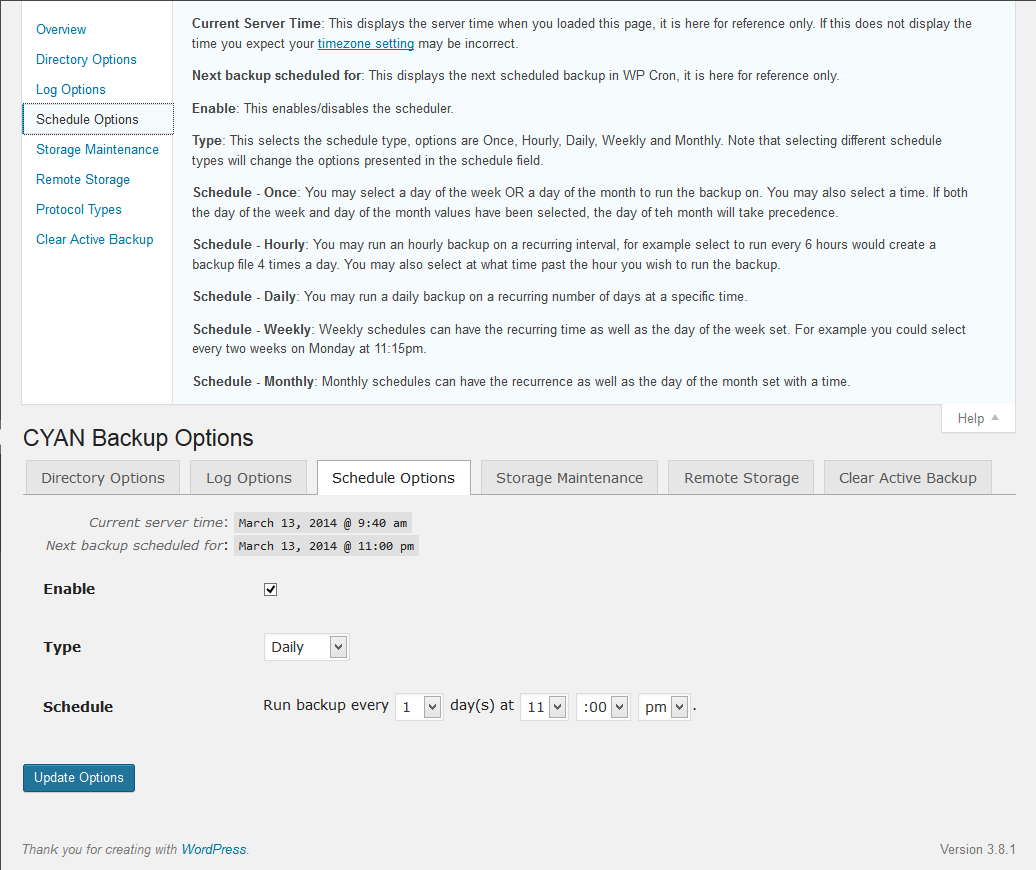
Currently support schedules are hourly, daily, weekly and monthly with intervals for each (for example you could select a schedule of every 4 hours or every 6 weeks, etc.).
PHP5 Required
Localization
CYAN Backup is fully ready to be translated in to any supported languages, if you have translated into your language, please let me know.
Usage
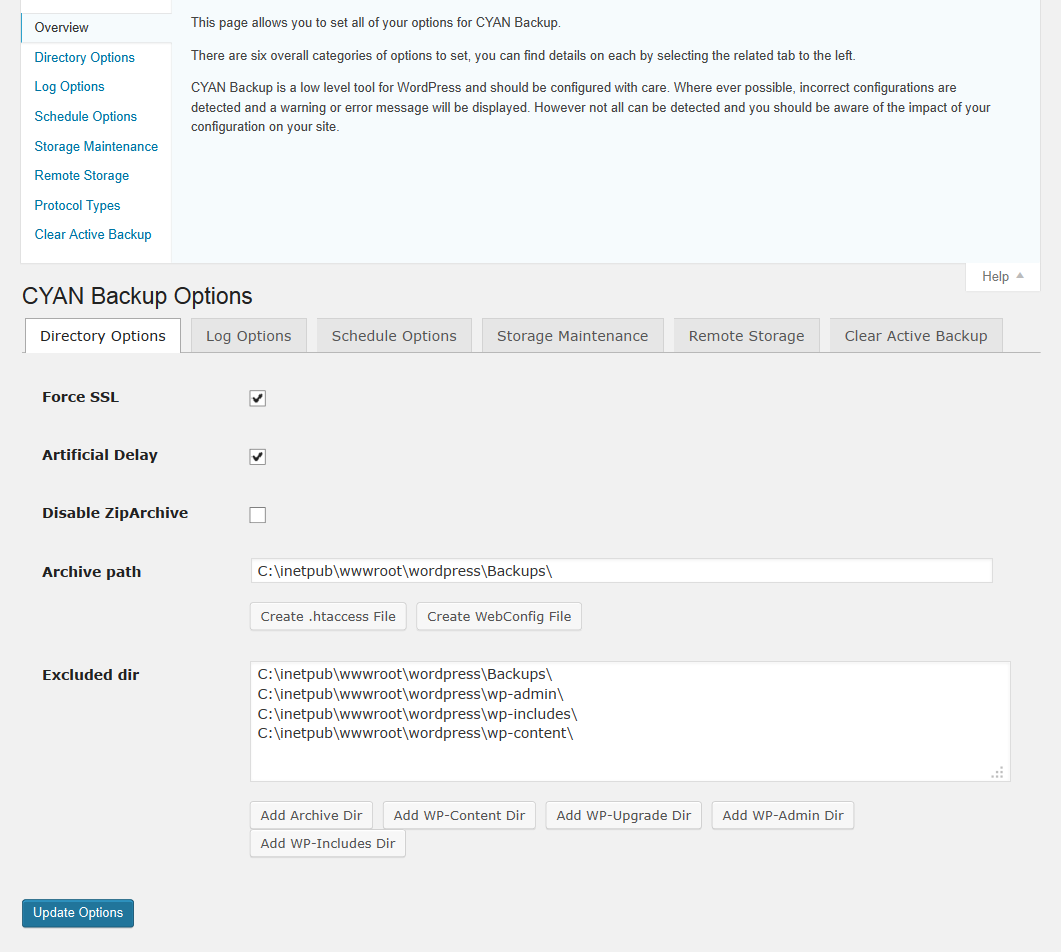
Configure the archive path which specifies the directory to store your backups to. This must be writeable by the web server but should not be accessible via the web as a hacker could guess the filename and get a copy copy of your database. If you must place the backups in a directory inside of the WordPress directory (or web server root) make sure to block extenal access via .htaccess or other means. The default path is the directory for the temp files returned by sys_get_temp_dir().
Configure the excluded paths which specify the directories you don’t want to back up. The default excluded directories are:
- wp-content/cache/ : the directory for the cache files used by WP super cache and so on.
- wp-content/tmp/ : the directory for the cache files used by DB Cache Reloaded Fix so on.
- wp-content/upgrade/ : the directory for the temp files used by the WordPress upgrade function.
If you have configured your archive path below the main WordPress directory you MUST add it to the list of excluded directories as well.
Activate and configure the scheduler if you want to backup on a regular basis. Schedule options include:
- Hourly (Backup your site every X hours, an hourly backup with an interval of 12 would run a backup twice a day).
- Daily (Backup your site every X days at a specific time.
- Weekly (Backup your site every X weeks at a specific day and time, for example every second Tuesday at 4am).
- Monthly (Backup your site every X months on a specific day and time, for example the 1st day of the month at 4am).
You can also enable auto pruning of old backups by setting the number of backup files you want to keep.
Backing up your site can take a while, you will want to ensure your PHP and webserver are configured to allow for the backup script to run long enough to complete the backup..
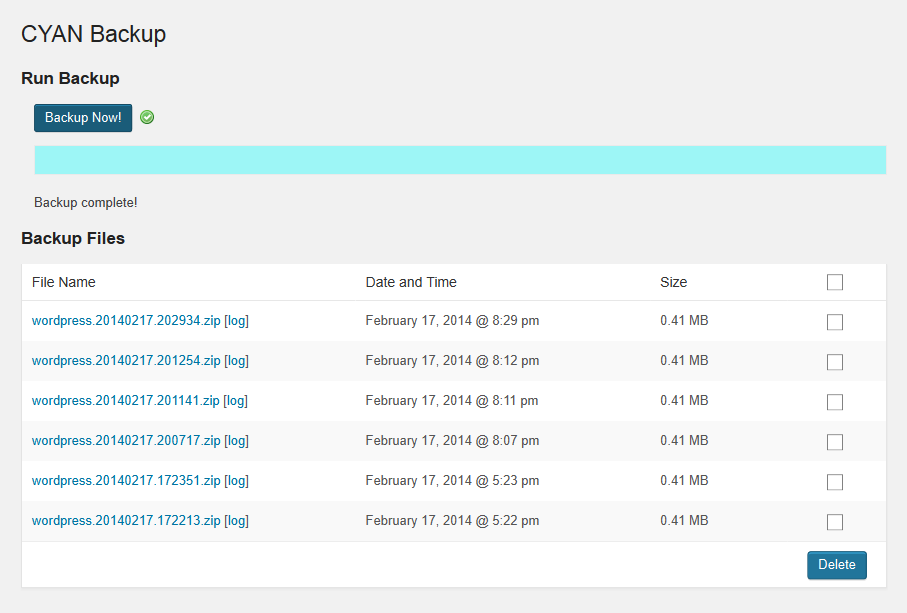
Once a backup is complete you can download the backup files from the links in Backup page. You can delete old backup files by checking one or more boxes in the backup list and then clicking the Delete button.
The backup file of DB is included in the zip file as {the directory name of WordPress}.yyyymmdd.hhmmss.sql.
Road Map
- 2.5 – Dropbox support
- 3.0 – Restore support
Installation
- Extract the archive file into your plugins directory in the cyan-backup folder.
- Activate the plugin in the Plugin options.
- Configure the options.
Frequently asked questions
The backup runs for a while and then fails, what’s wrong?
This could be many things, but the most likely issue is your site is taking a long time to backup and the web server or PHP are timing out. Make sure both have high enough time-out options set to let the backup complete.
Something has gone horrible wrong and I can no longer run a backup, what can I do?
CYAN Backup uses a status file to tell if a backup is running or not, if this file hasn’t been deleted after a backup is complete you won’t be able to run another backup for 30 minutes. If you wish to force the deletion of the file, go in to Options and check the “Clear active backup status” and save the settings. This will force the deletion of the file.
The progress bar never updates until the backup is complete.
The progress bar uses AJAX requests to the site to get the status, the backup process is pretty resource intensive, if your host cannot respond to the AJAX calls while the backup is running then you won’t see the progress bar move until it does.
I’ve selected an FTP server to send my backups to but they don’t transfer?
There are a few things to check, make sure the user name and password are correct. Make sure the host name is correct and resolvable from your web server. Make sure the user has write access to your destination path. Also the remote server MUST be on the same class ‘C’ subnet as your web server. FTP is insecure and you should not be sending files outside of the network you control. Honestly, you shouldn’t even be doing then 😉
Changelog
None at this time.
2.5.5
- Release date: November 4, 2025
- Fixed: Security issues associated with deleting backups, thanks Wordfence for the report.
- Updated: Upgrade to version 1.4.1 of php-archive.
2.5.4
- Release date: October 28, 2024
- Fixed: Only allow downloading of files from the archive directory and that are log/archive files.
2.5.3
- Release date: October 9, 2024
- Fixed: Deprecated get_currentuserinfo() warning.
- Fixed: Escape options properly.
2.5.2
- Release date: January 26, 2024
- Fixed: Fix error when settings don’t exist yet.
2.5.1
- Release date: December 2, 2023
- Fixed: Remove unused release files.
2.5
- Release date: December 2, 2023
- Fixed: Autoloader issue.
Screenshots
For developers
Is this your plugin? Show off the numbers.
Add a live badge to your site, docs or GitHub README. It updates on its own — no account needed.
Best CYAN Backup alternatives
All backup plugins →




FAQ
CYAN Backup: quick answers
Straight answers, pulled from live WordPress.org data.
Live data from WordPress.org · checked Oct 4, 2026
Is CYAN Backup free?
Yes. CYAN Backup is free to download and use from the official WordPress.org plugin directory.
Is CYAN Backup safe to use in 2026?
CYAN Backup works, but test it on a staging site before relying on it in 2026. It runs on 300+ sites, is rated 4.1/5 and was last updated 11 months ago, and scores 49/100 on our health check.
How many websites use CYAN Backup?
CYAN Backup is active on 300+ WordPress websites and has been downloaded 37,334 times since it launched in February 2014. It was downloaded 235 times in the last 30 days.
Does CYAN Backup work with WordPress 7.1?
CYAN Backup is officially tested up to WordPress 6.8.10, while the latest release is 7.1.2. It may still work, but try it on a staging site first.
When was CYAN Backup last updated?
The latest version, 2.5.5, was released on November 4, 2025 (11 months ago).
Who makes CYAN Backup?
CYAN Backup is developed and maintained by Greg Ross.
What are the best alternatives to CYAN Backup?
The most popular alternatives to CYAN Backup are All-in-One WP Migration and… (5M+ installs), UpdraftPlus: WP Backup & Mi… (4M+ installs) and Jetpack (3M+ installs).
Powered by PageForge
Want thousands of pages that rank like these? Build them in an afternoon.
This directory runs on the same engine as PageForge. Turn any spreadsheet, CSV or API into thousands of fast, SEO-ready WordPress pages — with schema, internal links and AI-written copy baked in.
- CSV, Google Sheets & API data sources
- AI content, schema & internal links per page
- Works with Elementor, Gutenberg, Yoast & Rank Math
- Free on WordPress.org — no credit card


