



Gravity Forms Personality Quiz Add-On
The Personality Quiz add-on for Gravity Forms lets you create simple, un-graded personality quizzes (think Buzzfeed-style quizzes).

Consider an alternative
Gravity Forms Personality Quiz… shows warning signs in 2026 — compare the alternatives below before installing. It runs on 500+ sites, is rated 4.8/5 and was last updated 6 years ago, and scores 33/100 on our health check.
- Small user base (500+ active installs)
- Very few reviews so far
- No update in 6 years
- Only tested up to WordPress 5.4 (latest is 7.1)
How does it stack up?
Side-by-side on installs, updates, ratings & support



Daily downloads
Download spikes usually follow a new release — each site that auto-updates counts as a download.
Rankings
Where Gravity Forms Personality Q… stands todayWordPress.org search rankings
Live position in the plugin search, top 100| Keyword | Position |
|---|---|
| gravity forms | >100 |
| quiz | >100 |
Version adoption
Share of active sites per release.
Rating breakdown
★★★★★★★★★★ 4.8 from 4 reviews
About Gravity Forms Personality Quiz Add-On
From the official readme · v1.1.0Description
The Personality Quiz add-on for Gravity Forms lets you create simple, un-scored personality quizzes (think Buzzfeed-style quizzes).
While there is an official quiz add-on for Gravity Forms, it is focused on graded quizzes like those you might take in school. This add-on lets you easily create quizzes that return a result rather than a grade, like “How Texan are you?” or “What Disney character would you be?”
In addition to setting up the logic for these quizzes, this add-on also implements the WordPress media uploader to make it incredibly simple to use images as labels for questions and answers. The add-on includes some styles to make your quizzes look good out of the box, but these can be toggled on or off for each quiz.
About the plugin
Please note the following before you create your quiz:
- This plugin is not compatible with the official Gravity Forms quiz add-on. Don’t try to use both on the same form.
- Only radio and checkbox inputs are supported.
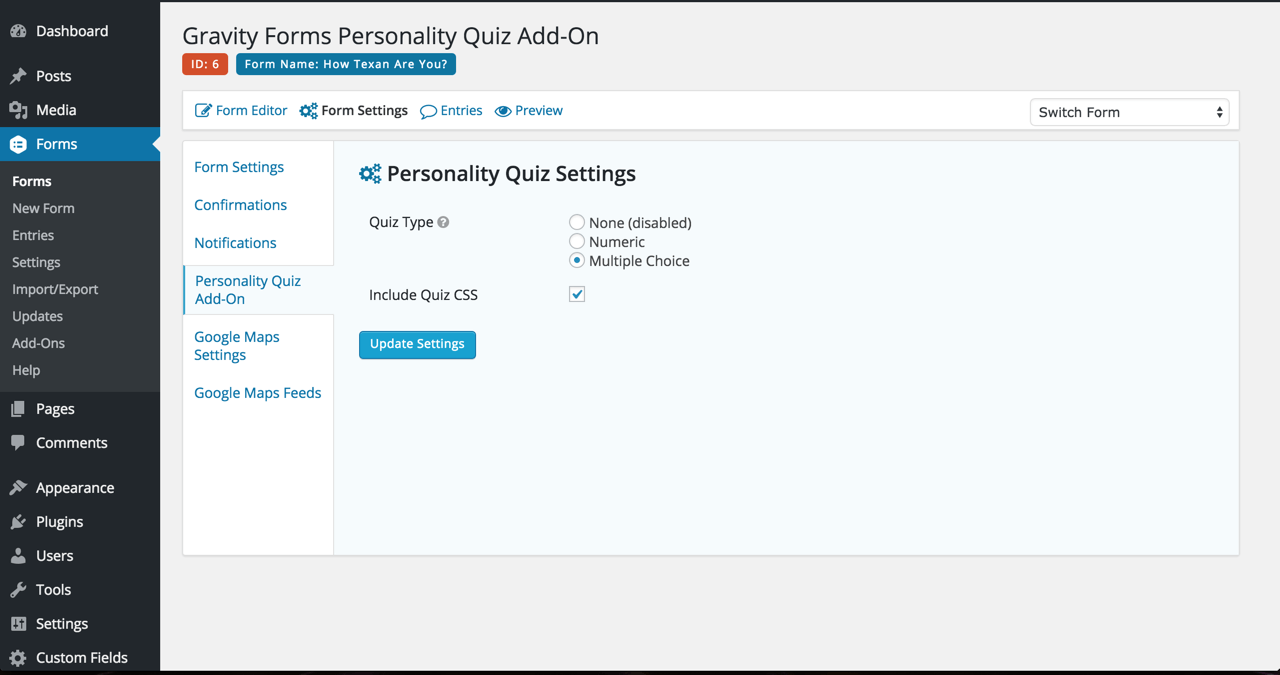
You can build two types of quizzes: numeric and multiple choice. Numeric quizzes produce a numeric result, or score, while multiple choice quizzes produce a text result.
Numeric quizzes are scored by adding numbers from the values of radio and checkbox inputs. A numeric quiz might ask “How much do you love WordPress?”, with questions containing point values based on how much the user works with WordPress.
Multiple choice quizzes will check to see which value among the inputs was selected most often by the user, and will return that value as the quiz result. Ties will be broken randomly. A multiple choice quiz might ask “Which country should you travel to next?”, where the answers to each question correspond to a country.
Numeric quizzes with multiple categories will calculate point totals like a numeric quiz, but into different categories. There is no single winner as in a “multiple choice” quiz, but simply different totals for separate categories. A multiple choice quiz might also ask “Which country should you travel to next?”, but instead of returning a single result, it will return the number of “points” you scored for each country.
Setting up your quiz
- Enable the quiz in the “Personality Quiz Settings” menu under “Form Settings”. This is where you select whether this quiz will be numeric or multiple choice.
- Set up your form fields (see details below).
Setting up form fields
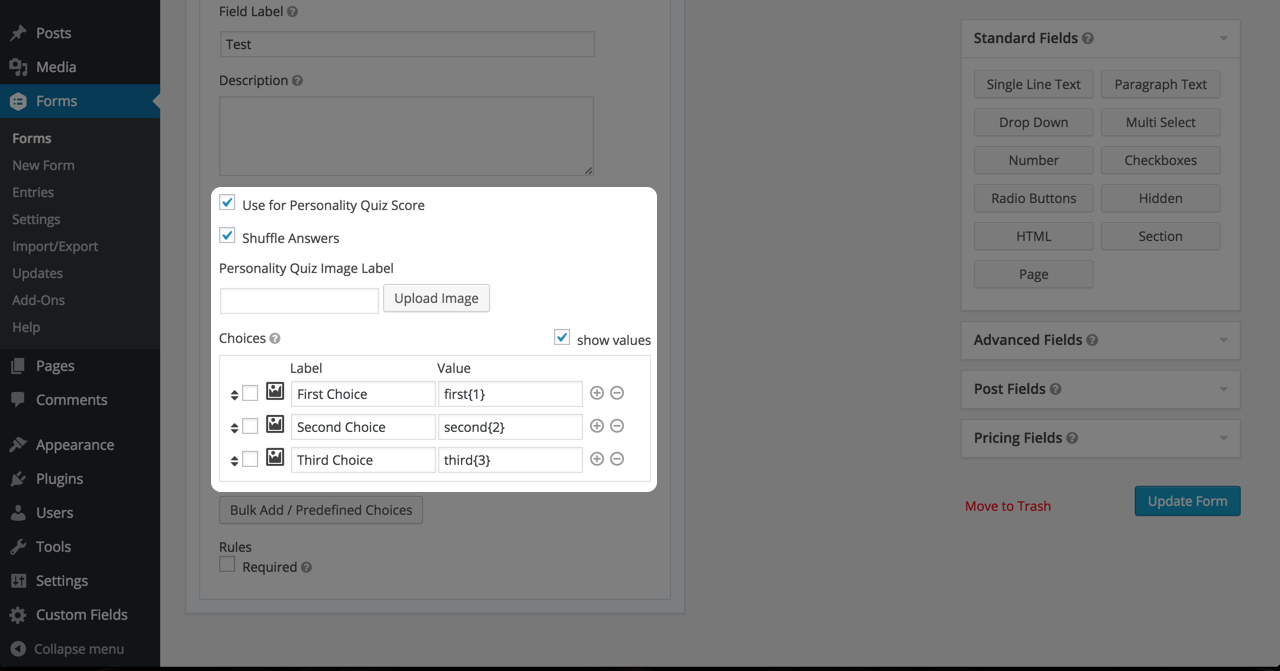
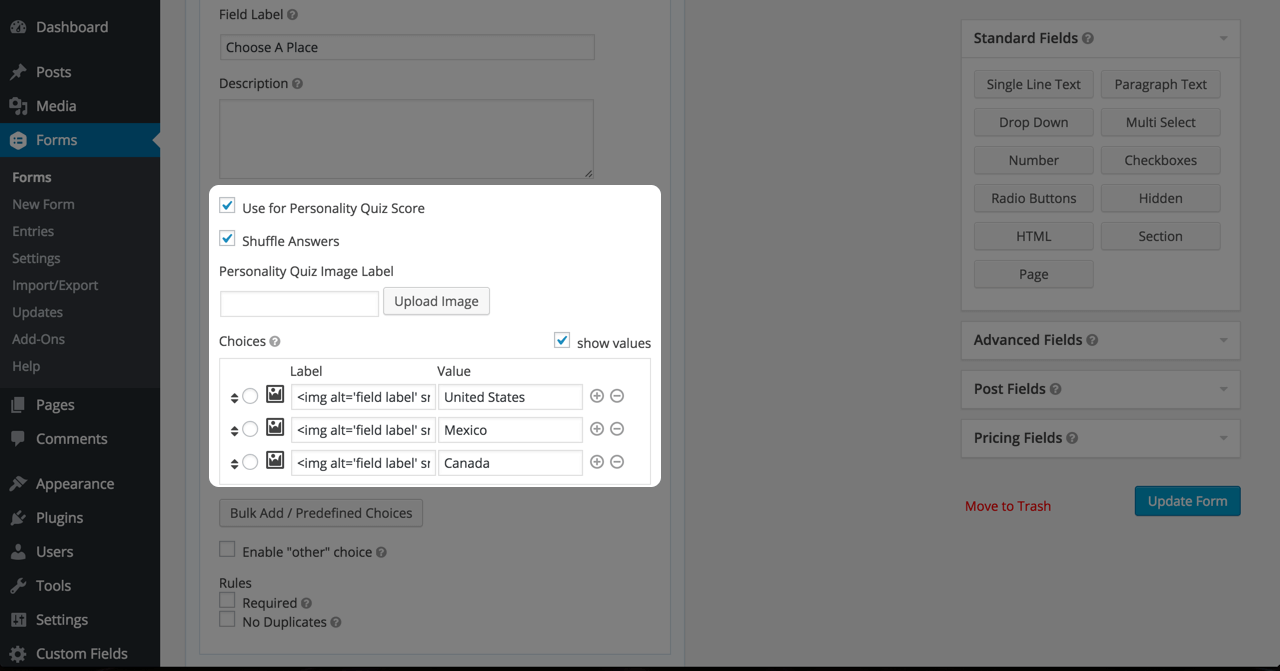
- To use a field for your quiz score, you must enable it by checking the “Use for Personality Quiz Score” checkbox.
- If you want to randomize the order of the inputs for a form field, select the “Shuffle Answers” checkbox.
- You may replace the form field label with an image by clicking upload button under the “Personality Quiz Image Label” setting.
- Each radio or checkbox input in a field can have an image label as well. Click the image icon next to the field label to insert an image into the label.
- Setting the field value is the most important step to getting your quiz to work. See below for more detail.
Numeric Values
Numeric quizzes simply add numbers to produce a total. If you don’t care about storing the results of your quiz, you can simply use integers as your input values. If you do care about the results that are stored, you can append the numeric score in curly braces to the input value, like this:
my-field-value{1}
Numeric Values – Multiple Categories
For these results, each radio/checkbox answer must use the format category-name{score}, where score is a point value. A single checkbox or radio may add points to multiple categories. See examples:
Label: Apple
Value: apple{1}
Label: Banana
Value: banana{1}
Label: Fruit Bowl
Value: apple{1},banana{1},strawberry{1}
Multiple Choice Values
Multiple choice quizzes are meant to determine which choice a user picks most often. Usually, each question in a multiple choice quiz will contain an input corresponding to each choice. A quiz to determine whether you prefer apples or oranges, for example, would have an input with the value “apple” in each question and an input with the value “orange” in question.
Quiz Styling
The add-on includes some basic, optional styles which can be enabled in the “Personality Quiz Settings” menu under “Form Settings”. To enable columns for your radio and checkbox elements, use Gravity Forms’ built-in CSS Ready Classes:
http://www.gravityhelp.com/css-ready-classes-for-gravity-forms/
Showing Quiz Result
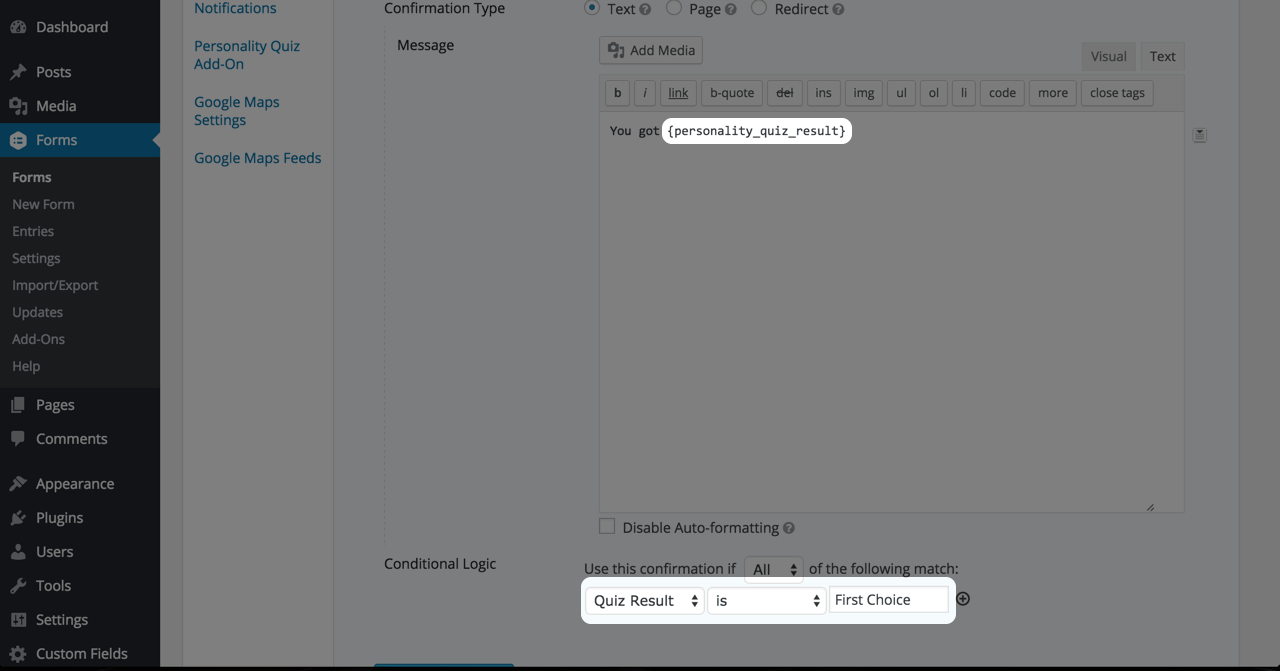
The quiz result is available in your confirmations and notifications as a merge tag. For numeric quizzes, you can also include the result percentage (calculated from the total available points in the quiz) or the result average (points per question in the quiz).
For numeric quizzes with multiple categories, you will see multiple merge tags for each category; each one with a total, percentage of total, and average.
To set up different confirmations or notifications depending on the quiz results, you will need to use Gravity Forms’ conditional logic. For numeric quizzes, you can use rules like ‘greater than’ and ‘less than’ to create confirmations based on the numeric total in the quiz result. For multiple choice quizzes, you should create one confirmation for each potential result (e.g., a confirmation for “apple” and a confirmation for “orange”).
Contributing
You can contribute to this add-on with Github:
https://github.com/dabernathy89/gravity-forms-personality-quiz-add-on
Installation
Install from the WordPress dashboard, or upload the unzipped folder to your plugins directory.
Changelog
1.1.2 – Add overall result for numeric quizzes with multiple categories
1.1.1 – Code cleanup
1.1.0 – New feature: you can use the quiz merge tags in other form fields (such as hidden fields) now. This is useful for in conjunction with add-ons that use field values for conditional logic but do not support merge tags.
1.0.0 – The plugin now registers correctly with the latest versions of WordPress and Gravity Forms. Because files are renamed in this release, the plugin will automatically deactivate upon updating. You will need to reactivate it.
0.9 – New feature: display average result for numeric quizzes (contributed by collinmanderson)
0.8 – Bug fix: allow quiz result to be exported with entries; Bug fix: field label images now work properly
0.7 – access $field as object instead of array; fixes bug in calculating score percentage of total
0.6 – improve documentation; new method for scoring to allow GF to store quiz results
0.4 – style updates: let user define columns with GF ready classes
0.3 – style update
0.2 – allow quiz answer shuffling to be toggled per question
0.1 – initial plugin
Screenshots
For developers
Is this your plugin? Show off the numbers.
Add a live badge to your site, docs or GitHub README. It updates on its own — no account needed.
Best Gravity Forms Personality Qui… alternatives
All gravity forms plugins →




FAQ
Gravity Forms Personality Quiz Add-…: quick answers
Straight answers, pulled from live WordPress.org data.
Live data from WordPress.org · checked Oct 16, 2026
Is Gravity Forms Personality Quiz… free?
Yes. Gravity Forms Personality Quiz… is free to download and use from the official WordPress.org plugin directory.
Is Gravity Forms Personality Quiz… safe to use in 2026?
Gravity Forms Personality Quiz… shows warning signs in 2026 — compare the alternatives below before installing. It runs on 500+ sites, is rated 4.8/5 and was last updated 6 years ago, and scores 33/100 on our health check.
How many websites use Gravity Forms Personality Quiz…?
Gravity Forms Personality Quiz… is active on 500+ WordPress websites and has been downloaded 22,878 times since it launched in October 2014. It was downloaded 370 times in the last 30 days.
Does Gravity Forms Personality Quiz… work with WordPress 7.1?
Gravity Forms Personality Quiz… is officially tested up to WordPress 5.4.24, while the latest release is 7.1.3. It may still work, but try it on a staging site first.
When was Gravity Forms Personality Quiz… last updated?
The latest version, 1.1.0, was released on July 17, 2020 (6 years ago).
Who makes Gravity Forms Personality Quiz…?
Gravity Forms Personality Quiz… is developed and maintained by dabernathy89.
What are the best alternatives to Gravity Forms Personality Quiz…?
The most popular alternatives to Gravity Forms Personality Quiz… are Gravity Forms Zero Spam (100K+ installs), Advanced Custom Fields: Gra… (30K+ installs) and Gravity PDF (20K+ installs).
Powered by PageForge
Want thousands of pages that rank like these? Build them in an afternoon.
This directory runs on the same engine as PageForge. Turn any spreadsheet, CSV or API into thousands of fast, SEO-ready WordPress pages — with schema, internal links and AI-written copy baked in.
- CSV, Google Sheets & API data sources
- AI content, schema & internal links per page
- Works with Elementor, Gutenberg, Yoast & Rank Math
- Free on WordPress.org — no credit card


