


ShareThis Dashboard for Google Analytics
Use Google Analytics on your WordPress site without touching any code, and view visitor reports right in your WordPress admin dashboard!

Solid choice
ShareThis Dashboard for Google… is a solid plugin choice in 2026, with a few things worth checking first. It runs on 80K+ sites, is rated 3.6/5 and was last updated 2 days ago, and scores 74/100 on our health check.
- Proven at scale on 80K+ active sites
- Actively developed — last update 2 days ago
- Tested with the latest WordPress (7.1)
How does it stack up?
Side-by-side on installs, updates, ratings & support



Daily downloads
Download spikes usually follow a new release — each site that auto-updates counts as a download.
Rankings
Where ShareThis Dashboard for Goo… stands todayWordPress.org search rankings
Live position in the plugin search, top 100| Keyword | Position |
|---|---|
| analytics | #30 |
| google analytics | #21 |
| google analytics dashboard | #13 |
| google analytics plugin | #20 |
| google analytics widget | #14 |
Version adoption
Share of active sites per release.
Rating breakdown
★★★★★★★★★★ 3.6 from 138 reviews
About ShareThis Dashboard for Google Analytics
From the official readme · v3.4.2Description
Monitor, analyze, and measure visitor engagement for your site directly from your WordPress dashboard with our Google Analytics plugin. With our Google Analytics dashboard, you’ll be able to conveniently access Google Analytics reports in the same interface you already use every day to write and manage your posts.
Unlike other plugins, there are no monthly fees or paid upgrades for this plugin. All of the features are 100% free.
GOOGLE ANALYTICS SETUP
Get started in less than 10 minutes. Installation is quick and easy, no developers required.
Simply download the plugin, log into Google, select your Google Analytics 4 (GA4) property, and it will automatically include the appropriate tracking code for you.
GOOGLE ANALYTICS DASHBOARD
Start making data-driven decisions with real time stats including:
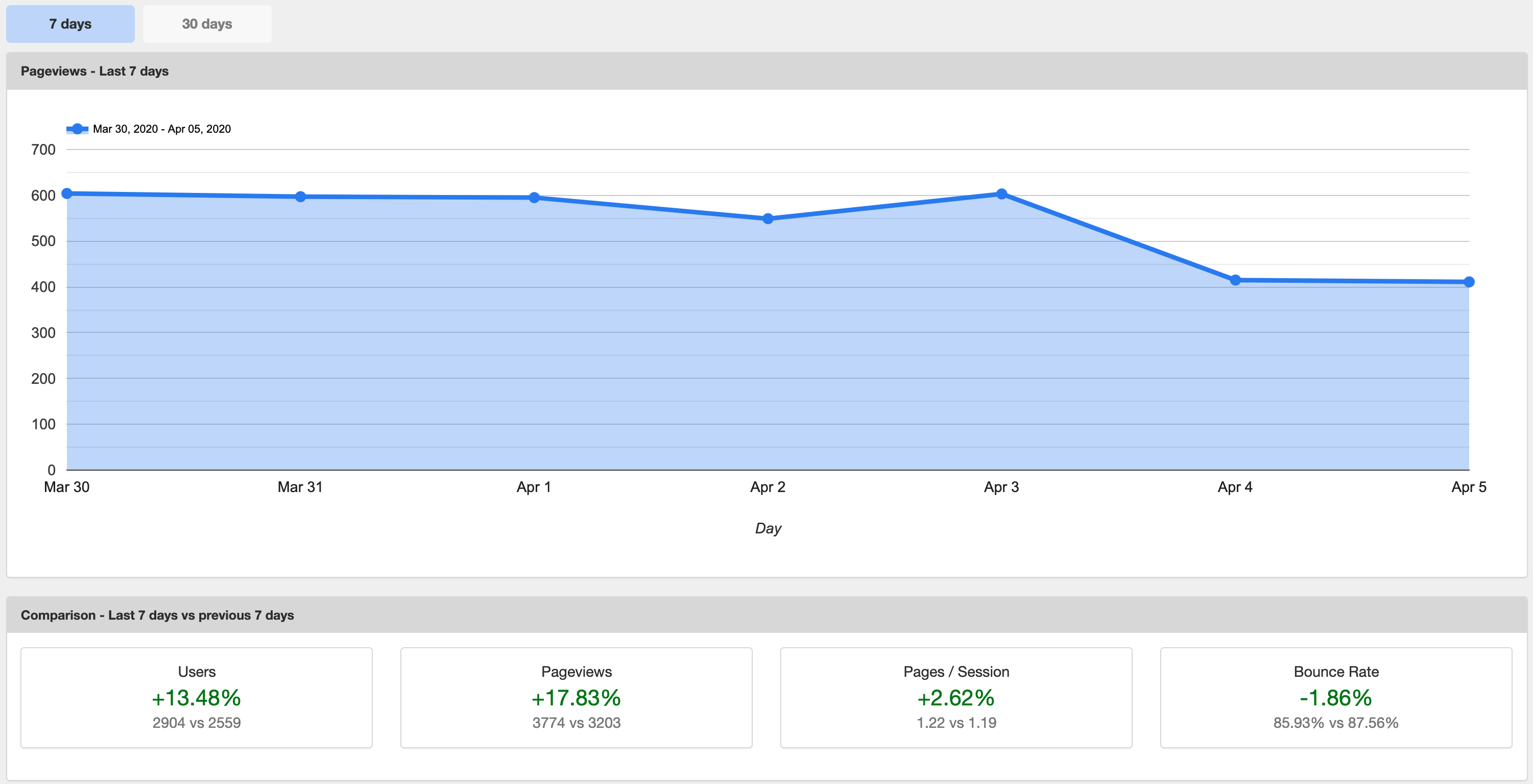
- Visitor trends – Dive deeper into your website’s page views, users, pages per session, and bounce rate for the past 7 days as compared to the previous 7 days
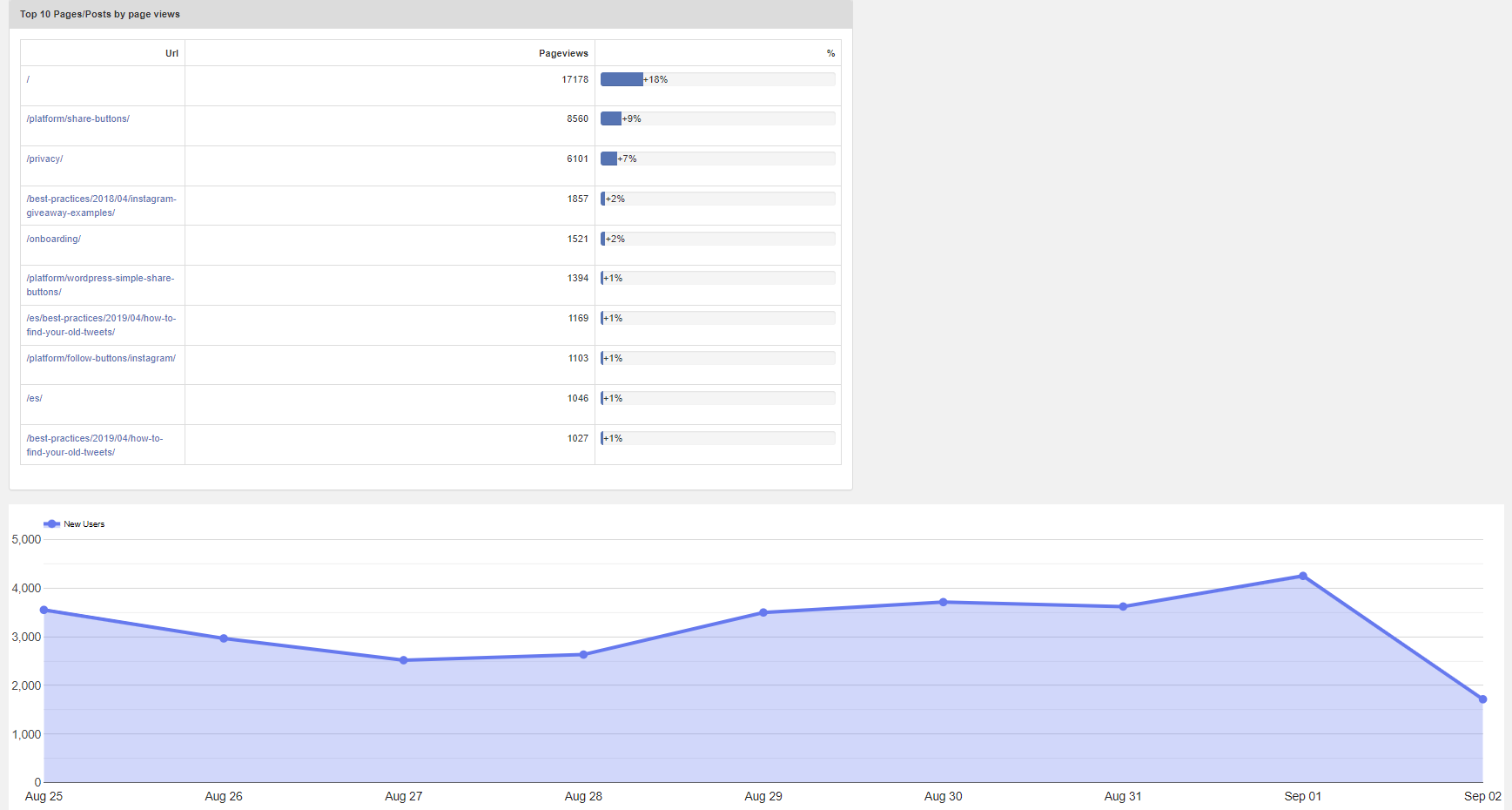
- Traffic sources – Discover which 5 traffic sources are driving the most visitors to your website
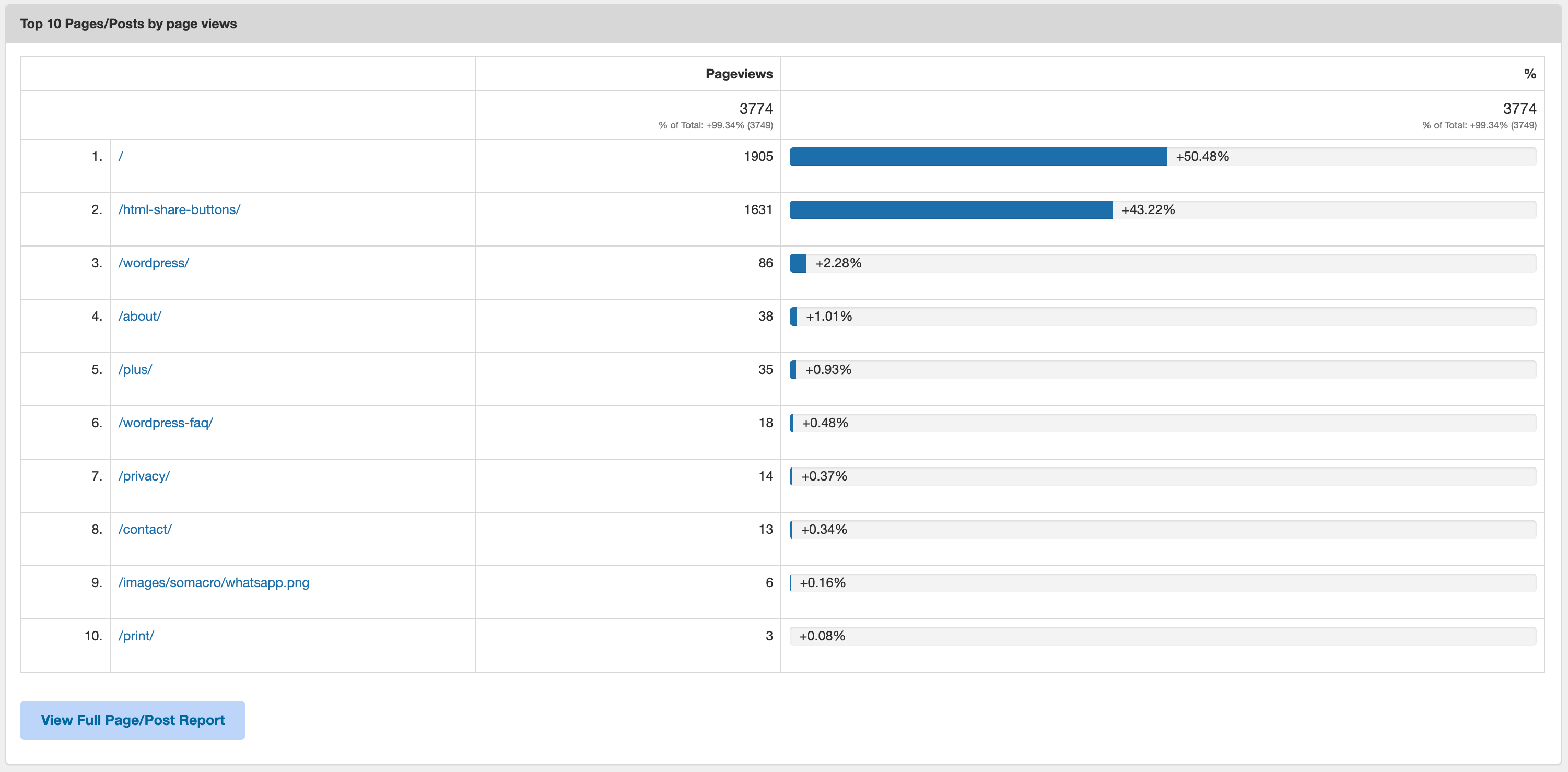
- Top pages – Stay updated on your 10 most viewed pages
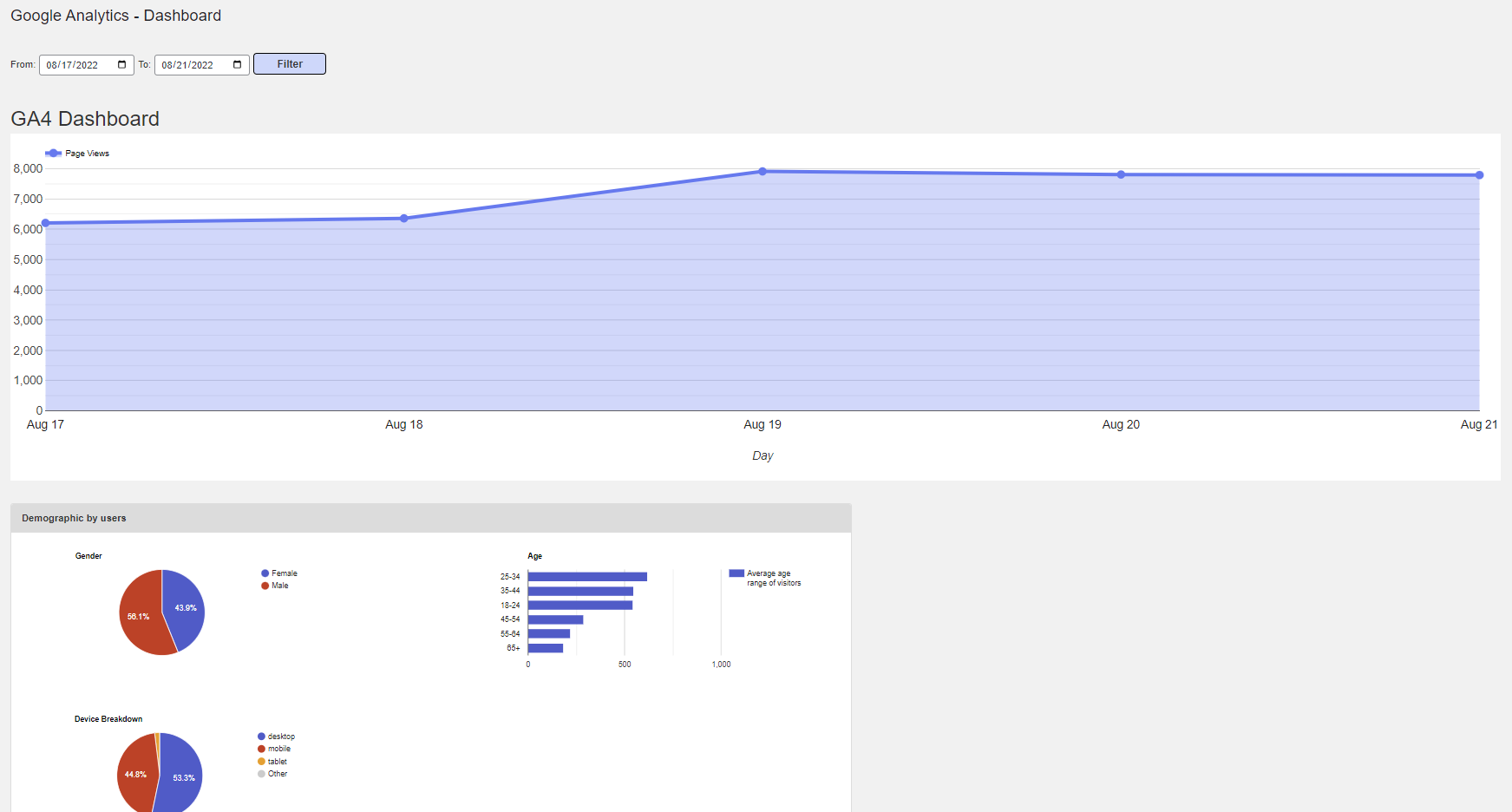
- Demographics – Get device type and gender data in your dashboard
- GDPR Compliance Tool – For EU Compliance, we’ve integrated the ShareThis GDPR Compliance Tool into our plugin.
With our mobile-optimized plugin, you’ll be able to stay informed and get actionable insights on any device. For more accurate stats, you also have the option to disable tracking for any role like Admins or Editors so your analytics represent real visitors.
If you don’t have a Google Analytics account, you can sign up for free here:
https://www.google.com/analytics/
LOOKING FOR MORE WAYS TO GROW YOUR WEBSITE?
Share buttons – Enable one-click sharing to start scaling your site traffic today.
Follow buttons – Expand your social following across 20+ social channels including Facebook, Twitter, WhatsApp, and Pinterest.
Reaction buttons – Give your audience a fun and easy way to react to your content.
SUPPORT
If you have any questions, please contact us at support@sharethis.com.
By downloading and installing this plugin, you are agreeing to the Privacy Policy and Terms of Service.
USEFUL GOOGLE ANALYTICS & SEO RESOURCES
Check out these helpful tutorials and resources for getting the most out of Google Analytics, driving more traffic to your website, and improving your WordPress website’s SEO:
- Marketer’s Guide to Google Analytics Certification
- The Ultimate SEO Checklist for Your Website in 2020
- WordPress SEO Tips: 12 Tips for Improving Your WordPress Site’s SEO
- 50 SEO Tips & Best Practices to Boost Search Visibility
- 6 tips to write blog content that ranks
- 10 ways to increase traffic to your website
- What are Backlinks? A Helpful Guide for Link-Building Beginners
- How negative SEO ruin good sites — and how to keep your site lookin’ great
- How to strategically use share buttons to increase engagement and SEO
Installation
- Install Google Analytics either via WordPress.org plugin repository or directly by uploading the files to your server
- Activate the plugin through the Plugins menu in your WordPress dashboard
- Navigate to Google Analytics in the WordPress sidebar
- Authenticate via Google, copy and paste the access code and choose your property from the dropdown. You can also add the web property ID from Google Analytics manually but dashboards won’t show up in this case.
- When any of your content takes off you will see the URLs inside the Trending Content section
Frequently asked questions
Why Do I Need Google Analytics for My WordPress Website?
Google Analytics is a powerful tool for monitoring website performance. With Google Analytics, you’ll gain insights such as what geographic areas your visitors are coming from, what channels led them to your website (paid search, social, organic, etc.), what devices they use to browse your site, and what other websites are sending visitors to your site. But Google Analytics does much more than simply show you how visitors are finding your website. Once visitors land on your site, Google Analytics can show you what pages they visit, how much time they spend on each page, what links they click…
How Do I Use Google Analytics on WordPress?
Using Google Analytics on your WordPress website is a must for monitoring your website’s traffic and gaining valuable visitor insights. There are two ways to use Google Analytics on WordPress: Manually adding the Google Analytics tracking code to your header.php file Installing the Google Analytics Dashboard for WordPress plugin and setting up tracking in a few simple steps While some publishers prefer the manual option, installing the Google Analytics Dashboard for WordPress plugin not only makes it easier to configure Google Analytics for your WordPress website by authenticating via Google…
Do I Need to Put Google Analytics Tracking Code on Every Page?
Google Analytics tracking code is a block of JavaScript code that executes Google Analytics tracking when a visitor loads a page on your website. The script that triggers these events must be loaded on every page in order for Google Analytics tracking to work. That doesn’t mean you need to become an expert in JavaScript code or spend hours manually inserting Google Analytics tracking code on every page of your WordPress website. You can insert the tracking code in your header.php file so that it automatically loads on every page, or you can install the Google Analytics Dashboard for WordPress…
How Do I Use Google Analytics for SEO?
There are many ways to leverage Google Analytics to improve your WordPress website’s SEO. SEO, or search engine optimization, is the practice of tracking and analyzing website data to improve organic traffic. But tracking traffic and other website metrics alone doesn’t magically improve your SEO. Here are a few ways to leverage all the valuable Google Analytics data to improve your WordPress website’s SEO, start improving your search engine rankings, and growing your website traffic organically: Set up goals and track conversions to monitor performance. If you’re trying to grow your email…
How Do I Stay Compliant with GDPR When Using Google Analytics?
When the General Data Protection Regulation (GDPR) was first introduced, website publishers everywhere were fraught with anxiety about what it would mean for their businesses and overwhelmed with the steps they needed to take to ensure compliance. If you’re running third-party tools on your website, such as share buttons and follow buttons or Google Analytics, these tools are likely collecting information about your website visitors – and that means you’re on the hook for GDPR compliance, especially if you get visitors from the EU. Fortunately, a number of useful compliance tools emerged to…
What is GA4?
Google Analytics 4 (GA4) is the current version of Google’s analytics platform and the only version supported going forward. GA4 property IDs look like G-XXXXXXX. GA4 lets you track both websites and apps under one account, adds many new reporting features, and provides deeper insights into how users interact with your content. Our plugin connects directly to your GA4 property so you can view these insights right inside your WordPress dashboard.
How do I set up GA4 with this plugin?
Setting up a GA4 property is quick and easy. Once you’ve installed the plugin, authenticate with Google through your WordPress admin, and select your GA4 property from the dropdown. The plugin adds the correct GA4 tracking code to your site automatically and starts surfacing your dashboards. If you don’t have a GA4 property yet, you can create one for free in your Google Analytics account and connect it in just a few clicks.
I was using Universal Analytics before — what do I do now?
Universal Analytics (UA-XXXXXXX properties) has been fully retired by Google and no longer collects or processes data. To keep tracking your site, connect a GA4 property using the setup steps above. Your historical Universal Analytics data remains in your Google Analytics account for as long as Google makes it available, but all new tracking and reporting in this plugin runs entirely on GA4.
Changelog
3.4.2
- Fix fatal error on PHP 8 (
count(): Argument #1 ($value) must be of type Countable|array, string given) when reading the selected Google Analytics account, which is stored as a JSON string. - Harden account ID lookup against malformed or empty selected-account data.
3.4.1
- Tested in wp 7.1
3.4.0
- Fix empty property list on sign in by fetching accounts and GA4 properties directly from the Google Analytics Admin API (accountSummaries) instead of the retired Universal Analytics Management API.
- Save the selected GA4 property correctly from the settings page property selector.
- Surface Google Analytics API errors (expired token, missing scope) on the settings page instead of showing an empty property list.
- Validate the GA4 property format before saving so invalid selections can’t reach the reporting API.
- Automatically clear stale Universal Analytics view IDs on upgrade for installs already using GA4.
- Remove legacy Universal Analytics logic from property discovery and the settings UI.
- Update readme and FAQs to focus on GA4.
3.3.2
- WP ver test.
3.3.1
- Fix redirect issue for signin.
3.3.0
- Text domain fixes.
- Update license to readme.
- Security escape output fixes.
- Tested to 6.9.
- absolute exit.
Screenshots



For developers
Is this your plugin? Show off the numbers.
Add a live badge to your site, docs or GitHub README. It updates on its own — no account needed.
Best ShareThis Dashboard for Googl… alternatives
All analytics plugins →




FAQ
ShareThis Dashboard for Google Anal…: quick answers
Straight answers, pulled from live WordPress.org data.
Live data from WordPress.org · checked Sep 26, 2026
Is ShareThis Dashboard for Google… free?
Yes. ShareThis Dashboard for Google… is free to download and use from the official WordPress.org plugin directory.
Is ShareThis Dashboard for Google… safe to use in 2026?
ShareThis Dashboard for Google… is a solid plugin choice in 2026, with a few things worth checking first. It runs on 80K+ sites, is rated 3.6/5 and was last updated 2 days ago, and scores 74/100 on our health check.
How many websites use ShareThis Dashboard for Google…?
ShareThis Dashboard for Google… is active on 80K+ WordPress websites and has been downloaded 6,504,791 times since it launched in June 2009. It was downloaded 31,738 times in the last 30 days.
Does ShareThis Dashboard for Google… work with WordPress 7.1?
Yes. The developer has tested ShareThis Dashboard for Google… up to WordPress 7.1.2, the latest release. It requires WordPress 5.5 or newer.
When was ShareThis Dashboard for Google… last updated?
The latest version, 3.4.2, was released on September 24, 2026 (2 days ago).
Who makes ShareThis Dashboard for Google…?
ShareThis Dashboard for Google… is developed and maintained by ShareThis.
What are the best alternatives to ShareThis Dashboard for Google…?
The most popular alternatives to ShareThis Dashboard for Google… are Site Kit by Google (5M+ installs), MonsterInsights (2M+ installs) and WP Statistics (600K+ installs).
Powered by PageForge
Want thousands of pages that rank like these? Build them in an afternoon.
This directory runs on the same engine as PageForge. Turn any spreadsheet, CSV or API into thousands of fast, SEO-ready WordPress pages — with schema, internal links and AI-written copy baked in.
- CSV, Google Sheets & API data sources
- AI content, schema & internal links per page
- Works with Elementor, Gutenberg, Yoast & Rank Math
- Free on WordPress.org — no credit card


