



DMC Promo Banner – Sale Notifications & Announcement Bar
Display a notification, announcement, sale banner or promotion using the top bar, bottom bar, widget, shortcode or WooCommerce product integration

Solid choice
DMC Promo Banner is a solid plugin choice in 2026, with a few things worth checking first. It runs on 100+ sites, is rated 5/5 and was last updated 2 months ago, and scores 71/100 on our health check.
- Tested with the latest WordPress (7.1)
- Small user base (100+ active installs)
- Very few reviews so far
How does it stack up?
Side-by-side on installs, updates, ratings & support


Daily downloads
Download spikes usually follow a new release — each site that auto-updates counts as a download.
Rankings
Where DMC Promo Banner stands todayWordPress.org search rankings
Live position in the plugin search, top 100| Keyword | Position |
|---|---|
| banner | #33 |
| notification bar | #37 |
| promo | #5 |
| sale | #25 |
| woocommerce | >100 |
Version adoption
Share of active sites per release.
Rating breakdown
★★★★★★★★★★ 5 from 1 reviews
About DMC Promo Banner
From the official readme · v1.2.10Description
Plugin page | Live demo | Documentation | Support
DMC Promo Banner is the easiest way to add promotional banners, announcements, messages, informational notices, notifications, advertising promotions, and special offers to your site.
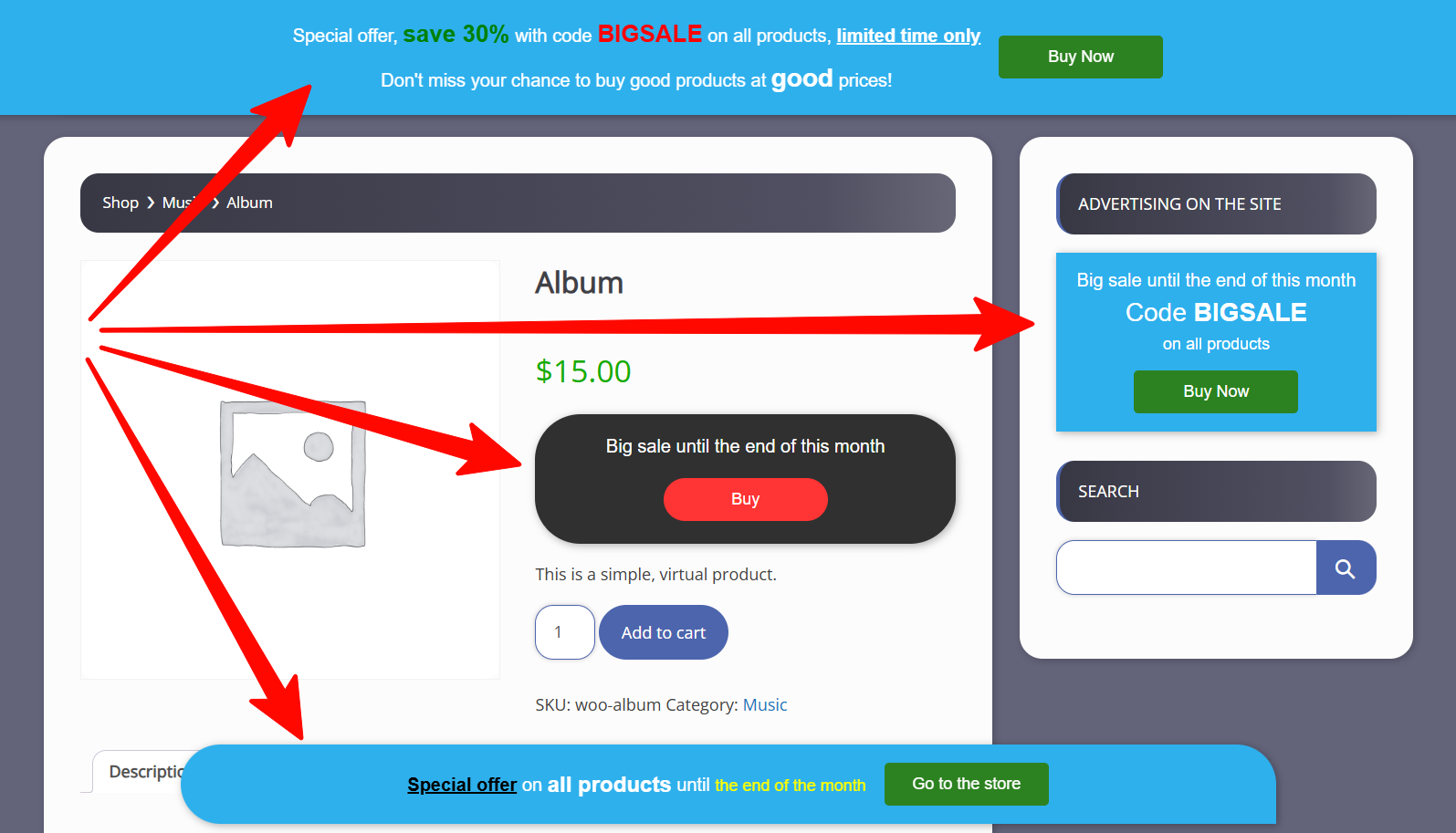
DMC Promo Banner displays eye-catching banners with text and a button. You can place the universal banner in the header or footer, on WooCommerce pages, or insert it via a widget or shortcode. Choose a ready-made banner design, add your text, and customize the action button.
The premium version includes a countdown timer to create a sense of urgency (FOMO). You can also schedule the banner to appear or disappear automatically based on a timer.
DMC Promo Banner is great for boosting sales through discount promotions, special offers, and FOMO marketing.
You can set up 5 separate banners
- Top sticky banner (Top Bar)
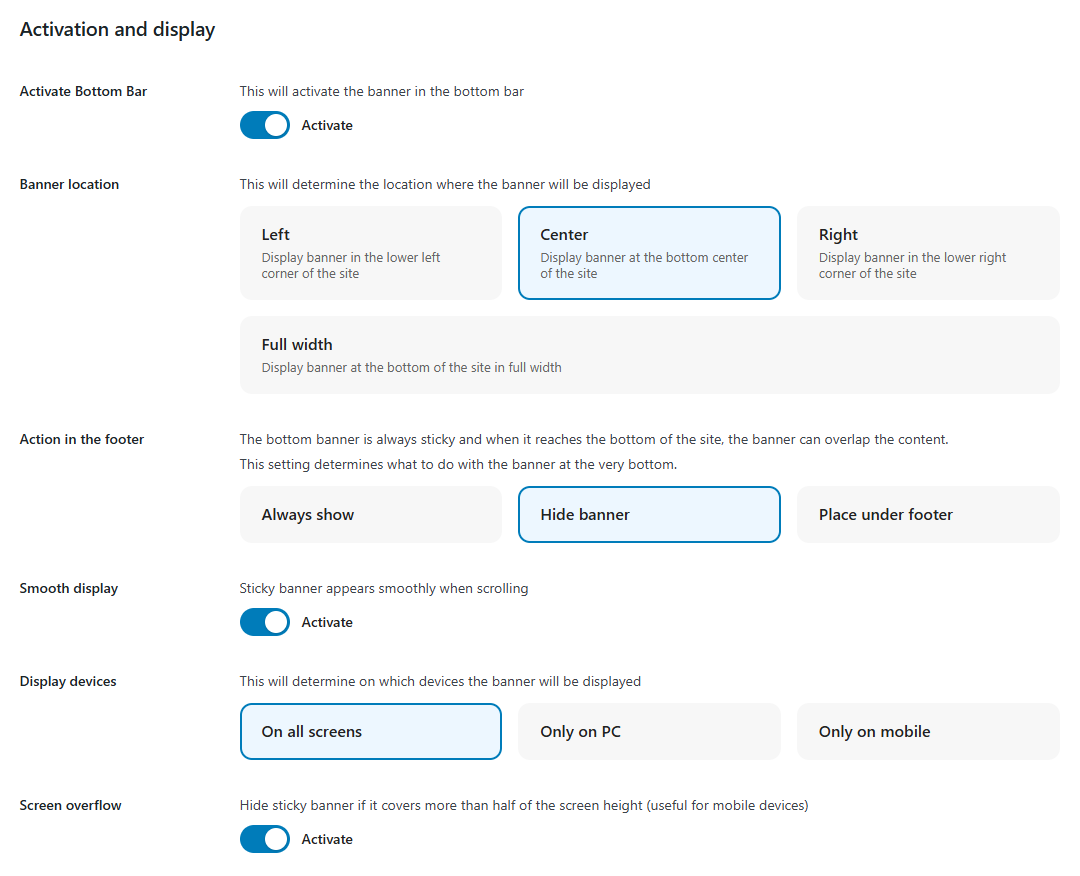
- Bottom sticky banner (Bottom Bar)
- Banner via shortcode
- Banner via widget
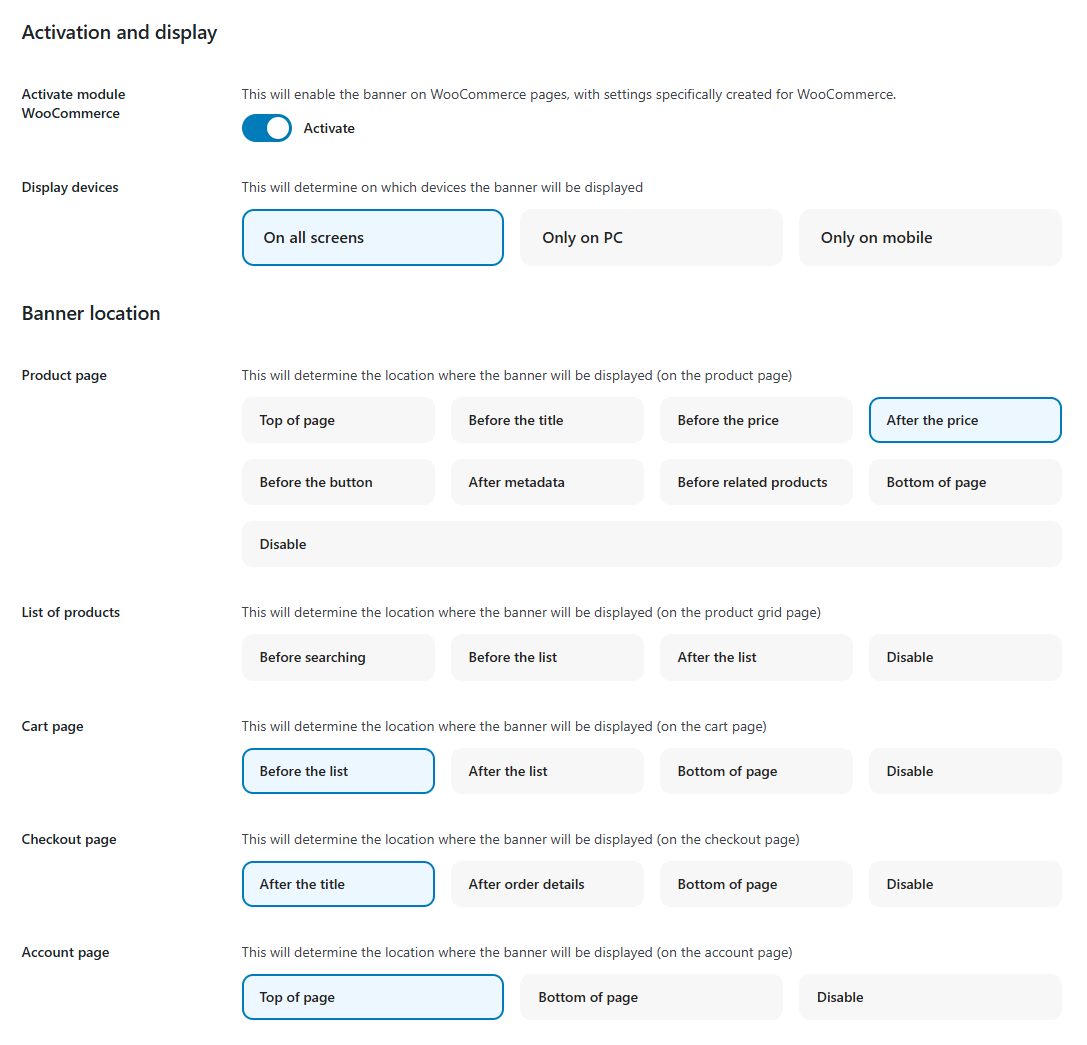
- Banner for WooCommerce
Top bar is displayed on all pages of the site and can be set as sticky when scrolling.
Bottom bar is also displayed on all pages. It is always sticky and its position can be customized (left, right, center, or full width).
Widget allows you to display a sales or notification banner in your sidebars.
Shortcode lets you insert a sale banner into any text editor — for example, in posts, pages, category descriptions, products, and more.
Special WooCommerce module allows you to choose the placement of the advertising banner on the product page. You can also set its placement on the product list page, cart page, order page, and user account page.
What else can be customized?
- Display options (desktop, mobile, or both)
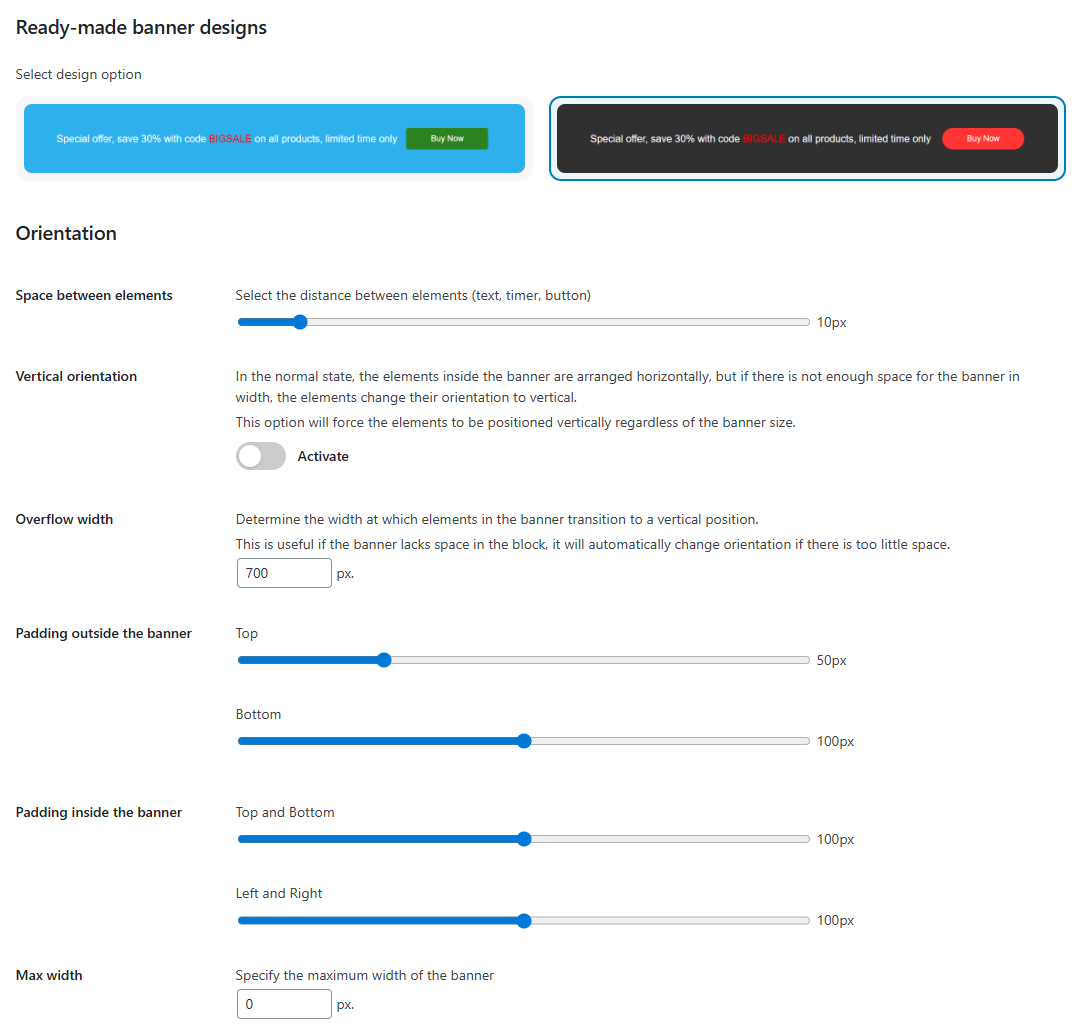
- Choice of ready-made designs
- Background image
- Rounding banner corners
- Limiting banner width
- Adding margins and padding
- Vertical or horizontal orientation
- Text editor for text (color and size changes included)
- Adding an action button
- Adding a close button (for the top and bottom bar)
The premium version includes
- Visual countdown timer
- Turn on and off by timer
- 20 additional designs
- Changing the order of elements (text, timer, button)
- Selecting fonts (40 handpicked google fonts)
- Changing the banner background color
- Selecting color for timer and button
- Selecting size for timer and button
- Button action on product page
- Flexible selection of pages for banner display
- Flexible selection of WooCommerce pages for banner
Peculiarities
- Easy to use, no coding required
- Translated into 20+ languages
- Flexible and functional settings
- Fully responsive on all mobile devices
- SEO-optimized with proper headings and markup
- Clean code, no frameworks, minimal scripts
- High level of compatibility with any plugins and themes
- Extended compatibility with WooCommerce
- Tested with Elementor, Yoast SEO, Rank Math SEO, All in One SEO Pack, Jetpack, BuddyPress, bbPress, Events Calendar, and more
Examples of use
- Using the top bar, publish a notification for store visitors – Our store will open soon
- Using the bottom bar, write a message for customers – Big sale starting soon
- Using WooCommerce pages, display a promotion – Get 20% off when purchasing this product
- Using a shortcode, leave a information for users – This section is temporarily closed for moderation
- Using a widget, place an announcement for website visitors – Content manager required for the news section
Support
If you have any difficulties, please contact our technical support for the DMC Promo Banner plugin, and we will definitely help you.
Installation
Installation
- Go to your WordPress website admin panel
- Select Plugins > Add New
- Search for “DMC Promo Banner – Sale Notifications & Announcement Bar”
- Click Install
- Activate the plugin
- WP panel > DMC Banner
Usage
Frequently asked questions
Can I use the DMC Promo Banner plugin for free?
Yes, the DMC Promo Banner plugin is a fully functional free version with extensive functionality. The free version includes all the essential features, such as filling in promotional text, customizing the banner button, and setting indents and width restrictions. The premium version adds more advanced functionality, such as a countdown timer to create a lost profit effect (FOMO), automatic activation of a banner with a timer promo, automatic shutdown of the banner at the end of the advertising sale by timer, more customization of the banner design, as well as a flexible selection of pages for…
I am a beginner, can I use the plugin without much technical knowledge?
The “DMC Promo Banner” plugin settings are simple and straightforward, the sections are logically and conveniently laid out, and most banner creation settings are well-described. All this simplifies the creation and customization of a banner with notifications, messages, announcements, promotions, or special offers, and does not require any technical knowledge.
How quickly can I set up and display an informational message or announcement to users?
Immediately after installing the “DMC Promo Banner” plugin, an informational banner with a button will appear in the top bar of your website. In the settings, enter the banner text, and your message to site users will be ready. If necessary, you can disable the button in the banner. You can also select a pre-designed banner with one click to give your informational message or announcement a personalized look. You can also display the announcement in the footer bar, sidebar, insert it into any content using a shortcode, or display the banner on WooCommerce pages. To do this, use the separate…
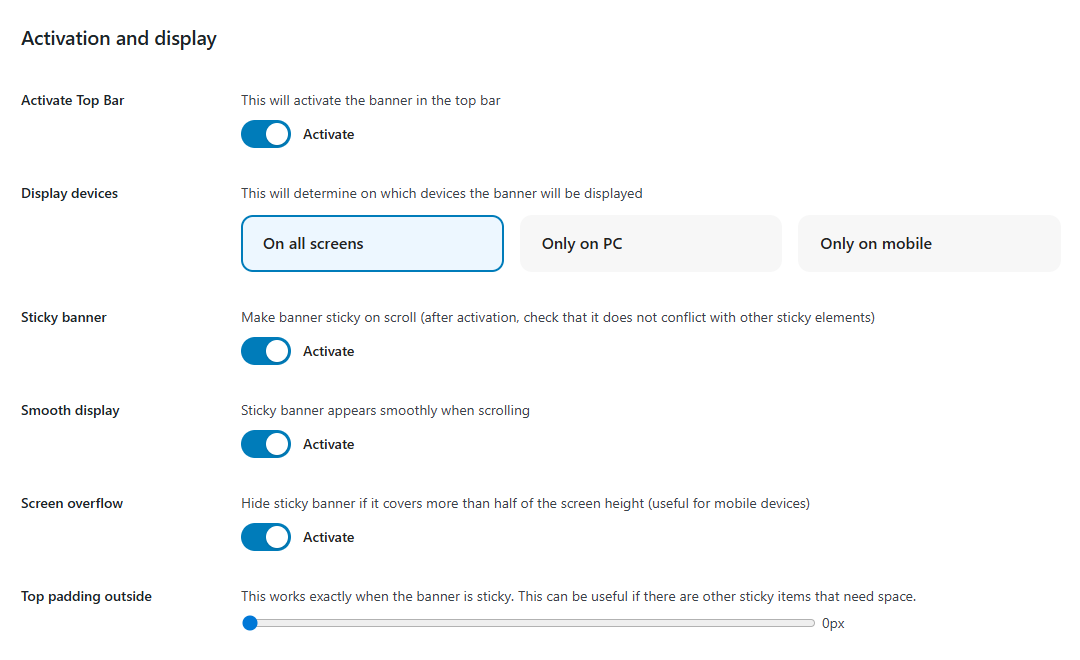
Can I make a banner sticky?
You can make the banner sticky in the top panel and bottom panel. The banner in the bottom bar is always sticky. Just activate the “Bottom Bar” module and the banner with your notification will immediately become sticky. To make a banner sticky for the top bar, go to the “Top Bar” tab and activate the “Sticky Banner” setting. Check out the sticky banner settings, which allow you to make your message, announcement, or notification sticky while still providing a good user experience. This is a “Smooth display” feature that allows you to create a smooth transition for the top banner before it…
How many announcement banners can I publish?
You can create up to 5 individually customized banners with separate announcements: Top Bar, Bottom Bar, Shortcode, Widget, and WooCommerce. But a banner placed using the Shortcode and Widget modules can be repeated. How does it work? For example, in the “Widget” module, you enter the announcement text and choose the banner design. Next, you add a widget to display the announcement in the sidebar and another widget in the footer. As a result, the same announcement text and banner design will be displayed both in the sidebar and in the footer.
Can I repeat banners with messages?
You can only repeat banners with messages using widgets and shortcodes. In other modules, you can display only one banner with messages per page. If you repeat a banner using a widget or shortcode, the same banner with a message will be displayed.
How to create a selling banner in the sidebar?
Go to Appearance – Widgets and add the “DMC Promo Banner” widget. Go to the plugin settings, go to the Widget tab and activate the module. In the “Filling the banner” section, fill in the text describing your promotion or sale with incentives to increase sales. Add an action button and provide a link to your special offer. If you have a premium version, add a countdown timer to encourage customers to purchase your product. A sales banner with a promotion or sale will appear in the sidebar where you added the widget.
How do I insert an informational message into a page or post?
To add an informational message to a page or post, go to the settings and use the “Shortcode” tab. Activate the module, fill out the information message and select the banner design. Go to the editor of the desired page or post, add the shortcode [dmcwzsb-sc-banner] to any block on the page, and click “Save”. If you have the block editor enabled, you may need to add the Shortcode widget to insert this shortcode. A banner with an informational message will be displayed on the front of the page or post.
How to insert a banner with a timer and special offer on a WooCommerce product page?
To insert a banner with a special offer and a button, activate the WooCommerce module in the “WooCommerce” tab. Add your own text for a special offer, sale, promotion, or any selling text. After this, your banner with the special offer promotional message will be displayed on all WooCommerce pages. To add a timer to the banner (with a countdown for the FOMO effect), you need the premium version of the “DMC Promo Banner” plugin.
How easy is it to set up a sale banner for my promotion?
After activating the “DMC Promo Banner” plugin, it immediately starts displaying a banner with the sale in the top bar. You can also easily display a sale banner in the footer bar, on WooCommerce pages, insert it using a shortcode, or add it to the sidebar. Simply fill in the text in the “Filling the banner” section and enter a link in the banner button that leads to your sale. If you have a premium version, you can add a countdown timer to your banner with a FOMO effect, which will significantly increase the conversion rate of your sale and promotion.
How to make a promo banner with countdown timer?
To create a promo banner with timer, you need the premium version of the DMC Promo Banner plugin. Go to any module – Top Bar, Bottom Bar, Shortcode, Widget, WooCommerce, in which you want to display a promo banner with countdown timer. Fill in the text informing about the promotion, as well as the button in the banner that leads to this promo. Go to the “Timer” section and set the promotion start and end times. Also, enable the “Show timer visually” setting. After this, a banner with a countdown timer and a button will appear on the front side of the site, announcing your promotion and…
How to create a header notification bar with a discount code?
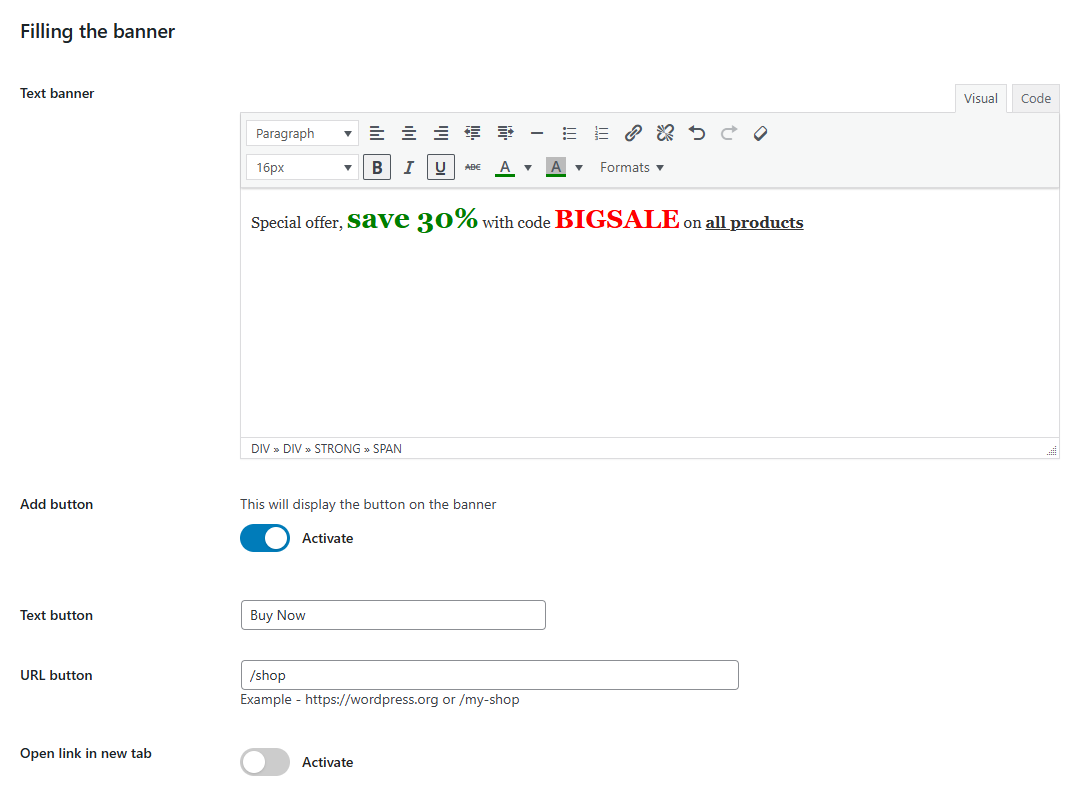
To create a header banner with a discount code, activate the module in the Top Bar tab, scroll to the Banner Content section, and add your promotional text. In the text, include your discount code and highlight it in bold or with a bright color. After saving, the promo bar with the discount code will appear on the front end of the website. To keep the promo bar visible, enable the sticky promo bar. A floating promo bar is great for increasing the visibility of the discount banner and driving sales.
Changelog
1.2.10
- Improvements: Tested and optimized for WordPress 7.1
1.2.9
- Improvements: Tested and optimized for WordPress 7.0
- Fixes: Fixed some incorrect button styles in the admin panel
1.2.8
- Fixes: Fixed a style conflict when working with the Elementor plugin for the Close button
1.2.7
- New: Added the ability to set a close button for the top and bottom banners (top bar and bottom bar)
- New: Added a setting for the close button, allowing “Allow closing forever,” “Close for a certain time,” or “Close every time”
- New: Added a setting for specifying the time the banner will be closed
- New: Added a setting for changing the size of the banner close button
- New: Added a setting for changing the opacity of the banner close button
1.2.6
- Improvements: Tested and optimized for WordPress 6.9
- Fixes: Fixed an issue where the “Prevent content hiding” setting for the bottom bar affected other banners
1.2.5
- Improvements: Changing the plugin name and description
Screenshots
For developers
Is this your plugin? Show off the numbers.
Add a live badge to your site, docs or GitHub README. It updates on its own — no account needed.
Best DMC Promo Banner alternatives
All banner plugins →




FAQ
DMC Promo Banner: quick answers
Straight answers, pulled from live WordPress.org data.
Live data from WordPress.org · checked Oct 5, 2026
Is DMC Promo Banner free?
Yes. DMC Promo Banner is free to download and use from the official WordPress.org plugin directory.
Is DMC Promo Banner safe to use in 2026?
DMC Promo Banner is a solid plugin choice in 2026, with a few things worth checking first. It runs on 100+ sites, is rated 5/5 and was last updated 2 months ago, and scores 71/100 on our health check.
How many websites use DMC Promo Banner?
DMC Promo Banner is active on 100+ WordPress websites and has been downloaded 2,449 times since it launched in September 2025. It was downloaded 174 times in the last 30 days.
Does DMC Promo Banner work with WordPress 7.1?
Yes. The developer has tested DMC Promo Banner up to WordPress 7.1.2, the latest release. It requires WordPress 6.0 or newer.
What PHP version does DMC Promo Banner need?
DMC Promo Banner requires PHP 7.1 or higher. Most hosts run PHP 8.x today, so it works on any modern WordPress hosting.
When was DMC Promo Banner last updated?
The latest version, 1.2.10, was released on August 20, 2026 (2 months ago).
Who makes DMC Promo Banner?
DMC Promo Banner is developed and maintained by DMC.
What are the best alternatives to DMC Promo Banner?
The most popular alternatives to DMC Promo Banner are CookieAdmin (400K+ installs), Image Widget (100K+ installs) and Simple Banner (50K+ installs).
Powered by PageForge
Want thousands of pages that rank like these? Build them in an afternoon.
This directory runs on the same engine as PageForge. Turn any spreadsheet, CSV or API into thousands of fast, SEO-ready WordPress pages — with schema, internal links and AI-written copy baked in.
- CSV, Google Sheets & API data sources
- AI content, schema & internal links per page
- Works with Elementor, Gutenberg, Yoast & Rank Math
- Free on WordPress.org — no credit card


