



WPZOOM User History – Activity Log, Lock Users & Change Usernames
Track changes to user accounts, keep a lightweight activity log, lock/unlock users, change usernames, restrict dashboard access, and monitor logins.

Solid choice
WPZOOM User History is a solid plugin choice in 2026, with a few things worth checking first. It runs on 10+ sites and was last updated 1 month ago, and scores 66/100 on our health check.
- Tested with the latest WordPress (7.1)
- Small user base (10+ active installs)
- Very few reviews so far
How does it stack up?
Side-by-side on installs, updates, ratings & support



Daily downloads
Download spikes usually follow a new release — each site that auto-updates counts as a download.
Rankings
Where WPZOOM User History stands todayWordPress.org search rankings
Live position in the plugin search, top 100| Keyword | Position |
|---|---|
| Activity Log | >100 |
| audit log | >100 |
| Change Username | #38 |
| lock user | #39 |
| user history | #43 |
Version adoption
Share of active sites per release.
About WPZOOM User History
From the official readme · v1.4.1Description
User History tracks all changes made to user profiles and displays a complete history log on the user edit page. It also keeps a lightweight site-wide activity log, lets admins lock or unlock user accounts, change usernames, restrict dashboard access and registration usernames, monitor login/logout activity, manage active sessions, and search for users by their previous details.
Everything lives under a dedicated User History admin menu: Activity Log, Lock Accounts, Dashboard Access, Username Restrictions and Settings.
Activity Log:
- Lightweight Site Activity Log – A simple, fast log of what users do on your site, without the bloat of full audit-log plugins
- Content Events – Posts, pages and custom post types created, updated, published, unpublished, trashed, restored or deleted; categories and tags created, edited or deleted
- Media & Comments – File uploads, updates and deletions; comments posted, approved, unapproved, marked as spam, trashed or deleted
- User Events – Users created, registered, deleted, profile and role changes, password resets, username changes, account locks/unlocks
- Login Events – Successful logins, logouts and failed login attempts
- Plugins, Themes & Core – Plugin activation/deactivation/install/update/deletion, theme switches/installs/updates/deletions, WordPress core updates
- Settings Changes – Changes to key WordPress settings (site title, admin email, registration, permalinks, reading/discussion settings…) with old and new values
- Filter & Search – Filter by user, event group or specific event; search by object name or IP; adjustable rows per page
- Choose What to Record – Toggle each event group on or off, or disable the log entirely
- Shared Retention & Privacy – Follows the same retention period and IP-tracking setting as the user history
Profile Change Tracking:
- Track Profile Changes – Automatically logs changes to username, email, display name, first/last name, nickname, website, bio, and role
- Password Change Logging – Records when passwords are changed (without storing any password data)
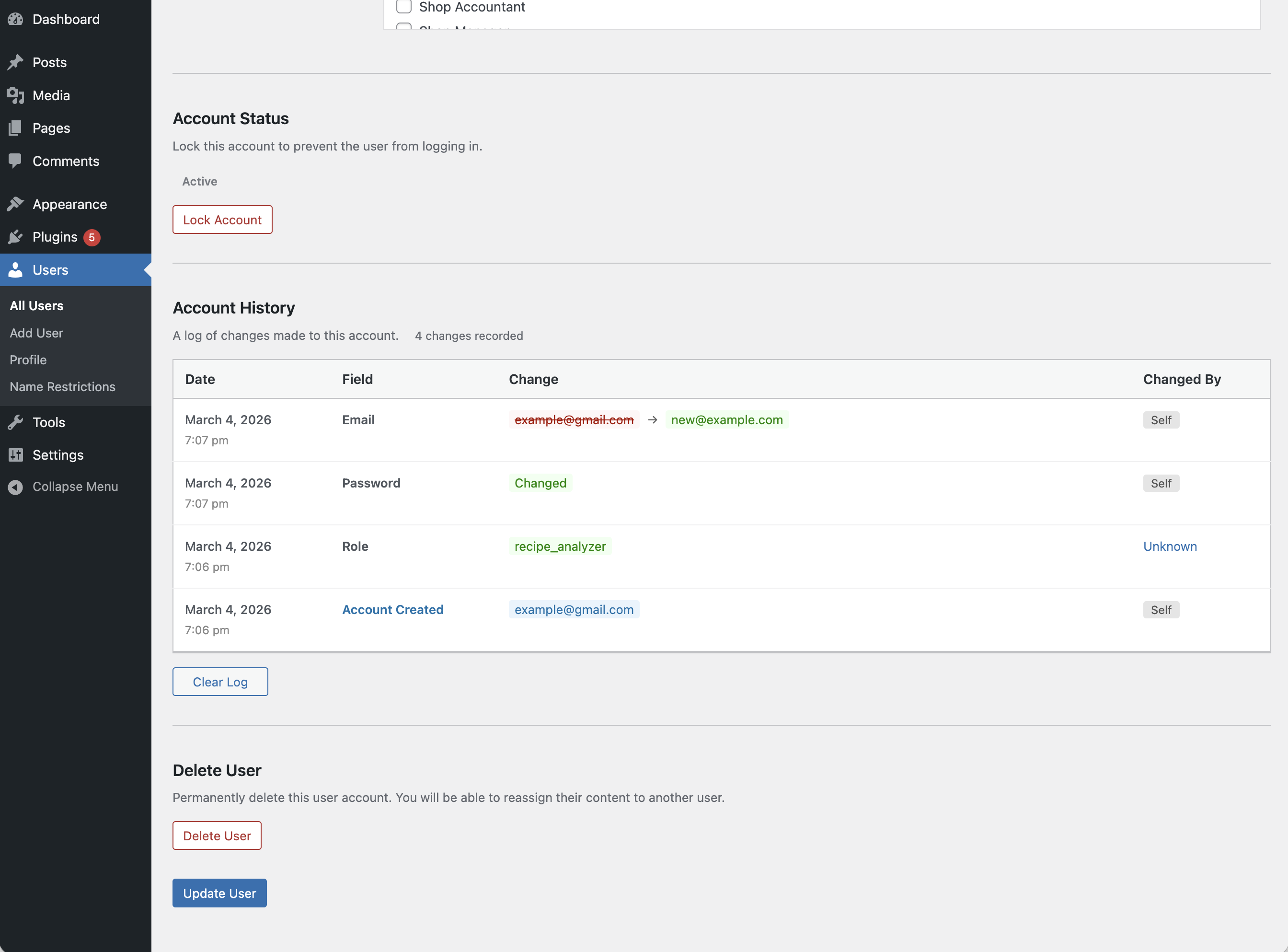
- See Who Made Changes – Each log entry shows whether the user changed their own profile or if an admin made the change
- IP Address Tracking – Records the IP address for each change (can be disabled for GDPR compliance)
- Search by Previous Values – Find users on the All Users page by their old email or username
- Clear History – Admins can clear the history log for any user
Login & Session Monitoring:
- Login/Logout Tracking – Records successful logins, logouts, and failed login attempts with date, IP address, and browser info
- Failed Login Attempts – Track failed login attempts for existing user accounts
- Active Sessions – View all active WordPress sessions for any user, including login time, IP address, browser, and expiry
- Log Out Everywhere – Destroy all active sessions for a user with one click
- Browser & OS Detection – Automatically detects and displays the browser and operating system from the user agent
Lock/Unlock User Accounts:
- Lock User Accounts – Prevent users from logging in by locking their account
- Instant Session Termination – Locked users are logged out immediately and all active sessions are destroyed
- Application Password Blocking – Locked users cannot authenticate via application passwords (REST API, XML-RPC)
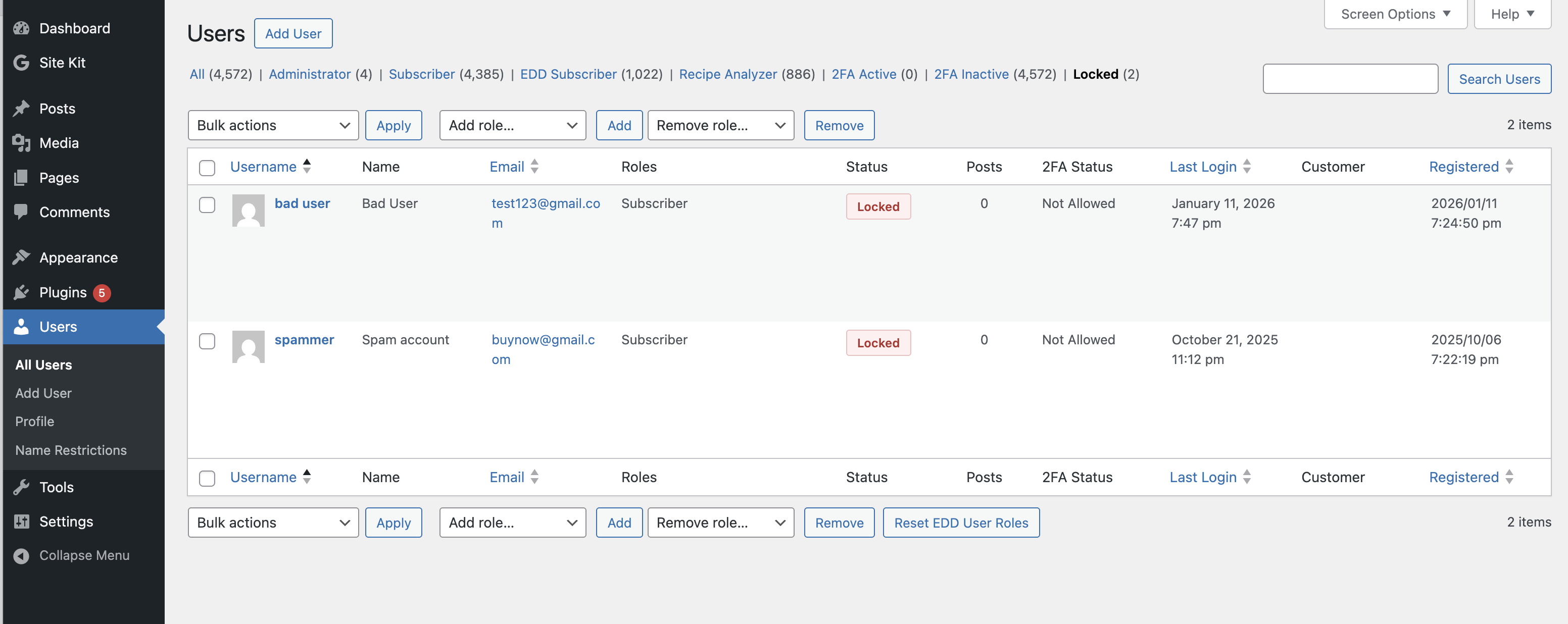
- Status Column – See which users are locked at a glance with a status column on the All Users page
- Bulk Lock/Unlock – Lock or unlock multiple users at once from the All Users page
- Row Actions – Quickly lock or unlock individual users from the All Users list
- Locked Users Filter – Filter the All Users list to show only locked accounts
- Custom Lock Message – Set a custom message shown to locked users on the login screen (User History > Lock Accounts)
- WP-CLI Access – Locked users can still be managed via WP-CLI
Dashboard Access Restriction:
- Block wp-admin for Non-Admins – Restrict dashboard access to administrators, editors, authors, or users with any specific capability
- Custom Redirect – Send disallowed users to the homepage or any URL of your choice
- Profile Access Exception – Optionally let restricted users still edit their own profile
- Login Screen Message – Display a custom message above the login form
- URL Allowlist – Exempt specific admin URLs from the restriction, with wildcard support (e.g.
?page=customer-*) - AJAX Blocking – Optionally apply the restriction to admin-ajax.php requests
- Migration from Remove Dashboard Access plugin – Automatically imports settings from the Remove Dashboard Access plugin
Username Restrictions:
- Block Specific Usernames – Prevent visitors from registering with reserved or official-sounding names (admin, support, webmaster…)
- Block Words in Usernames – Reject usernames containing certain text fragments, such as offensive words or a prefix reserved for staff
- Require a Prefix, Suffix or Substring – Force usernames to start with, end with, or contain one of your chosen fragments
- Length Limits – Enforce a minimum and/or maximum username length
- Disallow Spaces – Reject usernames containing spaces (WordPress allows them by default)
- Custom Error Message – Explain your naming rules to visitors who pick a restricted username
- Username Test Tool – Check sample usernames against your rules right on the settings page, with the reason for each rejection
- Broad Compatibility – Works with the WordPress registration form, Multisite signup, BuddyPress, WooCommerce and most registration plugins
- Migration from Restrict Usernames plugin – Automatically imports settings from the Restrict Usernames plugin
Admin Tools:
- Change Username – Allows admins to change usernames directly from the user edit page (WordPress normally doesn’t allow this)
- Delete User Button – Quick access button to delete a user directly from their profile page
- Data Retention – Automatically delete old logs after a configurable number of days (default: 30 days)
- Clear All Logs – Bulk delete all history logs for every user from the settings page
Privacy & Compliance:
- IP Tracking Toggle – Enable or disable IP address recording for GDPR compliance (User History > Settings)
- Configurable Retention – Set how long logs are kept (1-365+ days, or keep forever)
- Automatic Cleanup – Daily cron job removes logs older than the configured retention period
Compatibility:
- Multisite Compatible – Works with WordPress multisite installations, including super admin username changes
- Members Plugin Compatible – Correctly tracks role changes when using the Members plugin for multiple role assignments
- Migration from Lock User Account plugin – Automatically migrates locked users from the Lock User Account plugin
Use Cases:
- Find customers who changed their email after making a purchase
- Track when and who changed user roles
- Audit user profile modifications for security
- Monitor login activity and detect suspicious access
- View and manage active user sessions
- Allow username changes without database access
- Lock compromised or suspended accounts instantly
- Temporarily disable user access without deleting accounts
Installation
- Upload the
wpzoom-user-historyfolder to the/wp-content/plugins/directory - Activate the plugin through the ‘Plugins’ menu in WordPress
- Visit any user’s edit page to see their Account History section
Frequently asked questions
Where can I see the user history?
Go to Users > All Users, click on any user to edit their profile, and scroll down to the “Account History” section.
How do I change a username?
On the user edit page, click the “Change” link next to the username field. Enter the new username and click “Change” to save.
Does this plugin store passwords?
No. The plugin only logs that a password was changed, along with the date and who changed it. No password values (hashed or otherwise) are ever stored.
Can I search for users by their old email?
Yes! On the All Users page, use the search box to search for any previous email, username, or name. Users who previously had matching values will appear in the results.
What user fields are tracked?
Username (user_login) Email (user_email) Password (change event only) Display Name Nicename Website URL First Name Last Name Nickname Biographical Info Role (including multiple roles with Members plugin)
Is this plugin multisite compatible?
Yes. The plugin works on multisite installations and properly handles super admin username changes.
Does it work with the Members plugin?
Yes. The plugin correctly tracks role changes when using the Members plugin, which allows assigning multiple roles to users.
How do I lock a user account?
There are several ways to lock a user: User edit page – Go to a user’s profile and click “Lock Account” in the Account Status section Row action – Hover over a user on the All Users page and click “Lock” Bulk action – Select multiple users on the All Users page, choose “Lock” from the Bulk Actions dropdown, and click Apply Locked users are logged out immediately and cannot log back in until unlocked.
What happens when a user is locked?
All active sessions are destroyed immediately The user cannot log in via the login form Application password authentication (REST API, XML-RPC) is blocked A customizable error message is shown on the login screen WP-CLI access is still allowed so admins can manage the account
How do I customize the locked account message?
Go to User History > Lock Accounts. You can set a custom message that locked users will see when they try to log in. Leave it empty to use the default message.
How do I clear a user’s history?
On the user edit page, scroll down to the Account History section and click the “Clear Log” button. To clear all logs for every user at once, go to User History > Settings and click “Clear All Logs”.
How do I control how long logs are kept?
Go to User History > Settings. Under “Data Retention”, set the number of days to keep logs (default: 30). Old logs are automatically deleted daily. Set to 0 to keep logs indefinitely.
Can I see when users log in and out?
Yes! The Account History section on each user’s edit page has a “Logins” tab that shows all login events, logouts, and failed login attempts with timestamps, IP addresses, and browser information.
How do I view a user’s active sessions?
On the user edit page, scroll down to Account History and click the “Sessions” tab. You can see all active sessions including login time, IP address, browser, and when each session expires. Click “Log Out Everywhere” to destroy all sessions.
Can I disable IP address tracking?
Yes. Go to User History > Settings and uncheck “Record IP addresses” under the Privacy section. This helps with GDPR compliance.
I was using the Lock User Account plugin. Will my locked users be migrated?
Yes. When you activate User History, any users locked with the Lock User Account plugin will be automatically migrated to the new lock system.
How do I block non-admins from accessing the dashboard?
Go to User History > Dashboard Access. Enable “Restrict Dashboard Access”, choose which users keep access (by role preset or a specific capability), and set the redirect URL for everyone else. You can optionally keep profile pages accessible, show a message on the login screen, and allowlist specific admin URLs.
I was using the Remove Dashboard Access plugin. Will my settings be migrated?
Yes. If the Remove Dashboard Access plugin is active when you update, its settings are imported automatically and the restriction stays enabled — you can then deactivate the old plugin. If the old plugin was already deactivated, the settings are still imported but the restriction stays off until you enable it.
How do I restrict which usernames people can register with?
Go to User History > Username Restrictions and enable “Restrict Usernames”. You can block exact usernames, block text fragments anywhere in a username, require a prefix/suffix/substring, set a minimum and maximum length, and disallow spaces. Use the “Test Usernames” tool at the bottom of the page to see how your saved rules evaluate sample usernames.
Do username restrictions affect existing accounts or administrators?
Existing accounts are never affected — only new registrations are checked. By default, users who can create accounts (administrators) bypass the rules when adding users in wp-admin or changing usernames; enable “Also apply the rules to usernames chosen by administrators” under Advanced to enforce them there too.
Changelog
1.4.1
- Renamed the “General” page to “Settings” and moved it to the end of the User History menu
- Renamed “Lock Account” to “Lock Accounts” in the menu
- Fixed the “Settings saved.” notice appearing twice after saving settings
1.4.0
- New top-level “User History” admin menu with Activity Log, Lock Accounts, Dashboard Access, Username Restrictions and Settings pages (old Settings > User History links redirect)
- Added a lightweight Activity Log: content, media, comments, users, logins, plugins/themes/core and settings events, with filters, search, per-group toggles and shared retention
- Added Username Restrictions: block specific usernames or words, require a prefix/suffix/substring, enforce length limits, and disallow spaces in usernames chosen at registration
- Added a custom error message for restricted usernames and a “Test Usernames” tool on the settings page
- Optionally apply username rules to administrators (Add New User and Change Username)
- Lock Accounts page now shows an overview: locked-account stats, how locking works, the currently locked users with one-click Unlock, and recent lock/unlock activity
- Automatic settings migration from the Restrict Usernames plugin
1.3.0
- Added Dashboard Access restriction: block wp-admin for users without a chosen role or capability and redirect them to a custom URL
- Added optional login screen message, profile access exception, AJAX request blocking, and an admin URL allowlist with wildcard support
- Reorganized the settings page into tabs: General, Lock Account, and Dashboard Access
- Automatic settings migration from the Remove Dashboard Access plugin
1.2.1
- Added details about user registration
1.2.0
- Added login/logout tracking with dedicated “Logins” tab showing successful logins, logouts, and failed login attempts
- Added “Sessions” tab showing all active WordPress sessions for a user with login time, IP, browser, and expiry
- Added “Log Out Everywhere” button to destroy all active sessions for a user
- Added IP address tracking for all changes and login events
- Added IP tracking toggle in Settings for GDPR compliance
- Added configurable data retention setting (default: 30 days) with automatic daily cleanup
- Added “Clear All Logs” button in Settings to delete all history logs at once
1.1.1
- Minor fixes
Screenshots
For developers
Is this your plugin? Show off the numbers.
Add a live badge to your site, docs or GitHub README. It updates on its own — no account needed.
Best WPZOOM User History alternatives
All Activity Log plugins →





FAQ
WPZOOM User History: quick answers
Straight answers, pulled from live WordPress.org data.
Live data from WordPress.org · checked Sep 26, 2026
Is WPZOOM User History free?
Yes. WPZOOM User History is free to download and use from the official WordPress.org plugin directory.
Is WPZOOM User History safe to use in 2026?
WPZOOM User History is a solid plugin choice in 2026, with a few things worth checking first. It runs on 10+ sites and was last updated 1 month ago, and scores 66/100 on our health check.
How many websites use WPZOOM User History?
WPZOOM User History is active on 10+ WordPress websites and has been downloaded 708 times since it launched in March 2026. It was downloaded 71 times in the last 30 days.
Does WPZOOM User History work with WordPress 7.1?
Yes. The developer has tested WPZOOM User History up to WordPress 7.1.2, the latest release. It requires WordPress 6.5 or newer.
What PHP version does WPZOOM User History need?
WPZOOM User History requires PHP 7.4 or higher. Most hosts run PHP 8.x today, so it works on any modern WordPress hosting.
When was WPZOOM User History last updated?
The latest version, 1.4.1, was released on August 24, 2026 (1 month ago).
Who makes WPZOOM User History?
WPZOOM User History is developed and maintained by WPZOOM.
What are the best alternatives to WPZOOM User History?
The most popular alternatives to WPZOOM User History are WP Activity Log (300K+ installs), Activity Log (200K+ installs) and Stream (70K+ installs).
Powered by PageForge
Want thousands of pages that rank like these? Build them in an afternoon.
This directory runs on the same engine as PageForge. Turn any spreadsheet, CSV or API into thousands of fast, SEO-ready WordPress pages — with schema, internal links and AI-written copy baked in.
- CSV, Google Sheets & API data sources
- AI content, schema & internal links per page
- Works with Elementor, Gutenberg, Yoast & Rank Math
- Free on WordPress.org — no credit card


