


WordPlus Live Stream – Low Latency Streaming
Low latency live streaming for WordPress. Go live from your browser or OBS, and viewers watch on any page of your site about a second behind you.

Solid choice
WordPlus Live Stream is a solid plugin choice in 2026, with a few things worth checking first. It runs on 10+ sites, is rated 5/5 and was last updated 3 weeks ago, and scores 73/100 on our health check.
- Actively developed — last update 3 weeks ago
- Tested with the latest WordPress (7.1)
- Small user base (10+ active installs)
- Very few reviews so far
How does it stack up?
Side-by-side on installs, updates, ratings & support


Daily downloads
Download spikes usually follow a new release — each site that auto-updates counts as a download.
Rankings
Where WordPlus Live Stream stands todayWordPress.org search rankings
Live position in the plugin search, top 100| Keyword | Position |
|---|---|
| Broadcast | #92 |
| live streaming | #33 |
| video streaming | #62 |
| webinar | >100 |
| webrtc | #14 |
Version adoption
Share of active sites per release.
Rating breakdown
★★★★★★★★★★ 5 from 1 reviews
About WordPlus Live Stream
From the official readme · v0.2.2Description
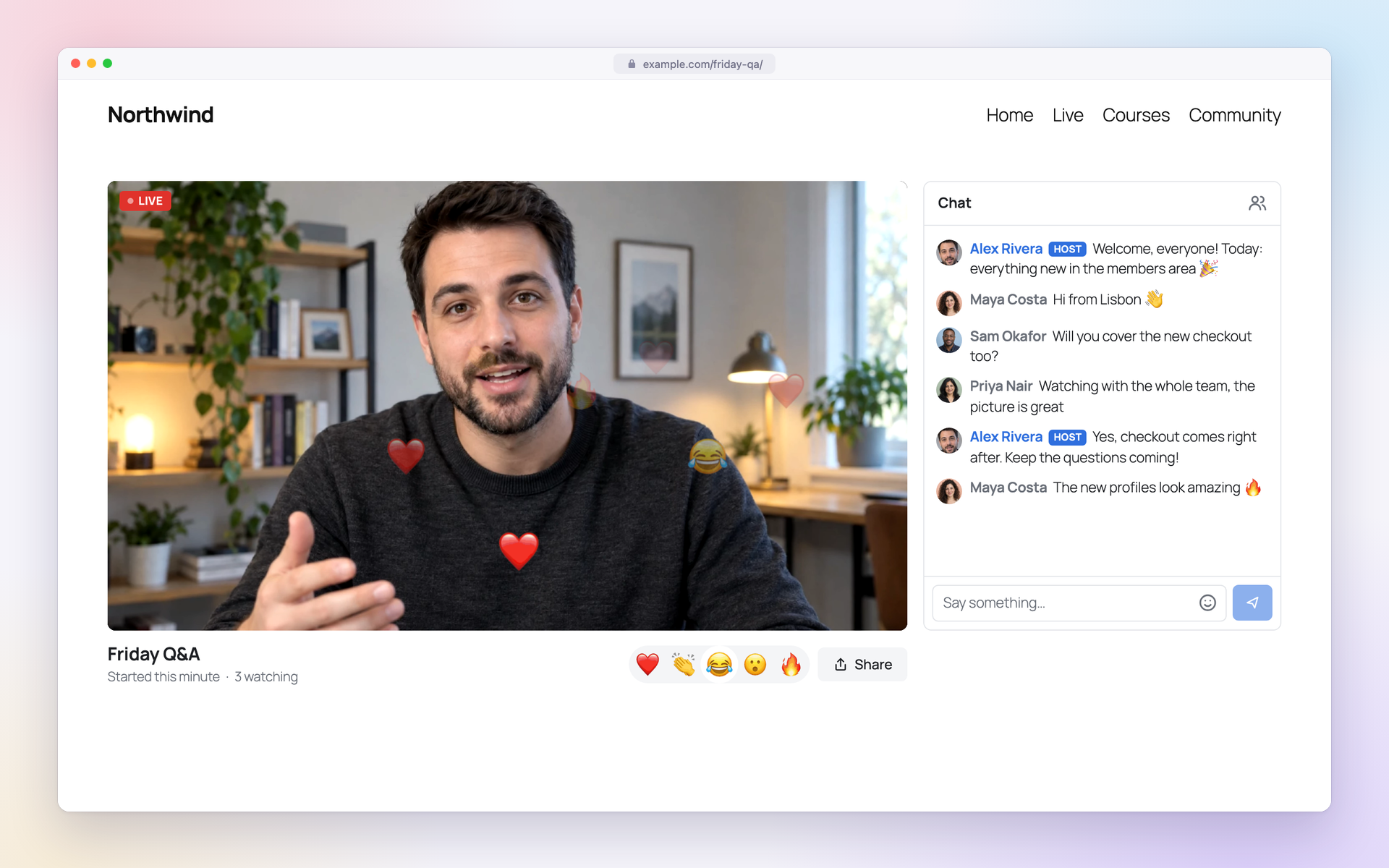
WordPlus Live Stream is a low latency live streaming plugin for WordPress. Go live from your browser with a camera or a shared screen, or stream from OBS, and your audience watches on your own pages about a second behind you, where most streaming services run many seconds late. Close enough for a live Q&A, a class or an auction, with chat and reactions beside the video. Viewers need no app: they watch in the browser, on a computer or a phone.
Use it for live classes and coaching, webinars, events and launches, a weekly show, or streams for members only. The video goes over WebRTC through the servers of WordPlus Cloud, so a stream puts no load on your web server and works with page caching.
Watch the live demo | Documentation | Website
Free to set up, a subscription to go live
Everything on your site works without a licence: streams and their pages, the blocks, the look of the player, and your camera, microphone and screen in the studio. Before you subscribe, start a test stream in the studio and watch it on its page in another tab, as your viewers will. Only you see it, and nothing of it leaves your computer.
Streaming to an audience needs a WordPlus Cloud subscription with live streaming:
- 50 viewers at once on each site are unmetered, however long they watch.
- Above 50, each extra viewer takes one credit a minute. Each WordPress site adds 5,000 credits a month to its WordPlus Cloud account, and more can be bought.
- No stream has a viewer limit.
Viewers and credits explains how they count.
Go live from the browser or OBS
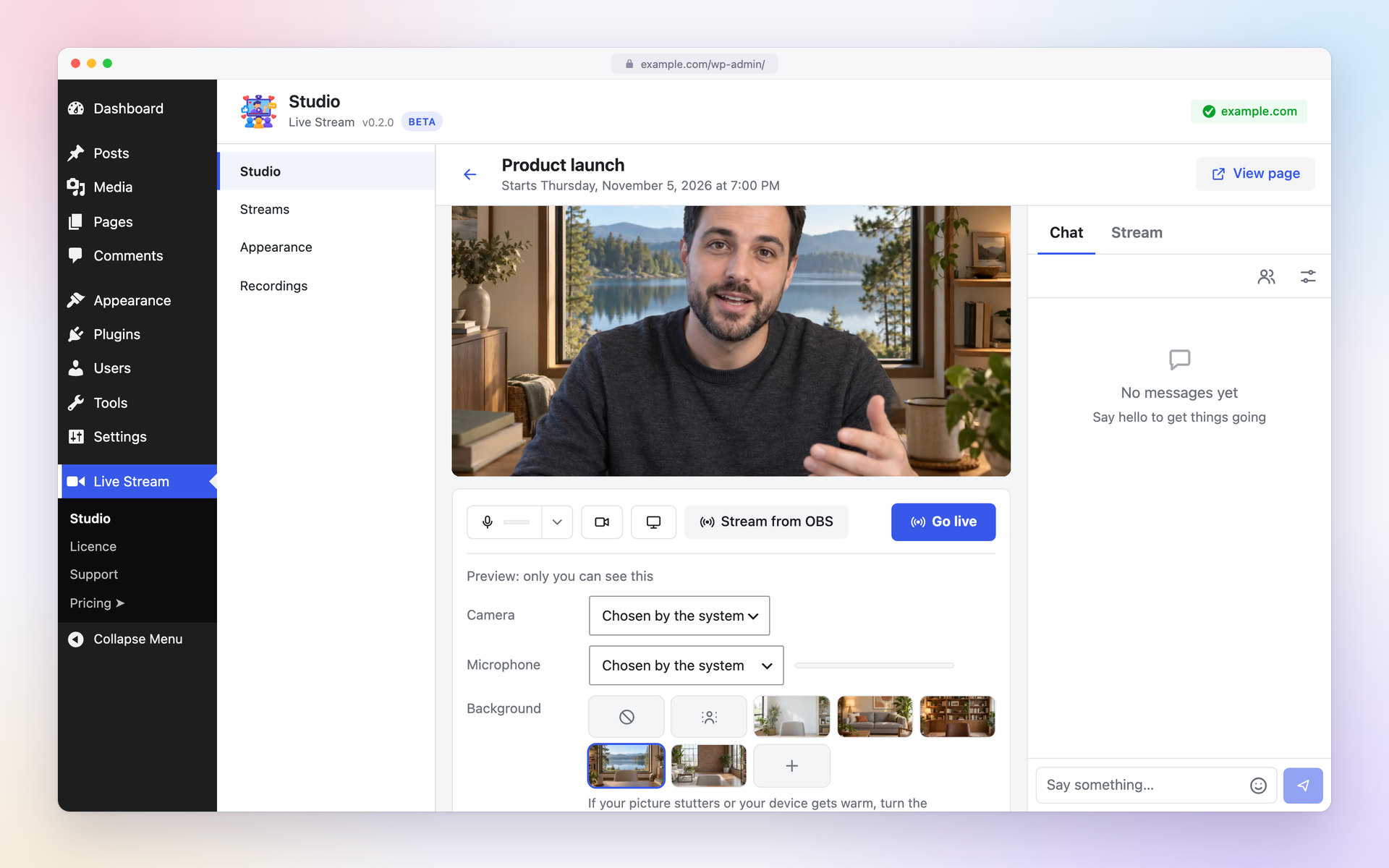
- The studio in your dashboard: choose your camera, microphone and speakers, share your screen with your camera in a corner, turn a phone camera around, and count down 3, 2, 1 before going live.
- Studio effects for hosts: blur the room behind you or put a picture there (one the site offers, or your own where it allows), and take typing and fan noise out of your microphone with AI noise removal. Viewers see and hear the result. It all runs in your own browser, from files an administrator downloads to the site once.
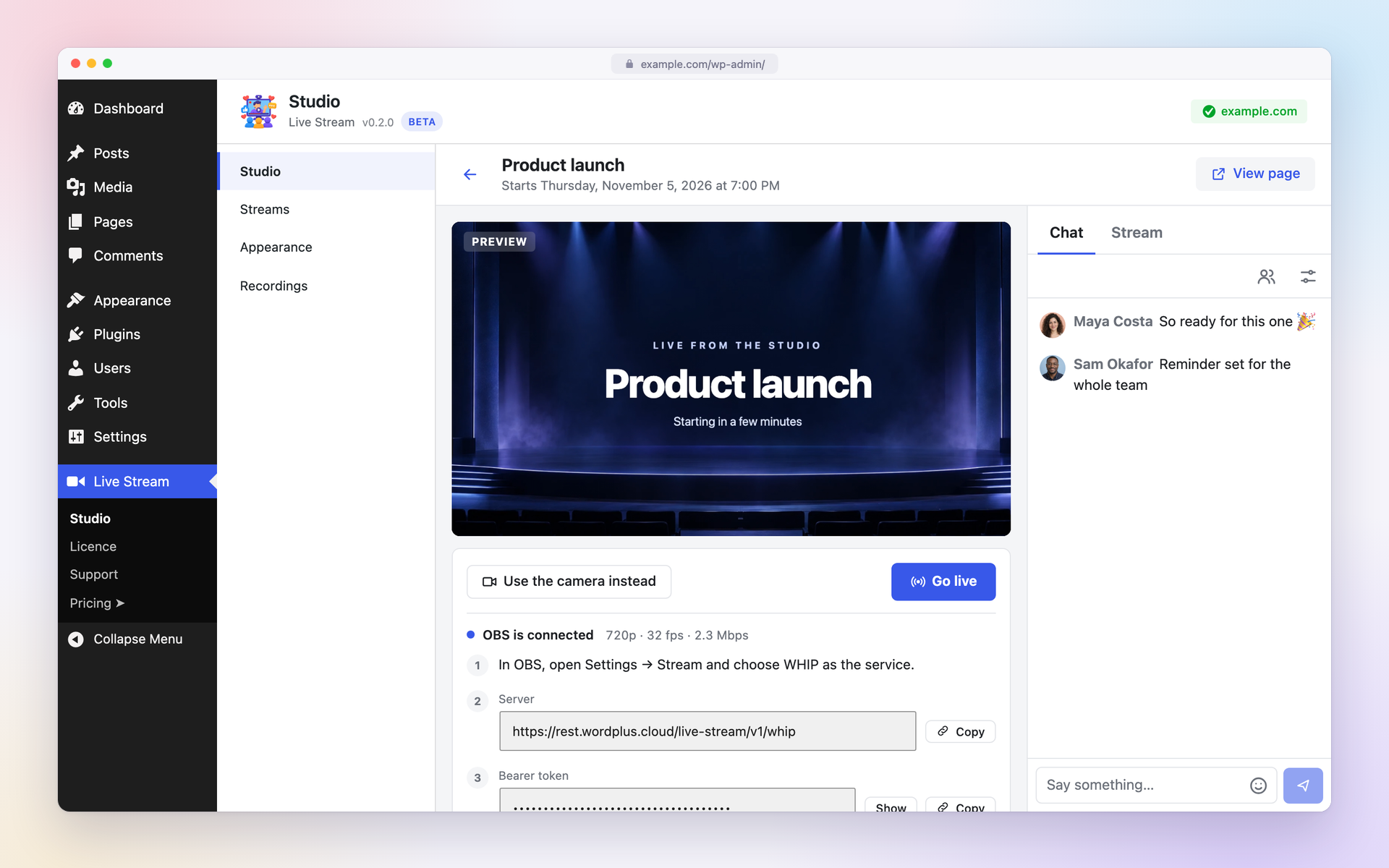
- OBS and other WHIP encoders: enter the server address and stream key from the studio in OBS 30 or later. A stream can go live by itself the moment OBS connects.
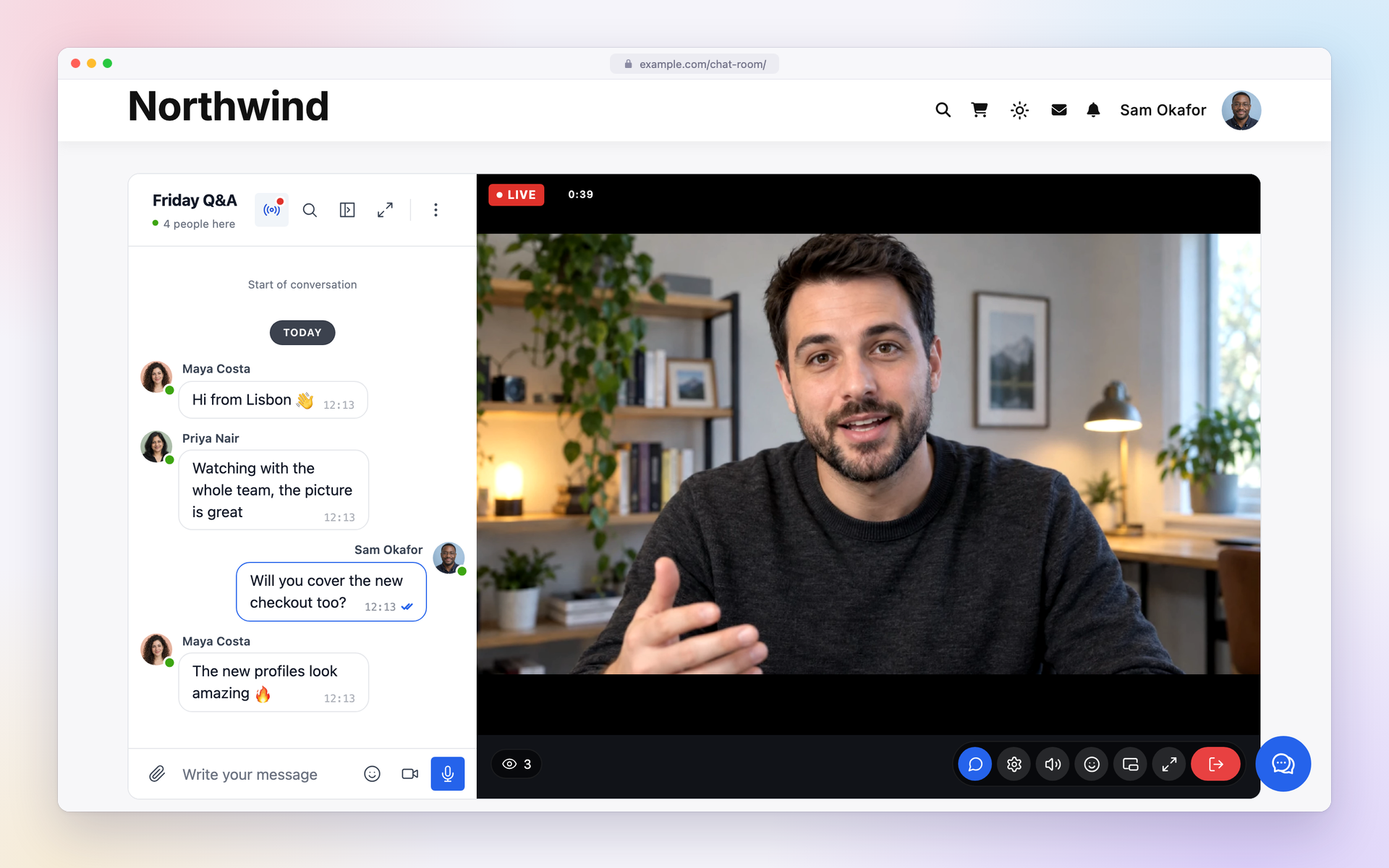
- While you are live: time on air, how many people watch and how your video goes out, then a summary when you end. Original sound for music, with no echo or noise removal.
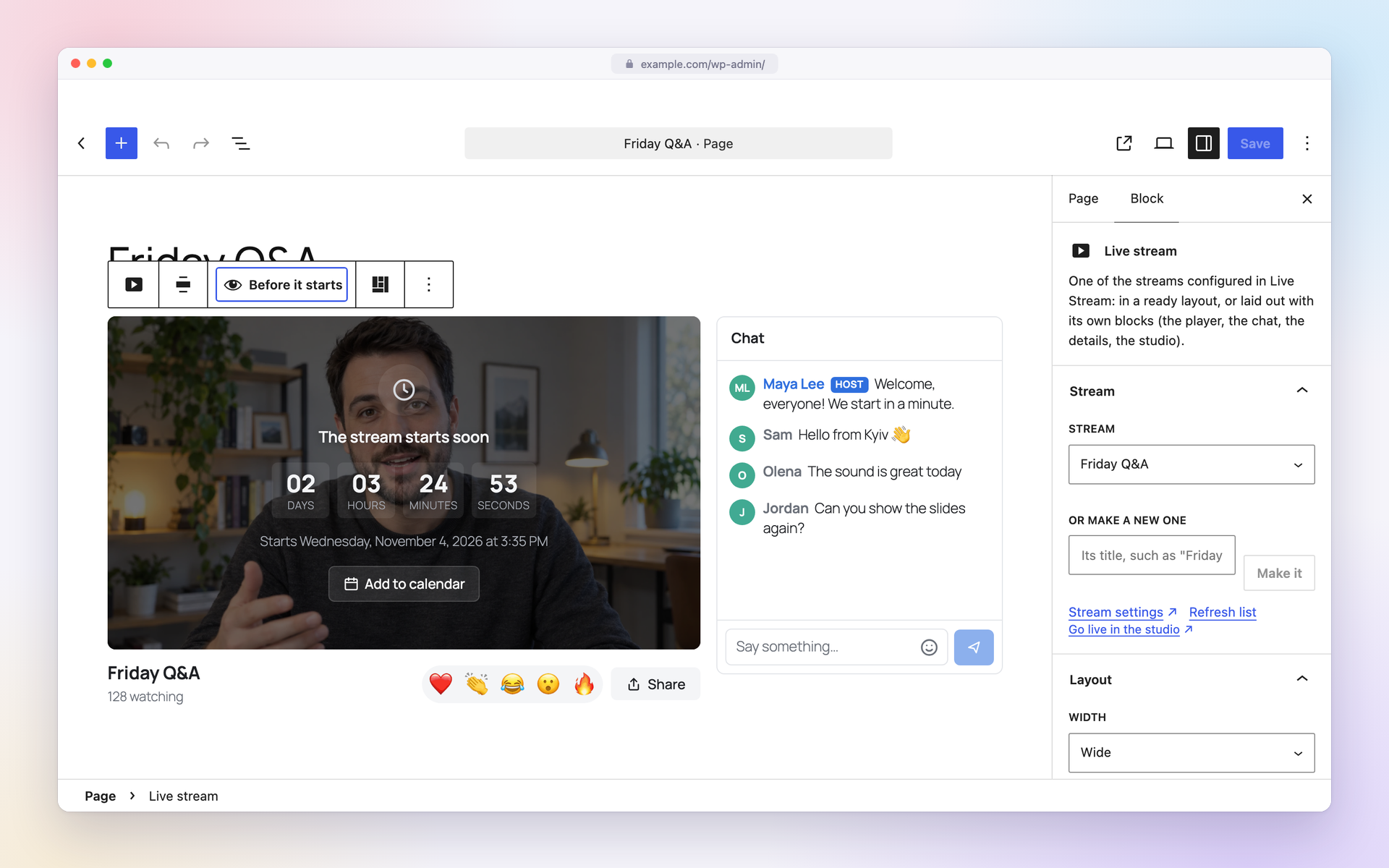
- Scheduled and recurring streams: a countdown and Add to calendar before the start, and a schedule for a weekly show that keeps one page, one OBS key and one chat.
- Recording and replays: record a stream from the studio, or every time it goes live, for a credit a minute. After it ends its page plays the recording, with captions and a transcript.
A player your viewers will enjoy
- About a second of delay. On a weak connection the player buffers a little more so the picture does not freeze.
- Quality that fits each viewer: several sizes up to Full HD, each player taking what its screen and connection can show, or the size its viewer chooses.
- Picture in picture, full screen with the chat, keyboard shortcuts, and announcements for screen readers.
- Made for phones: an upright player for streams from a phone, and full screen with the chat on iPhone and Android.
- It keeps going: it reconnects by itself after a drop, and keeps the sound when a connection is too slow for the picture.
Live chat and reactions
- A light chat for the moment, not saved: names, avatars and roles, emoji, links that open safely, mentions, and visitors writing in it if you allow.
- Or a Better Messages chat room, kept on your site with its history and export, files, GIFs, stickers, moderation and notifications.
- Emoji reactions, any emoji you choose, on or off at any moment, live too.
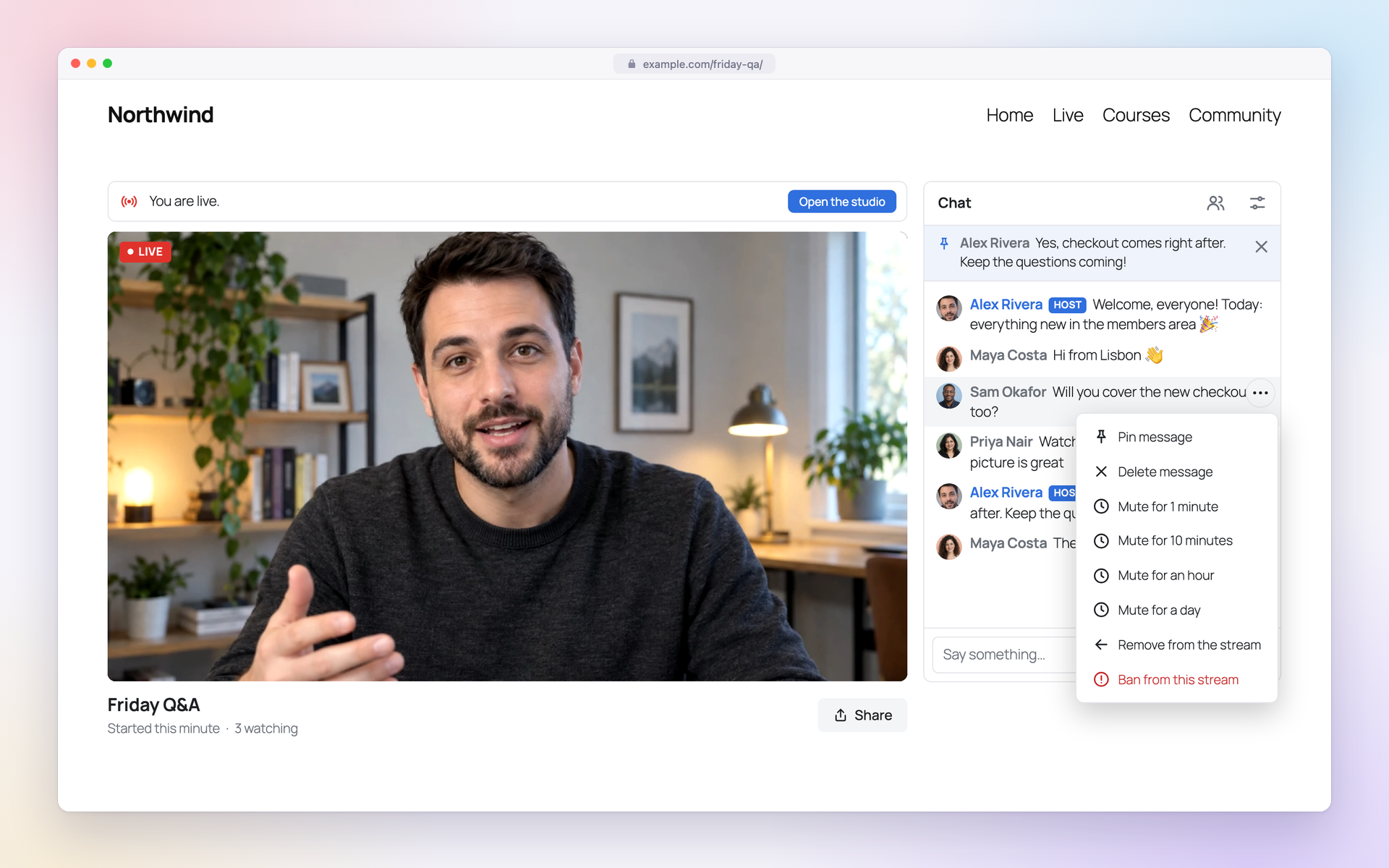
- Moderation: delete messages, pin one over the chat, slow the chat down, mute, remove or ban someone, and clear the chat. Hosts, moderators and the roles you choose moderate.
- Who is here: the logged-in viewers with their names and avatars, and how many guests.
On any page, in any layout
- The Live stream block shows a stream in a ready layout: the chat beside or below the player, a vertical video, or the player alone. Or place its parts (player, chat, details, studio) in columns, a sidebar or a widget.
- Shortcodes for page builders, such as
[wordplus_stream id="12"]. - What you see in the editor is what visitors get: each block is drawn by the player itself, at every moment of the stream.
- A page in one click for any stream, and block patterns for a live event, a webinar or a vertical stream.
- Live now lists the streams live and coming up, as a list, cards or a small Live badge for your header, updated the moment one goes live or ends.
Your look and your audience
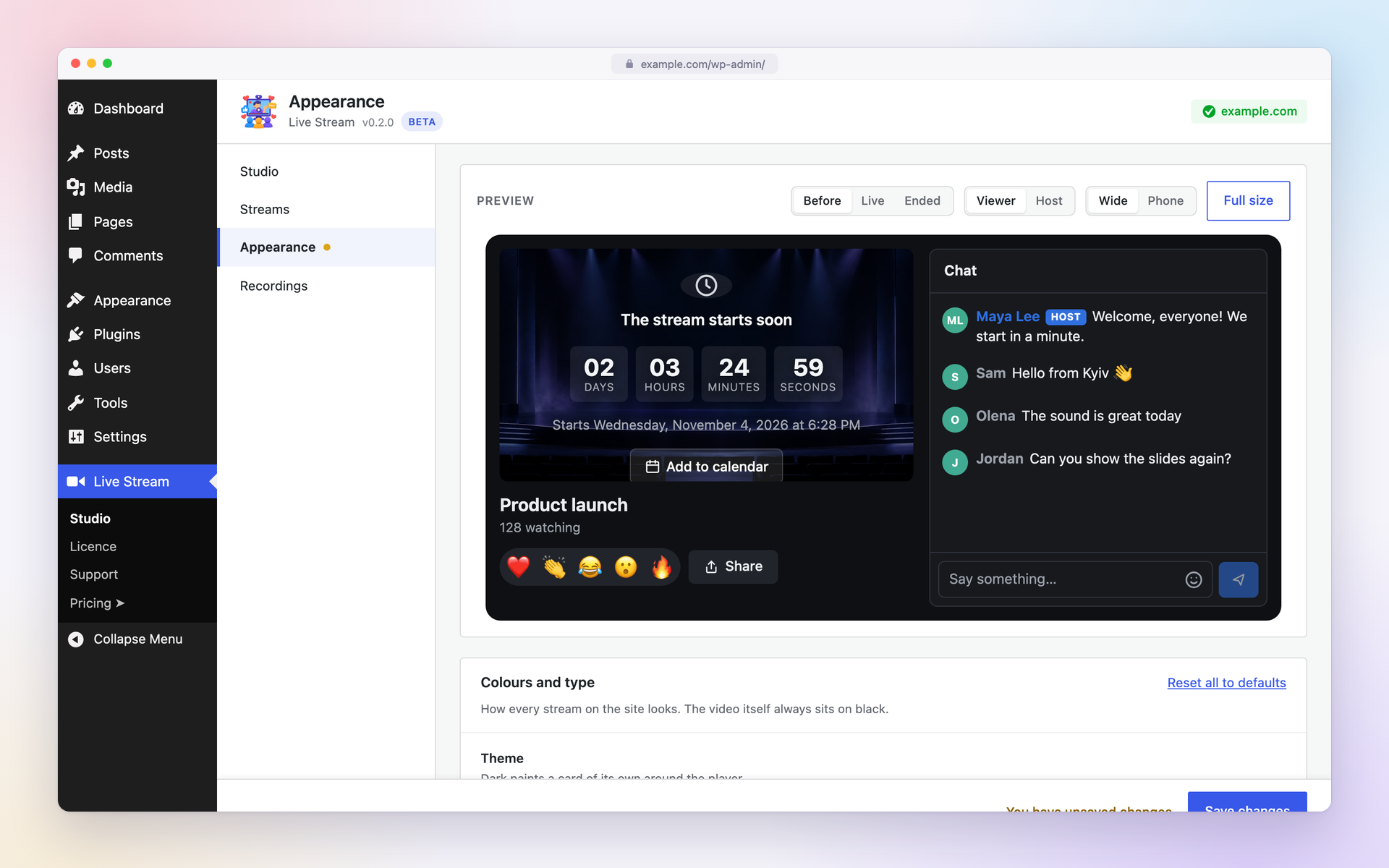
- Your style: a light, dark or automatic theme, your accent colour, font and corners, your logo over the video, a cover before and after, and the reactions you offer, with a live preview.
- Your words: what viewers read before a stream starts, while they wait for the host and after it ends.
- Who watches: everyone, logged-in users only, or the roles you choose. Membership plugins can decide through a filter.
- Your language: every word is translatable.
Live in Better Messages chat rooms
With Better Messages 3.1 or later and its WebSocket version, a stream shows in its chat room like a group video call: viewers watch beside the messages, and hosts go live from the room.
For developers
Let members go live, give groups, courses or events a stream each, and act when streams go live and end, with the PHP functions, hooks, REST routes and JavaScript API of the developer docs.
Learn more
- Getting started
- Streaming from OBS
- Background blur, backgrounds and noise removal
- Recording and replays
- Guides to live streaming on WordPress
Tell us what you think from Live Stream → Support.
External services
Live Stream is the WordPress side of a service: WordPlus Cloud, run by WordPlus, carries the live video, the chat and the reactions. Without it nothing can be streamed or watched. Its terms of service: https://www.wordplus.cloud/terms, its privacy policy: https://www.wordplus.cloud/privacy
From the browsers of the people on a stream
- Opening a stream (a page with any of its blocks or shortcodes, or its studio): the browser sends WordPlus Cloud (rest.wordplus.cloud) a grant your site signed. It holds the IDs of your site and the stream, the role of the person and what they may do in the stream, and the address of your site as the page origin. For a logged-in person it also holds their user ID on your site, their display name and their avatar URL, so they can be shown in the chat, and the language of their WordPress profile. The browser then connects to the chat servers of the cloud (ws.wordplus.cloud) and, once there is video, to its media servers (rtc.wordplus.cloud).
- Taking part: the chat messages and reactions a person sends, and for hosts the video and sound they broadcast (camera, microphone or screen). The cloud passes them on to the other viewers of the stream.
- How the stream plays: each player reports how the stream plays for that person, such as when the picture froze, the video lost on the way and how long the player waits. The cloud keeps these reports a week, to find why a stream stutters.
- The Live now list (the Live now block or
[wordplus_stream_live]): the browser of anyone who opens a page showing it asks the cloud for the live streams of your site, sending the ID of your site, and stays connected to hear when one goes live or ends. - As with any web service, the cloud also sees the IP address and browser of everyone who connects to it.
Nothing is sent for visitors of pages that show neither a stream nor the Live now list.
From the encoder of a host
- Streaming from OBS: the encoder sends its video and sound to the cloud (rest.wordplus.cloud) with the key of the stream, which the studio shows to hosts only.
From your site, for plugins built on Live Stream
- Where a plugin asks which streams are live, or listens for streams going live and ending, your site asks the cloud for its live streams, sending the ID of your site, at most every 15 seconds, and once a minute while a plugin listens.
- The cloud tells your site the moment a stream goes live or ends, at the address of your site (the route of the WordPlus SDK, signed with the key of your site), with the ID of the stream, when it went live and ended, and how many watched it.
- Where a plugin listens for who watched, the grants of logged-in people ask the cloud to tell your site, the same way, when each of them starts and stops watching a live stream, with their user ID on your site and how long they watched. Nothing is told of visitors who are not logged in.
From your site, when an administrator acts, or on a schedule for a site with a licence (WordPlus Cloud, api.wordplus.cloud and rest.wordplus.cloud)
- Streaming check: when an administrator opens a screen of Live Stream, or chooses Check again on its licence label, the site asks WordPlus Cloud (rest.wordplus.cloud) whether it may stream, at which quality, and the credits left. It sends a grant naming the site by its ID, signed with its secret and valid for a minute, nothing about people. A site with no licence sends nothing. While credits are used up, WP-Cron asks again a minute later, then hourly, until they are back (a week at most). The build from WordPlus Cloud asks through the WordPlus SDK (/wordplus/realtime/usage), signed with the site key.
- Activating the licence: when an administrator enters the key on Live Stream → Licence, the site sends it with the site address, the plugin name and version and a random site identifier, and gets back a site key and secret, which sign the grants above.
- Licence check: once a licence is saved, the site checks it daily, sending its site key (or, before it has one, the licence key and site address) and the plugin version.
- Pricing: when an administrator opens Live Stream → Pricing, the site asks WordPlus Cloud for its plans and prices in the language of the admin, sending the plugin name and that language, and keeps them an hour.
- Contact form: Live Stream → Support sends what the administrator writes, any files they attach, and the site details listed on the form (WordPress, PHP and plugin versions, the theme, the active plugins), only when they press Send.
- Usage data, only if an administrator opts in: nothing is sent before Allow & Continue. Then it sends WordPlus Cloud (api.wordplus.cloud) their name and email (for update emails once confirmed, news only if ticked), a random site identifier, the site address, title, language, time zone and WordPress, PHP and plugin versions, and its plugins and themes unless unticked: weekly, on each change and on deactivation or deletion. Opt out on Live Stream → Licence.
- Deactivation feedback: deactivating may ask why. Skip & Deactivate sends nothing. Submit & Deactivate sends the reason, anything written, the plugin version and whether it was installed in the last three days, without name or email unless usage data is shared and Anonymous feedback unticked.
- Emoji styles: the Appearance tab of Live Stream → Studio shows a sample of each emoji style from WordPlus Cloud (cdn.wordplus.cloud). The images of a style other than the native one are downloaded to the site once, when an administrator chooses it, and visitors then load them from the site itself. Nothing about the site or its visitors is sent.
- Studio effects: their files come from WordPlus Cloud (api.wordplus.cloud, through its CDN at cdn.wordplus.cloud) only when an administrator presses Download under Live Stream → Appearance → Studio effects, never by themselves. The background effects are about 5.4 MB (a JavaScript engine, the WebAssembly runtime of Google MediaPipe and two person segmentation models), AI noise removal about 12.1 MB (a JavaScript engine, the WebAssembly runtimes of DeepFilterNet3 and GTCRN and the DeepFilterNet3 model). Each download is checked against the SHA-256 checksum this version names and unpacked into the uploads folder, which serves the files to hosts. Once the background effects are here, that section reads the list of built-in pictures from there, and each one comes only when an administrator picks it, checked the same way. After an update that needs newer files, the administrator is asked to download them again. Only the requests for these files are sent, no personal data.
- Recordings, where WordPlus Cloud offers recording to the site and a host records a stream: the cloud records the stream as viewers see it, with a transcript in the language of the profile of each speaker, and the site fetches the files into its uploads or its storage. The start sends the ID of the stream, the recording settings, the accent colour and logo URL of the player and the names and avatar URLs of the hosts. The cloud keeps its copies seven days at most.
- Cloud storage, only when an administrator connects one (Cloudflare R2, Bunny.net, Amazon S3 or S3-compatible): the site keeps and deletes recordings in that account, and they are watched from there through links that expire. Its own terms apply.
Like every request WordPress makes, those from your site carry its address.
Add to calendar
Before a scheduled stream, a visitor may add it to their calendar. Choosing Google Calendar opens a Google page with the title of the stream, its time and its link. Choosing the other option saves a calendar file made in the browser, which sends nothing. Terms of Google: https://policies.google.com/terms, its privacy policy: https://policies.google.com/privacy
Installation
- In your WordPress admin, go to Plugins → Add New Plugin, search for “WordPlus Live Stream”, then install and activate it.
- Go to Live Stream → Licence and enter your WordPlus Cloud licence key, or see the plans under Live Stream → Pricing. A site that already runs another WordPlus plugin on the subscription, such as Better Messages, is connected already.
- In Live Stream → Studio, open the Streams tab, create a stream, and choose who watches and its chat.
- Choose “Create a page” beside the stream, or add the Live stream block to any page and choose the stream in it.
- Open the stream in Live Stream → Studio and press Go live, or choose Stream from OBS.
The getting started guide walks through each step.
Changelog
The versions up to 0.1.9 were betas, offered from WordPlus Cloud before Live Stream came to WordPress.org. The newest are below, and every change of the betas is on the full changelog.
0.2.2
- When a host turns the microphone off right after speaking, viewers hear the last words. Before, the end of what the host said was cut off.
- In full screen, viewers react from the Reactions button in the bar of the player. Before, there was no way to react in full screen.
- In full screen, the menu of a message in a Better Messages chat room opens over the stream, with its reactions. Before, it opened behind the player.
- A stream in a Better Messages chat room shows where the room is opened inside the FluentCommunity portal, with Better Messages 3.2.3 or later. Before, the chat of the room worked there and the stream was not shown.
- The screens of Live Stream in the admin have the same design as the other WordPlus plugins. The list of streams shows more with Show more, in place of pages, and the emoji styles are cards to choose from.
- The studio in the admin no longer leaves an empty space under it when you scroll the page.
0.2.1
- Fixed sites hosted on WordPress.com that could fail on every page with a critical error (“Allowed memory size … exhausted”) since November 2, 2026.
- Background blur and background pictures use the same person detection on every device that can run it, a phone held upright too. Where a device cannot run it, the studio says so and offers None alone, instead of drawing a worse background.
- The studio no longer goes live with your camera as it is while the background you chose could not start. It asks you to choose None first.
- The effects are a newer download. The build from WordPress.org asks an administrator to download them again under Appearance → Studio effects, and the build from WordPlus Cloud takes them by itself.
- In full screen, the emoji picker of a Better Messages chat room opens over the stream, with Better Messages 3.2.0 or newer. Before, it opened behind the player.
- In full screen, Escape closes the emoji picker first, and the next Escape leaves full screen.
0.2.0
- The first version on WordPress.org.
- A test stream without a subscription. Start it in the studio and watch it on the page of the stream in another tab of the same browser, as your viewers will see it. Only you can see it, and nothing of it leaves your computer.
- Background blur, background pictures and AI noise removal for hosts, in the studio and in a Better Messages chat room. An administrator downloads them under Appearance → Studio effects.
- Recording and replays: record a stream from the studio, or every time it goes live, for a credit a minute. The recording shows the stream as its audience saw it, only its hosts see REC, and its page plays it with captions and a transcript after it ends. Administrators find every recording on the Recordings tab of Live Stream → Studio, where cloud storage can keep them, and the recordings of a stream on its page in the Streams tab.
- While the credits of your account are used up, a notice says so on the Dashboard, the Plugins screen and the screens of Live Stream, until they are back.
- The build from WordPress.org and the build from WordPlus Cloud can both be installed on one site. The second stays inactive and says which one runs, and deleting one keeps the streams and settings for the other.
- The CSS classes of the player, the chat and the studio start with
wplus-live-stream-in place ofestream-. Check any CSS of your own that styles them. - The licences of the code a script bundles are at the top of that script.
- For developers:
wordplus_streams()->config()gives the hosts of a stream its config on a site without a licence too, for a test stream.
0.1.9
- Every picture a host sends goes out in several sizes, so each viewer gets the size their connection can take. As the stream goes live, the camera is checked and sends in H.264 when the computer keeps up with it, then VP9, then VP8.
- On a good connection a viewer waits one second for the picture, and on a connection that loses video on the way up to three seconds, so the picture freezes less. It comes back down after five minutes without trouble, and the sound stays with the picture. The player Statistics show each change as Buffer.
- The player tells WordPlus Cloud how the stream plays for each viewer, so a stream that stutters can be traced to the host, the servers or the viewer.
- The round trip in the player Statistics is that of the connection the player is using.
- The words of the player, the admin and the blocks are translated with each word written out in the PHP of the plugin, as WordPress.org asks.
0.1.8
- Viewers who come back to a stream from another tab or a minimized window see the picture move at once, not a few seconds later. While the page is hidden, a computer keeps receiving the picture at its smallest size, and it is sharp again within seconds of coming back. A phone or tablet, a stream with 50 viewers or more, and a picture sent without a small size, such as one from OBS, pause it as before. WordPlus Cloud sets the number of viewers, and pages already open follow it.
0.1.7
- The Pricing page buys the plan at the checkout of Live Stream, not of Better Messages.
- On the Pricing page, the number of viewers has an icon of its own.
Screenshots


For developers
Is this your plugin? Show off the numbers.
Add a live badge to your site, docs or GitHub README. It updates on its own — no account needed.
Best WordPlus Live Stream alternatives
All Broadcast plugins →



FAQ
WordPlus Live Stream: quick answers
Straight answers, pulled from live WordPress.org data.
Source: WordPress.org
Is WordPlus Live Stream free?
Yes. WordPlus Live Stream is free to download and use from the official WordPress.org plugin directory.
Is WordPlus Live Stream safe to use in 2026?
WordPlus Live Stream is a solid plugin choice in 2026, with a few things worth checking first. It runs on 10+ sites, is rated 5/5 and was last updated 3 weeks ago, and scores 73/100 on our health check.
How many websites use WordPlus Live Stream?
WordPlus Live Stream is active on 10+ WordPress websites and has been downloaded 556 times since it launched in November 2026. It was downloaded 563 times in the last 30 days.
Does WordPlus Live Stream work with WordPress 7.1?
Yes. The developer has tested WordPlus Live Stream up to WordPress 7.1.5, the latest release. It requires WordPress 6.0 or newer.
What PHP version does WordPlus Live Stream need?
WordPlus Live Stream requires PHP 7.4 or higher. Most hosts run PHP 8.x today, so it works on any modern WordPress hosting.
When was WordPlus Live Stream last updated?
The latest version, 0.2.2, was released on November 11, 2026 (3 weeks ago).
Who makes WordPlus Live Stream?
WordPlus Live Stream is developed and maintained by wordplus.
What are the best alternatives to WordPlus Live Stream?
The most popular alternatives to WordPlus Live Stream are Telegram Bot & Channel (500+ installs), Jock On Air Now (JOAN) (400+ installs) and Broadcast Live Video (300+ installs).
Powered by PageForge
One template and a spreadsheet. A real page for every search.
PageForge turns each row of a CSV into a WordPress page with its own title, URL, SEO fields and schema, built on the layout you already designed. Free on WordPress.org.
- CSV and XLSX, plus Google Sheets on Professional and Enterprise
- Its own title, URL, SEO fields and schema for every page
- Works with the block editor, Elementor, Divi and Avada
- Free on WordPress.org, no credit card