



VS Knowledge Base
With this lightweight plugin you can create a knowledge base that contains your categories and posts.

Solid choice
VS Knowledge Base is a solid plugin choice in 2026, with a few things worth checking first. It runs on 300+ sites, is rated 4.8/5 and was last updated 2 months ago, and scores 76/100 on our health check.
- Tested with the latest WordPress (7.1)
- Small user base (300+ active installs)
How does it stack up?
Side-by-side on installs, updates, ratings & support



Daily downloads
Download spikes usually follow a new release — each site that auto-updates counts as a download.
Rankings
Where VS Knowledge Base stands todayWordPress.org search rankings
Live position in the plugin search, top 100| Keyword | Position |
|---|---|
| ClassicPress | #27 |
| faq | >100 |
| frequently asked questions | #12 |
| knowledge base | #3 |
| wiki | #33 |
Version adoption
Share of active sites per release.
Rating breakdown
★★★★★★★★★★ 4.8 from 17 reviews
About VS Knowledge Base
From the official readme · v8.7Description
About
With this lightweight plugin you can create a knowledge base that contains your categories and posts.
Main features of the plugin:
- Free and lightweight
- Support for Block Editor and Classic Editor
- Display your knowledge base with block, shortcode or widget
- Custom post types are supported (such as WooCommerce product categories and products)
- Customize your knowledge base with attributes
- Documentation at WP plugin page
- Active support from developer at WP forum
With this plugin you can also create a FAQ or wiki in the same way as a knowledge base.
How to use
After installation make sure you already have some categories and posts.
Go to the editor and add the VS Knowledge Base block or the shortcode [knowledgebase] to a page. This will display your knowledge base.
Or go to Appearance > Widgets and use the VS Knowledge Base widget.
Default settings categories:
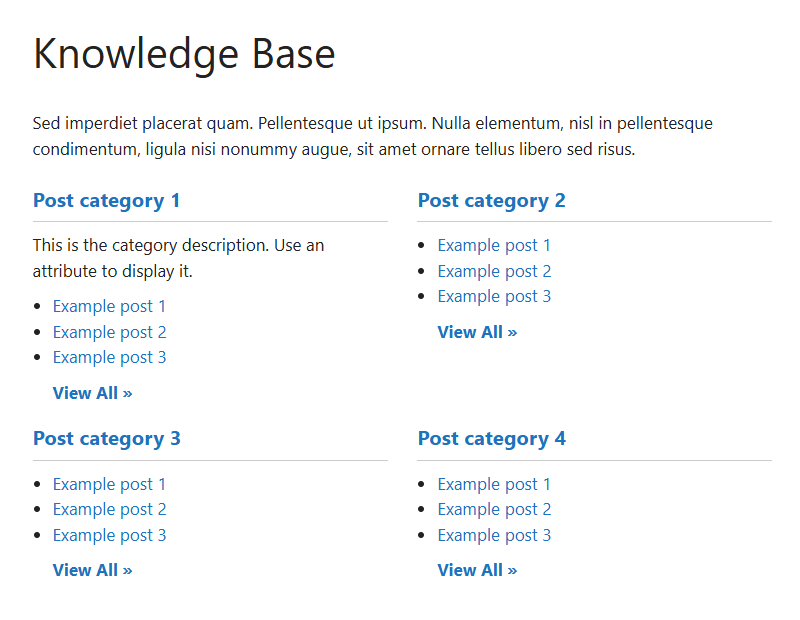
- 4 columns when using block or shortode
- 1 column when using widget
- 2 columns in small screens
- Order by name
- Ascending order (A-Z)
- Empty categories are hidden
- Parent and subcategories are displayed separately
Default settings posts:
- Order by date
- Descending order (new to old)
- All posts are displayed
Customize your knowledge base with attributes.
Attributes
You can customize your knowledge base by adding attributes to the block, shortcode or widget.
- Add custom CSS class to knowledge base:
class="your-class-name" - Change the number of columns:
columns="3" - Disable the columns:
columns="0" - Include certain categories:
include="1,3,5" - Exclude certain categories:
exclude="8,10,12" - Display empty categories too:
hide_empty="0" - Change the number of posts per category:
posts_per_category="5" - Reverse the order of posts:
order="ASC" - Display posts by title:
orderby="title" - Display posts in random order:
orderby="rand" - Disable category link:
category_link="false" - Display category description:
category_description="true" - Display post counter:
post_count="true" - Display post meta (date and author):
post_meta="true" - Display View All link:
view_all_link="true" - Change label of View All link:
view_all_link_label="your label" - Change label of post without title:
no_post_title_label="your label" - Change the “no categories are found” text:
no_categories_text="your text"
Example: [knowledgebase include="1,3,5" hide_empty="0" post_meta="true"]
When using the block or the widget, don’t add the main shortcode tag or the brackets.
Example: include="1,3,5" hide_empty="0" post_meta="true"
With the columns attribute you can set the number of columns between 1 and 4.
In small screens max 2 colums.
You can disable the columns in favour of your own styling.
The columns attribute will be ignored when using the block or widget. Because you can set the columns via the block or widget settings.
Post tags
Besides displaying posts by category you can also display posts by tag: taxonomy="post_tag"
Custom post types
It’s also possible to display categories and posts from a custom post type (such as WooCommerce product categories and products).
To display these categories and posts you should add 2 attributes: “taxonomy” and “post_type”
WooCommerce:
- Product categories and products:
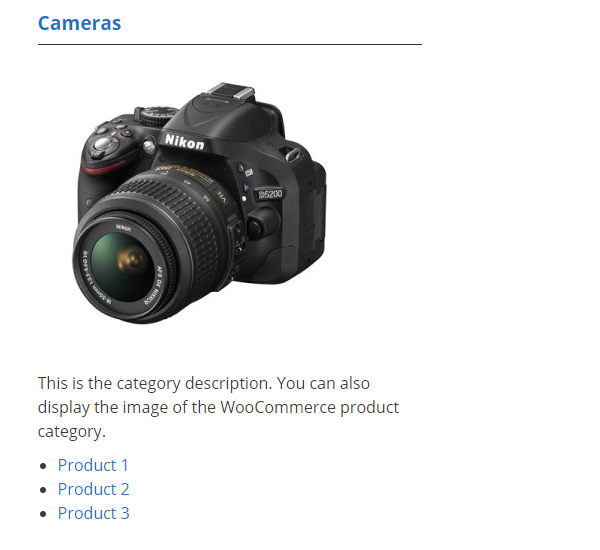
taxonomy="product_cat" post_type="product" - Include product category image:
taxonomy="product_cat" post_type="product" woo_image="true" - Display by tag instead of category:
taxonomy="product_tag" post_type="product"
Have a question?
Please take a look at the FAQ section.
Translation
Translations are not included, but the plugin supports WordPress language packs.
More translations are very welcome!
The translation folder inside this plugin is redundant, but kept for reference.
Credits
Without help and support from the WordPress community I was not able to develop this plugin, so thank you!
Frequently asked questions
How do I set plugin language?
The plugin will use the website language, set in Settings > General. If translations are not available in the selected language, English will be used.
Where is the settings page?
Plugin has no settings page. Use the block, shortcode or widget with attributes to make it work.
Does this plugin have its own knowledge base post type?
No, this plugin is build to create a knowledge base that contains the default categories and posts. It’s also possible to display categories and posts from a custom post type (such as WooCommerce product categories and products).
Why does the knowledge base look different between themes?
The plugin uses minimal styling and therefore also depends on the styling of your theme.
How can I change the layout or colors?
You can set the number of columns between 1 and 4 or disable the columns. This can be done via the block or widget settings or via an attribute. If you disable the columns CSS class “vskb-custom” is added to the knowledge base. This class can be used for your custom styling. You can use page Additional CSS of the Customizer for your custom styling.
Where to find the category ID?
Every category URL contains an unique ID. You will find this ID when hovering the category title in your dashboard or when editing the category. It’s the number that comes after: tag_ID=
Where to find the tag ID?
Every tag URL contains an unique ID. You will find this ID when hovering the tag title in your dashboard or when editing the tag. It’s the number that comes after: tag_ID=
Is it possible to display a subcategory underneath its parent?
No, this is not possible. Parent and subcategories are displayed separately.
Is a post without a title also displayed?
Yes, it will be displayed in the frontend of your website with a default label. You can change this label by using an attribute.
Why is there no semantic versioning?
The version number won’t give you info about the type of update (major, minor, patch). You should check the changelog to see whether or not the update is a major or minor one.
How can I make a donation?
You like my plugin and want to make a donation? There’s a PayPal donate link at my website. Thank you!
Other questions or comments?
Please open a topic in the WordPress.org support forum for this plugin.
Changelog
Version 8.7
- Minor changes in code
Version 8.6
- Added support for ClassicPress
- The block will only load in WP 6.3 and higher
- Reverted the “Requires at least” version to 6.0
Version 8.5
- New: attribute to disable the category linking to its category page
- Minor changes in code
Version 8.4
- Full rewrite of the block
- It now supports the Block API version 3
- Bumped the “Requires at least” version to 6.3
Version 8.3
- Fixed errors flagged by PCP
- Output escaping for widget
- Minor changes in code
Version 8.2
- Minor changes in code
Screenshots


For developers
Is this your plugin? Show off the numbers.
Add a live badge to your site, docs or GitHub README. It updates on its own — no account needed.
Best VS Knowledge Base alternatives
All ClassicPress plugins →





FAQ
VS Knowledge Base: quick answers
Straight answers, pulled from live WordPress.org data.
Live data from WordPress.org · checked Sep 30, 2026
Is VS Knowledge Base free?
Yes. VS Knowledge Base is free to download and use from the official WordPress.org plugin directory.
Is VS Knowledge Base safe to use in 2026?
VS Knowledge Base is a solid plugin choice in 2026, with a few things worth checking first. It runs on 300+ sites, is rated 4.8/5 and was last updated 2 months ago, and scores 76/100 on our health check.
How many websites use VS Knowledge Base?
VS Knowledge Base is active on 300+ WordPress websites and has been downloaded 44,973 times since it launched in August 2014. It was downloaded 161 times in the last 30 days.
Does VS Knowledge Base work with WordPress 7.1?
Yes. The developer has tested VS Knowledge Base up to WordPress 7.1.2, the latest release. It requires WordPress 6.0 or newer.
What PHP version does VS Knowledge Base need?
VS Knowledge Base requires PHP 7.4 or higher. Most hosts run PHP 8.x today, so it works on any modern WordPress hosting.
When was VS Knowledge Base last updated?
The latest version, 8.7, was released on August 15, 2026 (2 months ago).
Who makes VS Knowledge Base?
VS Knowledge Base is developed and maintained by Guido.
What are the best alternatives to VS Knowledge Base?
The most popular alternatives to VS Knowledge Base are VS Event List (8K+ installs), VS Contact Form (6K+ installs) and VS Meta Description (3K+ installs).
Powered by PageForge
Want thousands of pages that rank like these? Build them in an afternoon.
This directory runs on the same engine as PageForge. Turn any spreadsheet, CSV or API into thousands of fast, SEO-ready WordPress pages — with schema, internal links and AI-written copy baked in.
- CSV, Google Sheets & API data sources
- AI content, schema & internal links per page
- Works with Elementor, Gutenberg, Yoast & Rank Math
- Free on WordPress.org — no credit card


