



Settings Manager for Elementor
Settings Manager for Elementor provides granular control over Elementor settings export and import with more flexibility than native tools.

Consider an alternative
Settings Manager for Elementor shows warning signs in 2026 — compare the alternatives below before installing. It runs on 10+ sites and was last updated 8 months ago, and scores 38/100 on our health check.
- Small user base (10+ active installs)
- Very few reviews so far
- Only tested up to WordPress 6.9 (latest is 7.1)
How does it stack up?
Side-by-side on installs, updates, ratings & support



Daily downloads
Download spikes usually follow a new release — each site that auto-updates counts as a download.
Rankings
Where Settings Manager for Elemen… stands todayWordPress.org search rankings
Live position in the plugin search, top 100| Keyword | Position |
|---|---|
| design system | >100 |
| elementor | >100 |
| export | >100 |
| import | >100 |
| settings | >100 |
Version adoption
Share of active sites per release.
About Settings Manager for Elementor
From the official readme · v1.0.3Description
Settings Manager for Elementor provides granular control over Elementor settings export and import with more flexibility than native tools.
Why is granular important? It allows you to export or import only what you need, e.g., you may create several variants of breakpoints settings, which you can later reuse on the same site or some other site without overwriting other settings.
Features
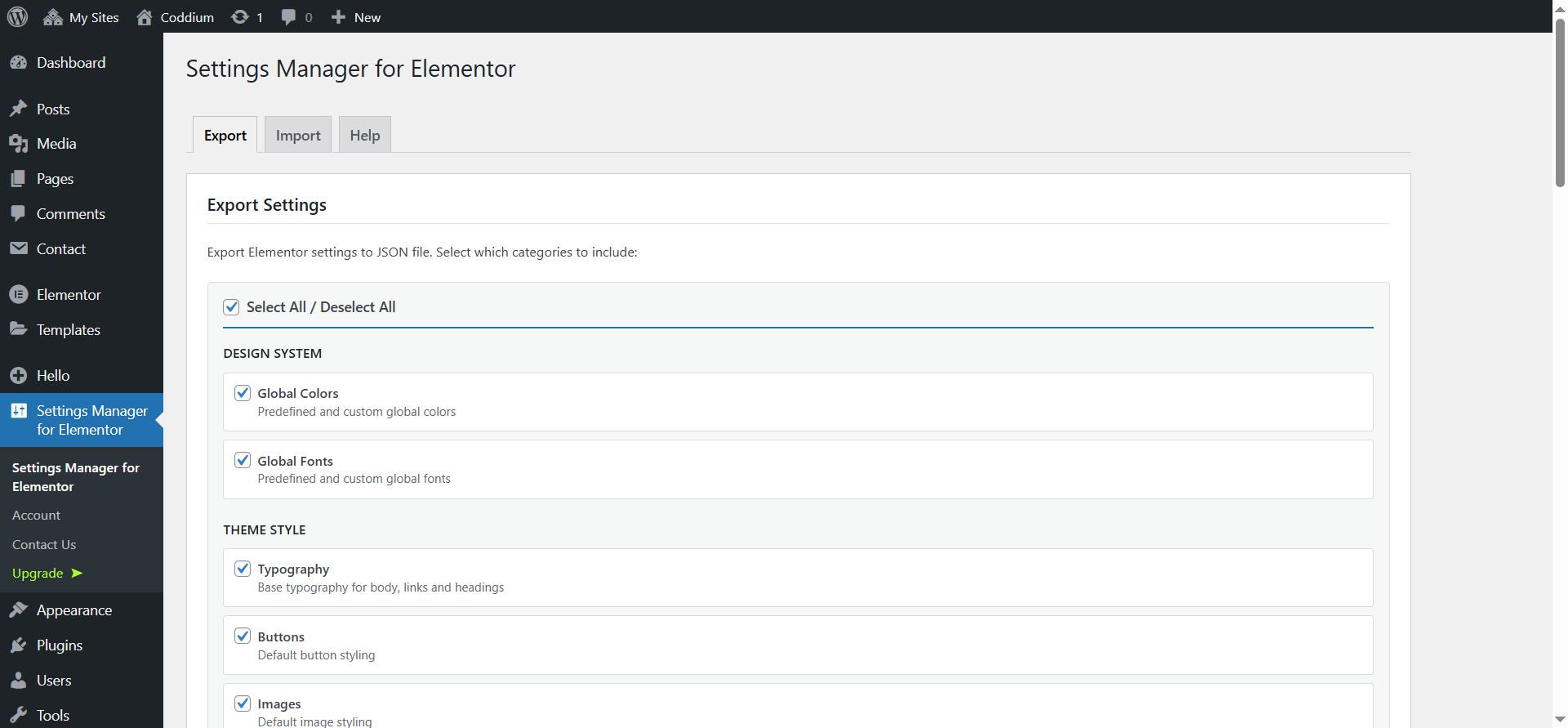
- Site Settings – Export/import site settings (Site Settings from Elementor editor)
- Backend Settings – Export/import backend settings (Elementor > Editor > Settings from WP admin dashboard)
- Hello Theme Settings – Export frontend and backend Hello Elementor theme settings
- Selective Export/Import – Export/import only the categories you need
- 20+ Categories – Granular control over export/import for minimum errors and maximum flexibility
- Merge or Replace – Choose how Global Colors and Global Fonts are imported (keep or remove existing custom items)
- Media Separation – Export site name without logo, background style without image
- Clean JSON format – Version control friendly
- Multisite Network Import – Import to multiple sites at once (PRO)
- WP-CLI Automation – Command-line export/import for DevOps workflows (PRO)
- Automatic Backup – Creates a backup before every import for easy recovery
Available Categories
Design System
* Global Colors – Predefined and custom global colors
* Global Fonts – Predefined and custom global fonts
Theme Style
* Typography – Body, headings, links, paragraph spacing
* Buttons – Default button styling and hover states
* Images – Border, shadow, filters for images
* Form Fields – Label, field, and focus state styling
* Hello Theme Header/Footer Settings (when Hello Elementor is active)
Settings
* Site Identity (Text) – Site name and description
* Site Identity (Media) – Logo and favicon (separate from text)
* Background (Style) – Color, gradient, and settings
* Background (Image) – Background image (separate from style)
* Layout – Container width, padding, widget spacing
* Breakpoints – Responsive breakpoint values
* Lightbox – Colors and behavior
* Page Transitions – Page transition animations (requires Elementor Pro) (PRO)
* Preloader Settings – Animation and style (requires Elementor Pro) (PRO)
* Preloader Media – Icon and image (requires Elementor Pro) (PRO)
* Custom CSS – Global custom CSS code (requires Elementor Pro) (PRO)
Backend Settings
* General – Post types, colors, fonts, tracking
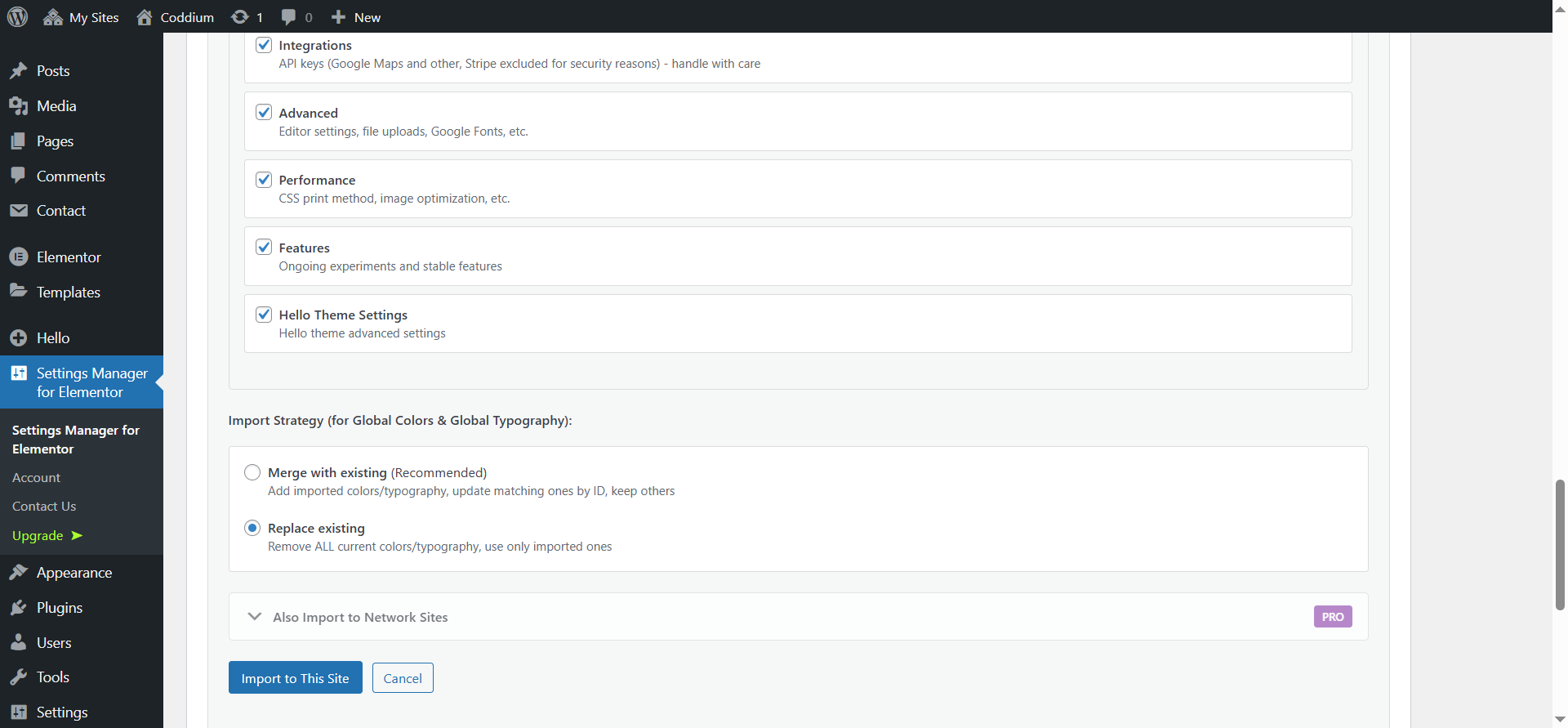
* Integrations – API keys (Google Maps, reCAPTCHA, etc.)
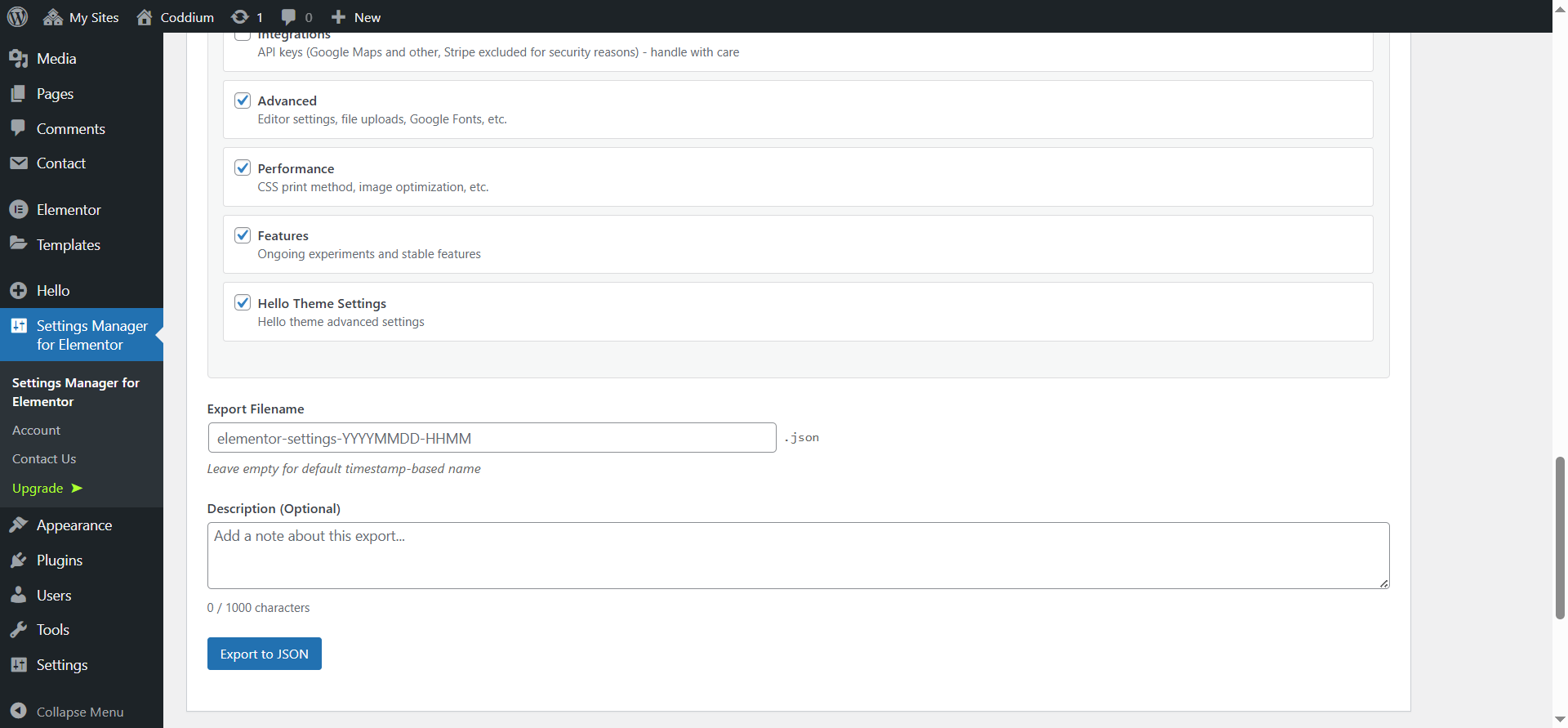
* Advanced – Editor settings, file uploads, Google Fonts
* Performance – CSS print method, lazy loading
* Features – Elementor experiments and stable features
* Hello Theme Settings (when Hello Elementor is active)
Extra PRO Features
Multisite Network Import:
* Import settings to multiple network sites simultaneously
* Real-time progress tracking with site-by-site status
* Cancel import anytime
* Sites without Elementor are automatically skipped
WP-CLI Commands:
wp semfe export <file> [--categories=<categories>]
Export settings to JSON file.
wp semfe import <file|url> [--categories=<categories>] [--strategy=merge|replace] [--sites=<sites>]
Import settings from file or URL. Use –sites for multisite network import.
wp semfe list-categories [--format=table|json]
List available categories.
Use Cases
- Development to Production – Export from staging, import to live site with selected categories
- Client Projects – Create reusable brand guideline templates
- Multisite Networks – Sync design system across network sites (PRO)
- Backup & Recovery – Create versioned backups of your settings
- Team Collaboration – Share settings files between team members
⚠️ Important:
This plugin manages Elementor settings only.
It does not export content, templates, themes, plugins, or custom files.
Requirements
- WordPress 6.0+
- Elementor 3.23.0+
- PHP 7.4+
Installation
- Upload the plugin files to
/wp-content/plugins/settings-manager-for-elementor/or install through the WordPress plugins screen. - Activate the plugin through the ‘Plugins’ screen in WordPress.
- Navigate to Settings Manager for Elementor to access the interface.
- Or, access from Elementor editor’s hamburger menu > Settings Manager.
Quick Start: Export
- Go to Settings Manager for Elementor > Export tab
- Select the categories you want to export
- Click “Export to JSON”
- Save the generated JSON file
Quick Start: Import
- Make sure you have a site backup
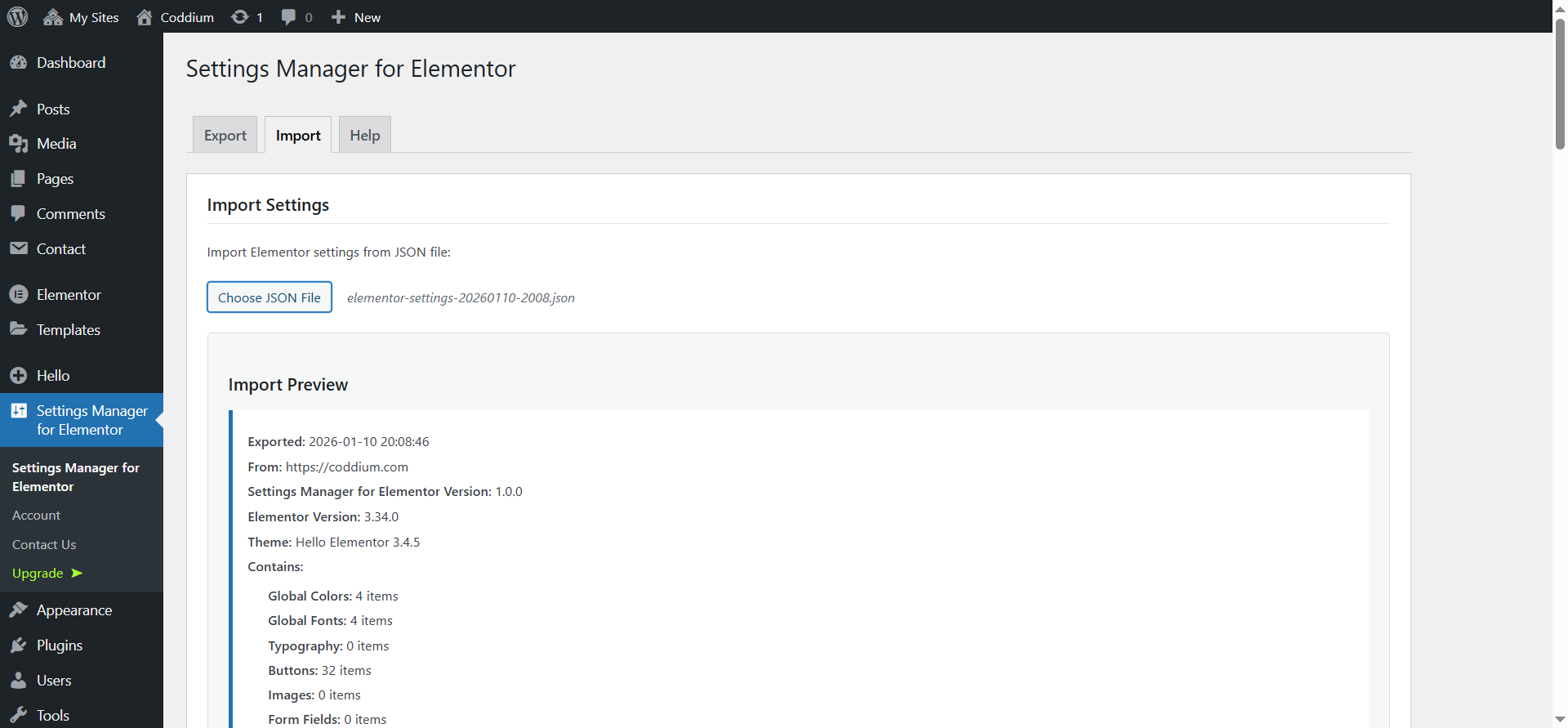
- Go to Settings Manager for Elementor > Import tab
- Click “Choose JSON File” and select your export file
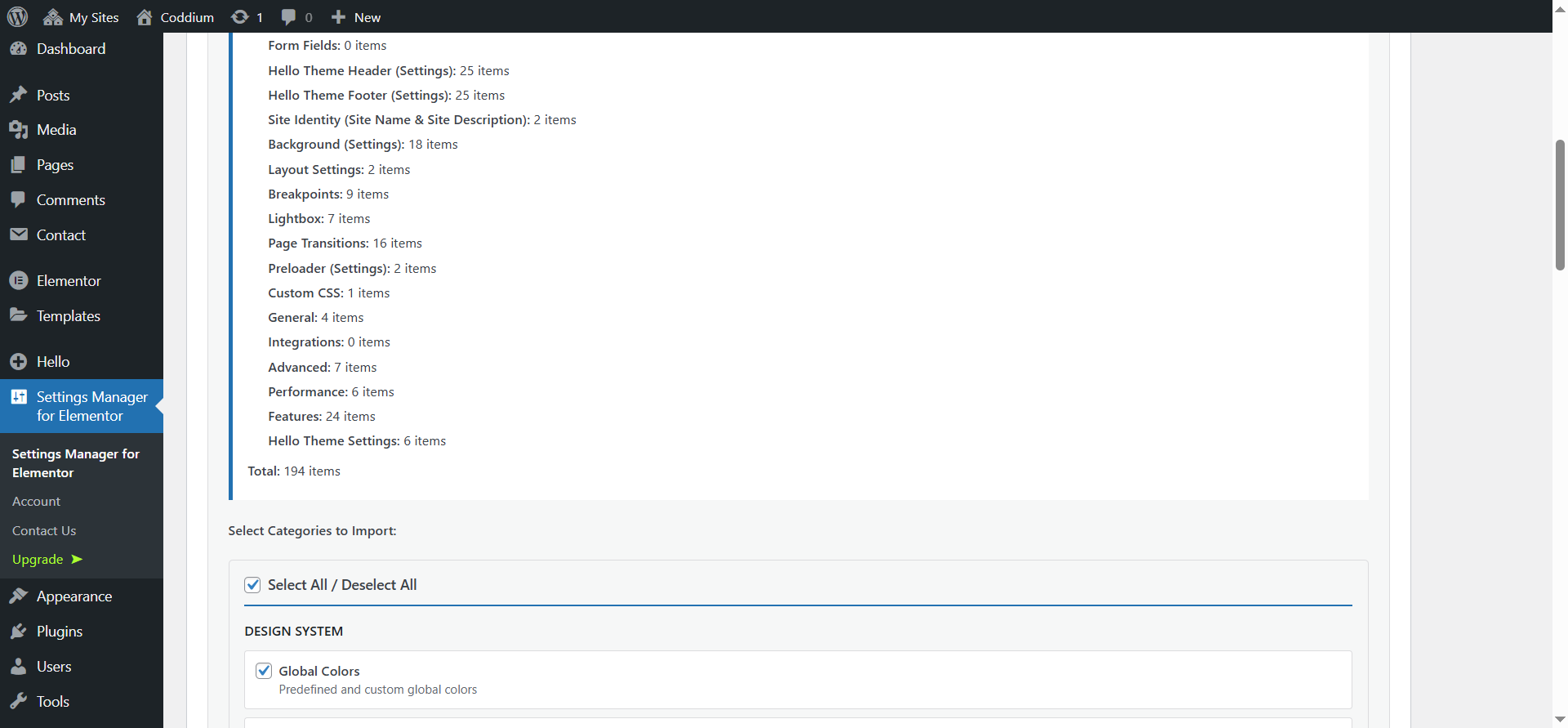
- Review the preview showing what will be imported
- Select which categories to import
- Choose import strategy (Merge or Replace) for colors and typography
- Select additional sites from multisite network (optional) (PRO)
- Click the import button
Frequently asked questions
Does this plugin require Elementor Pro?
No. Settings Manager for Elementor works with the free version of Elementor. However, some categories (Page Transitions, Preloader, Custom CSS) require Elementor Pro because those features only exist in Elementor Pro.
What is the difference between Merge and Replace strategies?
The strategy applies to Global Colors and Global Fonts only: Merge (recommended): * Matches items by their unique ID * Updates existing items with imported values * Adds new items from import * Preserves existing custom items not in the import file Replace: * Completely replaces all colors or typography * Existing custom items are removed * Use when you want exact replication
Which settings are NOT exported by default?
These categories are unchecked by default because they typically need manual setup per site: Site Identity Media (logo, favicon) Background Image Preloader Media (PRO) Hello Theme Header/Footer Background Images The Integrations category can contain API keys, so it is also not selected by default. Important notes: Never share export files containing API keys publicly Stripe keys are intentionally excluded for security
Can I import settings from a different Elementor version?
Generally yes. The plugin exports version information for reference, but settings are imported based on category structure. Minor version differences usually work fine. For major version jumps, test on a staging site first.
How do I access Settings Manager from the Elementor editor?
Click the hamburger menu (three lines) in the top-left corner of the Elementor editor, then click “Settings Manager”. This opens the admin page in a new tab.
Does the free version support multisite?
The free version works on multisite installations for single-site export/import. Batch importing to multiple network sites simultaneously requires the PRO version.
How do I use WP-CLI commands? (PRO)
Settings Manager PRO includes three WP-CLI commands: Export: wp semfe export /path/to/settings.json wp semfe export /path/to/settings.json –categories=global_colors,global_typography Import: wp semfe import /path/to/settings.json wp semfe import /path/to/settings.json –strategy=replace wp semfe import https://example.com/settings.json Multisite import: wp semfe import /path/to/settings.json –sites=2,3,4 wp semfe import /path/to/settings.json –sites=all List categories: wp semfe list-categories wp semfe list-categories –format=json
How does multisite network import work? (PRO)
Upload your JSON file on the main site Expand “Also Import to Network Sites” accordion Select which network sites should receive the settings Click “Import to This Site + X Network Sites” Watch real-time progress as each site is updated Sites without Elementor active are automatically skipped.
Does the plugin create backups before importing?
Yes! Settings Manager automatically creates a backup of all your current settings before every import operation. Backups are stored in wp-content/uploads/[sites/{id}/]semfe/auto-backup/ and kept for 30 days. The backup files use the same JSON format as exports, so you can restore them using the normal import process. This happens automatically – no action required. If something goes wrong during import, simply import the backup file to restore your previous settings. Still, we recommend that you also have a full site backup.
Where can I get support?
WordPress.org support forum Coddium
Changelog
1.0.3
- Added affiliation option
1.0.2
- Elementor 3.35.3 support
1.0.1
- Elementor 3.35.0 support
1.0.0
- Initial release
Screenshots
For developers
Is this your plugin? Show off the numbers.
Add a live badge to your site, docs or GitHub README. It updates on its own — no account needed.
Best Settings Manager for Elementor alternatives
All design system plugins →




FAQ
Settings Manager for Elementor: quick answers
Straight answers, pulled from live WordPress.org data.
Live data from WordPress.org · checked Oct 16, 2026
Is Settings Manager for Elementor free?
Yes. Settings Manager for Elementor is free to download and use from the official WordPress.org plugin directory.
Is Settings Manager for Elementor safe to use in 2026?
Settings Manager for Elementor shows warning signs in 2026 — compare the alternatives below before installing. It runs on 10+ sites and was last updated 8 months ago, and scores 38/100 on our health check.
How many websites use Settings Manager for Elementor?
Settings Manager for Elementor is active on 10+ WordPress websites and has been downloaded 712 times since it launched in January 2026. It was downloaded 63 times in the last 30 days.
Does Settings Manager for Elementor work with WordPress 7.1?
Settings Manager for Elementor is officially tested up to WordPress 6.9.10, while the latest release is 7.1.3. It may still work, but try it on a staging site first.
What PHP version does Settings Manager for Elementor need?
Settings Manager for Elementor requires PHP 7.4 or higher. Most hosts run PHP 8.x today, so it works on any modern WordPress hosting.
When was Settings Manager for Elementor last updated?
The latest version, 1.0.3, was released on February 28, 2026 (8 months ago).
Who makes Settings Manager for Elementor?
Settings Manager for Elementor is developed and maintained by Coddium.
What are the best alternatives to Settings Manager for Elementor?
The most popular alternatives to Settings Manager for Elementor are Style Kits for Elementor (10K+ installs), Wiplink (20+ installs) and Color Palette Block (10+ installs).
Powered by PageForge
Want thousands of pages that rank like these? Build them in an afternoon.
This directory runs on the same engine as PageForge. Turn any spreadsheet, CSV or API into thousands of fast, SEO-ready WordPress pages — with schema, internal links and AI-written copy baked in.
- CSV, Google Sheets & API data sources
- AI content, schema & internal links per page
- Works with Elementor, Gutenberg, Yoast & Rank Math
- Free on WordPress.org — no credit card


