


PlugUpp Search & Social Appearance Audit: SERP Preview, OG Preview and AI Readiness
SERP preview and social preview for every page from one dashboard: how your content appears in Google, Facebook, X and AI search, and what to fix.

Solid choice
PlugUpp Search & Social Appeara… is a solid plugin choice in 2026, with a few things worth checking first. Was last updated 2 days ago, and scores 64/100 on our health check.
- Actively developed — last update 2 days ago
- Tested with the latest WordPress (7.1)
- Momentum — downloads up 35.9% vs the previous 30 days
- Small user base (<10 active installs)
- Very few reviews so far
How does it stack up?
Side-by-side on installs, updates, ratings & support


Daily downloads
Download spikes usually follow a new release — each site that auto-updates counts as a download.
Rankings
Where PlugUpp Search & Social App… stands todayWordPress.org search rankings
Live position in the plugin search, top 100| Keyword | Position |
|---|---|
| ai readiness | >100 |
| og preview | #27 |
| serp preview | #22 |
| social preview | >100 |
| twitter card | >100 |
About PlugUpp Search & Social Appearance Audi…
From the official readme · v1.9.1Description
PlugUpp Search & Social Appearance Audit shows how your WordPress pages actually appear in search engines and on social platforms by auditing the final rendered output – regardless of theme, SEO plugin, page builder or custom code.
It is not an SEO plugin and does not manage your metadata. Whatever produces your titles, descriptions and social images, this plugin tells you the truth about what actually ships on each page, and flags issues with evidence.
It renders each of your pages the way a visitor’s browser would, reads the metadata and the heading structure that actually ship, and reports the problems. Discovery is a simple list of your own content – it never crawls, spiders or follows links.
It also audits how your site presents to AI answer engines (AEO / GEO): which documented AI crawlers your robots.txt allows or blocks, and which pages carry directives that limit how they can be used in AI answers. Facts and evidence only – no AI visibility scores.
Upgrade to Premium for AI readiness findings, scheduled scans, change tracking, Enhanced scan, pre-publish auditing and CSV export. One licence covers a single site up to unlimited sites. See plans and pricing
What you get on the free plan
- Search Appearance preview – a Google-style mobile result (breadcrumb, title, description, thumbnail) for every page
- Social Appearance preview – a Facebook and LinkedIn style share card (image, title, description) plus the X (Twitter) card type
- Crop preview – click any preview image to see the exact area each platform keeps and what it crops off
- Issue detection with evidence – missing, duplicate or conflicting metadata, broken OG image URLs, social images served in a format platforms do not display, over-long or very short descriptions, noindex pages (including a noindex sent only as an HTTP response header, where nothing in the page HTML shows it), canonical problems, and pages set to hide their search thumbnail
- The cause, not just the symptom – when a page has no social image and its featured image is in a format social platforms do not display, the finding names the file and its format and tells you what to use instead, so a missing share image is a one-line fix rather than a hunt
- Heading structure – flags a page with no H1 heading, more than one H1, or a heading level skipped (H2 straight to H4), read from the rendered page rather than from the editor, with the page’s own heading outline as the evidence
- Template grouping – when the same heading finding covers every page of one type, a notice above the results says so, so you fix the template once instead of page by page
- Site-wide search visibility check – a critical alert if “Discourage search engines from indexing this site” is left switched on, which hides every page on the site from search results
- Severity that matches reality – on a page you have set to noindex, findings about how it would look in a search result are listed as notices rather than problems, because that page cannot appear in a search result; social findings keep their full severity, because link previews still work
- AI access panel – which documented AI crawlers (OpenAI, Anthropic, Perplexity, Google) your robots.txt allows or blocks, with the matching robots.txt lines and each provider’s documented consequence, plus a warning when robots.txt is served with a status that makes its rules ineffective for every crawler
- Compact flags – Indexable / noindex and canonical shown inline, with the full details a click away
- Bulk exclude – exclude pages from the audit individually or in bulk, including bulk actions on the standard Posts and Pages screens that combine with any list filter
- Per-issue ignore and logging – ignore individual issues, with file-based logging and a built-in viewer
What Premium adds
- AI readiness findings – flags AI search crawlers blocked in robots.txt, blanket rules that block them without naming them, and pages whose snippet or archive directives limit how they can be used in Google AI Overviews, AI Mode and Bing Copilot – each citing the vendor’s own documentation
- Scheduled scans – run automatically on the schedule you choose
- Changes since last scan – each tab shows what was newly flagged, fixed or edited since the previous scan
- Email reports – a summary after each scheduled scan, listing the same per-page changes
- Enhanced scan – predicts the fallback image a platform may pick, and flags weak social images
- Custom post types and WooCommerce – extend audits beyond pages and posts
- Pre-publish auditing – check drafts, scheduled and pending content before it goes live
- Filtering and CSV export – slice the results by severity and issue type, and take them with you
- Author flagging and multi-site licensing – for teams and agencies
See the full plan comparison and pricing.
Private and password-protected content is excluded automatically – search engines and social platforms can never see it, so there is nothing to audit.
External services
This plugin connects to three external services. One, settings usage, is operated by PlugUpp and is optional.
PlugUpp settings usage (optional)
If you allow it, the plugin sends PlugUpp a summary of which settings you change and which plugin screens you open, with no content, addresses or names, to https://usage.plugupp.com. It helps us simplify the plugin. It is part of the PlugUpp opt-in you can decline, and you can turn it off at any time on the plugin’s Logs tab.
- When data is sent: only if you opted in to the plugin’s Freemius connection, where “Settings usage” is listed, and “Share settings usage” on the plugin’s Logs tab is on (it is on after you opt in, and you can turn it off there at any time). Once a week, and once within a day of saving the plugin’s settings. Never when a visitor views your site. Turning it off, or opting out of the connection, stops sending and sends one request to delete what was stored for this install.
- What data is sent: the plugin’s name, version and plan (free or premium), the WordPress and PHP versions, a random install ID made on your site, which settings differ from their defaults (for a setting with a fixed set of options, the option chosen; for text and lists, only that it changed and how many items it holds), how often each settings group and tab was opened, and when the setup steps were completed, counted from when the plugin first ran.
- What is never sent: your site address, email addresses, names, page or post content, passwords or keys, or any Freemius identifier. The service does not store your IP address.
- Terms of service: https://plugupp.com/terms-of-service/
- Privacy policy: https://plugupp.com/privacy-policy/
- Legal notice: https://plugupp.com/legal-notice/
Freemius
The plugin uses the Freemius platform for licence activation, plan changes, plugin updates (for paid plans), and as the Merchant of Record for purchases.
- When data is sent: on first plugin activation as part of the user-consented opt-in flow, on licence activation or deactivation, on plugin update checks (paid plans), and on uninstall (for optional feedback). Sending the initial opt-in data is the user’s choice – declining the opt-in still lets the plugin work in full. Scanning is fully local and never requires the connection.
- What data is sent: standard Freemius opt-in data including site URL, administrator email address, WordPress version, PHP version, plugin version, and active theme name.
- Terms of service: https://freemius.com/terms/
- Privacy policy: https://freemius.com/privacy/
Image URLs declared on your pages
When checking whether an Open Graph image actually loads, the plugin requests the image URL that the page itself declares (for example a file in your Media Library or on your CDN).
- When data is sent: during a scan, for pages that declare an OG image.
- What data is sent: nothing beyond the HTTP request to the image URL – it is made only to confirm the image resolves. Only URLs published on your own pages are contacted.
The plugin also renders your own pages by requesting them on your own server (a self-request), and reads your own /robots.txt and /llms.txt the same way for the AI access panel; that is your site contacting itself, not a third-party service.
Installation
- Install from the WordPress.org plugin directory (Plugins > Add New), or upload the plugin ZIP (Plugins > Add New > Upload).
- Activate the plugin.
- Open the Appearance Audit screen and click “Scan now” in the setup row to audit your pages and posts. You can leave the page; the scan continues in the background. When it finishes, the setup row goes away and your results show.
- Review the Search Appearance, Social Appearance and Findings tabs.
Frequently asked questions
Does this replace my SEO plugin?
No. The plugin audits what your site actually outputs – whichever SEO plugin, theme or page builder produces it. It does not manage or change your metadata.
Does it crawl my site?
No. It audits only your known WordPress content. It never follows links or discovers URLs like a crawler.
Can I see which AI engines are allowed to read my site?
Yes, in every plan. After a scan, a “Site: AI access and robots.txt” row shows which AI crawlers the major providers document – OpenAI, Anthropic, Perplexity and Google – with whether your robots.txt allows or blocks each one, the matching robots.txt lines as evidence, and what the provider documents that rule as controlling. It reports documented vendor policy, never a guarantee about behaviour, and there are no AI visibility scores. The free plugin also warns you when robots.txt is served with a status that makes its rules ineffective; the findings that interpret crawler rules and page…
What is the difference between the free and paid plans?
Free audits all your pages and posts on demand, with the Search, Social and Findings views, the AI access panel and no scan limits. Paid plans add automation – scheduled scans and email reports – plus AI readiness findings, Enhanced scan, custom post type and WooCommerce auditing, pre-publish auditing, filtering and CSV export, author flagging, and multi-site licensing. See the full plan comparison and pricing.
Why does the audit say my page is noindex when there is no noindex in my HTML?
Because the directive is being sent as an X-Robots-Tag HTTP response header instead of a tag in the page. A header is exactly as binding as a tag – search engines obey it either way – but you cannot see it by viewing source. From version 1.6.0 the audit reads both, shows the header line as the evidence, and, when the directive is only in the header, says so on the finding. Look in your server or host configuration, your CDN rules, or a security or SEO plugin that sets headers.
My page has a featured image, so why does the audit say the social image is missing?
Usually because the featured image is in a format social platforms do not display, such as an SVG, and the SEO plugin left og:image out rather than publish an image the platforms would reject. The page looks correct in the editor and shares with no image at all. The audit names the attachment and its format on the finding and tells you what to use instead: a JPEG, PNG, GIF or WebP featured image, or a social image set explicitly. If the page does share an image but it is not your featured one, because something else supplied it – a generated share image, or your SEO plugin’s site-wide default…
Does a missing H1 heading hurt my search rankings?
No, and the plugin never says it does. Google states that the number and order of headings on a page are not something to focus on, and that a page can rank perfectly well with no H1 or with several. What the audit reports is structural: the HTML standard says a document with headings should have one at level 1 and requires each heading to be at most one level deeper than the one before it, Google lists H1 elements among the things it uses to build the title link it shows in a search result, and screen reader users move around a page by its headings. That is why a missing H1 is a warning and…
Why does the plugin say a finding “repeats across a whole content type”?
Because heading problems usually live in a template, not in the pages built from it. When the same finding covers at least three pages and most of one content type, a notice above the results names it, for example “No H1 heading on 30 of 30 Venues”. Fixing the template clears every one of those pages at once, so that line is usually the shortest route through a long list. The counts are worked out fresh each time you look, so they always match the rows underneath.
Why is a finding on my noindex page only a notice?
Because a page set to noindex cannot appear in a search result, so a point about how it would look there describes something that will never be shown. Findings like meta description length, a missing canonical or a hidden search thumbnail are listed as notices on those pages, with a line on each one saying why. They are still listed and still counted in the page’s finding total, so nothing is hidden – they just stop being counted as problems, and a page whose only remaining points are notices reads as OK. Social findings are not affected: a noindexed page shared in a chat still shows a link…
Why does my whole site show a critical “hidden from search” alert?
Because “Discourage search engines from indexing this site” is switched on under Settings > Reading. WordPress then adds a noindex tag to every page, so no page on the site can appear in search results. That is intentional on a staging or holding site. If the site is live, clear the setting under Settings > Reading and re-scan. Social sharing is unaffected either way – link previews still work.
Are private or password-protected pages audited?
No. Private and password-protected content is excluded automatically. Search engines and social platforms can never see it – a crawler or a social share preview only ever reaches a login screen, a password form, or a not-found response. Auditing how such pages appear would be meaningless, so they are left out of every scan, count and report. Make a page public (or remove its password) and it is picked up on the next scan.
Changelog
1.9.1
- Re-sync of the shared agent-access component to 0.1.10.
1.9.0
- New: an agent interface. An AI agent working on your site, such as Claude, can read what each scan found, page by page, in the same words the Dashboard uses. It can also read and change your settings, excluded pages and ignored issues, and save them as one file to apply later. It works through WP-CLI and, on WordPress 6.9 or later, the Abilities API. Applying a change never starts a scan.
- New (paid): an agent can also read and apply your exclusion rules and saved rule sets, and send a test email report to one address or to the plugin log only.
- Fixed: uninstalling the plugin now also removes your exclusion rules and saved rule sets.
1.8.0
- New: until your first scan has finished, the Dashboard opens with a one-step setup row, Scan your site, with Scan now inside it. When the scan finishes the row goes away by itself and the scan summary takes its place.
- Improved: on the Plugins screen, Settings now opens the plugin’s Dashboard, where Scan now is.
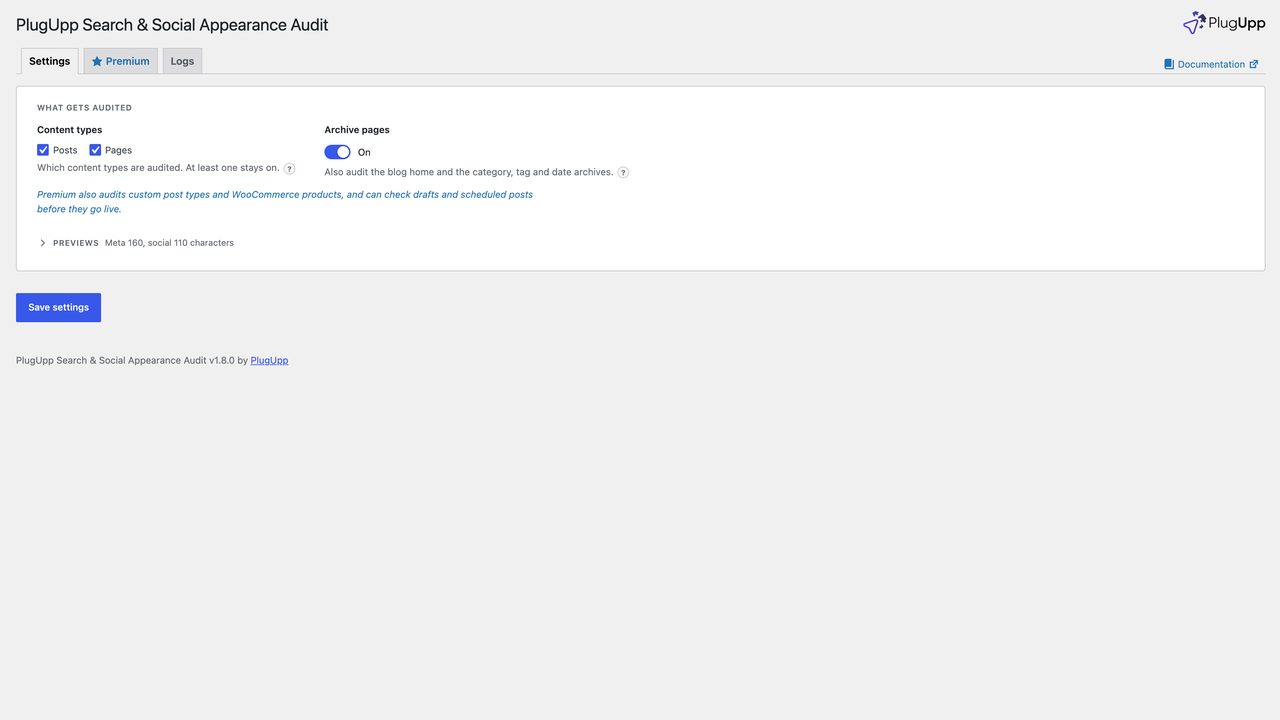
- Improved: on the Settings screen the two preview lengths are now the last group, Previews, and it stays folded until you open it. If you have changed a length, the group opens by itself and says how many settings are changed.
- New: optional settings usage. If this site is opted in to PlugUpp, the plugin sends a weekly summary of which settings you changed, never your content, site address, email addresses or user names. Turn it off with Share settings usage on the Logs tab.
1.7.1
- Security: the bundled Freemius SDK is updated to 2.13.5, which fixes several security issues in its admin screens.
- Fixed: a text box on the Settings screen no longer stretches wider than the setting it belongs to.
1.7.0
- Improved: the Settings screen is easier to read and quicker to use. Every on or off setting is now a switch that says On or Off. A choice with a few options is a row of buttons, so you see every option at once and the chosen one is filled in.
- Improved: the settings sit on one card, grouped under short headings in the order you decide them: what gets audited, scan options, previews, then scheduled scans and email reports. Save settings is under the card.
- Improved: each setting has one short line of help. Select the ? beside it to read the rest.
- Improved: the log level on the Logs tab is a row of five buttons, from Off to Debug.
- Improved (paid): Day of the week shows only for weekly scans and Day of the month only for monthly scans. They take turns in one place, so changing Frequency moves nothing else on the screen. The Send report choices are now Every scan, Issues or warnings, and Issues only.
- Improved: after you save, the screen confirms that your settings were saved.
- Note: nothing you have saved changes. Every setting keeps its value.
- Technical: the settings controls come from the shared PlugUpp form controls (0.2.0), the content type lists included, and the Logs tab (shared logging 0.2.1) and the scheduled-scan settings (shared schedule and reports 0.2.2) use the same controls. Option names and stored values are unchanged.
1.6.2
- Fix: choosing “Errors and warnings” as the log level on the Logs tab now saves. From 1.1.2 to 1.6.1 it was silently saved as “Info” instead, so the log recorded more than you asked for and the setting showed Info after saving.
Screenshots



For developers
Is this your plugin? Show off the numbers.
Add a live badge to your site, docs or GitHub README. It updates on its own — no account needed.
Best PlugUpp Search & Social Appea… alternatives
All ai readiness plugins →FAQ
PlugUpp Search & Social Appearance…: quick answers
Straight answers, pulled from live WordPress.org data.
Live data from WordPress.org · checked Oct 18, 2026
Is PlugUpp Search & Social Appeara… free?
Yes. PlugUpp Search & Social Appeara… is free to download and use from the official WordPress.org plugin directory.
Is PlugUpp Search & Social Appeara… safe to use in 2026?
PlugUpp Search & Social Appeara… is a solid plugin choice in 2026, with a few things worth checking first. Was last updated 2 days ago, and scores 64/100 on our health check.
How many websites use PlugUpp Search & Social Appeara…?
PlugUpp Search & Social Appeara… is active on <10 WordPress websites and has been downloaded 2,127 times since it launched in June 2026. It was downloaded 701 times in the last 30 days.
Does PlugUpp Search & Social Appeara… work with WordPress 7.1?
Yes. The developer has tested PlugUpp Search & Social Appeara… up to WordPress 7.1.3, the latest release. It requires WordPress 6.0 or newer.
What PHP version does PlugUpp Search & Social Appeara… need?
PlugUpp Search & Social Appeara… requires PHP 7.4 or higher. Most hosts run PHP 8.x today, so it works on any modern WordPress hosting.
When was PlugUpp Search & Social Appeara… last updated?
The latest version, 1.9.1, was released on October 16, 2026 (2 days ago).
Who makes PlugUpp Search & Social Appeara…?
PlugUpp Search & Social Appeara… is developed and maintained by PlugUpp.
What are the best alternatives to PlugUpp Search & Social Appeara…?
The most popular alternatives to PlugUpp Search & Social Appeara… are IF Media AOE (<10 installs), Scinorx AI Readiness Check (<10 installs) and AI Schema Gen (<10 installs).
Powered by PageForge
Want thousands of pages that rank like these? Build them in an afternoon.
This directory runs on the same engine as PageForge. Turn any spreadsheet, CSV or API into thousands of fast, SEO-ready WordPress pages — with schema, internal links and AI-written copy baked in.
- CSV, Google Sheets & API data sources
- AI content, schema & internal links per page
- Works with Elementor, Gutenberg, Yoast & Rank Math
- Free on WordPress.org — no credit card


