


No Gutenberg? – Choose Where to Use the Block Editor or the Classic Editor
Decide where the block editor stays and where the Classic Editor comes back. It also removes Global Styles, patterns, block widgets and block CSS.

Safe pick
Yes — No Gutenberg? is a safe, well-maintained plugin to use in 2026. It runs on 8K+ sites, is rated 5/5 and was last updated 3 weeks ago, and scores 88/100 on our health check.
- Actively developed — last update 3 weeks ago
- Tested with the latest WordPress (7.1)
- Momentum — downloads up 229.5% vs the previous 30 days
How does it stack up?
Side-by-side on installs, updates, ratings & support



Daily downloads
Download spikes usually follow a new release — each site that auto-updates counts as a download.
Rankings
Where No Gutenberg? stands todayWordPress.org search rankings
Live position in the plugin search, top 100| Keyword | Position |
|---|---|
| blocks | >100 |
| classic editor | #7 |
| fse | #5 |
| gutenberg | #9 |
| woocommerce | >100 |
Version adoption
Share of active sites per release.
Rating breakdown
★★★★★★★★★★ 5 from 16 reviews
About No Gutenberg?
From the official readme · v2.4.0Description
The most configurable way to leave the block editor behind. Activate it and the block editor is gone, along with Global Styles, patterns, block widgets and the Site Editor. From there you decide the scope: everywhere, or only for the post types, roles, templates and entries you choose. If the site already has content built with blocks, the block CSS it needs stays in place and the plugin tells you so, instead of leaving that content unstyled.
What this plugin removes:
Core Gutenberg Features
- Gutenberg Block Editor (completely disabled)
- Full Site Editing (FSE) Global Styles and inline CSS
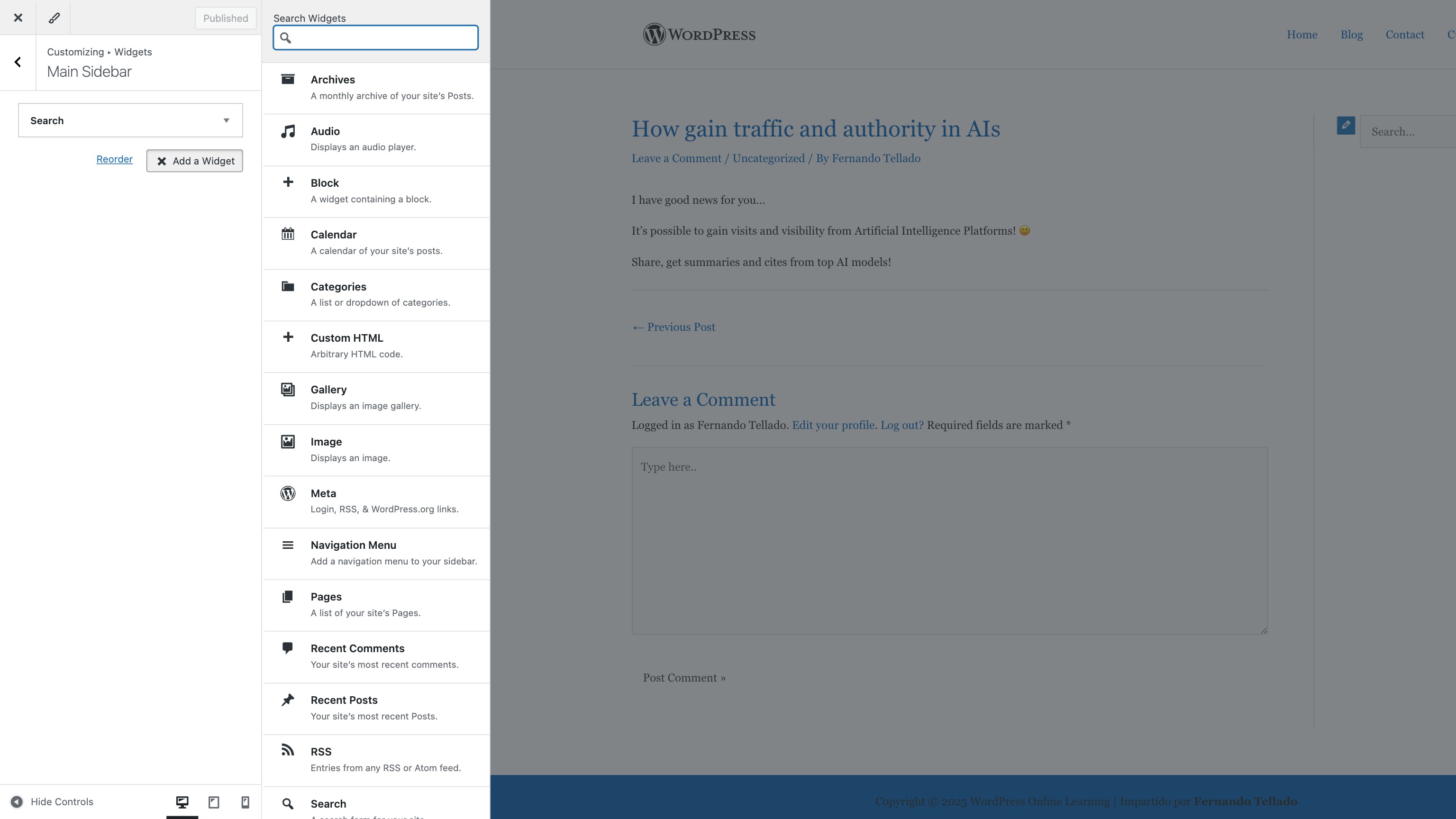
- Block-based Widget Editor (reverts to Classic Widgets)
- Block Patterns and Pattern Directory
- Theme.json support and processing
- Block Directory integration
- Site Editor functionality
Performance Optimizations
- The block library CSS and JavaScript that every page loads
- The Global Styles inline CSS, which dequeuing the handle never reaches
- The block assets of any other plugin that registers blocks, on pages where no block appears
- The block editor assets in the admin, wherever the Classic Editor is the one opening
WooCommerce Integration
- The block based product editor, which follows the same rules as any other post type
- The WooCommerce block styles and scripts, removed along with the rest of the block assets
- Nothing else: leave blocks on for products and the block product editor keeps working
Admin Experience
- Removes the welcome panel that promotes the block editor
- Removes the Patterns submenu from the Appearance menu (WP 6.5+)
- Removes the Fonts submenu from the Appearance menu (WP 7.0+)
- Blocks access to Site Editor pages
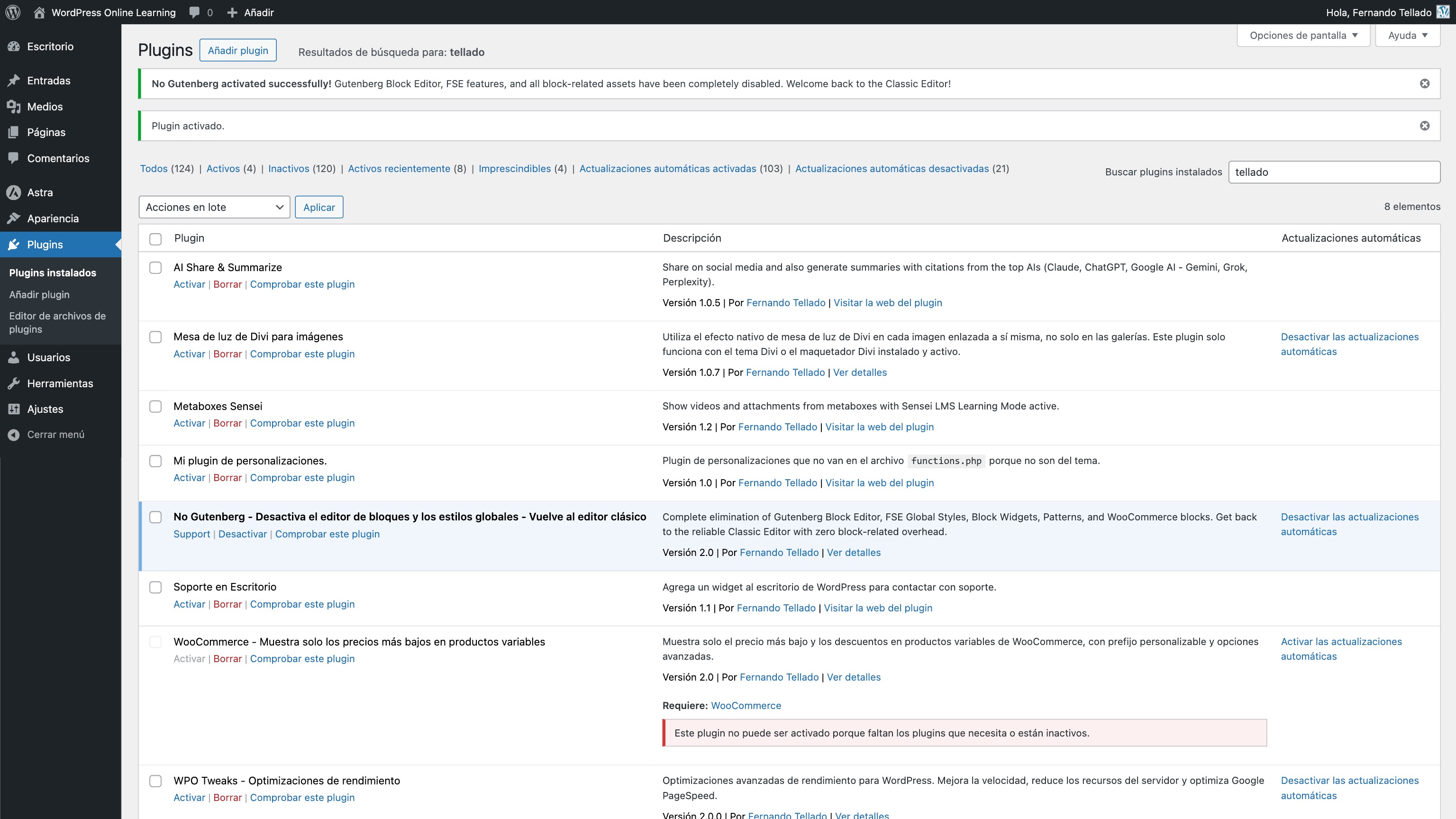
- Shows activation success notice
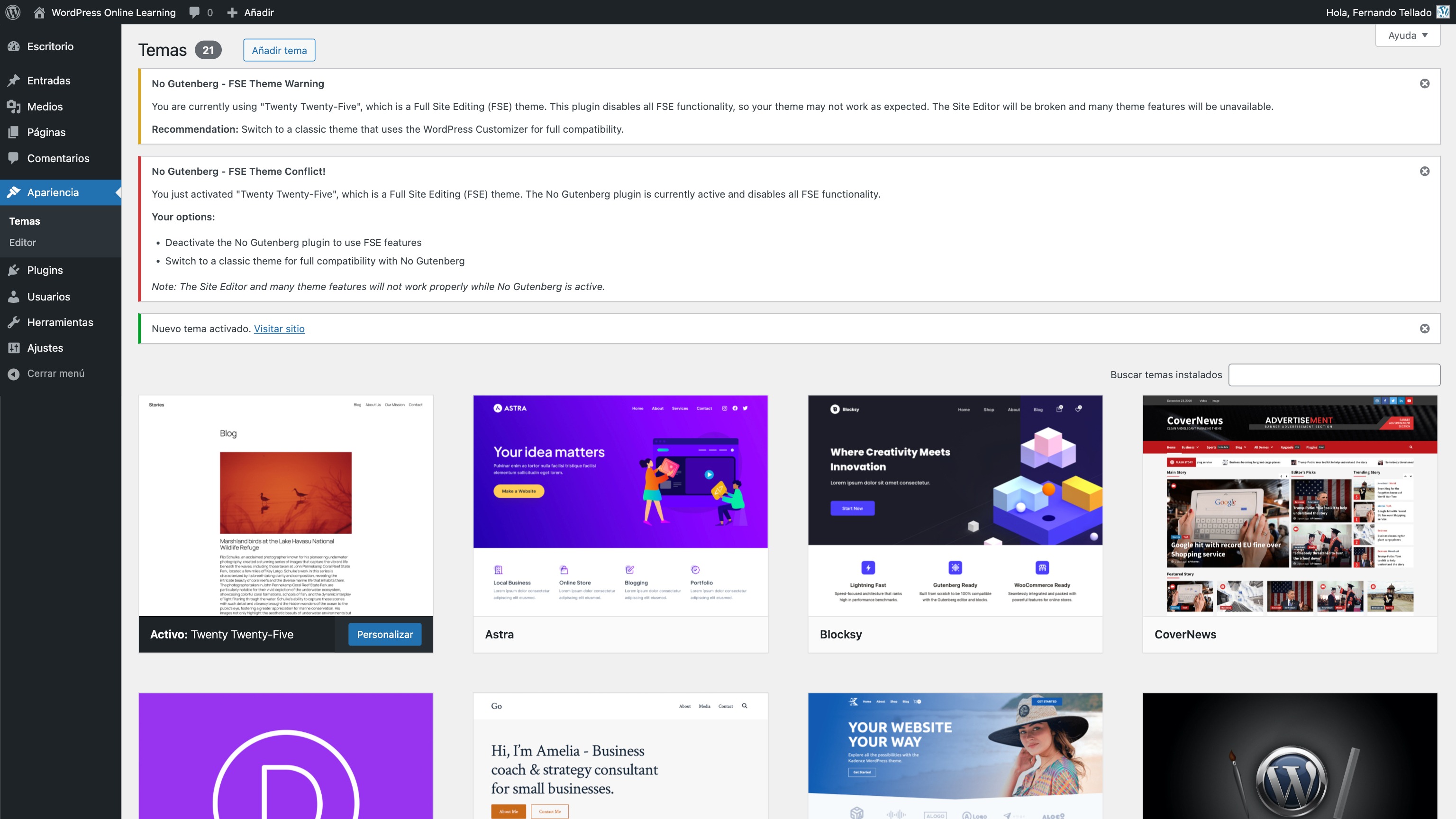
- Warns you when a block theme is active
- Adds settings and support links to plugin actions
A default that asks nothing, and a settings page for everything else – Activating the plugin disables the block editor and every block feature across the site, which is what most people install it for. The rest of this page is about wanting less than that.
Full control when you need it – The settings page lives under Settings > No Gutenberg?, built around one master switch. Leave it on and the whole site keeps the complete disable. Turn it off and you decide where the block editor goes away: by post type, by user role, by page template or by individual entry. The site wide pieces (classic widgets, block patterns, frontend block assets, theme.json and the Site Editor) are then yours to keep or remove one by one. Every checkbox means the same thing, so no setting ever undoes another one.
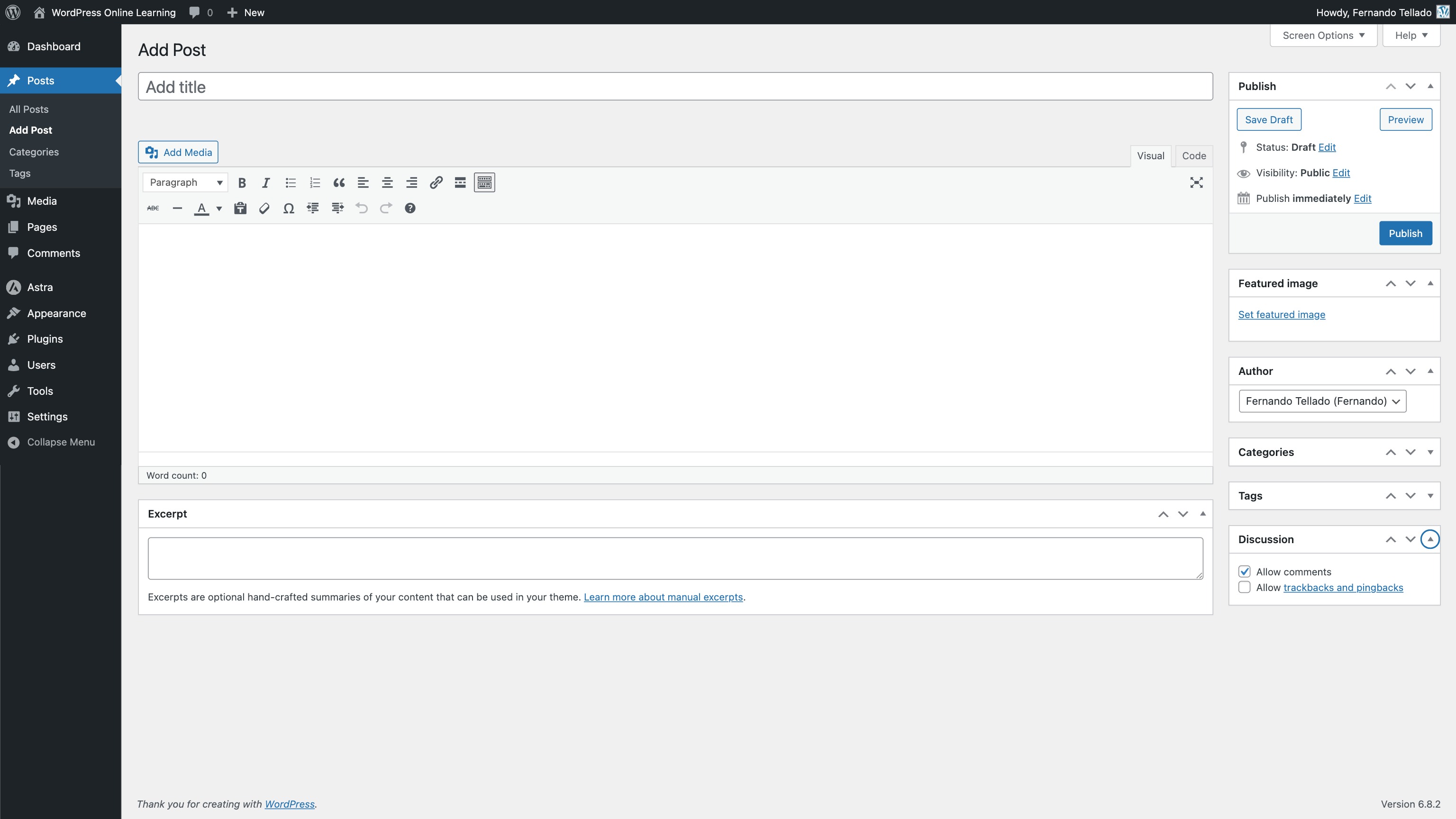
Switch editors entry by entry, where it makes sense – Editor switching is chosen per post type, right next to the rule that disables the block editor. Enable it for pages, for instance, and every page gets “Edit (Classic)” and “Edit (Blocks)” links in the list plus a switch inside both editors, while your posts stay untouched. Each entry remembers the editor chosen for it, and that choice beats the rules in both directions: one landing page can stay on the Classic Editor while the rest keep blocks, or the other way around.
It tells you what it is doing – The settings screen opens with a status panel for your particular site: how many block patterns are being blocked, how much weight is off every page, whether your theme is a block theme, and how much of your published content is really built with blocks. That last number is the one that should decide whether you strip the block styles from the frontend or not, and no other plugin tells you.
Built for agencies and managed sites – The whole configuration can be fixed from wp-config.php, and the settings screen locked as read only or hidden altogether, so a site you deliver keeps the setup you left behind.
A whole network configured in one file – This is where the plugin stands alone. Every single setting it has, and not just which editor opens, can be written in wp-config.php, the same file every site of a multisite network reads. A network of a hundred sites is set up once, all of them with the same rules, all of them with the same block CSS gone, and none of them able to drift away from it. The plugin can also be network activated and left alone, because settings are stored per site, so a network can equally let each site decide for itself. Same mechanism as the locking above, and this is how it is written.
One configuration for a whole network, or for a site you deliver
Everything the settings screen does can also be written in wp-config.php, where nobody changes it by accident, and what you write there wins over whatever is stored in the database. It is the same file for every site of a multisite network, so it is also how you set up a network without repeating the configuration site by site. Add the lines you need above the comment that says “That’s all, stop editing! Happy publishing.”
To disable Gutenberg everywhere and leave no settings screen for anyone to touch, which is the usual setup both for a network and for a site you hand over to a client:
define( 'NO_GUTENBERG_OPTIONS', array( 'complete' => true ) );
define( 'NO_GUTENBERG_HIDE_SETTINGS', true );
complete covers the block editor, everywhere and for everyone. It does not decide the site wide items, which answer for themselves: a site that is already serving the block styles because it has content built with blocks keeps serving them. Name them in the array if you want them off whatever the site has.
Drop that second line and the settings page is still there, showing the configuration the site is really running, but read only. And if all you want is to lock the screen, leaving the configuration as each site has it stored:
define( 'NO_GUTENBERG_LOCK_SETTINGS', true );
NO_GUTENBERG_OPTIONS takes any of the settings on the screen, so a selective setup is written the same way:
define(
    'NO_GUTENBERG_OPTIONS',
    array(
        'complete'           => false,
        'disable_post_types' => array( 'post', 'page' ),
        'disable_roles'      => array( 'editor', 'author' ),
        'frontend_css'       => false,
    )
);
The keys are the settings on the screen. complete, widgets, patterns, frontend_css, theme_json, site_editor and fse_notices take true or false, while disable_post_types, disable_roles, disable_templates and switch_post_types take an array of slugs, and disable_ids an array of entry IDs. Any key you leave out keeps the value stored on the site, and on a site with block content frontend_css and theme_json are stored as false, so write them here if you really want them on. Note that defining NO_GUTENBERG_OPTIONS already turns the whole screen read only, so NO_GUTENBERG_LOCK_SETTINGS is not needed on top of it.
It fits sites that:
– Work better in the Classic Editor and want it back
– Run classic themes and plugins that were never built around blocks
– Are paying for block CSS and JavaScript on pages with no blocks in them
– Need the Classic Editor for everyone except a few post types, roles or people
– Are a multisite network that wants the same editing experience on every site
Support
Need private support or custom development?
Do you need one-on-one help, priority troubleshooting, or a custom feature, integration, or tweak built specifically for your site? I offer private support and custom development. Just contact me and tell me what you need.
Need help or have suggestions?
Love the plugin? Please leave us a 5-star review and help spread the word!
About AyudaWP
We are specialists in WordPress security, SEO, and performance optimization plugins. We create tools that solve real problems for WordPress site owners while maintaining the highest coding standards and accessibility requirements.
Installation
- Go to your WP Dashboard > Plugins and search for ‘no gutenberg’ or…
- Download the plugin from WP repository
- Upload the ‘no-gutenberg’ folder to the ‘/wp-content/plugins/’ directory
- Activate the plugin through the ‘Plugins’ menu in WordPress
- That is it. The block editor is disabled across the site and the Classic Editor is back
On a multisite network you can also Network Activate it, so it runs on every site of the network at once. Settings stay per site, and the description explains how to configure the whole network from wp-config.php.
Changelog
If this plugin was taking the block styles off a site that has content built with blocks, updating puts them back: that was never a choice, the old code forced it. A new install does not make that choice either, and every setting is now on screen.
2.4.0
If this plugin was taking the block styles off a site that has content built with blocks, updating puts them back: that was never a choice, the old code forced it. A new install does not make that choice either, and every setting is now on screen.
- New: A Classic Editor configuration found on the site can be imported here. The page says what was found and then lists, line by line, what importing it would write and what it would clear, with a button to keep the settings you already have. It is offered once, because Classic Editor deletes its own settings when it is removed
- New: A warning when Classic Editor is running at the same time as this plugin. Both of them choose which editor opens, through the same WordPress filters, and the one that runs last wins
- Improved: The whole configuration is on screen at all times. The master switch used to hide the rest of the page, which read as there being nothing left to decide while two of the hidden settings could take the styles off content that was already published
- Improved: The site wide items are decided on their own, with the master switch checked or not. A complete disable used to force every one of them on, so the two that reach the frontend could not be turned off on a site with block content, and saving the page put them back
- Improved: A warning next to the site wide items whenever the block styles are being removed from a site that needs them, with the number of entries it affects
- Improved: The settings page now confirms when settings are saved, which it never did
- Improved: The settings page was laid out again. Every box on it ends on the same pixel, and what the plugin is doing to the site is a panel that belongs there, instead of looking like a notice waiting to be dismissed
- Fix: Installing on a site that already has content built with blocks no longer removes the block CSS and neutralizes theme.json. Those entries kept the block editor, so their markup was safe, but visitors saw them with no styles, no layout and no spacing presets. Both options now start unchecked on a site with block content or a block theme, and the page says why
- Fix: The activation notice said that block content would keep the block editor so nothing would break its markup, while the same configuration had just taken its styles off the frontend. It now also says what was left in place, and why
- Fix: The status panel reported the frontend block assets and theme.json as removed whenever the master switch was checked, whatever the real setting said
- Fix: Activating the plugin for a whole network configured only the site the network administrator was on. Every other site of that network was treated as one coming from before 2.3.0, so it ended up with the protection of existing block content off and the block styles removed from the frontend. Each of them now gets the defaults of its own site the first time its admin is opened. This is about networks activated from this version on: on a network that was already activated, every site keeps what it has
- Fix: Updating gives the block styles back to a site that has content built with blocks and was serving it with none. Until this version the master switch forced the frontend block assets and the theme.json item on while it was checked, so on those sites nobody chose that: the stored value could not even be read back, and the settings page showed a state that was not the real one. A site that had the master switch unchecked did choose, so its two values are left exactly as they are and the settings page warns about them instead
- Fix: A site with no configuration of its own, which is what a site of a network activation has until somebody opens its admin there, no longer removes the block styles while it waits. Nothing has looked at whether that site needs them yet, and removing them is the half that cannot be undone by reading the page
- Fix: Uninstall also removes the stored Classic Editor detection
For older changelog entries, please check the changelog.txt file
Screenshots

For developers
Is this your plugin? Show off the numbers.
Add a live badge to your site, docs or GitHub README. It updates on its own — no account needed.
Best No Gutenberg? alternatives
All blocks plugins →




FAQ
No Gutenberg?: quick answers
Straight answers, pulled from live WordPress.org data.
Source: WordPress.org
Is No Gutenberg? free?
Yes. No Gutenberg? is free to download and use from the official WordPress.org plugin directory.
Is No Gutenberg? safe to use in 2026?
Yes — No Gutenberg? is a safe, well-maintained plugin to use in 2026. It runs on 8K+ sites, is rated 5/5 and was last updated 3 weeks ago, and scores 88/100 on our health check.
How many websites use No Gutenberg??
No Gutenberg? is active on 8K+ WordPress websites and has been downloaded 184,597 times since it launched in April 2018. It was downloaded 4,972 times in the last 30 days.
Does No Gutenberg? work with WordPress 7.1?
Yes. The developer has tested No Gutenberg? up to WordPress 7.1.5, the latest release. It requires WordPress 6.1 or newer.
What PHP version does No Gutenberg? need?
No Gutenberg? requires PHP 7.4 or higher. Most hosts run PHP 8.x today, so it works on any modern WordPress hosting.
When was No Gutenberg? last updated?
The latest version, 2.4.0, was released on October 27, 2026 (3 weeks ago).
Who makes No Gutenberg??
No Gutenberg? is developed and maintained by Fernando Tellado.
What are the best alternatives to No Gutenberg??
The most popular alternatives to No Gutenberg? are Spectra Legacy (1M+ installs), Kadence Blocks (600K+ installs) and Extendify (500K+ installs).
Powered by PageForge
One template and a spreadsheet. A real page for every search.
PageForge turns each row of a CSV into a WordPress page with its own title, URL, SEO fields and schema, built on the layout you already designed. Free on WordPress.org.
- CSV and XLSX, plus Google Sheets on Professional and Enterprise
- Its own title, URL, SEO fields and schema for every page
- Works with the block editor, Elementor, Divi and Avada
- Free on WordPress.org, no credit card