


Events Calendar by FooEvents
The simplest way to display any post, page or custom post type in a dynamic events calendar on your WordPress website.

Solid choice
Events Calendar by FooEvents is a solid plugin choice in 2026, with a few things worth checking first. It runs on 4K+ sites, is rated 3/5 and was last updated 2 weeks ago, and scores 73/100 on our health check.
- Actively developed — last update 2 weeks ago
- Tested with the latest WordPress (7.1)
- Momentum — downloads up 112.6% vs the previous 30 days
- Very few reviews so far
How does it stack up?
Side-by-side on installs, updates, ratings & support



Daily downloads
Download spikes usually follow a new release — each site that auto-updates counts as a download.
Rankings
Where Events Calendar by FooEvents stands todayWordPress.org search rankings
Live position in the plugin search, top 100| Keyword | Position |
|---|---|
| calendar | #78 |
| Event | >100 |
| events | >100 |
| events calendar | #55 |
| tickets | >100 |
Version adoption
Share of active sites per release.
Rating breakdown
★★★★★★★★★★ 3 from 2 reviews
About Events Calendar by FooEvents
From the official readme · v2.0.7Description
The Events Calendar by FooEvents is the simplest way to display any post, page or custom post type in a dynamic events calendar on your WordPress website. Whether you use a third-party events plugin, list events using posts, or create landing pages for each event using your favorite page builder, the Events Calendar by FooEvents makes it possible to display any event in an events calendar on your website.
📅 How it Works
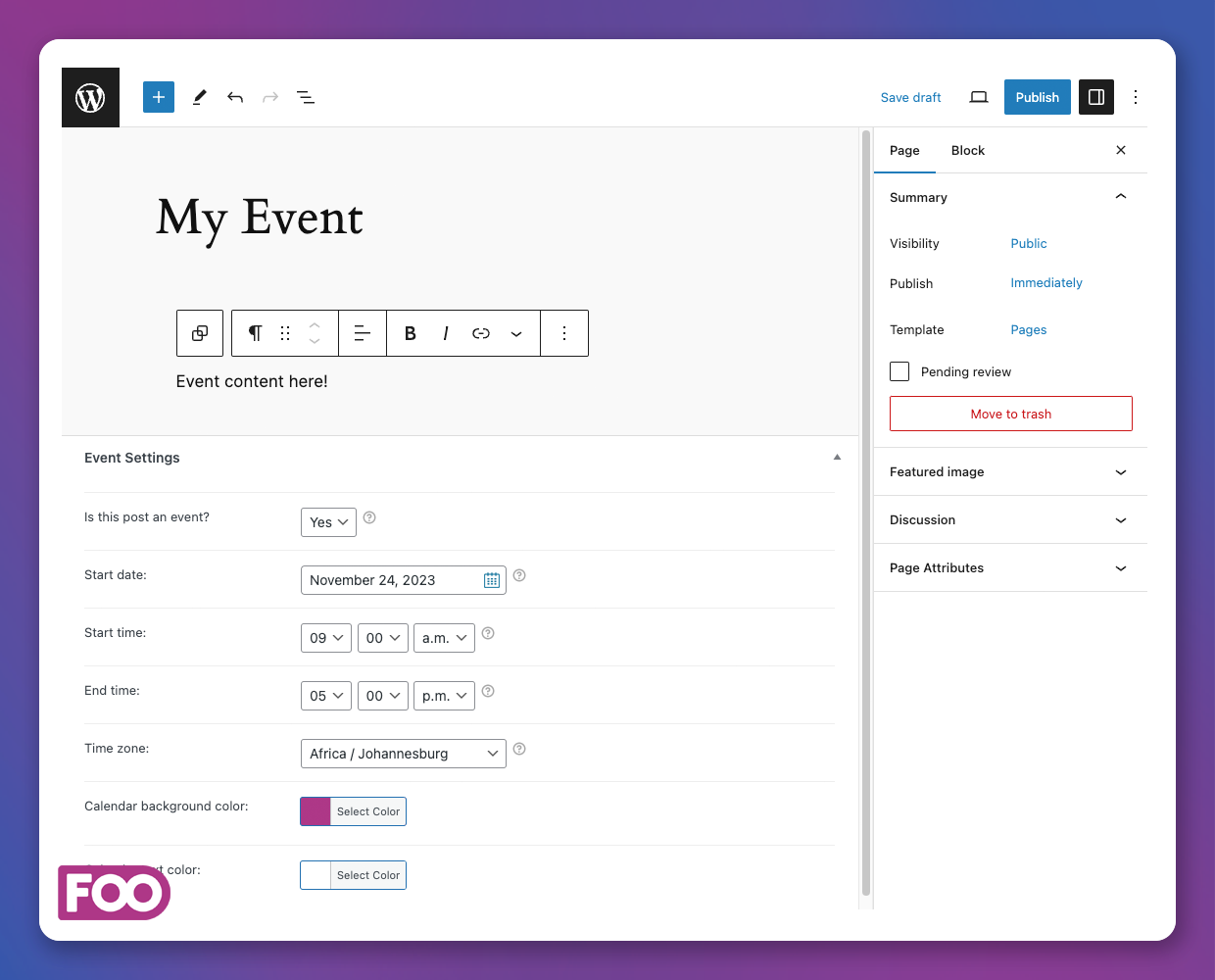
Simply enable the event features on a post, page or custom post type and set the date and time of the event. Any post, page, or custom post type that is enabled as an event will then display in your events calendar. This unique and flexible approach means that almost any post type can be treated as an event and displayed in an events calendar. This gives you complete flexibility to create events using custom code, a third-party events plugin, or simply create a custom event page using your favorite page builder and display it in the calendar.
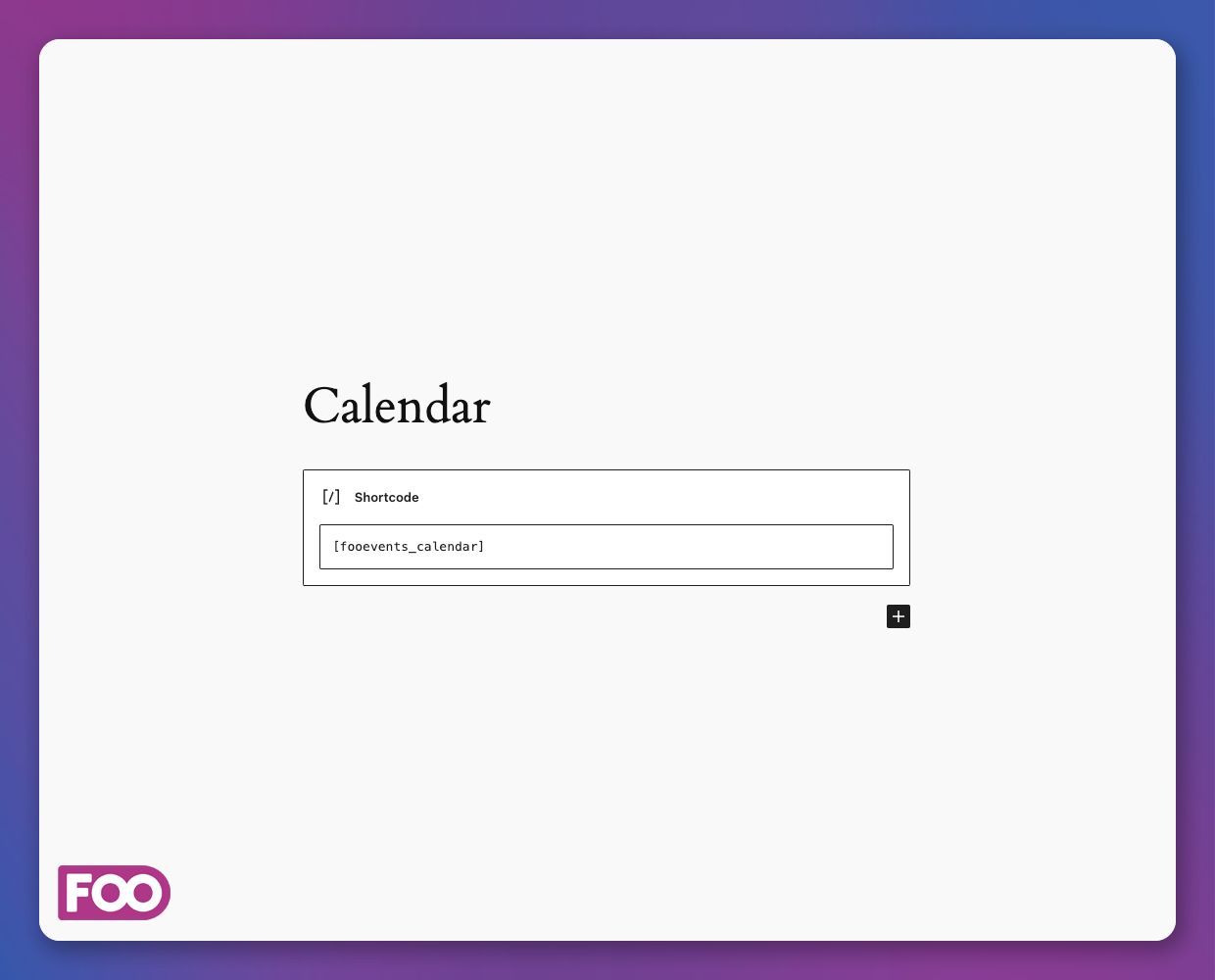
Adding the events calendar to the front-end of your website is done using a simple events calendar shortcode or events calendar widget. Both the events calendar shortcode and events calendar widgets include various options that can be configured to determine which posts, pages or custom post types are displayed in the calendar.
✨ Features
- Add event details to any post, page or custom post type and display these items in an events calendar.
- Add an events calendar on any page with the events calendar shortcode or events calendar widget. The shortcode seamlessly integrates with most page builders and only takes a few seconds to add.
- Click on an event displayed in the calendar and proceed to the relevant post or page.
- Display multiple events calendars on a single page using multiple shortcodes. All you need to do is make sure that each shortcode has a different ID.
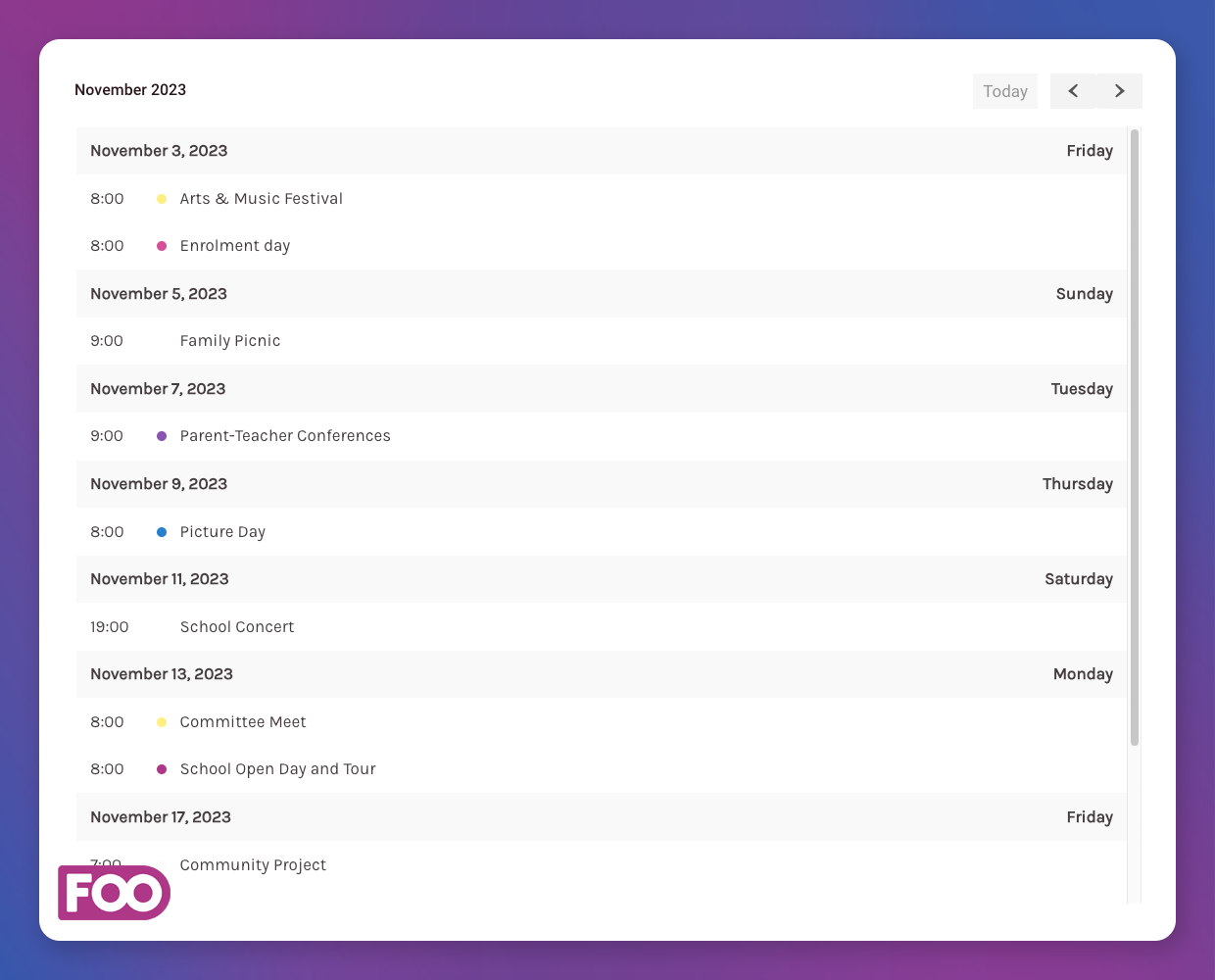
- In addition to the traditional events calendar view, you can also display events in a list format. You can set the list view to filter the events by day, week, month or year.
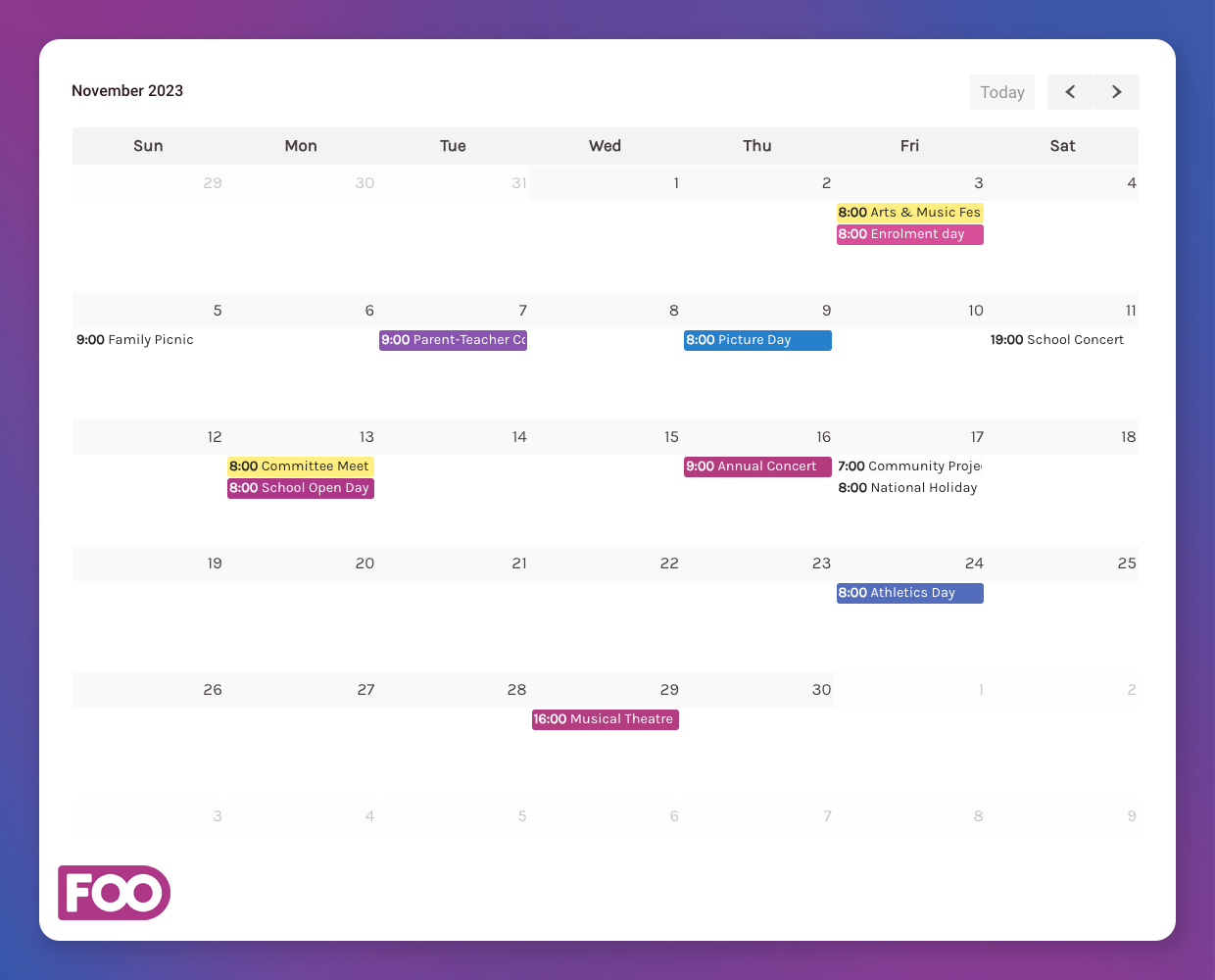
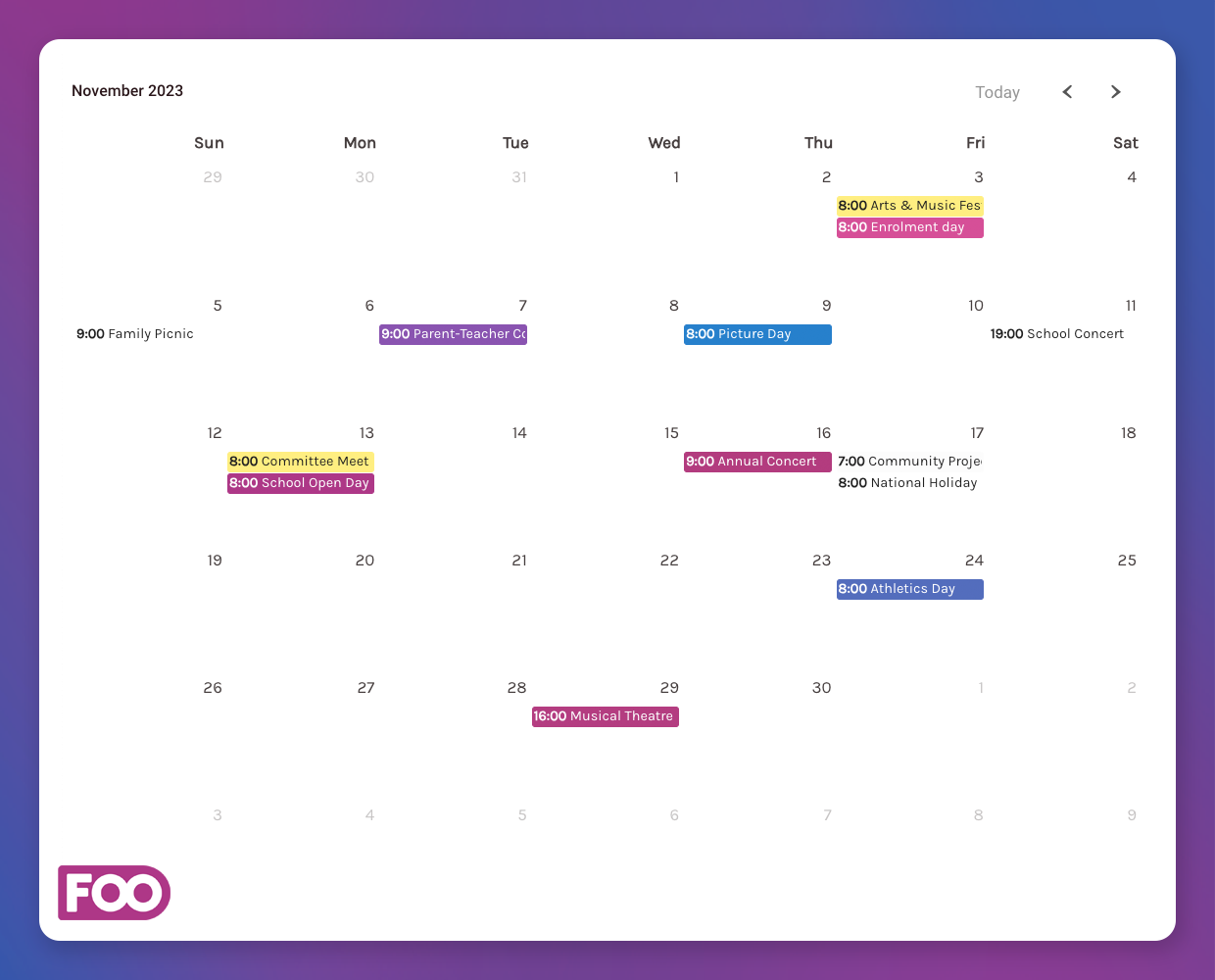
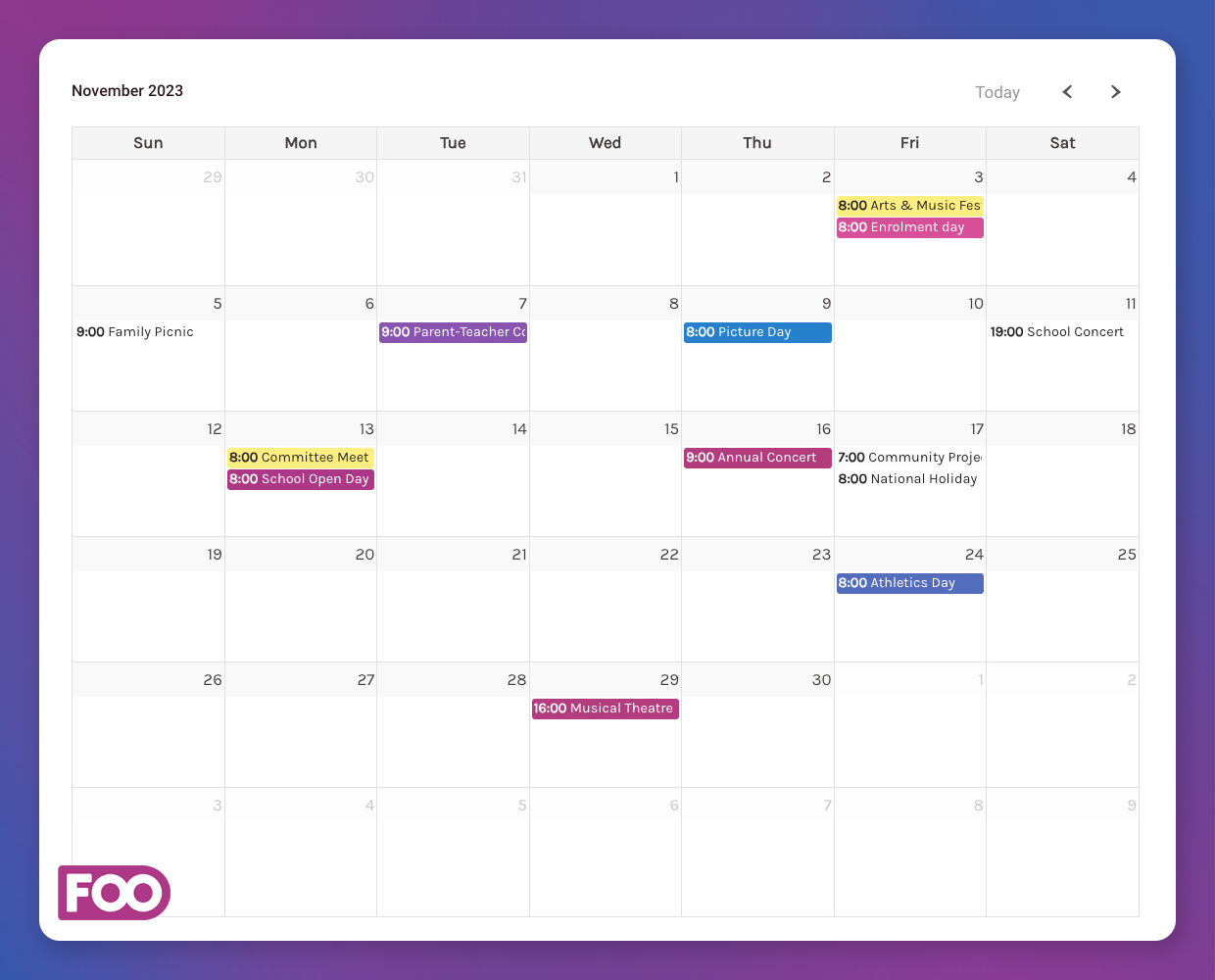
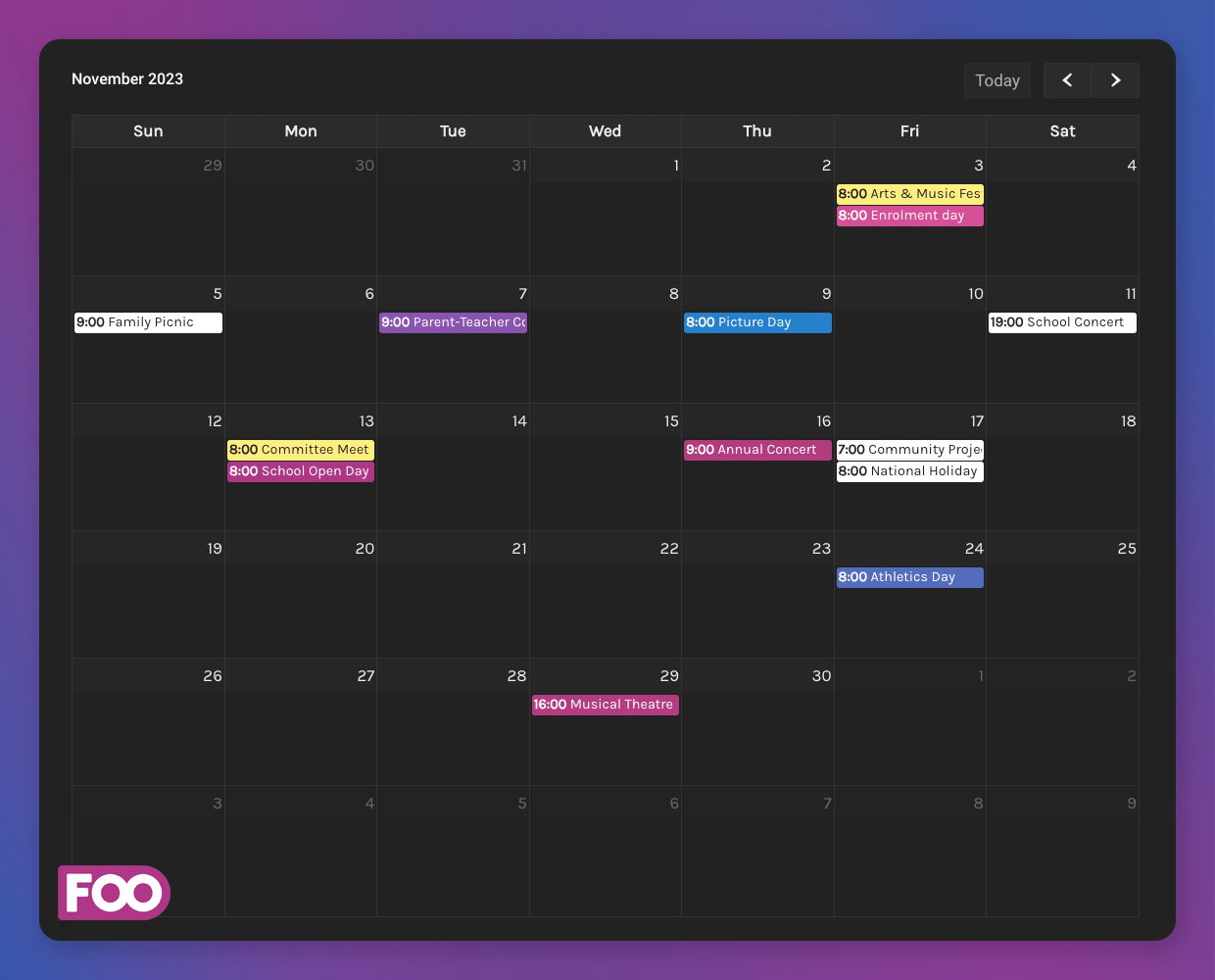
- When configuring an event, you can set the background and text color of the event label that is displayed in the events calendar view. For the list view, a colored dot will appear next to the event’s name.
- By default, the events calendar shortcode will display the current month by default, however, you can set the events calendar to load a specific future or past date.
- Set the event calendar to start the week on either Monday or Sunday based on what suits you best.
- Specify the number of events to display in both the events calendar and list views.
- The time format is adjustable, allowing you to present it as per your preference.
- Configure the time format to display based on your preference.
- Set the events calendar to hide weekends if your events only take place during the week.
- Set the events calendar to only show specific events or posts using their ID’s.
- Change the look of your events calendar using our built-in events calendar themes.
- Works with almost any WordPress theme.
- Integrates perfectly with the FooEvents for WooCommerce plugin making it possible to also sell tickets and bookable services.
⚡ Use Cases
- School activity events calendar: Display school-related activities in an events calendar on your school website. This is perfect for students, teachers, and parents to stay up to date with important dates, holidays, activities, shows, sporting events etc.
- Company events calendar: Inform employees and stakeholders about internal events, training sessions, product launch dates, wellness activities, company holidays, and corporate milestones.
- Meetups: Organize informal gatherings or groups with shared interests and display upcoming meetings, topics, and locations in an events calendar.
- Community Center: Showcasing events, classes, workshops, and gatherings taking place at the community center.
- Activities events calendar: Often used by restaurants, resorts, cruise ships or holiday destinations to inform guests of daily or weekly activities, shows or available excursions.
- Event Management: Promoters, venues or organizations can showcase upcoming events like concerts, webinars, or workshops. Users can view event details and book tickets when used together with the FooEvents for WooCommerce plugin.
- Recreational clubs: Sports and recreation clubs can display training sessions, matches, and other club-related events for members in an events calendar.
- Community or local government: Publicizing community events, town hall meetings, trash collection days or other important local dates in an events calendar.
- Holiday special events calendar: Retailers or e-commerce sites can use an events calendar to highlight special sales, promotions, or product launches aligned with specific dates or holidays.
- Health & fitness: Gyms or health clubs can list fitness classes, sessions with personal trainers or special wellness events in an events calendar on their website.
- Cultural & religious groups: Places of worship or cultural organizations can post schedules for religious ceremonies, festivals, and cultural events relevant to their community on their website using the events calendar.
🎟️ Sell Tickets and Bookable Services
The Events Calendar by FooEvents is also fully compatible with the FooEvents for WooCommerce plugin which makes it possible to sell branded tickets to more advanced events such as multi-day events and bookable services.
FooEvents offers many advanced features that add event management functionality to your website including free ticket themes and a free check-ins app.
- FooEvents for WooCommerce (core plugin): Sell tickets with no commission or ticket fees and manage free registration for practically any type of physical or virtual event such as a concert, class, conference, tour, webinar, fundraiser or sports fixture.
- FooEvents Bookings: Sell access to bookable events, venues, classes and services. Let your customers check availability on your website and book a space or slot. No phone calls or emails, 100% self-service. The Events Calendar by FooEvents plugin integrates seamlessly with FooEvents Bookings. Each bookable slot is displayed in the calendar and can be selected when clicked.
- FooEvents PDF Tickets: Attach event tickets or confirmations as PDF files to the email that is sent to the attendee or ticket purchaser.
- FooEvents Custom Attendee Fields: Capture customized attendee fields at checkout so you can tailor FooEvents according to your unique event requirements. This is useful for acquiring additional information from attendees such as clothing sizes, meal preferences, demographic information, waiver acceptance etc.
- FooEvents Multi-day: The FooEvents Multi-day plugin is an extension for FooEvents that lets you sell tickets to events that run over multiple calendar or sequential days. This is an essential plugin if you have an event that runs longer than a day or single session and requires multiple check-ins for each attendee. When installed, the FooEvents Multi-day plugin will also add multi-day capabilities to posts, pages and custom post types.
- FooEvents Seating: The FooEvents Seating plugin is an extension for FooEvents that allows your guests or attendees to select their seats at checkout based on the layout of your venue. This plugin can be used to specify rows and seats in a conference room or theater, tables and the number of chairs at the table etc. You can create VIP sections or restrict attendees to seats in other higher or lower tiered areas.
- FooEvents Express Check-in: The FooEvents Express Check-in plugin is an extension for FooEvents that makes checking in and managing attendees at your event a fast and effortless process. The intuitive interface allows you to search for attendees in a matter of seconds or you can connect a Bluetooth or USB barcode scanner to your computer in order to scan tickets instead of typing. You also have the option of automatically checking in attendees to further speed up the process.
- Check-ins App: There’s no need to struggle with clumsy spreadsheets or kill trees when you can manage event check-ins with our free, easy to use iOS and Android apps. The FooEvents Check-ins app gives you the tools to manage access to your event like a pro and it even works in offline mode and supports 15 different languages!
- FooEvents Ticket Themes: Transform the appearance of your tickets and make your event stand out with our FREE Ticket Themes. If you have some basic coding knowledge, the Starter Theme can be used as a template to design your own tickets from scratch.
🔌 Integrations
Straight out of the box, the Events Calendar by FooEvents can be used by any third-party plugin that creates events using a custom post type. All you need to do is head to the Events Calendar by FooEvents settings and add the custom post type as a supported event post type.
Documentation and Support
The most current documentation for the Events Calendar by FooEvents plugin can be found in the FooEvents Help Center.
You can also purchase a support package for the Events Calendar by FooEvents plugin should you require any technical support.
Installation
Minimum Requirements
- PHP version 5.3 or greater (PHP 5.6 or greater is recommended)
- MySQL version 5.0 or greater (MySQL 5.6 or greater is recommended)
- WooCommerce 3.1.0
Automatic installation
Automatic installation is the easiest option as WordPress handles all the file transfers. To do an automatic installation of the Events Calendar by FooEvents plugin, login to your WordPress admin dashboard, navigate to the Plugins menu and click ‘Add New’.
In the search field type “FooEvents” and click ‘Search Plugins’. Once you’ve found the Events Calendar by FooEvents plugin, you can view details about it such as release information, rating and description. Most importantly of course, you can install it by simply clicking “Install Now”.
Manual installation
The manual installation method involves downloading the Events Calendar by FooEvents plugin and uploading it to your web server via your favorite FTP application. The WordPress codex contains instructions on how to do this here.
Updating
Automatic updates should work seamlessly, but as always, please ensure that you back-up your website just in case.
Events Calendar by FooEvents Settings
- Navigate to your WordPress admin dashboard
- Navigate to Settings > Events Calendar by FooEvents
- Various settings can be configured that will change the behavior and display of your calendar
Getting Started
- Navigate to the post or page where you would like to insert the calendar on your website
- Type or paste the calendar shortcode in the main content text editor
- Examples of calendar shortcodes include:
- Basic calendar – [fooevents_calendar]
- Display particular month – [fooevents_calendar defaultDate= “2019-09-01”]
- Display list view – [fooevents_calendar defaultView=”listWeek”]
- Display multiple calendars per page – [fooevents_calendar id=”cal1″], [fooevents_calendar id=”cal2″] etc.
- To add a widget view of the calendar:
- Go to Appearance -> Widgets
- Drag the Events Calendar by FooEvents widget into the widget area where you would like it to be displayed
- Type a widget title
- Select which type of view you would like to use – Calendar or List view
- Calendar view:
- You can specify which date you would like the calendar to start on. If left empty, the calendar will default to the current date.
- Example date format: 2016-09-01 (yyyy/mm/dd)
- List view:
- You can set the number of events to be displayed. By default, the list view will display the latest 5 events.
- Click ‘Save’ to confirm your changes
- Other shortcodes
- Simple event – [fooevents_event product=10]
- Simple list of events – [fooevents_events_list]
- List of 5 events – [fooevents_events_list num=5]
Changelog
2.0.7
- FIXED: Eventbrite PHP warning. *
- FIXED: Various small bugs and performance updates. *
- TESTED ON: WordPress 7.1.4 and WooCommerce 11.3.0. *
2.0.6
- FIXED: Various security updates. *
- FIXED: Various small bugs and performance updates. *
- TESTED ON: WordPress 7.1.4 and WooCommerce 11.2.1. *
2.0.5
- FIXED: Date format event listing bug. *
- FIXED: Various small bugs and performance updates. *
- TESTED ON: WordPress 7.1.3 and WooCommerce 11.2.1. *
2.0.4
- FIXED: Various security updates. *
- FIXED: Various small bugs and performance updates. *
- TESTED ON: WordPress 7.0.4 and WooCommerce 11.0.1. *
2.0.2
- FIXED: Various template improvements. *
- FIXED: Various small bugs and performance updates. *
- TESTED ON: WordPress 7.0.1 and WooCommerce 10.9.4. *
2.0.1
- FIXED: Various small bugs and performance updates. *
- TESTED ON: WordPress 7.0 and WooCommerce 10.8.1. *
Screenshots
For developers
Is this your plugin? Show off the numbers.
Add a live badge to your site, docs or GitHub README. It updates on its own — no account needed.
Best Events Calendar by FooEvents alternatives
All calendar plugins →




FAQ
Events Calendar by FooEvents: quick answers
Straight answers, pulled from live WordPress.org data.
Source: WordPress.org
Is Events Calendar by FooEvents free?
Yes. Events Calendar by FooEvents is free to download and use from the official WordPress.org plugin directory.
Is Events Calendar by FooEvents safe to use in 2026?
Events Calendar by FooEvents is a solid plugin choice in 2026, with a few things worth checking first. It runs on 4K+ sites, is rated 3/5 and was last updated 2 weeks ago, and scores 73/100 on our health check.
How many websites use Events Calendar by FooEvents?
Events Calendar by FooEvents is active on 4K+ WordPress websites and has been downloaded 138,407 times since it launched in December 2018. It was downloaded 5,782 times in the last 30 days.
Does Events Calendar by FooEvents work with WordPress 7.1?
Yes. The developer has tested Events Calendar by FooEvents up to WordPress 7.1.5, the latest release. It requires WordPress 6.0 or newer.
What PHP version does Events Calendar by FooEvents need?
Events Calendar by FooEvents requires PHP 8.0 or higher. Most hosts run PHP 8.x today, so it works on any modern WordPress hosting.
When was Events Calendar by FooEvents last updated?
The latest version, 2.0.7, was released on November 16, 2026 (2 weeks ago).
Who makes Events Calendar by FooEvents?
Events Calendar by FooEvents is developed and maintained by FooEvents.
What are the best alternatives to Events Calendar by FooEvents?
The most popular alternatives to Events Calendar by FooEvents are The Events Calendar (600K+ installs), Events Manager (60K+ installs) and SimplyBook.me (30K+ installs).
Powered by PageForge
One template and a spreadsheet. A real page for every search.
PageForge turns each row of a CSV into a WordPress page with its own title, URL, SEO fields and schema, built on the layout you already designed. Free on WordPress.org.
- CSV and XLSX, plus Google Sheets on Professional and Enterprise
- Its own title, URL, SEO fields and schema for every page
- Works with the block editor, Elementor, Divi and Avada
- Free on WordPress.org, no credit card