


AcrossAI Model Manager
Pin your preferred AI model per capability, control the HTTP request timeout, and log every AI generation call — all from one settings page.

Use with caution
AcrossAI Model Manager works, but test it on a staging site before relying on it in 2026. Was last updated 5 months ago, and scores 49/100 on our health check.
- Small user base (<10 active installs)
- Very few reviews so far
How does it stack up?
Side-by-side on installs, updates, ratings & support



Daily downloads
Download spikes usually follow a new release — each site that auto-updates counts as a download.
Rankings
Where AcrossAI Model Manager stands todayWordPress.org search rankings
Live position in the plugin search, top 100| Keyword | Position |
|---|---|
| AI | >100 |
| ai logging | >100 |
| ai models | >100 |
| model manager | #53 |
| wordpress ai | >100 |
About AcrossAI Model Manager
From the official readme · v0.0.7Description
AcrossAI Model Manager gives site administrators full control over three aspects of the WordPress 7.0 AI client: which model is used per capability, how long requests are allowed to run, and a complete audit log of every AI generation call made on the site.
Model Preferences
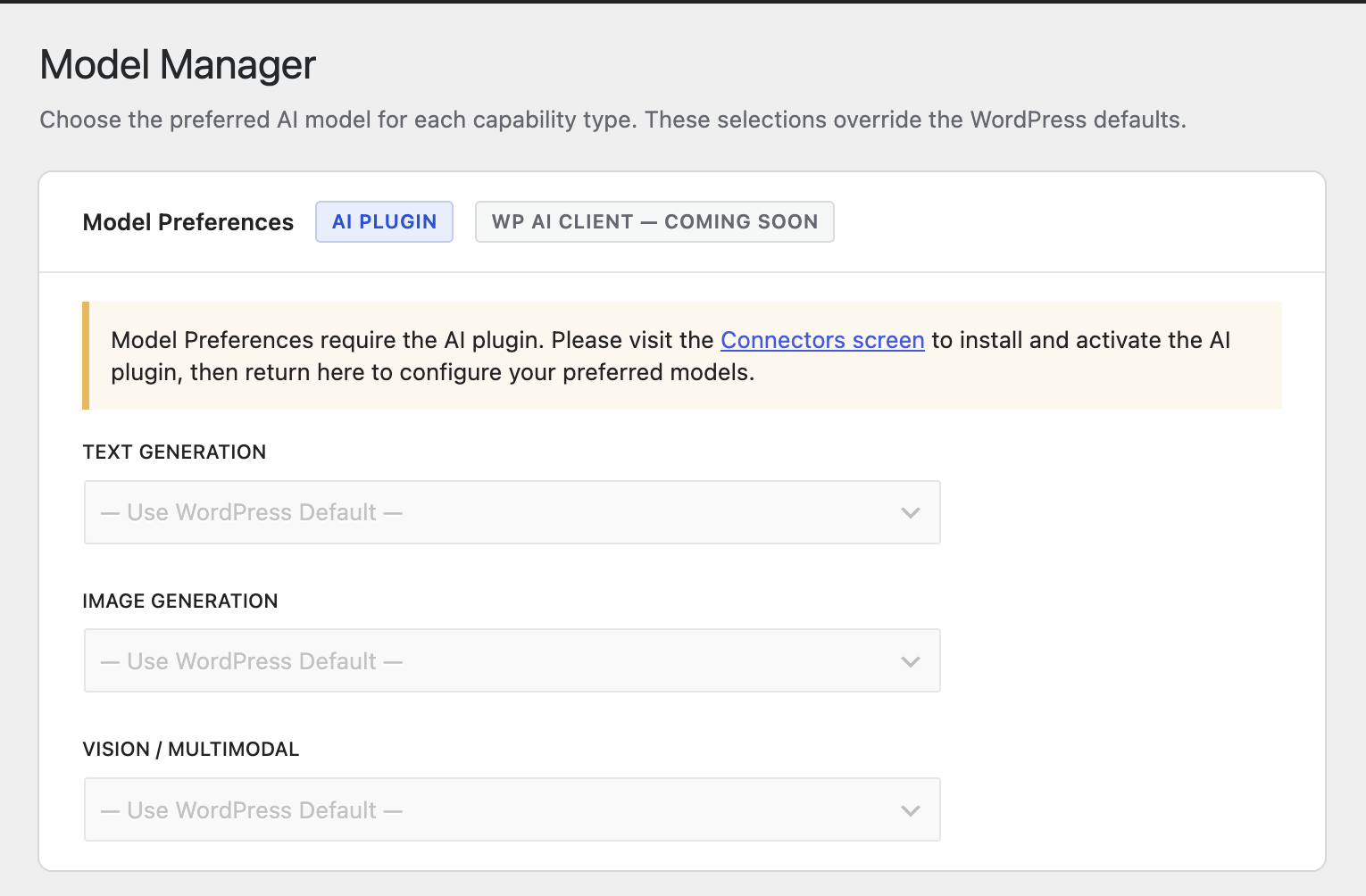
By default, WordPress picks the first available model from your configured AI connectors. This plugin adds a settings page under Settings > AcrossAI Model Manager where you can pin a specific model per capability — and that model will always be prioritised.
- Text Generation — preferred model for all text-generation tasks
- Image Generation — preferred model for image-generation tasks
- Vision / Multimodal — preferred model for vision and multimodal tasks
HTTP Request Timeout
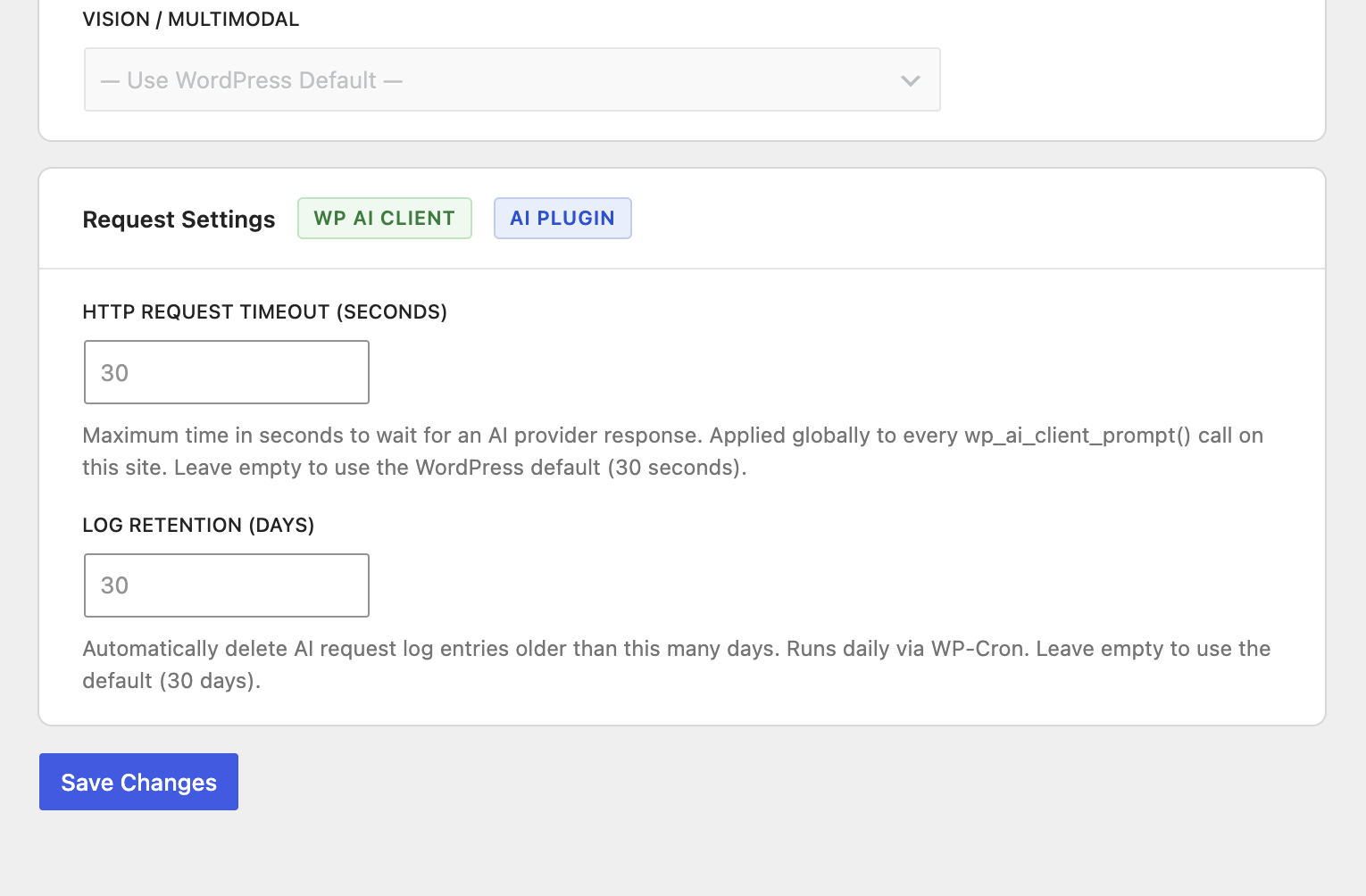
Set a site-wide timeout (in seconds) for all wp_ai_client_prompt() calls. Works directly with the WordPress 7.0 built-in AI client — no additional plugins required.
AI Request Logging
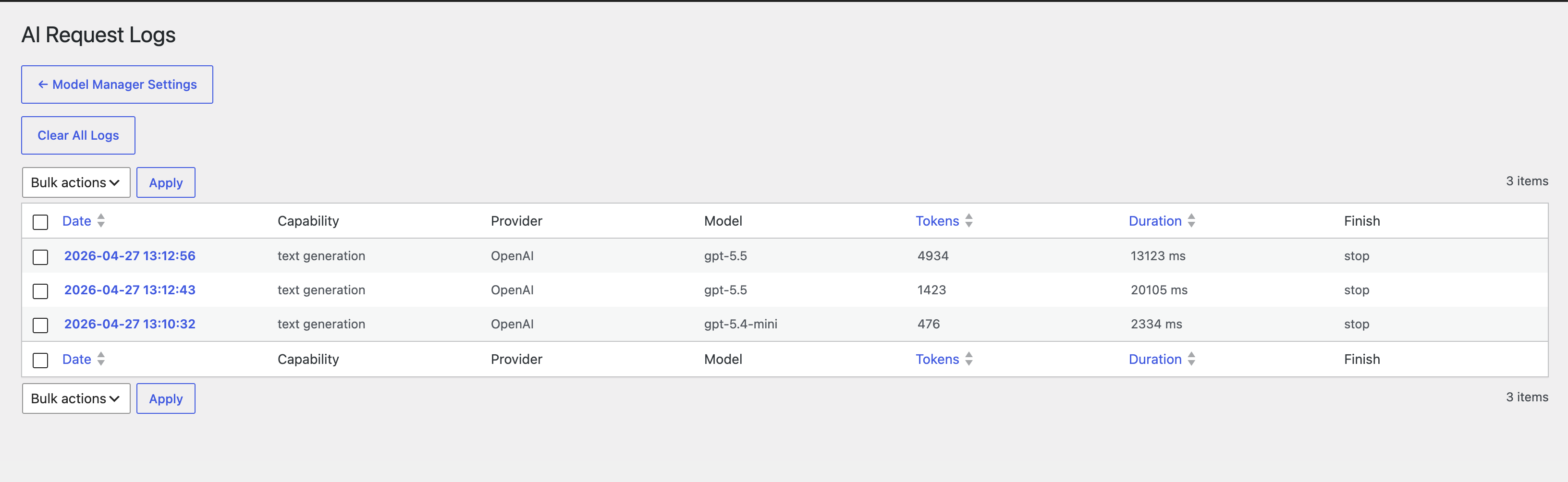
Every successful AI generation call is automatically logged to a dedicated database table. The Settings > AI Logs admin page provides a sortable, paginated view of all requests with:
- Provider, model, and capability for each call
- Full prompt text and response text (expandable detail view)
- Token usage (prompt, completion, total) and request duration
- Source tracking — which plugin, theme, mu-plugin, or WordPress core file triggered the request, including the file path and line number
- Configurable log retention (auto-delete logs older than N days via WP-Cron)
Settings are stored as a single serialised option and exposed to the WordPress REST API, so the settings page saves without a full page reload using a React-powered interface.
Requirements:
- WordPress 7.0 or higher.
- The AI plugin must be installed and activated for Model Preferences to work. Without it, the Model Preferences dropdowns are disabled and no models will appear. The HTTP Request Timeout and AI Logging features work with WordPress 7.0 core directly.
- At least one AI connector (e.g. Llama.cpp, Hugging Face, OpenAI via the AI Connectors screen) must be configured for Model Preferences to work.
Installation
- Upload the
acrossai-model-managerfolder to the/wp-content/plugins/directory, or install through the WordPress Plugins screen directly. - Activate the plugin through the Plugins menu in WordPress.
- Go to Settings > AcrossAI Model Manager.
- Choose your preferred model for each capability type from the dropdowns. Only models from configured and connected providers appear.
- Click Save Changes.
Frequently asked questions
Do I need any other plugins for this to work?
It depends on what you want to use. Model Preferences (choosing a preferred model per capability): Yes — the AI plugin must be installed and activated, and at least one AI provider must be configured via the Connectors screen (Settings > Connectors). If the AI plugin is not active, the Model Preferences dropdowns are automatically disabled on the settings page. HTTP Request Timeout: No additional plugin required. The timeout setting works with the WordPress 7.0 built-in AI client directly and takes effect for all AI calls on your site.
Does this work with the WordPress 7.0 built-in WP AI Client?
Not fully yet. The WordPress AI client (introduced in WordPress 7.0) does not currently expose a filter that allows plugins to override the model being used. Model Preferences therefore requires the separate AI plugin which provides the wpai_preferred_*_models filter hooks this plugin relies on. The HTTP Request Timeout setting does work directly with the WP AI Client via the wp_ai_client_default_request_timeout filter. Full WP AI Client support for Model Preferences is planned for a future release once WordPress core adds the necessary hooks.
What happens if my preferred provider loses its API key or connection?
The plugin checks whether the provider is currently connected before applying the preference. If the provider is disconnected, WordPress falls back to its default model selection — your preference is preserved in the database and will take effect again once the provider is reconnected.
Where is the preference stored?
Preferences are stored in the WordPress options table under the key acai_model_manager_preferences as a JSON object with one entry per capability type (e.g. {"text_generation":"openai::gpt-4o"}).
Can I set different models for different capability types?
Yes. Text generation, image generation, and vision can each have their own preferred model independently.
Will this work with custom or third-party AI providers?
Any provider registered with the AI plugin that exposes its models through the standard metadata API will appear automatically in the dropdowns — no additional configuration is needed in this plugin.
Changelog
Creates a new database table ({prefix}acai_ai_logs) on activation. Deactivate and reactivate the plugin after updating, or the upgrade will run automatically on your next admin page load.
0.0.7
- Fix admin hook name from
settings_page_totoplevel_page_— resolves missing styles/scripts on the Model Manager settings page (top-level Options menu pages usetoplevel_page_as the hook prefix, notsettings_page_).
0.0.6
- Log failed AI requests (invalid key, network error, timeout) — uses PHP shutdown function to drain any stack entries not popped by
wp_ai_client_after_generate_result; failed rows stored withfinish_reason = 'error'and full elapsed duration. - Capture error messages for failed requests via
http_api_debug— supports OpenAI, Hugging Face, and generic JSON error bodies; error detail shown in log list (tooltip on red badge) and detail view. - Replace
WPAI_PLUGIN_FILEcheck withhas_ai_credentials()— Model Preferences now enables for any configured provider (llama.cpp, OpenAI, etc.), not just when the AI plugin is loaded. - Simplify JS Model Preferences gate — removed
aiPluginActiveflag; section enable/disable is now driven solely byhasAnyProvider(presence of models in the PHP payload).
0.0.5
- Added AI request logging system — every successful AI generation call is now logged to a custom database table (
{prefix}acai_ai_logs). - Logs capture: provider, model, capability, prompt text, response text, token usage (prompt/completion/total/thought), duration (ms), finish reason, and the WordPress user who triggered the request.
- Added source/caller tracking — each log entry records where the AI request originated: plugin slug, theme slug, mu-plugin filename, or WordPress core, along with the relative file path and line number.
- Added Settings > AI Logs admin page with a sortable, paginated log table (date, capability, provider, model, source, tokens, duration). Includes bulk delete and a detail view showing full prompt and response text.
- Added Log Retention setting (days) to the Request Settings card — logs older than the configured number of days are automatically deleted daily via WP-Cron. Default: 30 days.
- Log table is created on plugin activation via
dbDelta()and dropped cleanly on plugin uninstall. - Reduced AGENTS.md size by 40% — split into focused reference docs under
docs/(hooks, classes, JS frontend, decisions).
0.0.4
- Add Feature to track WP AI Client
- Add Screenshots
- Add Video
0.0.3
- Added compatibility badges to settings card headers indicating which AI integration each section supports (WP AI Client, AI Plugin, coming soon).
- Model Preferences section is now disabled when the AI plugin is inactive — shows a warning notice with a direct link to the Connectors screen.
- Model Preferences section is also disabled when the AI plugin is active but no AI providers are configured — shows a distinct notice prompting the user to configure a provider via the Connectors screen.
- Added FAQ entry clarifying WP AI Client support status: HTTP Request Timeout works with WP AI Client today; Model Preferences requires the AI plugin and will gain WP AI Client support in a future release.
- Updated requirements section to clarify that the AI plugin is needed only for Model Preferences; the HTTP Request Timeout works with WordPress 7.0 core directly.
0.0.2
- Updated requirements: now explicitly requires WordPress 7.0+ (built-in AI client) instead of the separate WordPress AI plugin.
- Clarified that at least one AI connector must be configured for models to appear.
Screenshots
For developers
Is this your plugin? Show off the numbers.
Add a live badge to your site, docs or GitHub README. It updates on its own — no account needed.
Best AcrossAI Model Manager alternatives
All AI plugins →





FAQ
AcrossAI Model Manager: quick answers
Straight answers, pulled from live WordPress.org data.
Live data from WordPress.org · checked Sep 29, 2026
Is AcrossAI Model Manager free?
Yes. AcrossAI Model Manager is free to download and use from the official WordPress.org plugin directory.
Is AcrossAI Model Manager safe to use in 2026?
AcrossAI Model Manager works, but test it on a staging site before relying on it in 2026. Was last updated 5 months ago, and scores 49/100 on our health check.
How many websites use AcrossAI Model Manager?
AcrossAI Model Manager is active on <10 WordPress websites and has been downloaded 508 times since it launched in April 2026. It was downloaded 63 times in the last 30 days.
Does AcrossAI Model Manager work with WordPress 7.1?
AcrossAI Model Manager is officially tested up to WordPress 7.0.6, while the latest release is 7.1.2. It may still work, but try it on a staging site first.
What PHP version does AcrossAI Model Manager need?
AcrossAI Model Manager requires PHP 7.4 or higher. Most hosts run PHP 8.x today, so it works on any modern WordPress hosting.
When was AcrossAI Model Manager last updated?
The latest version, 0.0.7, was released on April 28, 2026 (5 months ago).
Who makes AcrossAI Model Manager?
AcrossAI Model Manager is developed and maintained by Pooja Gupta.
What are the best alternatives to AcrossAI Model Manager?
The most popular alternatives to AcrossAI Model Manager are Elementor Website Builder (10M+ installs), All in One SEO (2M+ installs) and AI Agent by SiteGround (1M+ installs).
Powered by PageForge
Want thousands of pages that rank like these? Build them in an afternoon.
This directory runs on the same engine as PageForge. Turn any spreadsheet, CSV or API into thousands of fast, SEO-ready WordPress pages — with schema, internal links and AI-written copy baked in.
- CSV, Google Sheets & API data sources
- AI content, schema & internal links per page
- Works with Elementor, Gutenberg, Yoast & Rank Math
- Free on WordPress.org — no credit card


