



WpStream – Live Streaming, Video on Demand, Pay Per View
WpStream is a Video Streaming Plugin that lets you broadcast live events and helps you sell tickets or recordings via WooCommerce.

Safe pick
Yes — WpStream is a safe, well-maintained plugin to use in 2026. It runs on 3K+ sites, is rated 4.8/5 and was last updated 2 weeks ago, and scores 82/100 on our health check.
- Loved by users — 4.8/5 from 78 reviews
- Actively developed — last update 2 weeks ago
- Momentum — downloads up 56% vs the previous 30 days
How does it stack up?
Side-by-side on installs, updates, ratings & support


Daily downloads
Download spikes usually follow a new release — each site that auto-updates counts as a download.
Rankings
Where WpStream stands todayWordPress.org search rankings
Live position in the plugin search, top 100| Keyword | Position |
|---|---|
| Broadcast | #4 |
| live shopping | #8 |
| live streaming | #1 |
| live video | #13 |
| video streaming | #2 |
Version adoption
Share of active sites per release.
Rating breakdown
★★★★★★★★★★ 4.8 from 78 reviews
About WpStream
From the official readme · v4.14.1Description
Live stream on your WordPress website and make recordings available for replay.
WpStream lets you broadcast from your browser or streaming software such as OBS, with viewers watching on your own site. Add live services, shows, matches, classes, or events to the website you already manage. Offer free viewing or sell access through WooCommerce.
WpStream handles video delivery through its streaming service. Your WordPress site hosts the pages and viewing experience; it does not have to serve the live video traffic from your web hosting account.
Free plugin, separate streaming service
The WpStream plugin is free to install. To use WpStream’s live streaming and cloud video services, connect a WpStream account. A free trial is available to test the service; paid streaming plans are separate from the plugin.
Plans have allowances for broadcasting, viewing, and recording storage. Free-to-view means your audience does not pay to watch; it does not mean the streaming service is free. See the current plans and resource allowances before choosing a plan.
WooCommerce is optional for free-to-view broadcasts. Pay-per-view requires WooCommerce. The documented recurring-subscription setup also requires the separately purchased WooCommerce Subscriptions extension.
Broadcast from your browser or streaming software
Go live on your website using your browser and webcam, or connect an external encoder that supports a custom RTMP destination, such as OBS Studio, Wirecast, or Larix.
For a basic webcam broadcast on an existing WordPress site, setup can take three minutes or less. Allow extra time for payment setup, custom page layouts, or configuring an external encoder.
Create a live channel, choose your broadcast method, and share the channel page with your audience. You can also place the player inside an existing page.
Record live streams and publish replays
Record a live broadcast or upload a video file, then publish it as video on demand. Give viewers a place to catch up on a missed service, watch a previous match, or revisit a class.
Offer recordings free to watch, sell individual videos, or include them in a subscription with the required WooCommerce setup.
Sell access with WooCommerce when you need it
Sell access to live streams and recorded videos through your WordPress site’s WooCommerce checkout.
- Pay-per-view: sell access to an individual live stream or video with WooCommerce.
- Subscriptions: offer recurring access with WooCommerce and WooCommerce Subscriptions. See the subscription setup guide.
- Free viewing: publish broadcasts and videos without asking viewers to purchase access.
Choose your branding and viewing access
Add your own logo to the player and choose how live streams and videos appear on your site.
For private events, you can use a password-protected viewing page. For paid access, use the WooCommerce options above.
Read more about WpStream’s approach to content rights.
Add players and video lists to your pages
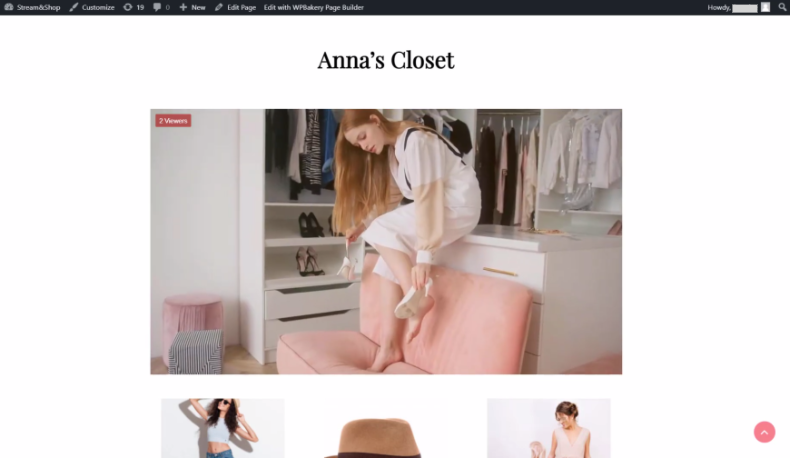
Each live channel and on-demand video has its own page. To place a player elsewhere, use the WpStream Player block, Elementor or WPBakery element, or shortcode.
Use channel and video lists to help viewers find current broadcasts and available recordings. See the player and listing documentation.
Let approved users broadcast without admin access
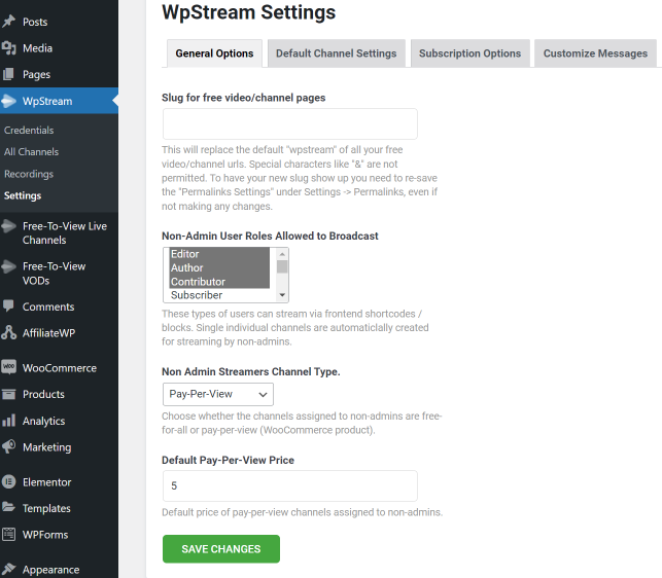
If other people broadcast on your site, configure which non-admin user roles are allowed to stream. Add the front-end broadcasting controls to their pages so they can start a broadcast without access to the WordPress admin dashboard.
See the front-end broadcasting documentation for setup.
Optional: Hello WpStream theme
You do not need to switch to Hello WpStream to use the plugin. If you are building a new video website, the Hello WpStream theme provides a starting point designed for WpStream.
Getting started and support
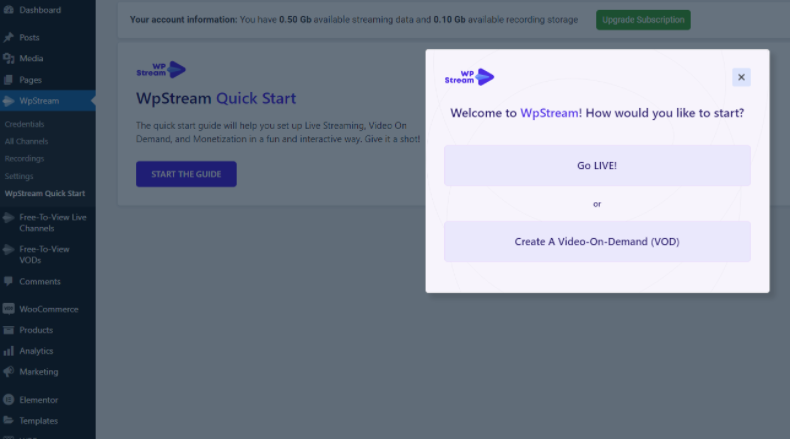
Use the getting-started documentation and video tutorials to set up your first broadcast. For questions or troubleshooting, visit the plugin support forum.
CONNECT WITH US
Installation
- Review our comprehensive tutorials here https://wpstream.net/category/getting-started/
- Install and enable the plugin from https://downloads.wordpress.org/plugin/wpstream.zip or by searching for ‘WpStream’ in your plugin install page
- Signup with WpStream and get your credentials
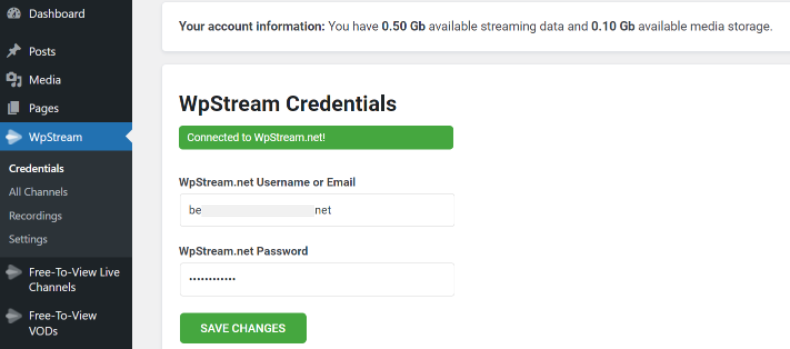
- Under the “WpStream” section of your WordPress admin, use the WpStream credentials to activate your plugin
- (Optional) Install and activate WooCommerce if you need to create pay-per-view video products
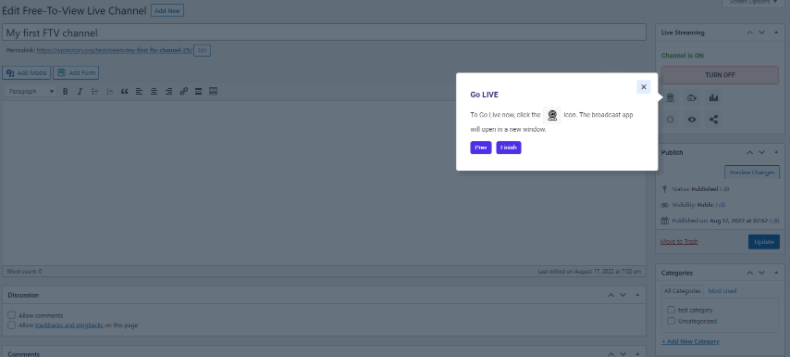
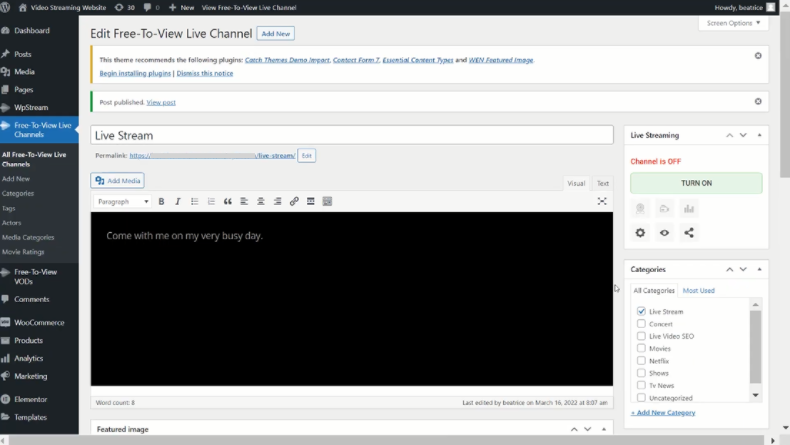
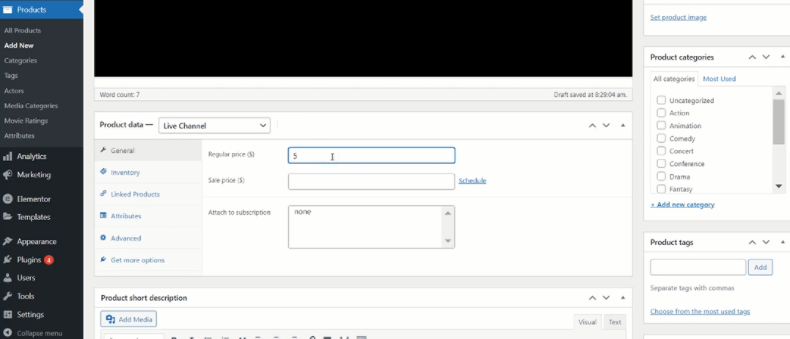
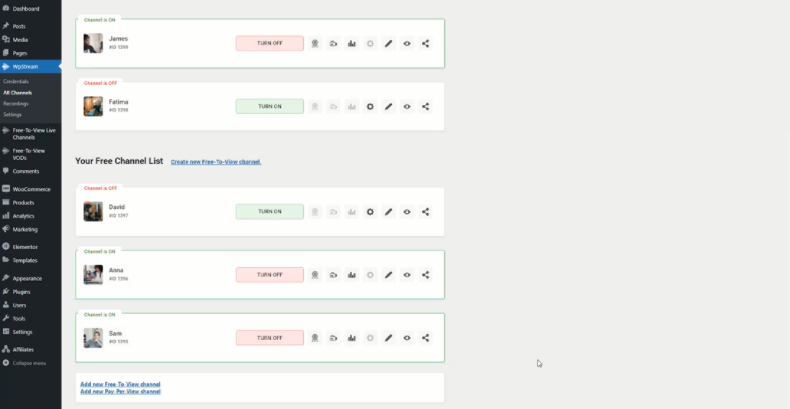
- Create and publish a new ‘Free Live Channel” (under ‘Free Free Live Channel / Free Video’) or a ‘Live channel’ type Product (under ‘Products’)
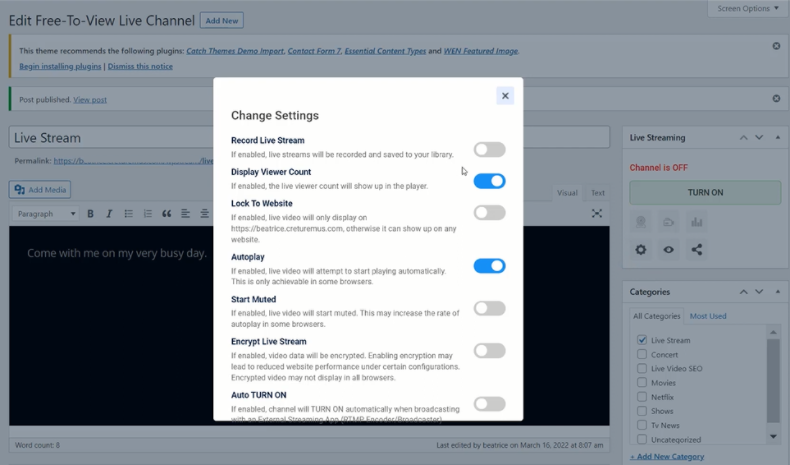
- After publishing your Channel/Product, click the “BROADCAST TO CHANNEL” button. Wait for the channel to become available and select your favorite way to broadcast (‘Browser’ or ‘3rd Party’). The browser broadcast will open a pop-up that will immediately begin to broadcast. The ‘3rd party’ option will give you the ‘rtmp’ parameters you need to set up on your encoder (i.e. OBS)
- Live video will be available on the Channel/Product ‘permalink’ page shortly after starting your broadcast
Frequently asked questions
What can I use WpStream for?
Live Streaming, Video (On Demand), and Pay-Per-View on WordPress websites. Most popular use cases for live video content include Fitness, Faith, Education, and News / TV Broadcasting.
Which plan is the best for my streaming needs?
We calculate your ideal plan based on the number of hours you will be streaming, the number of viewers, the amount of storage you need, and the quality of your broadcast. You can calculate which plan is best for you by adding your numbers here.
How many LIVE channels can I run concurrently?
You can run anywhere from 5 to 150 LIVE concurrent channels, depending on the streaming plan you have. Check them out here.
Can I monetize my LIVE and Video (On Demand) content?
Absolutely! You can set up subscriptions, pay-per-view, or hybrid models with WooCommerce. Find out more information about the different monetization options for LIVE and Video content here.
Can my website users go live on my website on their own?
Regular users are able to GO LIVE via the Front-End. Check out the documentation to find out how streaming video is done by regular users.
What can I live stream with?
Through any modern browser or using apps with RTMP (Real-Time Messaging Protocol) capability. For example, StreamYard, OBS, Wirecast, iPhones, and Androids. See here.
Where do I report security bugs found in this plugin?
Please report security bugs found in the source code of the WpStream plugin through the Patchstack Vulnerability Disclosure Program. The Patchstack team will assist you with verification, CVE assignment, and notify the developers of this plugin.
Changelog
4.14.1
- Fix – Sites without Elementor no longer see a “WpStream Elementor requires Elementor” warning on every admin page. Elementor is an optional integration; the warning was reinstated by mistake in 4.14.0 and is now removed. Sites that run an outdated Elementor or PHP version still get their version warning
4.14.0
- Fix – Tooltips on the last icon row of the Live Streaming sidebar box were cut off on WooCommerce product edit pages; the box no longer clips them
- Fix – The channel ON/OFF button in the sidebar box now sizes to its content instead of a fixed height
- Fix – Multipart VOD uploads are capped at 1000 parts and the real upload error is shown when a part fails
- Security – Dashboard file uploads are now validated on the server: the uploaders accept only the allowed image, video and PDF types (profile pictures are limited to images) and reject oversized files, instead of trusting the browser to filter file types. Previously a crafted request could store other file types
- Security – Deleting an uploaded file now follows a single consistent rule across every dashboard endpoint: only the file’s owner (or a user permitted to delete it) can remove it, deletions are limited to genuine media attachments, and a missing or invalid request is handled safely without a PHP error or exposing the owner’s account id
- Security – An uploaded file can no longer be attached to a post the uploader is not allowed to edit
- Security – Saving WpStream settings and Default Channel Settings now requires administrator permissions; previously these admin actions accepted a valid form token alone. The generic settings saver is also limited to known plugin settings and can no longer be used to overwrite the stored WpStream API credentials
- Fix – Saving the Default Channel Settings no longer clears the site-wide “Use Sessions with Encryption” option; settings the form does not send are now preserved instead of being overwritten
- Security – The video player no longer executes callback strings from its configuration (eval removed). The theater-mode buttons now announce mode changes via a wpstream:theater-mode browser event (detail: action “enter”/”leave” and the player element id) that site code can listen for on the player element or document
- Security – Removed a leaked internal test harness from the player controls script; it called debug endpoints that are not part of the plugin and reflected URL parameters into the page unescaped (potential cross-site scripting)
- Security – Added CSRF (nonce) verification to admin actions that previously accepted forged requests: saving WpStream credentials, the one-click plugin update, dismissing admin notices, and downloading or deleting cloud recordings
- Security – Added CSRF (nonce) verification to logged-in front-end actions: the Watch Later toggle (which previously accepted any value as a “nonce”), the legacy dashboard attachment-delete endpoint, and the BuddyBoss channel-select and timeline-player actions
- Security – Posting a live player to the BuddyBoss timeline now requires owning the channel; previously any logged-in user could post any channel’s player
- Fix – Attachment-delete endpoints compared the owner id with the wrong type and always refused valid requests; the ownership check now works as intended
- Removed – The built-in beta live chat has been removed entirely: the [wpstream_chat] shortcode, the WpStream Chat Elementor and WPBakery elements, the chat template, and the bundled chat libraries (chat client, SockJS, emojione, linkify, material UI). Live chat is provided by the Better Messages integration in the Hello WpStream theme. Pages still containing the old shortcode render it as plain text and can simply remove it
- Removed – Dropping the bundled chat libraries also removes their outdated third-party code (old jQuery/jQuery UI builds, SockJS 0.3) from the public site, shrinking the plugin’s attack surface and page weight
- Fix – Deactivating the plugin no longer deletes the stored WpStream API credentials, so a temporary deactivation (conflict testing, auto-deactivation after an error) keeps the account connected
- Added – Uninstalling the plugin now removes the stored credentials, cached authentication tokens, and scheduled cleanup events
- Removed – The beta low-latency player has been retired: the [wpstream_player_low_latency] shortcode, its “WpStream Player – Low Latency” Elementor and WPBakery elements, and the bundled OvenPlayer library are gone. Low latency remains a channel setting – use the standard [wpstream_player] / WpStream Player element, which plays low-latency channels. Pages still containing the old shortcode render it as plain text and can simply switch to [wpstream_player]
4.13.2
- Security – Enforce channel-ownership checks on live/broadcast actions so a user can only start, stop, or read the credentials of channels they own
- Security – Restrict front-end dashboard profile saves to address fields only, and verify channel ownership (by author, not editable user meta) when saving channel data
- Security – Generate the Larix QR code locally in the browser with a bundled library, so the RTMP URL and stream key are no longer sent to a third-party QR service
- Security – Harden the live chat client against stored cross-site scripting: chat messages, usernames, and the user list are now rendered as text instead of HTML, and message ids are matched as plain data so a crafted id cannot affect other page elements
- Fix – Live chat now clears its keep-alive timer and reconnects reliably after a dropped connection (a stale connection can no longer interfere with the active one), and the “not live” notice no longer errors
- Fix – Fatal error on the WooCommerce email preview screen and in order emails when an order item’s product is missing (e.g. deleted after purchase)
- Fix – Fatal error on the order-received page when no order is available
- Fix – Purchase confirmation message now correctly detects live stream / VOD purchases regardless of the product type term name
4.13.1
- Fix – Price field on paid channel/VOD not visible
- Fix – Paid VOD player buttons not visible
- Fix – Fatal error on widget
4.13
- Fix – Updated the way the user quota is retrieved
4.12.5
- Fix – Live channel player state when the channel was never started
Screenshots
For developers
Is this your plugin? Show off the numbers.
Add a live badge to your site, docs or GitHub README. It updates on its own — no account needed.
Best WpStream alternatives
All Broadcast plugins →


FAQ
WpStream: quick answers
Straight answers, pulled from live WordPress.org data.
Live data from WordPress.org · checked Sep 26, 2026
Is WpStream free?
Yes. WpStream is free to download and use from the official WordPress.org plugin directory.
Is WpStream safe to use in 2026?
Yes — WpStream is a safe, well-maintained plugin to use in 2026. It runs on 3K+ sites, is rated 4.8/5 and was last updated 2 weeks ago, and scores 82/100 on our health check.
How many websites use WpStream?
WpStream is active on 3K+ WordPress websites and has been downloaded 459,610 times since it launched in December 2017. It was downloaded 6,451 times in the last 30 days.
Does WpStream work with WordPress 7.1?
WpStream is officially tested up to WordPress 7.0.6, while the latest release is 7.1.2. It may still work, but try it on a staging site first.
What PHP version does WpStream need?
WpStream requires PHP 7.1 or higher. Most hosts run PHP 8.x today, so it works on any modern WordPress hosting.
When was WpStream last updated?
The latest version, 4.14.1, was released on September 10, 2026 (2 weeks ago).
Who makes WpStream?
WpStream is developed and maintained by wpstream.
What are the best alternatives to WpStream?
The most popular alternatives to WpStream are Jock On Air Now (JOAN) (400+ installs), Broadcast Live Video (400+ installs) and Stream Player by netmix® (60+ installs).
Powered by PageForge
Want thousands of pages that rank like these? Build them in an afternoon.
This directory runs on the same engine as PageForge. Turn any spreadsheet, CSV or API into thousands of fast, SEO-ready WordPress pages — with schema, internal links and AI-written copy baked in.
- CSV, Google Sheets & API data sources
- AI content, schema & internal links per page
- Works with Elementor, Gutenberg, Yoast & Rank Math
- Free on WordPress.org — no credit card


