


Wholelink – Make Group, Column and Cover Blocks Clickable
Clickable group block, cover block and column block: link a whole block or Query Loop post cards with one plain HTML link, no JavaScript.

Solid choice
Wholelink is a solid plugin choice in 2026, with a few things worth checking first. It runs on 40+ sites and was last updated 3 weeks ago, and scores 67/100 on our health check.
- Actively developed — last update 3 weeks ago
- Tested with the latest WordPress (7.1)
- Small user base (40+ active installs)
- Very few reviews so far
How does it stack up?
Side-by-side on installs, updates, ratings & supportDaily downloads
Download spikes usually follow a new release — each site that auto-updates counts as a download.
Rankings
Where Wholelink stands todayWordPress.org search rankings
Live position in the plugin search, top 100| Keyword | Position |
|---|---|
| block link | >100 |
| clickable column block | #36 |
| clickable cover block | #21 |
| clickable group block | #28 |
| query loop | >100 |
Version adoption
Share of active sites per release.
About Wholelink
From the official readme · v1.0.0Description
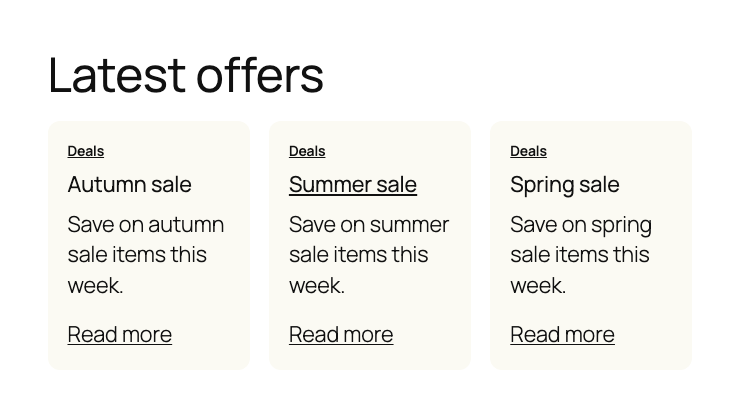
Wholelink makes a whole Group, Column or Cover block clickable. Select the block, press the link button in its toolbar and pick a page or paste a URL: visitors can now click anywhere on the block, not only on a heading or a button. It works with the Group block’s Row, Stack and Grid variations, and it turns Query Loop post cards into clickable cards that each link to their own post.
The block editor has no setting for this: a link can wrap text or a button, but not a whole Group, Column or Cover. Wholelink adds that setting to the core blocks you already use, so there is no extra wrapper block to insert and nothing to rebuild.
How to use it
- Link to a page or URL. Select a Group, Row, Stack, Grid, Column or Cover block, press the link button in the block toolbar and search for a page or post, or paste any URL. It is the same link box as on the Button block. You can also use Add link under Whole block link in the block settings.
- Clickable Query Loop cards. Inside a Query Loop post template, select the Group that holds a post, press the link button and choose Link to this post at the top. Each card then links to its own post.
- Link options. Open the link in a new tab or mark it nofollow or sponsored under Advanced in the link box, as on the Button block. Set a label for screen readers in the block settings.
What visitors get
- The whole block is one link: click anywhere on it, middle-click or Ctrl/Cmd-click to open it in a new tab, or long-press to copy the link. It works with JavaScript turned off and search engines see a normal link.
- Links, buttons and form fields inside the block keep working on their own, so a category link inside a post card still goes to the category.
- The pointer cursor shows over the whole block and its headings are underlined on hover. Keyboard users reach the block with Tab and see a focus outline around the whole block.
- Screen readers announce the link by your label, the post title in a Query Loop, the block’s first heading or its text. When a block has no text, such as a Cover with only an image, the image description or the link address is used and the editor asks for a label.
Lightweight and safe to remove
Wholelink renders a plain HTML link on the server and adds one small stylesheet only on pages that show a linked block. It loads no JavaScript on the front end, stores no settings and connects to no external service. The link settings live in the block’s attributes, so deactivating or deleting the plugin leaves every block valid: the blocks simply stop being links.
Installation
- Install Wholelink through the Plugins screen, or upload it to
/wp-content/plugins/, and activate it. - Edit a post, page or template, select a Group, Column or Cover block and press the link button in its toolbar.
Screenshots

For developers
Is this your plugin? Show off the numbers.
Add a live badge to your site, docs or GitHub README. It updates on its own — no account needed.
Best Wholelink alternatives
All block link plugins →| Rank | Plugin | Active installs |
|---|---|---|
| 1 |
 4WP Smart Link
Add a clickable block link to Cover, Group, and Column in Gutenberg and Query Loop—no… |
60+ |
FAQ
Wholelink: quick answers
Straight answers, pulled from live WordPress.org data.
Source: WordPress.org
Is Wholelink free?
Yes. Wholelink is free to download and use from the official WordPress.org plugin directory.
Is Wholelink safe to use in 2026?
Wholelink is a solid plugin choice in 2026, with a few things worth checking first. It runs on 40+ sites and was last updated 3 weeks ago, and scores 67/100 on our health check.
How many websites use Wholelink?
Wholelink is active on 40+ WordPress websites and has been downloaded 512 times since it launched in November 2026. It was downloaded 516 times in the last 30 days.
Does Wholelink work with WordPress 7.1?
Yes. The developer has tested Wholelink up to WordPress 7.1.5, the latest release. It requires WordPress 6.5 or newer.
What PHP version does Wholelink need?
Wholelink requires PHP 7.4 or higher. Most hosts run PHP 8.x today, so it works on any modern WordPress hosting.
When was Wholelink last updated?
The latest version, 1.0.0, was released on November 6, 2026 (3 weeks ago).
Who makes Wholelink?
Wholelink is developed and maintained by Mykyta Dudariev.
What are the best alternatives to Wholelink?
The most popular alternatives to Wholelink are 4WP Smart Link (60+ installs).
Powered by PageForge
One template and a spreadsheet. A real page for every search.
PageForge turns each row of a CSV into a WordPress page with its own title, URL, SEO fields and schema, built on the layout you already designed. Free on WordPress.org.
- CSV and XLSX, plus Google Sheets on Professional and Enterprise
- Its own title, URL, SEO fields and schema for every page
- Works with the block editor, Elementor, Divi and Avada
- Free on WordPress.org, no credit card