



Vanquish Upload Files for WooCommerce
Let customers upload files (even large!) on the product, cart, checkout and order pages — for custom, personalized and print-on-demand products.

Safe pick
Yes — Vanquish Upload Files for WooCo… is a safe, well-maintained plugin to use in 2026. It runs on 10+ sites, is rated 4.6/5 and was last updated 2 days ago, and scores 80/100 on our health check.
- Actively developed — last update 2 days ago
- Tested with the latest WordPress (7.1)
- Momentum — downloads up 128% vs the previous 30 days
- Small user base (10+ active installs)
Daily downloads
Download spikes usually follow a new release — each site that auto-updates counts as a download.
Rankings
Where Vanquish Upload Files for W… stands todayWordPress.org search rankings
Live position in the plugin search, top 100| Keyword | Position |
|---|---|
| checkout upload | #63 |
| file upload | #99 |
| print-on-demand | #38 |
| upload | #95 |
| woocommerce | >100 |
Version adoption
Share of active sites per release.
Rating breakdown
★★★★★★★★★★ 4.6 from 9 reviews
About Vanquish Upload Files for WooCommerce
From the official readme · v2.1.1Description
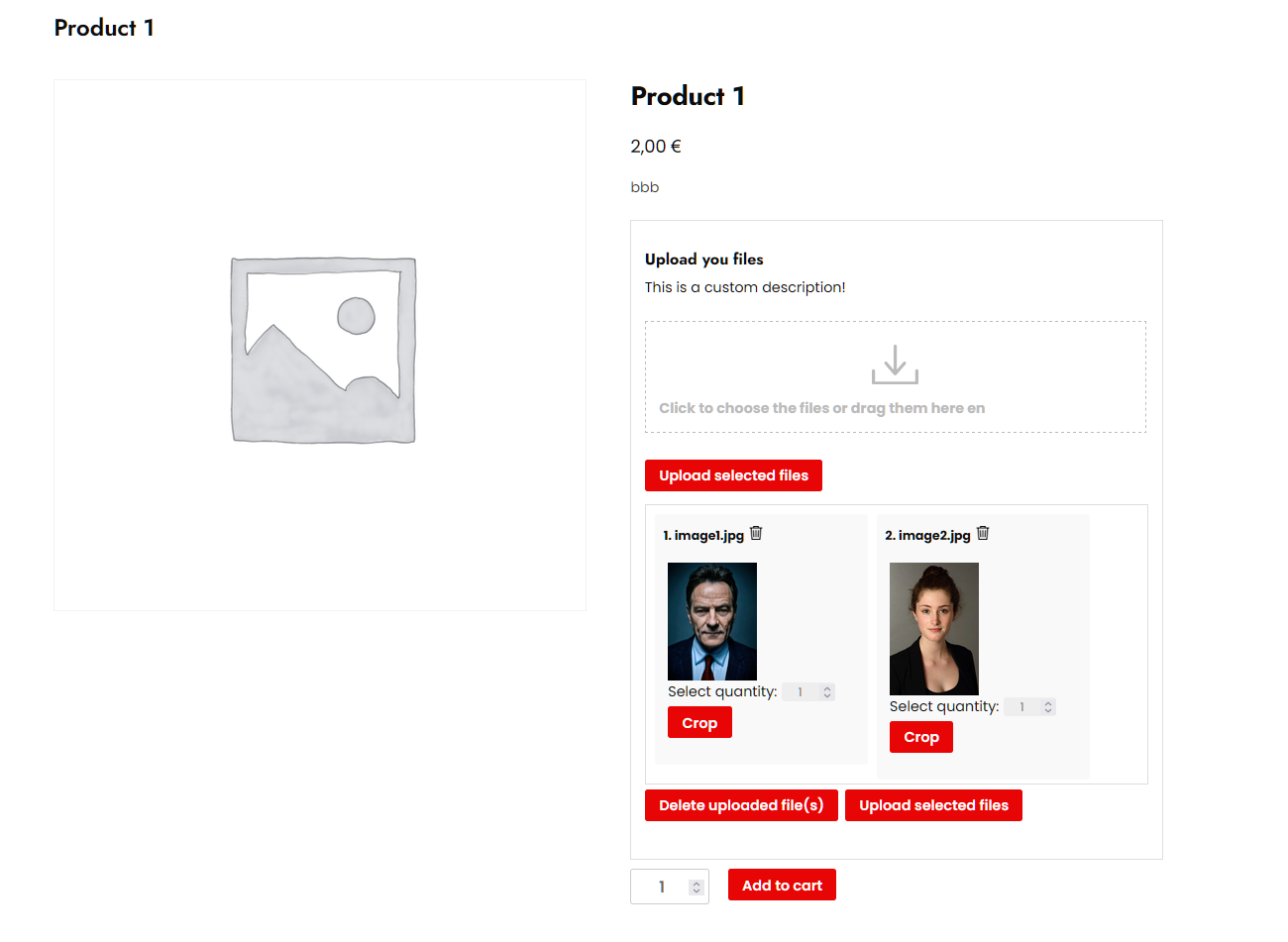
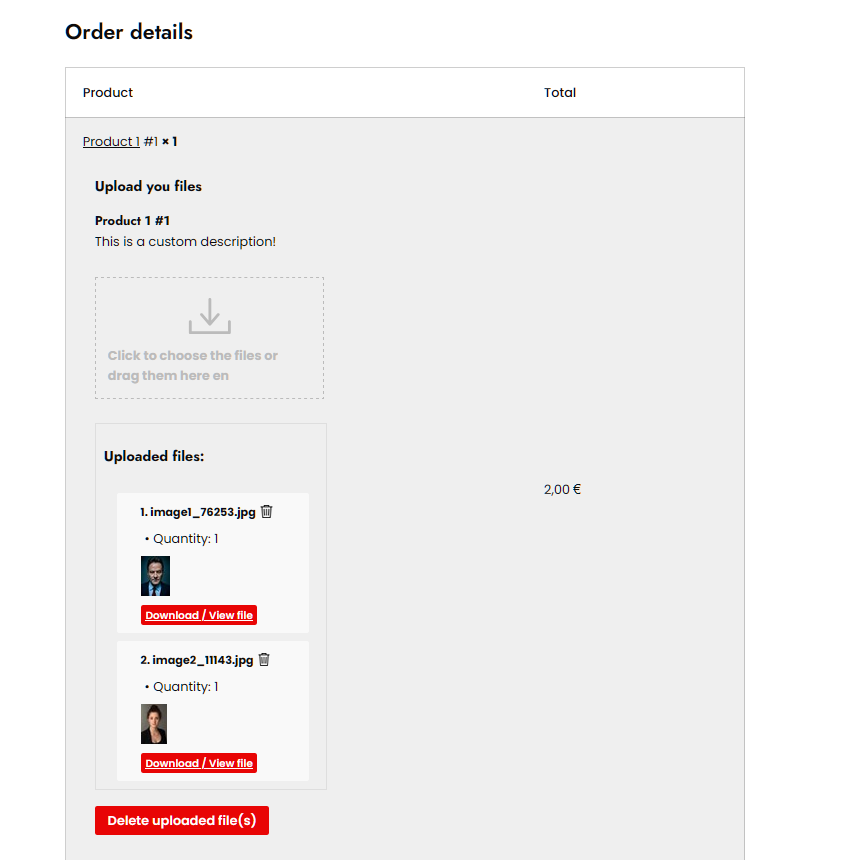
Vanquish Upload Files for WooCommerce lets you collect files from your customers — logos, artwork, documents, photos — exactly where you need them: on the product page, in the cart, during checkout, or on the order details page.
Whether you run a print shop, a personalization service, or any store that sells custom products, this plugin makes it effortless for customers to provide the files you need to fulfill their orders, with a clean upload experience and a real-time progress bar.
Large files are handled properly. Every upload is split into chunks and reassembled on the server, so a single request never runs into the size limit your host or CDN enforces — the usual cause of an upload that dies at 90% with no explanation.
Why store owners choose it
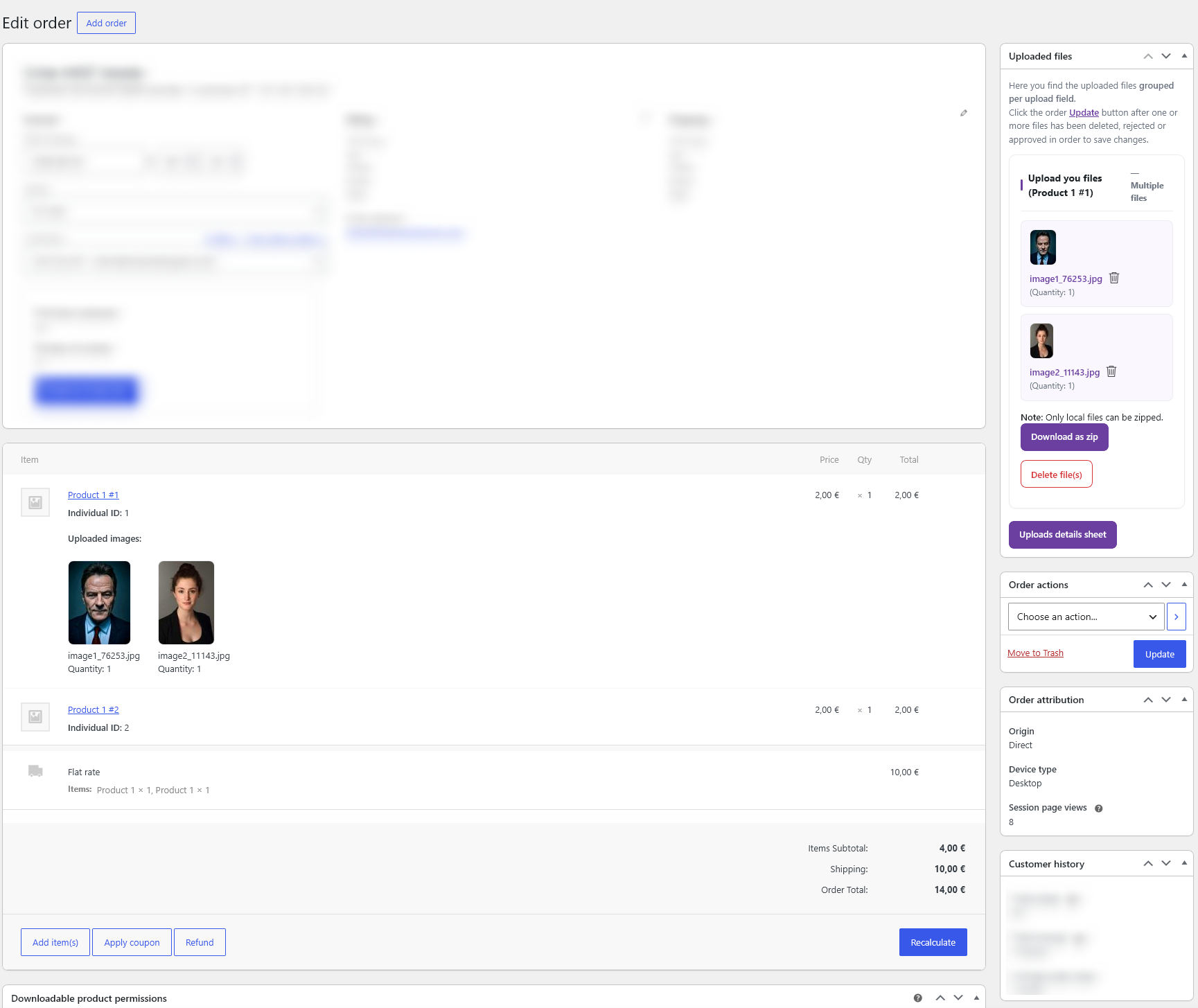
- Receive uploads bound to each order — no more chasing files over email.
- Show upload fields exactly where they make sense: product, cart, checkout, order pages.
- Make uploads required so customers can’t order without providing their files.
- Restrict by file type, size and image dimensions.
- Get notified by email the moment a customer uploads a file.
- Fully translatable — upload field texts get a box per language, with or without WPML.
- Handle large files on any host — uploads are split into chunks, so no single request runs into your server’s or your CDN’s size limit.
What’s included for free
- Multiple upload fields per product
- Single file per upload field
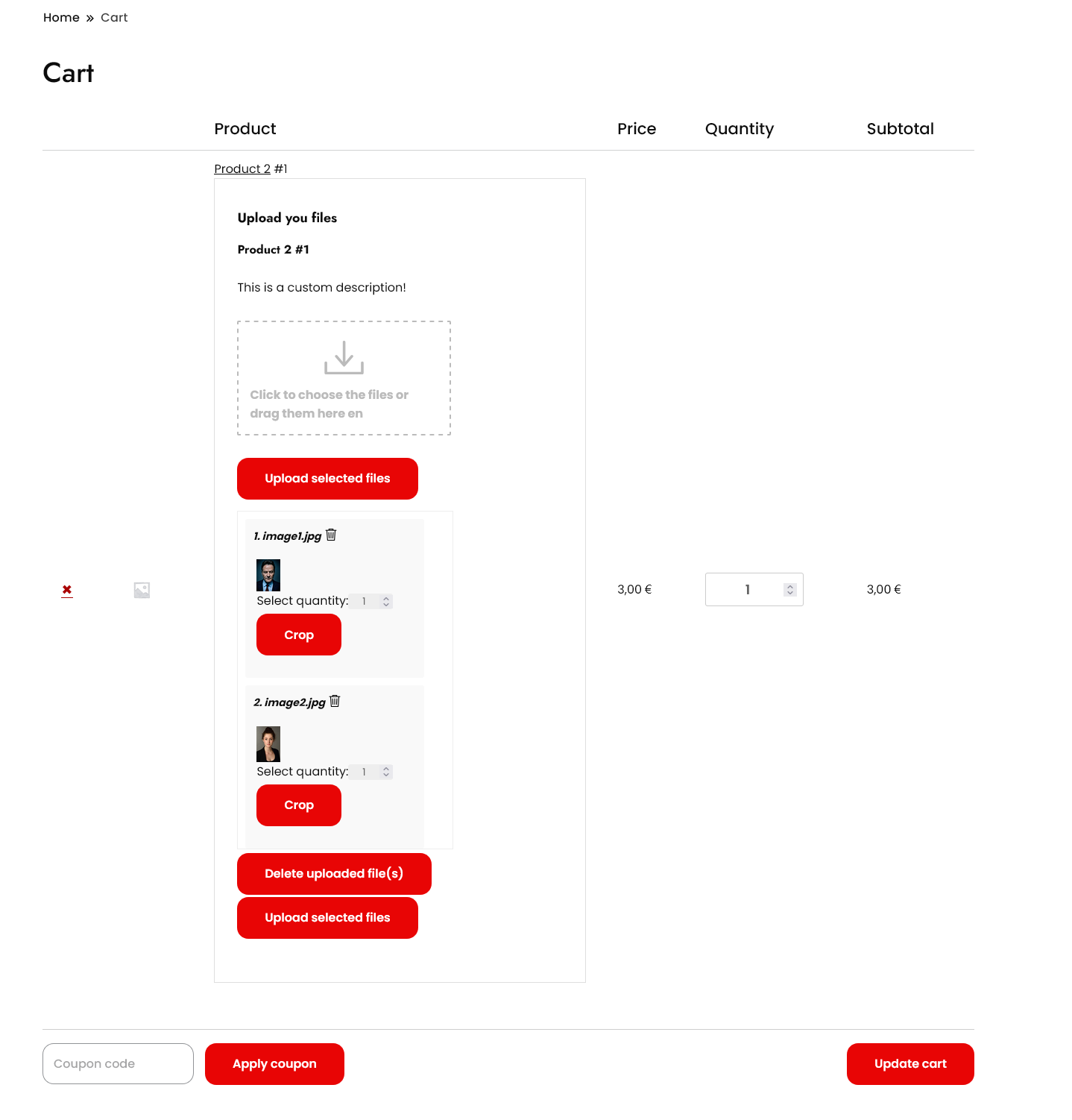
- Display on product, cart, checkout and order pages (classic and block-based cart & checkout)
- Individual products — add the same product multiple times with distinct uploads
- Require an upload before add-to-cart or checkout
- File type, size and dimension restrictions
- Accept extra file types for uploads – EPS, AI, CDR and other print formats WordPress refuses by default
- Admin email notifications
- Upload progress bar, file delete, image/audio/PDF preview
- Light or dark colour scheme for the upload boxes, and your own colours for the upload buttons, to match your theme
- Chunked uploads for large files — with automatic retry on a failed chunk
- Translatable button texts, and a box per language for every upload field text
Premium features
The Premium version, distributed separately, adds:
- Multiple files per upload field — let customers attach several files to a single field
- Image crop editor with rotation and aspect-ratio control
- Low print resolution warning — tell customers when a photo has too few pixels for the size it will be printed at
- iPhone photos (HEIC) converted to JPEG in the customer’s browser, so they can be previewed, cropped and checked like any photo
- Extra costs & discounts per uploaded file — fixed or percentage
- Per-second (audio/video), per-file-size and per-PDF-page surcharges
- Set the product price based on the number of uploaded files
- Cloud storage: Dropbox, Amazon S3 and Google Drive
- File name pattern – rename uploaded files with the order number, SKU, product name and more
- Upload protection – a per-visitor upload limit and a minimum free disk space, so nobody can fill your server through the upload fields
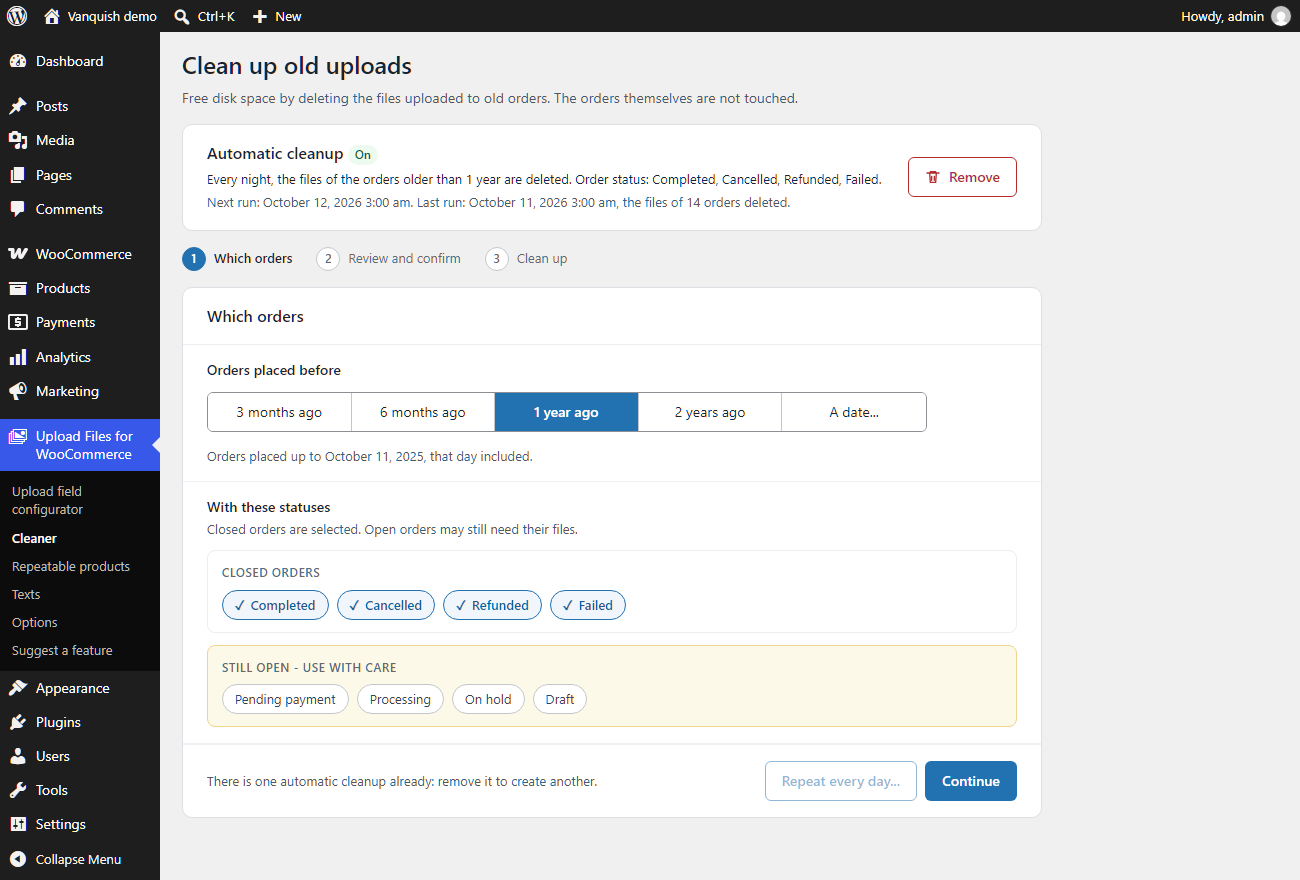
- Clean up old uploads – delete the files of old orders by age and order status, on request or automatically every night
- Approve / reject uploaded files with customer feedback
- Visibility rules by product, category, tag, brand, user role, order status, payment gateway, shipping method and time
- Show the upload fields from the last order on the My Account dashboard
- Advanced shortcodes to place upload forms anywhere
- Priority support and updates
External services
This plugin connects to the following third-party services.
Freemius — Used to deliver plugin updates, manage the optional Premium license, and (only if you opt in) collect anonymous usage data to help improve the plugin. Your site URL and basic environment information are sent to Freemius when you activate the plugin, check for updates, or activate/deactivate a license. Provided by Freemius, Inc.
Terms of Service: https://freemius.com/terms/
Privacy Policy: https://freemius.com/privacy/
Cloud storage (Premium only) — The free version stores uploaded files on your own server and uses no external storage. If you enable a cloud storage destination in the Premium version, the files your customers upload are sent to the storage account you configure, and only at the moment an order is created (when the customer reaches the order-received/thank-you page, or uploads files on the thank-you or order details page). Files are never sent before an order exists. Available providers and their policies:
- Dropbox — Terms: https://www.dropbox.com/terms — Privacy: https://www.dropbox.com/privacy
- Amazon S3 (AWS) — Service Terms: https://aws.amazon.com/service-terms/ — Privacy: https://aws.amazon.com/privacy/
- Google Drive — Google APIs Terms: https://developers.google.com/terms — Privacy: https://policies.google.com/privacy
More WooCommerce plugins by Vanquish
- Vanquish Shipping Tracking for WooCommerce – tracking numbers on orders and emails, with 1,600+ carriers and their logos, a direct tracking link and a Track button. No account needed.
- Vanquish Multiple Addresses for WooCommerce – give customers an address book: save multiple billing and shipping addresses and pick one at checkout.
- Vanquish Attach Me – Order & Product Attachments for WooCommerce – attach files to orders and products, show them to the customer and send them with the order emails.
Installation
- Upload the plugin files to the
/wp-content/plugins/vanquish-upload-files-for-woocommercedirectory, or install the plugin through the WordPress Plugins screen directly. - Activate the plugin through the ‘Plugins’ screen in WordPress.
- Make sure WooCommerce is installed and active.
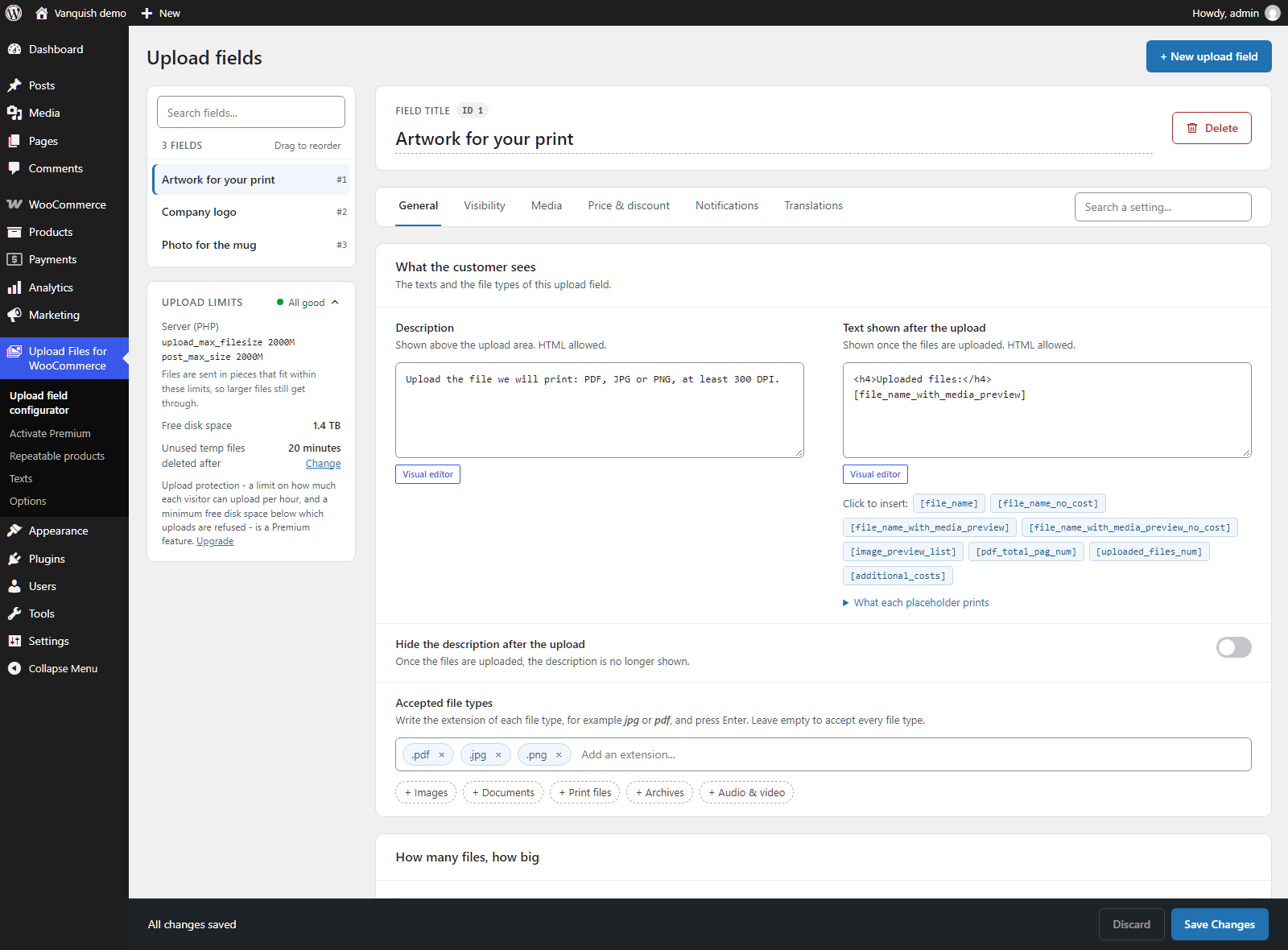
- Go to Upload Files for WooCommerce → Upload fields to create your first upload field; the general settings are under Settings.
- Choose on which pages the field appears (product, cart, checkout, order). Fine-grained visibility rules (by product/category, role, gateway, shipping method and time) are available in Premium.
Frequently asked questions
Does it work without WooCommerce?
No. WooCommerce must be installed and active, since uploads are bound to WooCommerce products and orders.
Which product types are supported?
Native WooCommerce simple and variable products. Custom product types added by third-party plugins are not officially supported.
How many files can customers upload in the free version?
The free version supports multiple upload fields per product, with one file per field — you configure how many fields to add on the Upload fields page. The separately distributed Premium version adds multiple files per upload field, cloud storage (Dropbox, Amazon S3, Google Drive), the image crop editor and full PDF preview, among other extras.
Can customers upload large files?
Yes, and there is nothing to configure. Every upload is split into chunks in the browser and reassembled on the server, so the file never travels as a single request – which is what usually produces a 413 error behind Cloudflare, a reverse proxy, or a host with a low post_max_size. The chunk size is taken from your own server limits – the smaller of post_max_size and upload_max_filesize – and never exceeds 10 MB, however large the file is. If a chunk fails it is retried on its own instead of restarting the whole upload, and the server checks the reassembled file against the size the browser…
Does it support the block-based cart and checkout?
Yes. Both the classic (shortcode) and the block-based WooCommerce cart and checkout are supported. On the block cart/checkout the upload fields appear in the order-summary area.
Is it translatable?
Yes, and it does not depend on any one translation plugin. Button texts are translatable, and every text of an upload field — title, description, disclaimer and the rest — has a box per language in the Translations tab of the field itself. That works with WPML, with Polylang, or with nothing more than the languages installed in WordPress. If you have been translating those texts in WPML String Translation, they are moved over automatically the first time you open the admin after updating, and nothing is deleted from WPML.
Customers upload files, but the order shows none. What should I check?
The uploads stay in a visitor session until the order is created, and the session is identified by a cookie named vanupfi_uid. If that cookie does not survive from the upload to the checkout, the order is created with nothing attached. Turn on Settings → General → Debug log and place a test order. The plugin records when each file was saved, which order events WooCommerce fired, whether the uploads were still reachable at each one, and whether they were attached to the order. Read it under WooCommerce → Status → Logs, source vanquish-upload-files. If nothing appears there, check that logging…
Where are uploaded files stored?
By default on your own server. Premium adds Dropbox, Amazon S3 and Google Drive as storage destinations.
Can I place the upload form anywhere with shortcodes? (Premium)
Yes. The Premium version provides shortcodes to render the upload form on any page: [vanupfi_upload_form] – a generic upload form. [vanupfi_product_page_upload_form] – the product-page upload form. [vanupfi_cart_page_upload_form] – the cart upload form. [vanupfi_checkout_page_upload_form] – the checkout upload form. [vanupfi_upload_form_last_order] – the upload form for the customer’s last order. Important: when you place one of these forms on a page, enable Disable standard upload-field management for the matching page (in the plugin options) so the upload fields are not rendered twice. For…
I migrated from the CodeCanyon version and my shortcodes show as plain text (Premium)
The shortcode prefix changed from wcuf_ to vanupfi_. Since version 1.0.11 the old tags keep working as aliases, so simply updating the plugin is enough. If you prefer to update your content, the mapping is 1:1: [wcuf_upload_form] -> [vanupfi_upload_form] [wcuf_product_page_upload_form] -> [vanupfi_product_page_upload_form] [wcuf_cart_page_upload_form] -> [vanupfi_cart_page_upload_form] [wcuf_checkout_page_upload_form] -> [vanupfi_checkout_page_upload_form] [wcuf_upload_form_last_order] -> [vanupfi_upload_form_last_order]
Can I customize the templates?
Yes. Copy the template you want to change from the plugin’s templates folder into a vanquish-upload-files folder of your theme (a child theme is best), keeping its sub-folder: templates/order/upload-form.php, for example, becomes your-theme/vanquish-upload-files/order/upload-form.php. The plugin then uses your copy instead of its own. Copies made for versions before 1.10.0, in the theme’s wcuf folder under the old file names, keep working. When the plugin changes a template you have copied, its admin pages tell you, so you can bring your copy up to date.
How much does Premium cost?
You can see all Premium plans and prices on the pricing page: https://vanquishplugins.com/migration/pricing/ – single site or 3, 5 and 10 sites, billed monthly, yearly, or once (lifetime). The same plans are also shown inside the plugin, under the “Upgrade” menu.
Can I try the plugin before buying Premium?
Yes, and it is the best way to start. The free version on WordPress.org is the same plugin with fewer features: install it on your own site, with your own theme, and check that the upload fields fit your product, cart and checkout pages before upgrading. Premium adds features on top of it, on the same foundations.
I bought this plugin on CodeCanyon. How do I get the Premium version?
The CodeCanyon item (WooCommerce Upload Files) has been retired and continues here as the free Vanquish Upload Files for WooCommerce. Existing CodeCanyon customers can convert their purchase into a Premium license – including 1 year of updates and support at no extra cost – on the migration page: https://vanquishplugins.com/migration/
Changelog
Security fix for Google Drive storage: the OAuth file with your client secret leaves the Media Library. Also fixes the extra costs in the product page totals.
2.1.1
- Security (Premium): the Google Drive OAuth file, which holds your Google client secret, no longer stays in the Media Library, where it sat in a public folder. Its content is kept in the plugin settings and the file is deleted: right after you choose it in Settings, or, if you already had it, the first time Google Drive is used. Only shop managers and administrators can upload .json files to the Media Library now.
- Fix: on the product page, the extra costs in the totals counted again the costs of the upload fields shown before.
- Fix (Premium): “Product price × number of files”, and an extra cost added to the item price, could be applied twice when another plugin recalculated the cart.
- Tweak: “Place the upload area with a shortcode” now says it applies to the classic cart and checkout only; on the block ones, place the Upload fields block.
2.1.0
- New: a Settings page with four tabs – General, Appearance, Texts, Separate cart items – in place of the Options, Texts and Repeatable products entries. The settings are grouped in sections with clearer names and help texts, written from what each setting really does. Nothing you have set changes. The plugin menu is now Upload fields, Settings and, in Premium, Cleaner.
- Fix: a product could disappear from a customer’s cart, with the notice that its uploaded files had expired, when the files that ANOTHER visitor had uploaded for the same product expired.
- Fix: the first save of the settings could empty the summary box and put the upload fields side by side, on sites that had never saved those settings before.
- Fix: “Show the copies of each file in the cart” (it was “Show the quantity for each upload in the item cart table”) had no effect.
- Fix: the files of visitors who had not ordered were deleted after 20 minutes of inactivity, not the 34 the settings showed, until the settings were saved.
- Fix: with “Warn before leaving the page: Only the first time”, the OK of any popup of the plugin – a refused file type, for example – turned the warning off.
- Fix: with protected file links on, the file that blocks direct access to an order’s folder grew at every page view. It is now written once, with the rule for Apache 2.4 too.
- Fix: the text before the number of repeated products (Texts tab) is used on the order pages and in the emails too, not only in the cart; the customer’s note is shown in the emails under every file, not only under images.
- Fix: image previews – square photos were stretched when the two preview sizes differed, and a preview size of 0 hid the file icons. With “Keep the small copies” on, GIF and BMP files had no preview, and the copies were not made again after a size change.
- Fix (Premium): the “Quantity box for each file” switch of an upload field changed only the emails; it now hides the quantity box on the pages too.
- Fix (Premium): with “Crop the photo: On the server” and no Imagick on the server, the customer was left waiting with no buttons. The photo is cropped in the browser then, and the settings say so.
- Fix (Premium): on PHP 8, the email telling the shop that a file could not be sent to Amazon S3 or Dropbox failed with an error, so it never arrived.
- Fix: “Your own button colours” did not reach the PDF Preview button, and the DPI limits were shown in “px”.
- Tweak: settings that had no effect are gone from the page (crop area width and height, distance between upload buttons). “How image previews are made” and “Keep the small copies” are now in the free version too; the crop editor settings, the PDF preview, the price per number of files and the layout of the upload form shortcode are shown with Premium only, where they work.
- Tweak: “Place the upload area with a shortcode” (it was “Disable standard upload-field management”) is Premium, like the shortcodes it needs: without an active licence it is not applied, so the upload fields are shown again.
- Templates changed: upload-form/field.php, order/field.php, emails/order-item-uploads.php. If your theme has copies of them, compare them with the new ones.
2.0.3
- Security: the uploads details sheet of an order can now be opened only by shop managers and administrators. Please update.
- Removed: the “Uploaded files” panel in the vendor dashboards of Dokan and DC Multivendor (WC Marketplace). Neither had been maintained for years: the DC Multivendor one no longer ran with current versions of that plugin (now MultiVendorX), and the Dokan one did not show the files of orders split between several vendors. The uploaded files remain available to the shop on the WooCommerce order page.
- Tweak: unused images, scripts and stylesheets removed from the plugin.
2.0.2
- Fix: on stores using High-Performance Order Storage, a bulk action added to the orders list by another plugin could end on a blank page instead of going back to the list. The plugin’s own “Delete uploads” bulk action dropped the address the list returns to for every action that was not its own. “Delete uploads” itself was not affected.
2.0.1
- Fix: without an active Premium licence – with the free version, or after a licence had expired – an upload field kept obeying the Premium visibility conditions set on it (user role, payment method, shipping method, order status, time), while the section that sets them is no longer in the configurator: a field hidden by one of those conditions stayed hidden, with no way to show it again. The conditions now apply only with an active licence. They are not deleted: they apply again as soon as Premium is active.
- Fix (Premium): the “Time” visibility condition now works on the order details and Thank you pages. “Hide some time after the order” did the opposite of what it says: the upload field was hidden on the product, cart and checkout pages, before any order existed, and was never hidden afterwards. It is now shown until the order is placed, and hidden once that time has passed since the order. “Hide after a date” hid the field on the product, cart and checkout pages only: it now hides it on the order pages too.
- New (Premium): “Hide after a date”, in the Time visibility condition, can have a year. With a year the upload field stays hidden after that date; with “every year”, as before, it is hidden from that date until the end of the year and comes back on 1 January.
2.0.0
- New: the upload field configurator has a new interface. Your upload fields are listed on the left – search them, drag them to change their order – and the one you pick opens on the right, with its settings in tabs: General, Visibility, Media, Price & discount, Notifications and, on a site with more than one language, Translations. Each setting has a plain name and a line that says what it does, and a “Search a setting” box finds a setting whichever tab it is in. No setting has been removed: the upload fields you have configured are read and saved as they were.
- New: the configurator says at the top what needs your attention – an upload field that accepts a file type WordPress refuses or a file size above your upload limit, disk space running low – with a link to the field or to the option to change.
- Improvement: the “Change” links of the Upload limits panel open the Options page at the option they are about, and highlight it.
- New (Premium): automatic cleanup. In the Cleaner, “Repeat every day” turns the cleanup you have set up – the files of the orders older than 3 months, 6 months, 1 year or 2 years, with the order statuses you choose – into a rule that runs by itself every night. A box at the top of the page says what the rule does, when it runs next and what the last run deleted, and removes it. The first run is the night after the rule is created.
- Improvement (Premium): the Cleaner works in three steps. It says how many orders match and asks you to confirm before it deletes anything, shows how far it has got, and when the server stops answering it says where it stopped and goes on from there. When the page opens only the closed order statuses – completed, cancelled, refunded, failed – are ticked: they used to be all ticked, orders in progress included.
- Fix (Premium): “Show the price per MB or KB in the cart”, in the extra cost per file size, could not be switched off: it came back on at every save.
- Fix: on a site with more than one language, saving the translations of an upload field stored the texts of the main language as the translation of the fields that had none yet, so those fields no longer followed a later change to the main text.
- Fix (Premium): the “Time” visibility rule could not be set to the 31st of a month.
- Fix (Premium): in the “Shipping method” visibility rule, the methods of Table Rate Shipping by Bolder Elements did not stay ticked: they were shown unticked when the configurator was opened again, and lost at the next save.
- Improvement: two bundled libraries the plugin no longer needs – a date picker and a lightbox – have been removed.
Screenshots
For developers
Is this your plugin? Show off the numbers.
Add a live badge to your site, docs or GitHub README. It updates on its own — no account needed.
FAQ
Vanquish Upload Files for WooCommer…: quick answers
Straight answers, pulled from live WordPress.org data.
Live data from WordPress.org · checked Oct 18, 2026
Is Vanquish Upload Files for WooCo… free?
Yes. Vanquish Upload Files for WooCo… is free to download and use from the official WordPress.org plugin directory.
Is Vanquish Upload Files for WooCo… safe to use in 2026?
Yes — Vanquish Upload Files for WooCo… is a safe, well-maintained plugin to use in 2026. It runs on 10+ sites, is rated 4.6/5 and was last updated 2 days ago, and scores 80/100 on our health check.
How many websites use Vanquish Upload Files for WooCo…?
Vanquish Upload Files for WooCo… is active on 10+ WordPress websites and has been downloaded 3,967 times since it launched in June 2026. It was downloaded 1,986 times in the last 30 days.
Does Vanquish Upload Files for WooCo… work with WordPress 7.1?
Yes. The developer has tested Vanquish Upload Files for WooCo… up to WordPress 7.1.3, the latest release. It requires WordPress 5.9 or newer.
What PHP version does Vanquish Upload Files for WooCo… need?
Vanquish Upload Files for WooCo… requires PHP 7.4 or higher. Most hosts run PHP 8.x today, so it works on any modern WordPress hosting.
When was Vanquish Upload Files for WooCo… last updated?
The latest version, 2.1.1, was released on October 16, 2026 (2 days ago).
Who makes Vanquish Upload Files for WooCo…?
Vanquish Upload Files for WooCo… is developed and maintained by Vanquish.
Powered by PageForge
Want thousands of pages that rank like these? Build them in an afternoon.
This directory runs on the same engine as PageForge. Turn any spreadsheet, CSV or API into thousands of fast, SEO-ready WordPress pages — with schema, internal links and AI-written copy baked in.
- CSV, Google Sheets & API data sources
- AI content, schema & internal links per page
- Works with Elementor, Gutenberg, Yoast & Rank Math
- Free on WordPress.org — no credit card


