


Upcasted S3 Offload – AWS S3, DigitalOcean Spaces, Backblaze, MinIO Storage Integration
Easily migrate and manage WordPress Media Library files to AWS S3 or S3-compatible storage providers. Boost performance and reduce hosting costs.

Use with caution
Upcasted S3 Offload works, but test it on a staging site before relying on it in 2026. It runs on 200+ sites, is rated 3.4/5 and was last updated 10 months ago, and scores 47/100 on our health check.
- Small user base (200+ active installs)
- Mixed reviews — 3.4/5 from 10 ratings
- Only tested up to WordPress 6.9 (latest is 7.1)
How does it stack up?
Side-by-side on installs, updates, ratings & support


Daily downloads
Download spikes usually follow a new release — each site that auto-updates counts as a download.
Rankings
Where Upcasted S3 Offload stands todayWordPress.org search rankings
Live position in the plugin search, top 100| Keyword | Position |
|---|---|
| aws s3 | #9 |
| digitalocean spaces | #8 |
| media library | >100 |
| object storage | #26 |
| s3 | #15 |
Version adoption
Share of active sites per release.
Rating breakdown
★★★★★★★★★★ 3.4 from 10 reviews
About Upcasted S3 Offload
From the official readme · v3.1.0Description
Upcasted S3 Offload seamlessly integrates your WordPress Media Library with AWS S3 and other S3-compatible storage providers including DigitalOcean Spaces, Linode Object Storage, MinIO, Wasabi, Backblaze, Vultr Object Storage, DreamObjects, and more.
This powerful plugin optimizes your website’s performance by efficiently managing media files in cloud storage, reducing server load, and improving loading times. It automatically moves your media files to S3 storage and handles URL rewriting, ensuring a smooth user experience.
Why Choose Upcasted S3 Offload?
⚡ Performance Benefits
- Significantly reduce server load through offloaded media storage
- Optimize website performance with cloud-based delivery
- Boost SEO rankings with faster page load times
- Enhance user experience with optimized content delivery
- Improve global reach with distributed storage locations
💰 Cost Savings
- Reduce hosting costs by offloading media storage
- Lower bandwidth usage on your main server
- Eliminate storage space concerns
- Avoid expensive hosting upgrades
🔒 Security & Reliability
- Bank-grade encryption for credentials
- Automatic file redundancy and backup
- Enterprise-level security protocols
- Protected file transfer system
- Leverages S3 providers’ robust infrastructure
🚀 Free Features
- Unlimited file migrations
- WordPress Multisite support
- One-click quick setup wizard
- One-click bucket creation
- Multi-provider compatibility (AWS S3, DigitalOcean, etc.)
- Custom endpoint configuration
- Flexible region selection
- Advanced file management
- Smart file type filtering
- Secure credential management
- High-performance uploads
💎 PRO Features
- Priority email support
- Automatic premium updates
- Custom batch size control
- Advanced file type filtering
- Background file migration
- CDN integration support
- Large file support (up to 5TB)
- Bulk migration tools
- Unified migration progress with elapsed time, ETA, remaining items, and finished notice
- Failed Items diagnostics panel with pagination, full error viewer, and single/bulk retry actions
- Progressive single-item retry with granular tasks and mini progress bar
- Migration Locks diagnostics with the ability to force unlock stuck runs
- Retry safety: max attempts and permanent failure handling (permanent badge; excluded from auto runs)
Installation
To use this plugin you will have to:
For AWS S3:
- Create an AWS S3 account: How to create an AWS S3 account?
- Generate your “Access key ID” and “Secret access key”
- Create your IAM credentials and copy them somewhere safe to use in plugin settings
For other S3 storage providers:
- Choose an S3 compatible storage provider and create an account
- Generate and copy your “Access key ID” and “Secret access key”
- Find and copy your “custom endpoint” details
Installation and Configuration:
To configure the plugin all you have to do is to follow these simple steps:
1. Install AWS S3 Offload
2. If you need the extra features upgrade to PRO
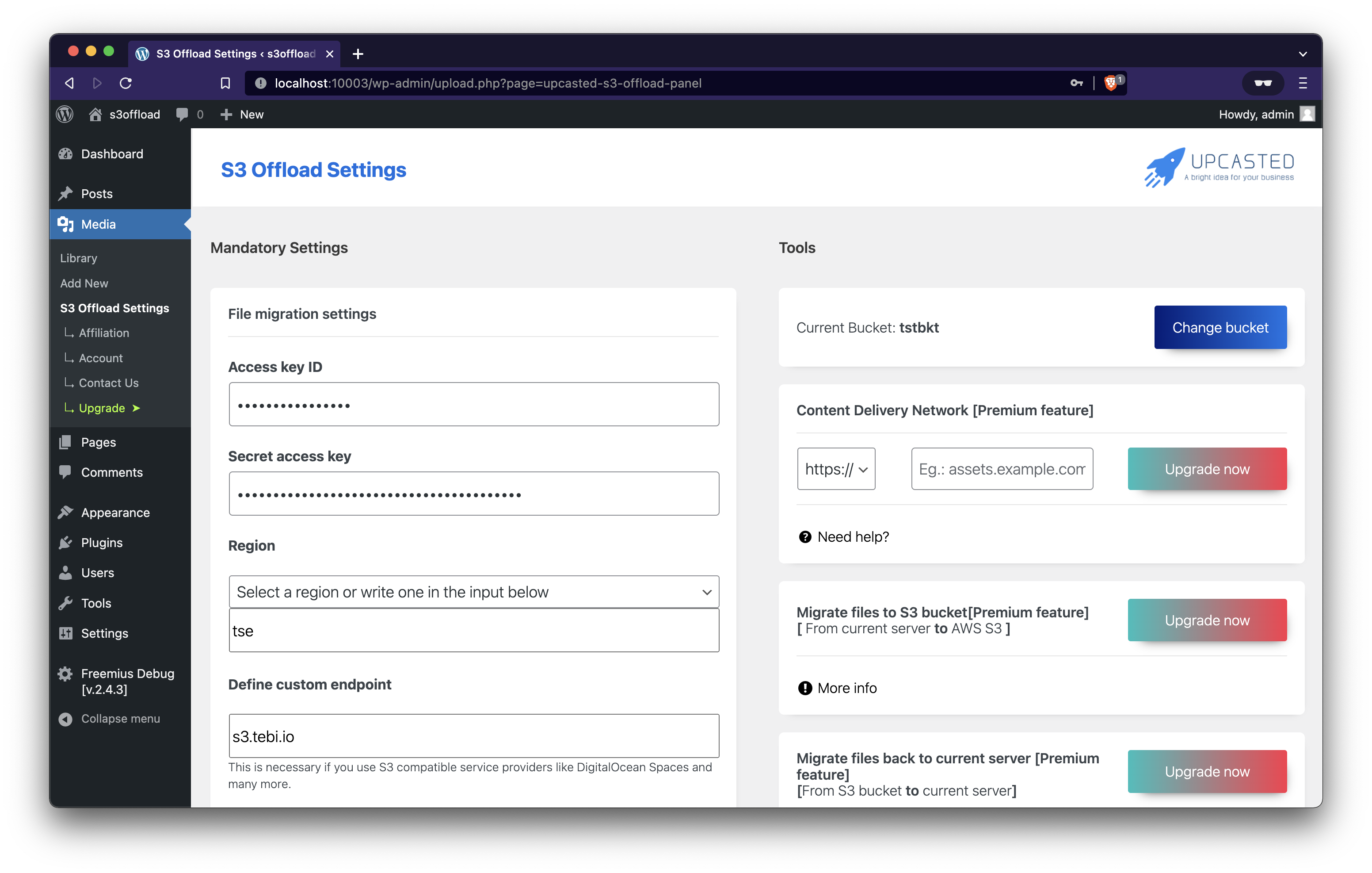
3. Go to: Admin dashboard -> Media -> S3 Offload Settings
4. Add your “Access key ID”, “Secret access key” and “Region”
5. If you use Linode Object Storage, DigitalOcean Spaces, DreamObjects, Wasabi, Vultr Object Storage or any other S3 compatible storage provider you also need to define a custom endpoint in plugin’s setting. You can usually find this in your storage provider documentation.
5. Click on Save Settings
6. Select your already created bucket or create a new one (you can create a new bucket from the plugin’s interface if you have a PRO license)
7. Click on Save
All done!
Now you have a seamless integration between your WordPress Media Library and S3 storage.
All the future images you upload in your WordPress Media Library will be automatically be moved to S3 storage and are served to you and to your visitors from S3 servers.
Helpful articles:
- AWS S3 – What is it, why does it help you and how to create an AWS account today?
- How to create an Amazon S3 bucket and generate your IAM credentials (API key and Secret key) using the new 2022 AWS S3 interface?
How it works?
- After you set the “Mandatory Settings” and select a bucket, the plugin will automatically move all the newly added files to your bucket.
- If you have a PRO license, you have some extra tools. They will assist you in moving your old files from media library to S3 and backwards.
How to check if everything is working properly?
- Set the Mandatory Settings of the plugin below and click “Save Settings”
- Select your bucket and click “Save”
- Go to Media Library and upload a file (an image is better for testing purposes)
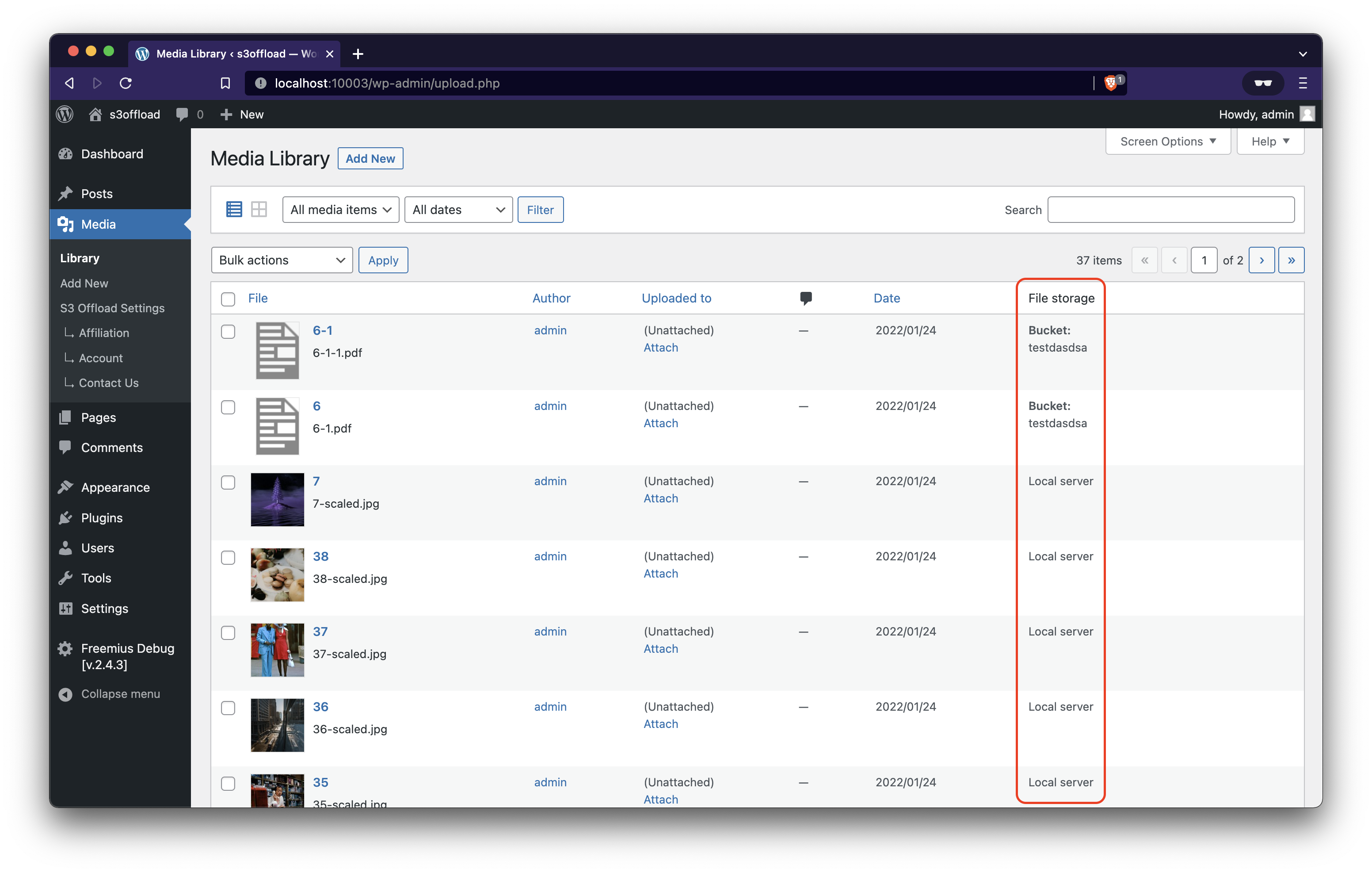
- Check to see if you can view the file. If it’s an image you should see the preview.
- Check the URL of that file. You should see the new URL. You can compare it with the URL of an old file.
How to debug an issue?
- Edit your wp-config.php file and turn on debug mode and debug log
- Go to wp-content and search for debug.log if you can find a file with that name already there please rename it to something else or delete it if you don’t need the old logs.
- Repeat the opperation that you were trying to do when you had trouble.
- Check the contents of debug.log and try to find out what went wrong. On that log you can see all the errors, notices and warnings timestamped in chronological order.
- Depending on what you see in your debug log, disable your plugins that throw errors one by one and repeat steps 3-4 until is working.
- This way you will be able to find out if the problem is caused by another plugin.
- If you can’t figure it out, let us know on the forums or go to our website and write to us.!
Frequently asked questions
The plugin is not working as expected. What can I do?
Check your plugins and DISABLE all the plugins that alters/enhances/modifies the default WordPress Media Library functionality Check your plugins and DISABLE all the plugins that use of AWS services Verify if Upcasted S3 Offload is working If after these steps Upcasted S3 Offload plugin still doesn’t work please write to us on the support forum, so we can help you. We appreciate all the feedback we can collect. Please write to us about any incompatibility you found, so we can try to solve it.
Can I use this plugin with S3 compatible storage providers like Linode Object Storage, DigitalOcean Spaces, DreamObjects, Wasabi, Vultr Object Storage?
Yes, Upcasted S3 Offload can be used with any S3 compatible storage provider. All you have to do is search for your storage provider custom endpoint and add it to “Define custom endpoint” field in plugin settings.
Can I keep a copy of the files on my server
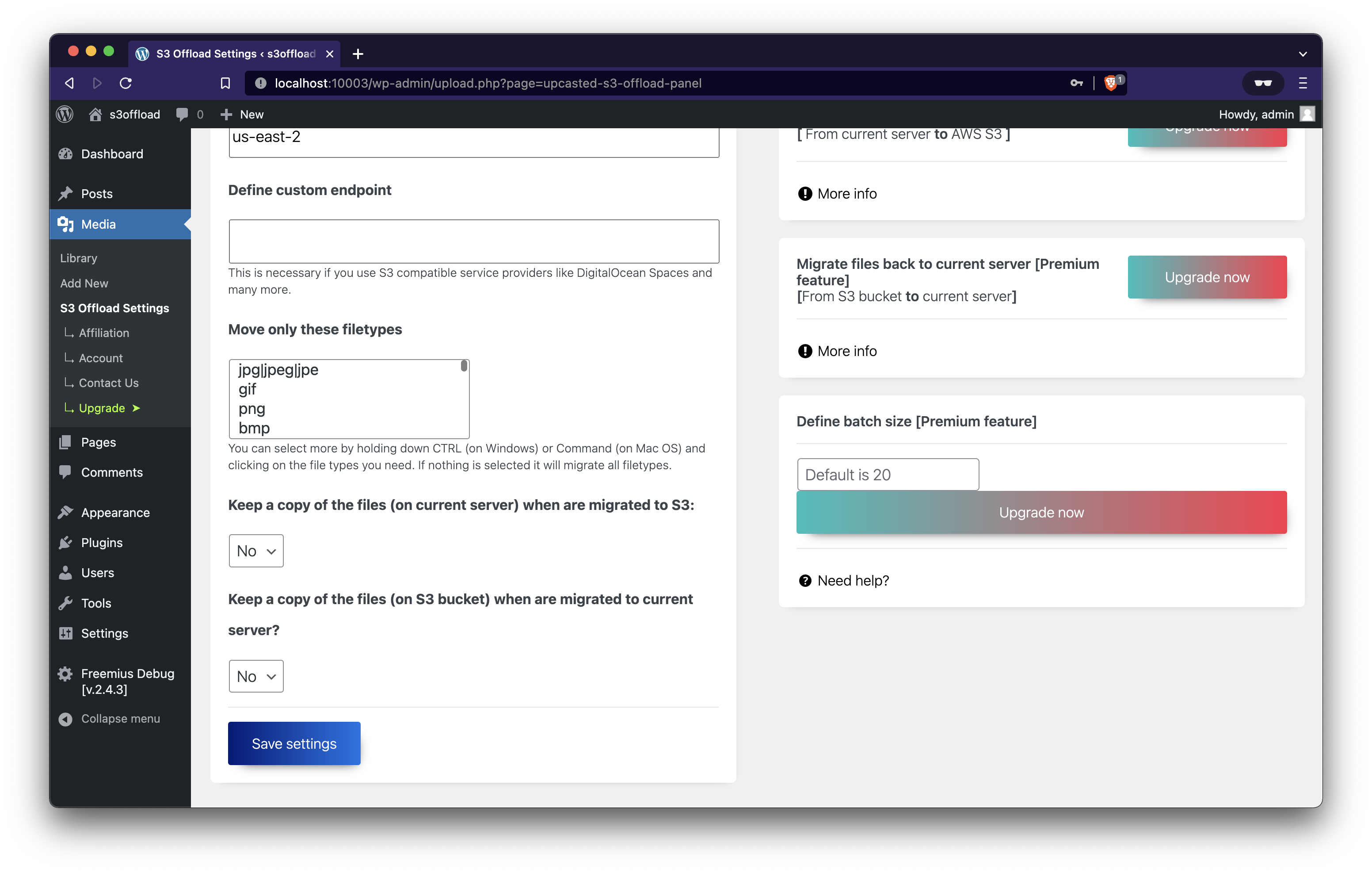
Yes you can. Go to plugin setting under Media Library > S3 Offload Settings and choose the behavior you want. You can keep or not a copy of the files on your website’s server or on S3 if you migrate back.
How can I migrate all my media library files to S3?
You need to upgrade your plan to PRO. You will have tools to move files to and from S3 bucket. You can do that by installing the free version and then press Upgrade under Media Gallery > S3 Offload Settings > Upgrade
Is Upcasted S3 Offload compatible with WooCommerce?
Yes, Upcasted S3 Offload by Upcasted is compatible with WooCommerce.
Is Upcasted S3 Offload compatible with Elementor?
Yes, Upcasted S3 Offload by Upcasted is compatible with Elementor.
Is Upcasted S3 Offload compatible with LearnDash?
Yes, Upcasted S3 Offload by Upcasted is compatible with LearnDash.
Does this plugin work with WordPress Multisite?
Yes! Upcasted S3 Offload fully supports WordPress Multisite networks. The plugin automatically handles path prefixes for secondary sites (sites/{blog_id}/) and works seamlessly with both the main site and all network sites.
Does this plugin copies or moves local files to AWS S3?
Upcasted S3 Offload Plugin by Upcasted moves the files you upload in WordPress Media Library to the S3 bucket chosen after you activated the plugin.
How can I report security bugs?
You can report security bugs through the Patchstack Vulnerability Disclosure Program. The Patchstack team help validate, triage and handle any security vulnerabilities. Report a security vulnerability.
Is this plugin compatible with my hosting provider?
Yes! Upcasted S3 Offload works with all major hosting providers including WP Engine, Kinsta, SiteGround, Bluehost, and others.
How does this improve my website’s performance?
By offloading media files to S3: 1. Your server has less work to do 2. Pages load faster 3. Backend operations run smoother 4. Bandwidth usage is optimized 5. Server resources are freed up
Changelog
Version 3.0.0 brings lots of new changes and updates. This update is recommended for all users but please take notice that we changed the minimum PHP version to 7.0 and in some cases you need to resave our setting for everithing to work properly.
3.1.0
- General: Internal refactors and logging for improved stability and traceability
- Added: Official WordPress Multisite support – plugin now fully compatible with WordPress Multisite networks
- Added: Multisite-aware S3 path handling with automatic sites/{blog_id}/ prefix for secondary sites
- Added: Separated settings interface – S3 Connection Settings and Behavior Settings now have independent save buttons for better user experience
- Added: HEIC/HEIF file format support across WordPress 6.7.x and 6.8+ with automatic handling of metadata differences
- Enhancement: Behavior settings (file types, local/S3 file retention, auto-upload) can now be configured independently of S3 credentials
- Enhancement: Added comprehensive error logging to all catch blocks for better debugging and troubleshooting
- Enhancement: Code cleanup – removed unused legacy functions and dead code for improved maintainability
- [PRO] Added: Multisite compatibility for WebP file detection in Migration Status Checker
- [PRO] Enhancement: Enhanced cron reliability with duplicate schedule detection, improved error handling, and transient-based rate limiting
- [PRO] Fix: Cron scheduling errors on large sites with bloated cron arrays now handled gracefully
- [PRO] Enhancement: Improved memory efficiency for large sites – Migration Status Checker now uses optimized queries to prevent memory exhaustion on sites with 100,000+ imageses
- [PRO] Added: Bulk retry (Retry All) to clear failure metadata and re-queue by direction
- [PRO] Added: Progressive single-item retry with granular tasks (main, alt-original, thumbnails), mini progress UI, and cancel
- [PRO] Added: Unified migration progress with processed/total, remaining, elapsed, ETA, last update, and finished notice
- [PRO] Added: Migration Locks (Diagnostics) with Force Unlock capability
- [PRO] Reliability: Introduced max-attempts and permanent failure handling (badge shown; excluded from automatic batches; cleared upon success)
3.0.7
- Fix for provider selector. In some cases the selected provider did not save
- Better error handling
3.0.6
- Prevent overwrite in some cases when you upload same file more than one time
- Added SVG support
- Added new function for developers to use it to upload any file to S3 – upload_file_to_s3($local_file_path, $s3_relative_path)
- Now the bucket creation tool is available for free
3.0.5
- Updated some dependencies
- Fixed a problem where selecting a bucket was restricted to AWS providers only. Updated functionality now allows bucket selection for other providers as well.
3.0.4
- Improved User Interface: Enhanced design and layout for a more intuitive user experience.
- Added S3 Indicator: Introduced a cloud icon overlay in the Media Library grid view to clearly identify files stored in S3 Storage.
- Optimized Default Batch Size: Adjusted the default batch size settings to better accommodate smaller servers, ensuring smoother operation.
- Code Enhancements: Refactored code for improved performance and maintainability.
- Clearer Descriptions: Updated explanations throughout the interface to enhance clarity and usability.
- Dependency Updates: Updated libraries and dependencies to ensure compatibility and stability.
- Security Updates: Implemented new security measures and patched vulnerabilities to safeguard data and enhance protection against potential threats.
3.0.3
- Added: Option to manually input the bucket name for greater flexibility.
- Fixed: Issue with Filetypes filter not functioning correctly.
- Fixed: Bug preventing successful bucket creation on AWS S3.
- Updated: All dependencies to their latest versions for improved stability and secu
- Increased: Minimum PHP version requirement to 7.4 to leverage newer language features.
- Improved: Clarity of assistance texts for better user understanding.
- Made: Minor visual enhancements to enhance user experience and aesthetics.
Screenshots

For developers
Is this your plugin? Show off the numbers.
Add a live badge to your site, docs or GitHub README. It updates on its own — no account needed.
Best Upcasted S3 Offload alternatives
All aws s3 plugins →FAQ
Upcasted S3 Offload: quick answers
Straight answers, pulled from live WordPress.org data.
Live data from WordPress.org · checked Oct 8, 2026
Is Upcasted S3 Offload free?
Yes. Upcasted S3 Offload is free to download and use from the official WordPress.org plugin directory.
Is Upcasted S3 Offload safe to use in 2026?
Upcasted S3 Offload works, but test it on a staging site before relying on it in 2026. It runs on 200+ sites, is rated 3.4/5 and was last updated 10 months ago, and scores 47/100 on our health check.
How many websites use Upcasted S3 Offload?
Upcasted S3 Offload is active on 200+ WordPress websites and has been downloaded 12,976 times since it launched in June 2020. It was downloaded 241 times in the last 30 days.
Does Upcasted S3 Offload work with WordPress 7.1?
Upcasted S3 Offload is officially tested up to WordPress 6.9.10, while the latest release is 7.1.3. It may still work, but try it on a staging site first.
What PHP version does Upcasted S3 Offload need?
Upcasted S3 Offload requires PHP 7.4 or higher. Most hosts run PHP 8.x today, so it works on any modern WordPress hosting.
When was Upcasted S3 Offload last updated?
The latest version, 3.1.0, was released on December 15, 2025 (10 months ago).
Who makes Upcasted S3 Offload?
Upcasted S3 Offload is developed and maintained by upcasted.
What are the best alternatives to Upcasted S3 Offload?
The most popular alternatives to Upcasted S3 Offload are Ultimate Media On The Cloud… (10+ installs), WC Download Products from A… (10+ installs) and Pi AWS Form Submissions (<10 installs).
Powered by PageForge
Want thousands of pages that rank like these? Build them in an afternoon.
This directory runs on the same engine as PageForge. Turn any spreadsheet, CSV or API into thousands of fast, SEO-ready WordPress pages — with schema, internal links and AI-written copy baked in.
- CSV, Google Sheets & API data sources
- AI content, schema & internal links per page
- Works with Elementor, Gutenberg, Yoast & Rank Math
- Free on WordPress.org — no credit card


