



Turbo Admin
Work faster with WordPress using a quick-access command palette and a collection of Dashboard improvements. Simply install, activate and go!

Consider an alternative
Turbo Admin shows warning signs in 2026 — compare the alternatives below before installing. It runs on 90+ sites, is rated 5/5 and was last updated 2 years ago, and scores 37/100 on our health check.
- Small user base (90+ active installs)
- No update in 2 years
- Only tested up to WordPress 6.6 (latest is 7.1)
How does it stack up?
Side-by-side on installs, updates, ratings & support


Daily downloads
Download spikes usually follow a new release — each site that auto-updates counts as a download.
Rankings
Where Turbo Admin stands todayWordPress.org search rankings
Live position in the plugin search, top 100| Keyword | Position |
|---|---|
| commands | >100 |
| menu | >100 |
| shortcuts | >100 |
Version adoption
Share of active sites per release.
Rating breakdown
★★★★★★★★★★ 5 from 8 reviews
About Turbo Admin
From the official readme · v1.15.2Description
Work faster with WordPress using a quick-access command palette and a collection of Dashboard improvements. Simply install, activate and go!
Ugh, this Dashboard menu is so cluttered?
Where is everything?
Is it in Tools? Or Settings? Or some menu of its own?
How am I supposed to work with this clutter?
If the WordPress Dashboard is slowing you down, Turbo Admin is here to speed you up.
Turbo Admin’s main features are:
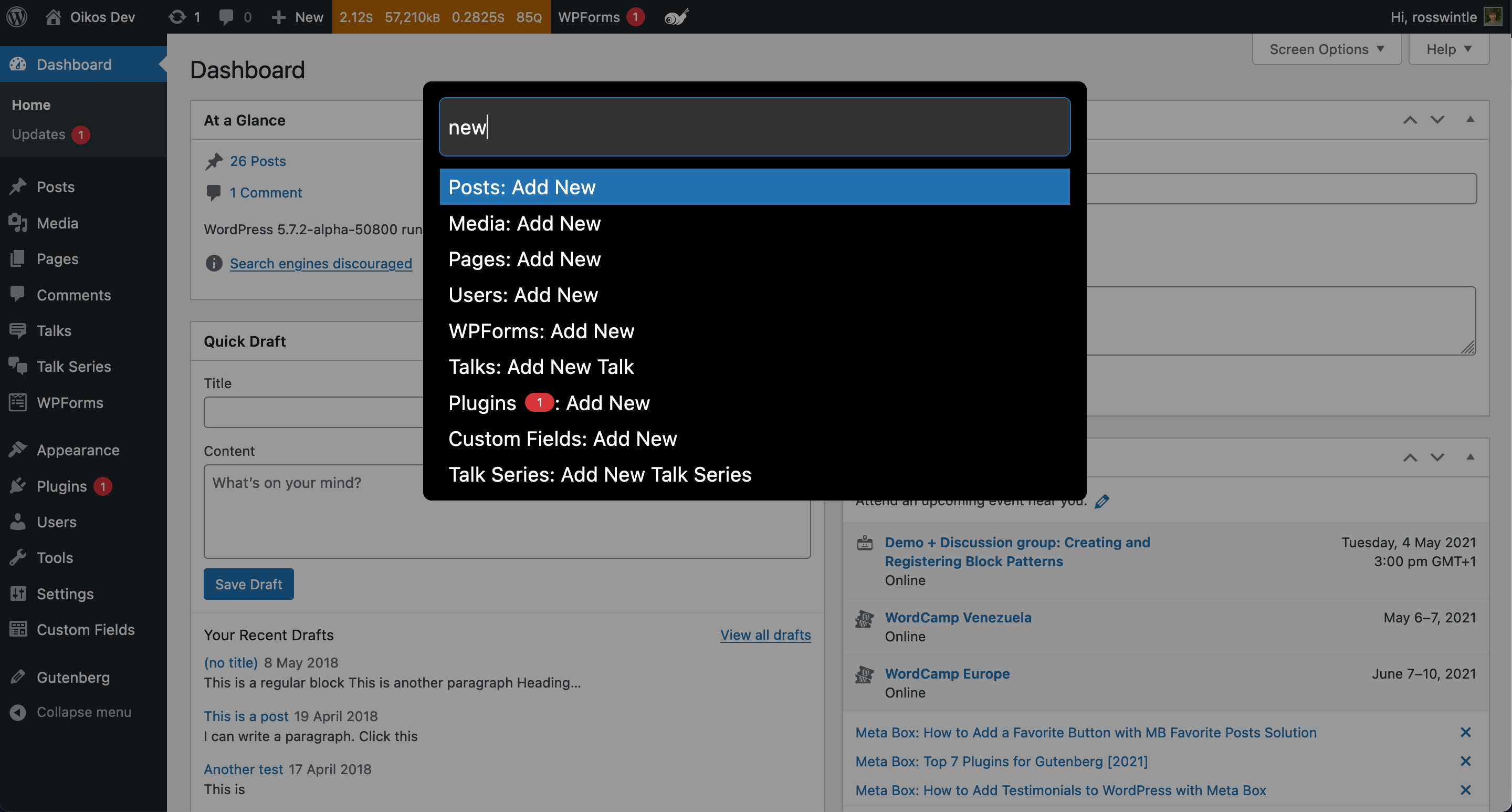
- A fast-action, keyboard driven command palette: Think Apple Spotlight, or Alfred, but in WordPress!
- The command palette is pop-up/modal by default, but has an option to be present in the admin bar.
- A “barkeeper” that hides non-critical admin-bar items in a slide-out panel.
- (Experimental) Notice hiding: Tidy your dashboard by hiding admin notices in a separate, slide-out panel.
- (Experimental/Beta): List table keyboard shortcuts – use vim-like keys to navigate list tables.
If you love this plugin, you can get Turbo Admin on ALL your sites without needing to install the plugin, PLUS additional premium features, with the browser extension version!
PLUS the browser extension has features not present in the plugin. Some features only make sense in the extension, others are considered “premium” and are only available in the browser extension.
- WooCommerce search (premium – extension only)
- Gravity Forms Search (premium – extension only)
- Full screen block editor killer
- Block editor welcome guide remover
- Live/dev site labels
Remember, the browser extension works everywhere that it can detect WordPress, without needing a plugin. And it carries your preferences with you! It’s WordPress, your way!
Check out the Browser Extension and try it for free
Usage
Install, activate and go!
Using the Command Palette
The command palette is a keyboard-driven, pop-up menu.
The default keyboard shortcut to activate the command palette is:
- Windows: Ctrl-Alt-Shift-P (Linux also?)
- Mac: Cmd-Alt-Shift-P
You can customise the keyboard combination used in the settings in your user profile. Be careful not to choose a keyboard combination already used by your browser!
Close the palette with Escape, clicking outside of it, or pressing Ctrl/Cmd-Alt-Shift-P (or your custom key combination) again.
Hover over the snail in the admin bar for a reminder of your shortcut at any time.
You can:
- type to filter the commands
- use up and down arrows to select an item
- press enter to select an item
- hit escape (not too hard) to close the palette
You can also select items with your mouse/trackpad.
If you hold Ctrl/Cmd when selecting an item it will open in a new tab/window (you may need to allow your browser to open popups).
Search modes
As well as commands, the plugin can also search content that is made available through the REST API (as long as the REST API can be discovered).
This is done using “search modes”.
For example, if you type “post” and then press the tab key (or type a colon) you will switch to the “post” search mode. In this mode you are searching for posts.
Turbo Admin automatically creates search modes for any public post types on your site. It also creates the following search modes:
- user
- plugin
- site (for WordPress Multisite sites)
There is full documentation of search modes on the Turbo Admin website
Admin bar search mode
The command palette is pop-up/modal by default. But if you forget it’s there then you can opt to have the command palette as an always-displayed search box in the admin bar.
To use this mode, visit your user profile, find the “Turbo Admin settings” section and check the “Admin bar search” option. Be sure to click “Update Profile” to save the change.
Barkeeper
The “Barkeeper” hides away non-critical admin-bar items in a slide-out panel. Click the arrow to toggle the panel open and closed.
The Barkeeper keeps a few items that I’ve deemed as critical, such as the site name and the updates icon/notification.
To enable the Barkeeper feature, visit your user profile, find the “Turbo Admin settings” section and check the “Barkeeper” option. Be sure to click “Update Profile” to save the change.
This feature pairs really well with the admin bar search mode, freeing up space for the admin-bar search box.
Using the (experimental) Notice Hiding feature
Notice hiding lets you move unwanted notices into a separate panel at the top-right of the dashboard.
To turn on the Notice Hiding feature, visit your user profile, find the “Turbo Admin settings” section, and check the feature in the “Additional features” section. Be sure to click “Update Profile” to save the change.
I have attempted to be somewhat “intelligent” in how I hide notices, automatically handling obvious cases, and giving you choice in other cases.
This is why this feature is flagged as “Experimental” – I may not have the “intelligence” right just yet.
Read more about Turbo Admin’s Notice Hiding
The “Notices” tab in the top-right will show a red-circled number if there are notices to see.
If Turbo Admin gives you the option of hiding a notice it will have a “Move to panel” button. Click this to move it to the panel. You can always move it back if you change your mind.
Using the (experimental) List Table Keyboard Shortcuts feature
This feature is documented on the Turbo Admin website
To turn on the List Table Keyboard Shortcuts feature, visit your user profile, find the “Turbo Admin settings” section, and check the feature in the “Additional features” section. Be sure to click “Update Profile” to save the change.
Installation
The easiest way to install this is to:
- Search for it on the plugin directory
- Install it
- Activate it
If you’re reading this then you’ve probably already done step 1. So what are you waiting for?
Frequently asked questions
Commands aren’t showing on the front end of the site.
You need to be logged in for Turbo Admin to work. Commands are scraped from the menus on the WP Admin side and cached for use on the front end so if the palette is showing but with no commands you’ll need to visit the Dashboard to get the menu cached.
Content search isn’t working.
This could be for several reasons, but it’s dependent on the REST API being discoverable and the content you want to search being available in the API. It’s known to not work in ClassicPress, when some security plugins hide the API’s discovery, or when the API routes have been changed from the defaults.
Can I hide the icon in the admin bar?
Yes, as of v1.5.3 there is an option to do this in each user’s profile. If you want to hide the icon for all users, or based or their role or something then you can use the turbo_admin_hide_icon_default filter. This filter should: Return 0 to show the icon Return 1 to hide the icon This filter is a default and is overridden by the user’s setting. // Hide icon by default for everyone add_filter('turbo_admin_hide_icon_default', 'ta_hide_icon', 10, 2); function ta_hide_icon($hide, $user_id) { return 1; }
Do I really have to install this on EVERY site?
It’s funny you ask. There’s also a browser extension that will let you have Turbo Admin on every wp-admin without having to install anything!
Changelog
1.15.2
- [Enhancement] List table keyboard shortcuts now work on the “Add New Plugin” screen.
- [Enhancement] List table keyboard shortcuts now scroll the selected element into view.
1.15.1
- Incorporates all changes from versions up to 1.15.1 of the browser extension.
- [Feature] The “Auto-remove block editor welcome screen” feature now hides the pattern selector on the new page screen, and the welcome page on the dashboard.
- [Feature] New features as part of the List table keyboard shortcuts.
- [Enhancement] Added stg., .wpenginepowered.com, .bigscoots-staging.com, .azurewebsites.net and localhost as dev/staging URLs.
- [Enhancement] Show search modes in the command palette.
- [Fix] Firefox bug fix in the plugin code.
- [Fix] Restore the input state after a search action.
- [Fix] Fix annoying issue with login links on LocalWP.
- [Fix] Fix list table keyboard shortcuts on plugins screen.
1.13.3
- [ENHANCEMENT] Add search modes to the command palette – I’m not sure if I like this or not
- [FIX] Bug that prevented Turbo Admin starting up in Firefox. Sorry about that! Props @saschinger and @mrwweb for reporting.
1.13.2
- [ENHANCEMENT] Storage abstraction enhancements
- [ENHANCEMENT] Improved notice handling (again!)
- [FIX] Save Barkeeper state properly
- [FIX] Content API now uses the storage abstraction to work on both plugin and extension.
1.13.1
This version was skipped in the plugin.
- Version bump for publishing the Firefox extension
1.13.0
This version was skipped in the plugin.
- [ENHANCEMENT] Some code rewrites because the extension now uses “Manifest v3” which is a new extension format. Hopefully nothing is broken but PLEASE report any issues.
- [ENHANCEMENT] Speed improvements in some situations (cache post types collected from the API).
- [ENHANCEMENT] Improvements to list-table keys (more list-table key nav improvements coming).
- [ENHANCEMENT] Other behind-the-scenes improvements and preparations for other new features.
- [ENHANCEMENT] Add debug mode and suppress most errors if it’s turned off.
- [FIX] Fix for WP 6.2 site editor interface (props Courtney Robertson)
Screenshots

For developers
Is this your plugin? Show off the numbers.
Add a live badge to your site, docs or GitHub README. It updates on its own — no account needed.
Best Turbo Admin alternatives
All commands plugins →FAQ
Turbo Admin: quick answers
Straight answers, pulled from live WordPress.org data.
Live data from WordPress.org · checked Oct 2, 2026
Is Turbo Admin free?
Yes. Turbo Admin is free to download and use from the official WordPress.org plugin directory.
Is Turbo Admin safe to use in 2026?
Turbo Admin shows warning signs in 2026 — compare the alternatives below before installing. It runs on 90+ sites, is rated 5/5 and was last updated 2 years ago, and scores 37/100 on our health check.
How many websites use Turbo Admin?
Turbo Admin is active on 90+ WordPress websites and has been downloaded 8,403 times since it launched in May 2021. It was downloaded 94 times in the last 30 days.
Does Turbo Admin work with WordPress 7.1?
Turbo Admin is officially tested up to WordPress 6.6.9, while the latest release is 7.1.2. It may still work, but try it on a staging site first.
What PHP version does Turbo Admin need?
Turbo Admin requires PHP 7.4 or higher. Most hosts run PHP 8.x today, so it works on any modern WordPress hosting.
When was Turbo Admin last updated?
The latest version, 1.15.2, was released on September 12, 2024 (2 years ago).
Who makes Turbo Admin?
Turbo Admin is developed and maintained by Ross Wintle.
What are the best alternatives to Turbo Admin?
The most popular alternatives to Turbo Admin are Disable Commands (10+ installs), Task Runner (<10 installs) and Shortcode Directives (<10 installs).
Powered by PageForge
Want thousands of pages that rank like these? Build them in an afternoon.
This directory runs on the same engine as PageForge. Turn any spreadsheet, CSV or API into thousands of fast, SEO-ready WordPress pages — with schema, internal links and AI-written copy baked in.
- CSV, Google Sheets & API data sources
- AI content, schema & internal links per page
- Works with Elementor, Gutenberg, Yoast & Rank Math
- Free on WordPress.org — no credit card


