



Stock Market Ticker
Easy to use and versatile stock market ticker, with support of over 65 world exchanges, indices, commodities and currencies.

Solid choice
Stock Market Ticker is a solid plugin choice in 2026, with a few things worth checking first. It runs on 2K+ sites, is rated 3.7/5 and was last updated 1 month ago, and scores 64/100 on our health check.
- Momentum — downloads up 171.8% vs the previous 30 days
How does it stack up?
Side-by-side on installs, updates, ratings & support


Daily downloads
Download spikes usually follow a new release — each site that auto-updates counts as a download.
Rankings
Where Stock Market Ticker stands todayWordPress.org search rankings
Live position in the plugin search, top 100| Keyword | Position |
|---|---|
| chart | #83 |
| finance | #13 |
| graph | #64 |
| stocks | #9 |
| ticker | #6 |
Version adoption
Share of active sites per release.
Rating breakdown
★★★★★★★★★★ 3.7 from 15 reviews
About Stock Market Ticker
From the official readme · v1.9.29Description
Stockdio’s Stock Market Ticker contains a plugin and a widget that allow to display a ticker of stock market prices, market indices, currencies and commodities with their variations. Over 65 different stock exchanges and a large number of market indices, currencies and commodities are supported.
If you’re using the standard Gutenberg editor, the easiest way to include this plugin on your page is using the Stock Market Ticker block, which is included in the Stockdio Financial Visualizations category.
If you’re using a different editor o prefer to use the shortcode, below is a sample to help you start. Please be aware that most of the parameters listed below are optional, and are also available through the plugin’s settings page. Any parameter you include in the shortcode will overwrite the parameter used in the settings page.
[stock-market-ticker symbols="AAPL;MSFT;GOOG;HPQ;^SPX;^DJI;LSE:BAG" stockExchange="USA" width="100%" palette="financial-light"]
This plugin is part of the Stockdio Financial Widgets, which also includes the following plugins:
The following parameters are supported in the shortcode and also available through the plugin’s settings page:
stockExchange: The exchange market the symbols belong to (optional). If not specified, USA Equities will be used by default. For a list of available exchanges please visit www.stockdio.com/exchanges.
symbols: A list of companies stock symbols, market index tickers, currency pairs or commodities ticker, separated by semi-colon (;) (e.g. AAPL;MSFT;GOOG;HPQ;^SPX;^DJI;LSE:BAG). Please review the FAQ section for additional details on how to includes indices, currencies and commodities, as well as how to specify custom names, combine data from different exchanges, etc.
scroll: Allows to set the ticker’s scrolling behavior (optional).
- Auto: ticker automatically scrolls (default).
- No: static ticker.
speed: Allows to change the ticker’s scrolling speed. Supported values are: slowest, slower, slow, normal, fast and faster. (optional).
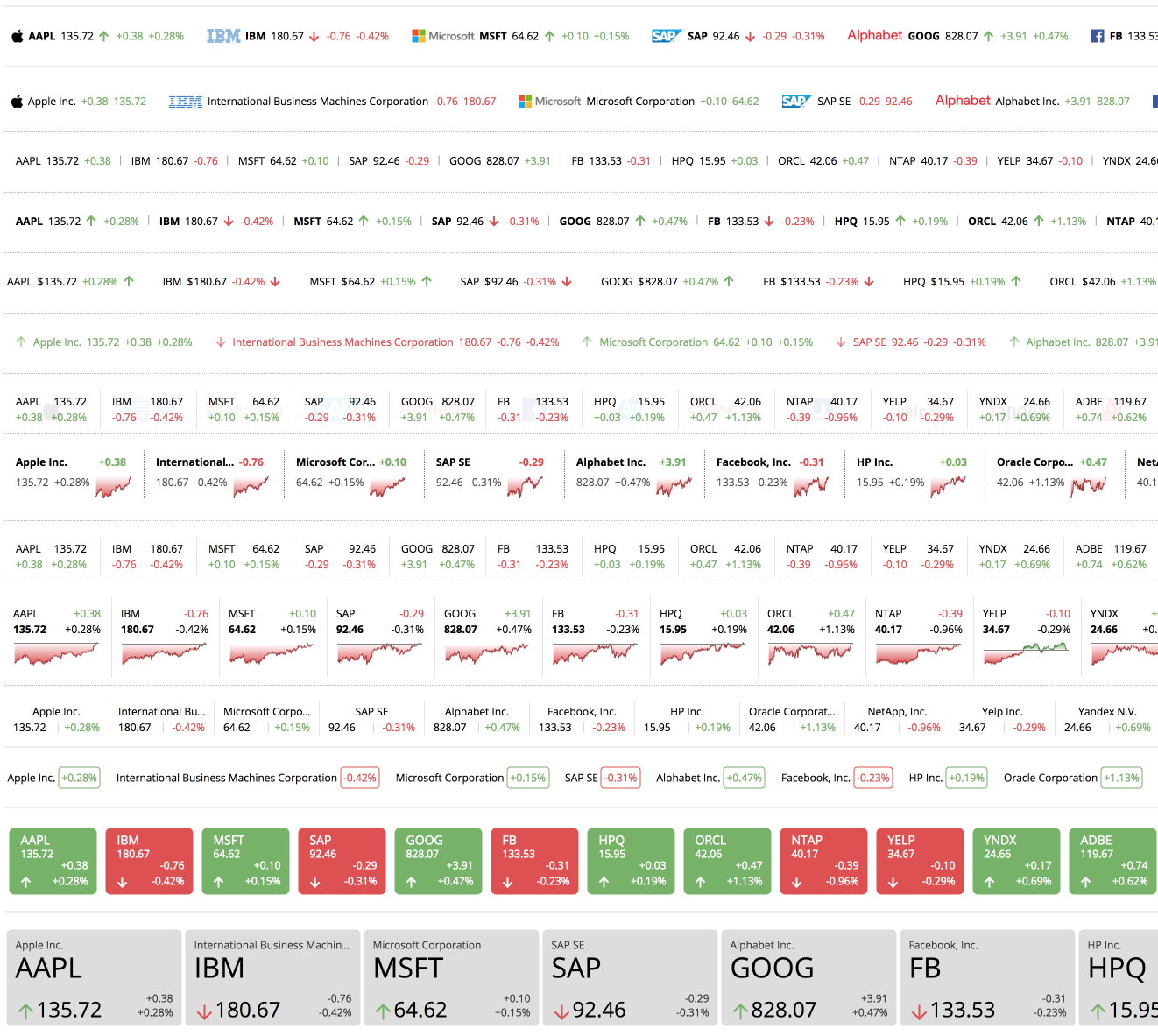
layoutType: A number specifying the layout type used to display the ticker. Please visit www.stockdio.com/ticker_layouts to review the many ticker layout options available (optional).
width: Width of the list in either px or % (optional, default: 100%).
height: Height of ticker in px(optional, default: none). Normally, the ticker height is set automatically by the plugin, so in most cases this will not be necessary. However, certain plugins cause conflict and do not allow to set the height automatically; in those cases, you should set the ticker height manually.
culture: Allows to specify a combination of language and country settings, used to display texts and to format numbers and dates, e.g. Spanish-Spain (optional). For a list of available culture combinations please visit http://www.stockdio.com/cultures.
motif: Design used to display the visualization with specific aesthetics, including borders and styles, among other elements (optional). For a list of available motifs please visit www.stockdio.com/motifs.
palette: Includes a set of consistent colors used for the visualization (optional). For a list of available palettes please visit www.stockdio.com/palettes.
font: Allows to specify the font that will be used to render the chart. Multiple fonts may be specified separated by comma, e.g. Lato,Helvetica,Arial (optional).
transparentBackground: Allows to display the ticker with a transparent background, which is particularly useful when using image or gradient backgrounds on your page. By default, the ticker’s background color is inherited from the palette. Setting this to true overrides any background color. (optional)
backgroundColor: Allows to specify a color for the ticker’s background. Color must be specified in RGB Hex format, without the # sign, e.g. use 000000 for black. By default, the ticker’s background color is inherited from the palette. (optional)
labelsColor: Allows to specify a color for the ticker’s labels, such as the symbol and company name. Color must be specified in RGB Hex format, without the # sign, e.g. use 0000FF for blue. By default, the labels color is inherited from the palette. Prices and percent of change are usually displayed using positive and negative colors, rather than the labels color. (optional)
positiveColor: Allows to specify a color to be used as “Positive” color, i.e. when close price is greater than previous close price. Color must be specified in Hex format, without the # sign, e.g. use 00FF00 for green. By default, the positive color is inherited from the palette. (optional)
negativeColor: Allows to specify a color to be used as “Negative” color, i.e. when close price is smaller than previous close price. Color must be specified in Hex format, without the # sign, e.g. use FF0000 for red. By default, the negative color is inherited from the palette. (optional)
loadDataWhenVisible: Allows to fetch the data and display the visualization only when it becomes visible on the page, in order to avoid using calls (requests) when they are not needed. This is particularly useful when the visualization is not visible on the page by default, but it becomes visible as result of a user interaction (e.g. clicking on an element, etc.). It is also useful when using the same visualization multiple times on a page for different devices (e.g. using one instance of the plugin for mobile and another one for desktop). We recommend not using this by default but only on scenarios as those described above, as it may provide the end user with a small delay to display the visualization (optional).
Installation
-
Upload the
StockdioPluginfolder to your/wp-content/plugins/directory. -
Activate the “Stock Market Ticker” plugin in your WordPress administration interface.
-
If you want to change the preset defaults, go to the Stock Market Ticker settings page.
-
If you’re using the standard Gutenberg editor, add a Stock Market Ticker block from the Stockdio Financial Visualizations category and configure it using the settings sidebar.
-
If you prefer to use the shortcode, insert the
[stock-market-ticker]shortcode into your post content, customizing it with the appropriate parameters. You also have the option to use the Stock Market Ticker widget included when you install the plugin. -
For ease of use, a Stockdio icon is available in the toolbar of the HTML editor for certain versions of WordPress (see screenshots for details).
Frequently asked questions
How do I integrate the Stockdio Stock Market Ticker in my page?
There are three options to integrate it: a. Using the Stock Market Ticker block, b. Using the short code, or c. Through the use of the widget in your sidebars.
How do I know if the Stock Exchange I need is supported by Stockdio?
Stockdio supports over 65 different world exchanges. For a list of all exchanges currently supported, please visit www.stockdio.com/exchanges. If the stock exchange you’re looking for is not in the list, please contact us to info@stockdio.com. Once you have found in the list the stock exchange you need, you must pass the corresponding Exchange Symbol using the stockExchange parameter.
How do I specify the symbols to display?
You can specify as many symbols as you want, from the selected exchange, separated by semi-colon (;). If any of the symbols you want to display does not show up, you can go to http://finance.stockdio.com to verify if the symbol is currently available in Stockdio. If the symbol you require is missing, please contact us at info@stockdio.com.
Can I combine more than one stock exchange on the same ticker?
Yes. The exchange you define in the stockExchange parameter will be the default stock exchange to be used. However, if you want to include symbols from a different exchange, you must prefix the symbol with the exchange code and a colon (:). For example, if you want to include two symbols from USA Equities but additionally include one symbol from London Stock Exchange, you would specify stockExchange=”USA”, and symbols=”AAPL;MSFT;LSE:BAG”. This will also allow you to combine stocks with commodities and currencies in the same ticker.
Can I include one or more market indices in the ticker?
Yes, you can include indices in the symbols parameter, using the ^ prefix. For example, use ^SPX for S&P 500 or ^DJI for the Dow Jones. For a complete list of indices currently supported, please visit www.stockdio.com/indices
Can I create a Commodities ticker?
Yes. You must use COMMODITIES as the stockExchange and then specify one or more commodities in the symbols parameter. For example, use GC;SI;CL for Gold, Silver and Crude Oil. For a complete list of commodities currently supported by Stockdio, please visit www.stockdio.com/commodities
Can I create a Currencies ticker?
Yes. You must use FOREX as the stockExchange and then specify one or more currency pairs in the symbols parameter. For example, use EUR/USD, USD/JPY, GBP/USD for Euro vs. USD, USD vs. Japanese Yen and British Pound vs. USD. For a complete list of currencies currently supported by Stockdio, please visit www.stockdio.com/currencies
I would like to specify a custom name for a given symbol. Can I do that?
Yes, we understand there are several scenarios in which you may want to display your own name, such as if you would like to display a commodities ticker in your own language. This can be easily done by specifying your custom name between parenthesis, right after you have specified the symbol. For example, you can create a commodities ticker in Spanish specifying the following in the symbols parameter: GC(Oro);SI(Plata);CL(Petróleo Crudo). This works for any symbol, index, commodity or currency pair.
Can I specify the numbers and dates format used in my country/region?
Yes, Stockdio supports a number of cultures, used to properly display numbers and dates. For a complete list of cultures currently supported by Stockdio, please visit www.stockdio.com/cultures.
Can I customize the ticker layout?
The plugin provides a large number of predefined ticker layout, which go from the very simple ones to more complex layouts including a mini chart and logos. For a complete list of ticker layouts currently supported by Stockdio, please visit www.stockdio.com/ticker_layouts. If you need a layout not currently available in the list, please contact us at info@stockdio.com.
Can I specify my own colors for the ticker?
Yes, this plugin is provided with a number of predefined color palettes, for ease of use. For a complete list of color palettes currently supported by Stockdio, please visit www.stockdio.com/palettes. However, if you need specific color customization, you can use the Stock Market Ticker block, or you can use the Stockdio iframe available at http://services.stockdio.com, which supports more options.
Is the ticker data real-time or delayed?
In most cases the data is delayed but the delay time may vary between 1 minute and 20 minutes, depending on the exchange. For details of intraday delay time for each exchange please visit www.stockdio.com/exchanges.
The company logo for one of the symbol is not correct or updated, can this be fixed?
Sure! Simply contact us to info@stockdio.com with the correct or updated logo and we will update it, once it has been verified.
Can I place more than ticker with different formatting on the same page?
Yes. By default, all tickers will use the values specified in the plugin settings page. However, any of these values can be overridden using the appropriate shortcode parameter. Each shortcode can be customized entirely independent.
How can I contact Stockdio if something is not working as expected?
Simply send an email to info@stockdio.com with your question and we will reply as soon as possible.
Can I create a Cryptocurrencies ticker?
Yes. You must use CRYPTO as the stockExchange and then specify one or more cryptocurrencies in the symbols parameter. For example, use BTC;ETH;LTC for Bitcoin, Ethereum and Litecoin. For a complete list of cryptocurrencies currently supported by Stockdio, please visit www.stockdio.com/cryptocurrencies.
Can I create a Futures ticker?
Yes. You must use FUTURES as the stockExchange and then specify one or more futures in the symbols parameter. For example, use GCM19;QAG19;FXH19 for Gold, Brent Oil and Eurostoxx. For a complete list of futures currently supported by Stockdio, please visit www.stockdio.com/futures.
Can I create a Bonds ticker?
Yes. You must use BONDS as the stockExchange and then specify one or more bonds in the symbols parameter. For example, use US10YBY;UK10YBY; JA10YBY for US, UK and Japan’s 10-Year Bond Yield. For a complete list of bonds currently supported by Stockdio, please visit www.stockdio.com/bonds.
Changelog
1.19.29
Release date: August 16, 2026
- Added compatibility with WordPress 7.0.4.
1.19.28
Release date: January 15, 2026
- Minor bug fixes.
1.19.27
Release date: January 08, 2026
- Fixes a compatibility issue in the WordPress admin area that could prevent some editors from working correctly.
1.19.24
Release date: February 28, 2025
- Fixes vulnerability issue.
1.19.23
Release date: Jan 29, 2025
- Fixes vulnerability issue.
1.9.22
Release date: November 18, 2024
- Compatibility with WordPress 6.7
Screenshots






For developers
Is this your plugin? Show off the numbers.
Add a live badge to your site, docs or GitHub README. It updates on its own — no account needed.
Best Stock Market Ticker alternatives
All chart plugins →




FAQ
Stock Market Ticker: quick answers
Straight answers, pulled from live WordPress.org data.
Live data from WordPress.org · checked Sep 26, 2026
Is Stock Market Ticker free?
Yes. Stock Market Ticker is free to download and use from the official WordPress.org plugin directory.
Is Stock Market Ticker safe to use in 2026?
Stock Market Ticker is a solid plugin choice in 2026, with a few things worth checking first. It runs on 2K+ sites, is rated 3.7/5 and was last updated 1 month ago, and scores 64/100 on our health check.
How many websites use Stock Market Ticker?
Stock Market Ticker is active on 2K+ WordPress websites and has been downloaded 117,728 times since it launched in February 2017. It was downloaded 2,147 times in the last 30 days.
When was Stock Market Ticker last updated?
The latest version, 1.9.29, was released on August 26, 2026 (1 month ago).
Who makes Stock Market Ticker?
Stock Market Ticker is developed and maintained by Stockdio.
What are the best alternatives to Stock Market Ticker?
The most popular alternatives to Stock Market Ticker are wpDataTables (60K+ installs), Pricing Table by Supsystic (10K+ installs) and WP GPX Maps (4K+ installs).
Powered by PageForge
Want thousands of pages that rank like these? Build them in an afternoon.
This directory runs on the same engine as PageForge. Turn any spreadsheet, CSV or API into thousands of fast, SEO-ready WordPress pages — with schema, internal links and AI-written copy baked in.
- CSV, Google Sheets & API data sources
- AI content, schema & internal links per page
- Works with Elementor, Gutenberg, Yoast & Rank Math
- Free on WordPress.org — no credit card


