



SMTPPai – Multi Mail SMTP & API with Amazon SES & More
Free Multi-route Wordpress Mail SMTP Plugin with Amazon SES, Resend, SendGrid, Postmark, SparkPost, Gmail, Outlook, Microsoft 365, Zoho and more.

Use with caution
SMTPPai works, but test it on a staging site before relying on it in 2026. It runs on 10+ sites and was last updated 3 months ago, and scores 57/100 on our health check.
- Small user base (10+ active installs)
- Very few reviews so far
Daily downloads
Download spikes usually follow a new release — each site that auto-updates counts as a download.
Version adoption
Share of active sites per release.
About SMTPPai
From the official readme · v1.0.2Description
Free Multi-route WordPress Mail SMTP Plugin with Amazon SES, Resend, SendGrid, Postmark, SparkPost, Gmail, Outlook, Microsoft 365, Zoho and more.
Free WordPress SMTP Plugin for Amazon SES & Other Mail Provider
At a glance: SMTPPai is a free WordPress SMTP plugin that fixes WordPress not sending email by routing wp_mail() through Amazon SES (native API), SendGrid, Gmail, Microsoft 365, Resend, Postmark, SparkPost, Mailgun, Brevo, and other transactional email providers. Multi-route mail splitting for WordPress, WooCommerce, newsletter, and outreach; backup SMTP failover; email log with retry. First connection auto-routes all mail. No paid tier. Optional Freemius analytics (opt-in only).
Best for: Sites that need multiple SMTP connections, per-route routing, free native Amazon SES API (not SMTP-only), or better email deliverability without a Pro license.
Not for: Sites that only need one Gmail SMTP connection with minimal setup (simpler single-connection SMTP plugins may suffice).
SMTPPai is a free WordPress mail SMTP plugin that fixes broken wp_mail() delivery. Connect Amazon SES, Mailgun, Postmark, Resend, SendGrid, Brevo, Mailjet, Gmail, Microsoft 365, or any SMTP server from wp-admin—with test email, an email log, and inline setup help on each connection screen.
Many hosts block or spam-filter PHP mail(). SMTPPai routes WooCommerce orders, password resets, contact forms, and admin notices through your provider instead.
Why SMTPPai instead of another SMTP plugin?
Most SMTP plugins in the directory offer one connection and SMTP relay only. SMTPPai is built for sites that need more control without a paid license:
- Unlimited connections (free) — run SES for transactional mail, Mailgun for WooCommerce, and Gmail for admin alerts at the same time
- Native API mailers — Amazon SES, Mailgun, Postmark, Resend, SendGrid, Brevo, and others use each provider’s HTTP API, not a generic SMTP shim
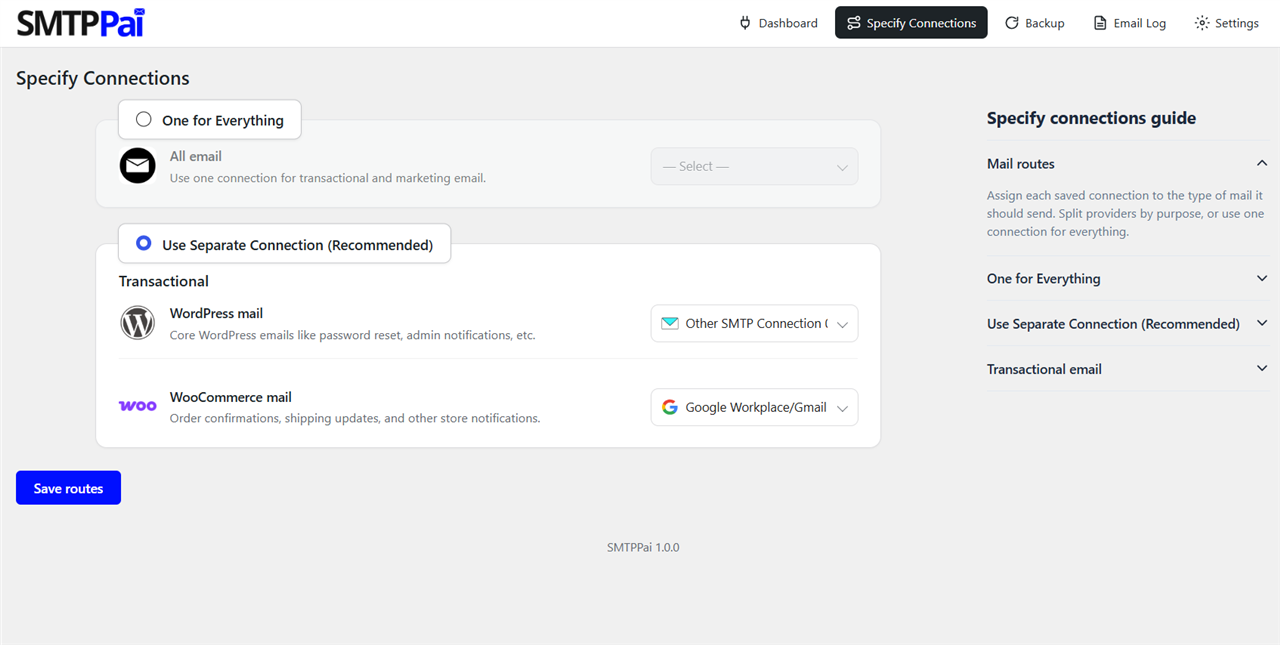
- Specify Connections — assign WordPress, WooCommerce, newsletter, and outreach mail to different providers from one screen
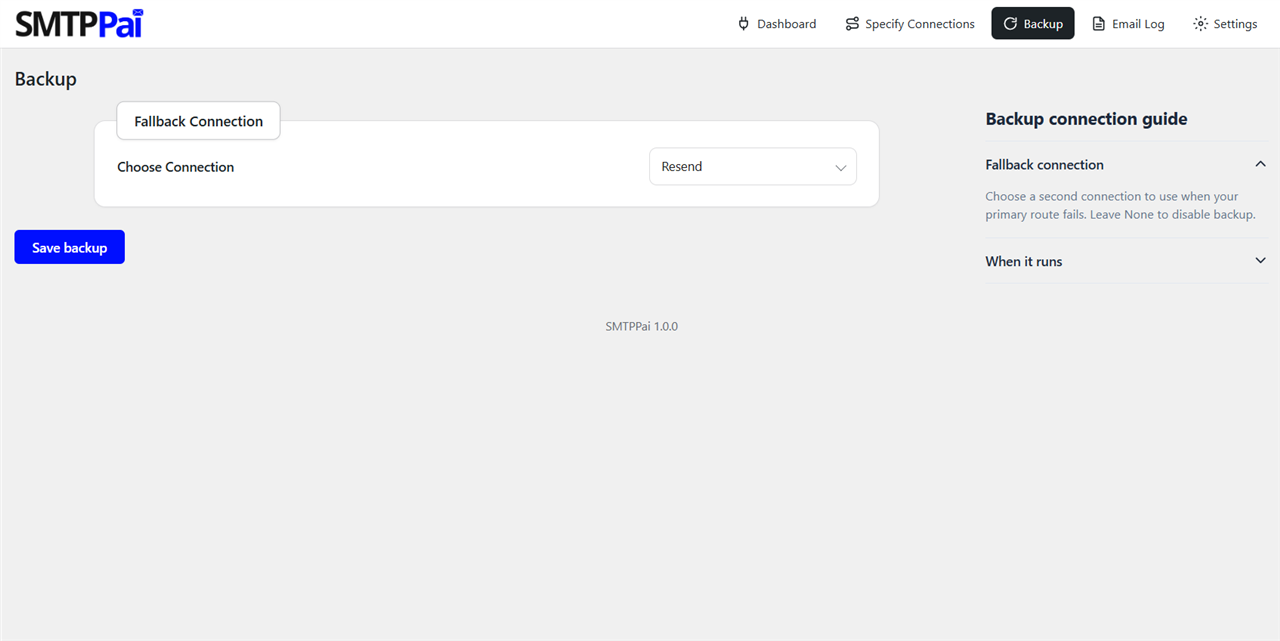
- Backup failover — if the primary connection fails, SMTPPai retries through a second provider automatically
- OAuth that works on local and staging sites — Gmail and Microsoft sign-in use a fixed HTTPS redirect relay so you do not need a public production URL in Google Cloud or Entra
- Secrets in wp-config.php — optional constants keep API keys out of the database
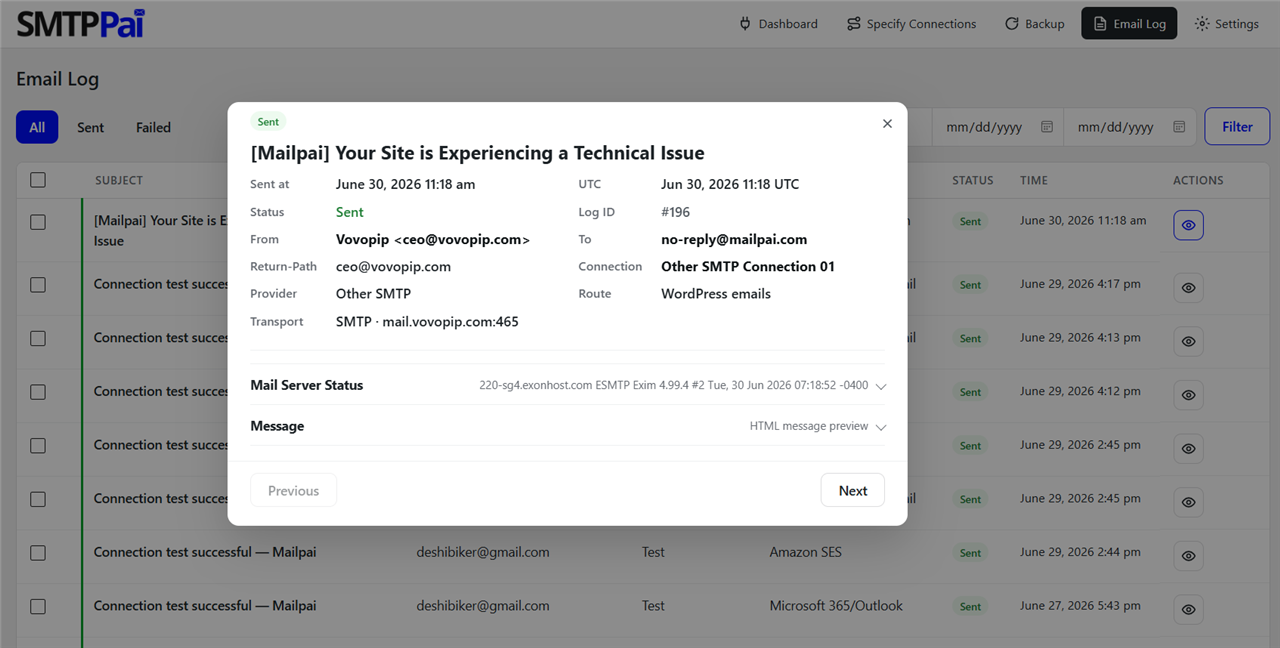
- Email log with retry — see delivery status, server responses, and resend failed messages from wp-admin
- Developer route API — send or check readiness per route (
wordpress,woocommerce,newsletter,outreach) - Optional analytics — Freemius Insights is opt-in only; core delivery never requires Freemius or a MailPai account
What you get (free):
- Unlimited connections—native API mailers plus OAuth for Google and Microsoft
- Specify Connections to split WordPress, WooCommerce, newsletter, and outreach mail
- Backup when your primary provider fails
- Email log with sent/failed status, server response, and retry
- Encrypted secrets in the database or storage in
wp-config.phponly
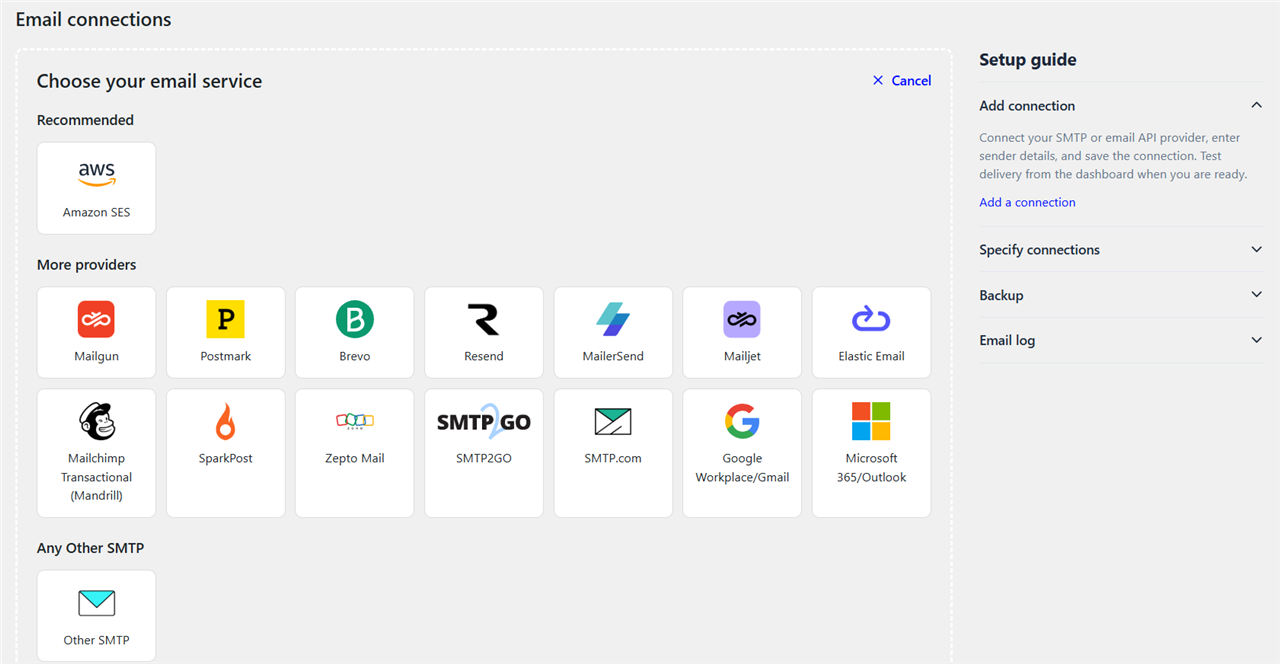
Supported mailers: Amazon SES, Mailgun, Postmark, Brevo, Resend, SendGrid (by Twilio), MailerSend, Mailjet, Elastic Email, Mailchimp Transactional (Mandrill), SparkPost, Zepto Mail, SMTP2GO, SMTP.com, Google Workspace/Gmail, Microsoft 365/Outlook, and Other SMTP (Zoho, cPanel, custom relays).
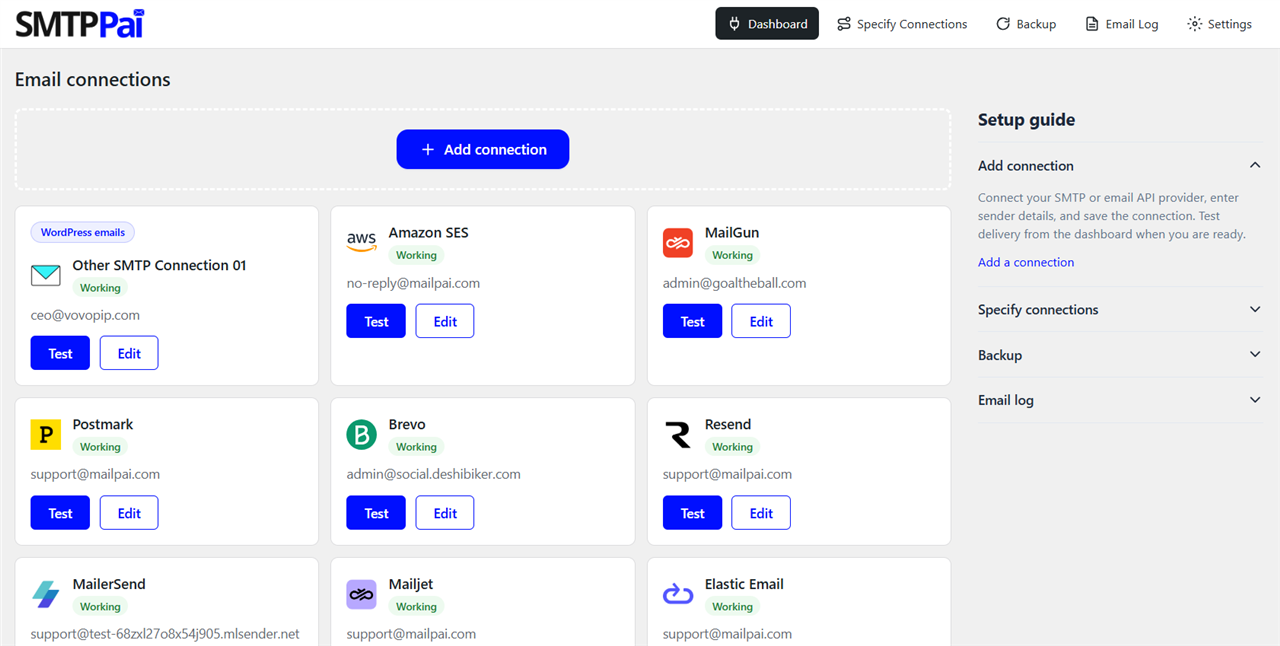
Quick start: Install → SMTPPai → Dashboard → Add connection → save and Test. Your first connection is auto-assigned to One for Everything, so WordPress mail works immediately. Use Specify Connections only when you want separate providers per route. Optional Backup under SMTPPai → Backup.
Gmail and Microsoft OAuth use your own Google Cloud or Microsoft Entra app. Sign-in may briefly visit auth.mailpai.com (HTTPS redirect relay); OAuth tokens stay on your WordPress site. You may get a Google or Microsoft security alert on your phone—normal account protection; approve only if you started sign-in in wp-admin. See FAQ for details.
MailPai (optional, upcoming) will handle newsletter and outreach campaigns; SMTPPai delivers the mail. Routes for newsletter and outreach are already available in Specify Connections.
Developer hooks: mailpai_smtp_send_for_route(), mailpai_smtp_is_route_ready(), and related functions—see FAQ.
Note: Messages with file attachments may still use default WordPress mail until a future update adds full attachment routing.
Per-provider setup steps (Amazon SES, Mailgun, OAuth, and others) are in FAQ below and in the setup guide inside each connection form in wp-admin.
External services
SMTPPai contacts external servers only when you configure a feature that needs them, or when you explicitly opt in to Freemius Insights. SMTPPai does not send site data to MailPai for marketing or licensing during normal mail delivery.
Freemius (optional analytics)
After activation you may see an opt-in screen. If you choose Allow / Continue, SMTPPai may share non-sensitive site and plugin usage data with Freemius (for example site URL, WordPress/PHP versions, plugin version, and admin email) so we can improve SMTPPai and understand installs, deactivations, and uninstall feedback. You can skip opt-in; the plugin works fully either way.
Service: https://freemius.com/
Privacy: https://freemius.com/privacy/
Terms: https://freemius.com/terms/
What data email providers receive
When you save a connection, SMTPPai stores your API keys, OAuth tokens, or SMTP credentials on your WordPress server only. When WordPress sends mail through that connection (including test emails you trigger in wp-admin), SMTPPai transmits sender address, recipient address(es), subject, message body, and optional headers (for example Reply-To or CC) to the provider’s API or SMTP server over HTTPS/TLS. Nothing is sent to a provider until you configure that connection and mail is sent through it.
OAuth redirect relay (auth.mailpai.com)
Used when you connect Google Workspace/Gmail or Microsoft 365/Outlook with OAuth.
- You click authorize in WordPress admin (SMTPPai).
- Google or Microsoft shows a consent screen for send-mail access.
- After you approve, the provider redirects the browser to a fixed HTTPS relay:
- https://auth.mailpai.com/google
- https://auth.mailpai.com/microsoft
- The relay immediately sends you back to your site’s wp-admin with a one-time authorization code.
- Your WordPress site exchanges the code for OAuth tokens using the Client ID and Secret you entered in the connection form. Tokens are saved on your server (encrypted in the database or in wp-config.php constants).
The relay forwards the authorization code only. It does not store OAuth refresh tokens or read your mailbox.
Service: https://auth.mailpai.com/
Terms: https://mailpai.com/terms-conditions/
Privacy: https://mailpai.com/privacy-policy/
Google (OAuth and Gmail API)
Used when you connect Google Workspace/Gmail with OAuth. Your WordPress site contacts accounts.google.com, oauth2.googleapis.com, and www.googleapis.com to complete sign-in and refresh tokens. After authorization, mail is sent using the Gmail API scope you approve.
Data sent: OAuth authorization codes and token requests during setup; your Google account email during sign-in; sender, recipients, subject, and message body when WordPress sends mail through the Gmail connection.
Terms: https://policies.google.com/terms
Privacy: https://policies.google.com/privacy
Microsoft (OAuth and Microsoft 365 / Outlook)
Used when you connect Microsoft 365/Outlook with OAuth. Your WordPress site contacts login.microsoftonline.com to complete sign-in and refresh tokens, then sends mail through Microsoft mail services.
Data sent: OAuth authorization codes and token requests during setup; your Microsoft account email during sign-in; sender, recipients, subject, and message body when WordPress sends mail through the Microsoft connection.
Terms: https://www.microsoft.com/en-us/servicesagreement/
Privacy: https://privacy.microsoft.com/privacystatement
Amazon SES
Used when you add an Amazon SES connection. SMTPPai signs requests to the regional SES API endpoint (for example email.us-east-1.amazonaws.com) using the IAM keys you provide.
Data sent: IAM access key ID and request signature with each API call; sender, recipients, subject, and message body when mail is sent.
Terms: https://aws.amazon.com/service-terms/
Privacy: https://aws.amazon.com/privacy/
Mailgun
Used when you add a Mailgun connection. SMTPPai calls api.mailgun.net or api.eu.mailgun.net.
Data sent: Mailgun API key with each request; sender, recipients, subject, and message body when mail is sent.
Terms: https://www.mailgun.com/legal/terms-of-service/
Privacy: https://www.mailgun.com/legal/privacy-policy/
Postmark
Used when you add a Postmark connection. SMTPPai calls api.postmarkapp.com.
Data sent: Postmark Server API token with each request; sender, recipients, subject, message body, and message stream ID when mail is sent.
Terms: https://postmarkapp.com/terms-of-service
Privacy: https://postmarkapp.com/privacy-policy
Brevo
Used when you add a Brevo connection. SMTPPai calls api.brevo.com.
Data sent: Brevo API key with each request; sender, recipients, subject, and message body when mail is sent.
Terms: https://www.brevo.com/legal/termsofuse/
Privacy: https://www.brevo.com/legal/privacypolicy
Resend
Used when you add a Resend connection. SMTPPai calls api.resend.com.
Data sent: Resend API key with each request; sender, recipients, subject, and message body when mail is sent.
Terms: https://resend.com/legal/terms-of-service
Privacy: https://resend.com/legal/privacy-policy
SendGrid (by Twilio)
Used when you add a SendGrid connection. SMTPPai calls api.sendgrid.com or api.eu.sendgrid.com when EU region is selected.
Data sent: SendGrid API key with each request; sender, recipients, subject, and message body when mail is sent.
Terms: https://www.twilio.com/en-us/legal/tos
Privacy: https://www.twilio.com/en-us/legal/privacy
MailerSend
Used when you add a MailerSend connection. SMTPPai calls api.mailersend.com.
Data sent: MailerSend API token with each request; sender, recipients, subject, and message body when mail is sent.
Terms: https://www.mailersend.com/legal/terms-of-use
Privacy: https://www.mailersend.com/legal/privacy-policy
Mailjet
Used when you add a Mailjet connection. SMTPPai calls api.mailjet.com.
Data sent: Mailjet API key and secret with each request; sender, recipients, subject, and message body when mail is sent.
Terms: https://www.mailjet.com/legal/terms/
Privacy: https://www.mailjet.com/legal/privacy-policy/
Elastic Email
Used when you add an Elastic Email connection. SMTPPai calls api.elasticemail.com.
Data sent: Elastic Email API key with each request; sender, recipients, subject, and message body when mail is sent.
Terms: https://elasticemail.com/legal/terms-of-use/
Privacy: https://elasticemail.com/legal/privacy-policy/
Mailchimp Transactional (Mandrill)
Used when you add a Mailchimp Transactional (Mandrill) connection. SMTPPai calls mandrillapp.com.
Data sent: Mandrill API key with each request; sender, recipients, subject, and message body when mail is sent.
Terms: https://mailchimp.com/legal/terms/
Privacy: https://mailchimp.com/legal/privacy/
SparkPost
Used when you add a SparkPost connection. SMTPPai calls api.sparkpost.com or api.eu.sparkpost.com.
Data sent: SparkPost API key with each request; sender, recipients, subject, and message body when mail is sent.
Terms: https://www.sparkpost.com/policies/tos/
Privacy: https://www.sparkpost.com/policies/privacy/
Zepto Mail (Zoho)
Used when you add a Zepto Mail connection. SMTPPai calls api.zeptomail.com, api.zeptomail.eu, or api.zeptomail.in depending on the region you select.
Data sent: Zepto Mail Send Mail token with each request; sender, recipients, subject, and message body when mail is sent.
Terms: https://www.zoho.com/terms.html
Privacy: https://www.zoho.com/privacy.html
SMTP2GO
Used when you add an SMTP2GO connection. SMTPPai calls api.smtp2go.com.
Data sent: SMTP2GO API key with each request; sender, recipients, subject, and message body when mail is sent.
Terms: https://www.smtp2go.com/terms/
Privacy: https://www.smtp2go.com/privacy/
SMTP.com
Used when you add an SMTP.com connection. SMTPPai calls api.smtp.com.
Data sent: SMTP.com API key and channel name with each request; sender, recipients, subject, and message body when mail is sent.
Terms: https://smtp.com/terms-of-use/
Privacy: https://smtp.com/privacy-policy/
Other SMTP (user-configured)
Used when you add Other SMTP and enter a hostname yourself (for example Zoho Mail, cPanel, or a custom relay). SMTPPai connects only to the host, port, and encryption settings you provide.
Data sent: SMTP username and password during authentication; sender, recipients, subject, and message body when mail is sent. Terms and privacy are governed by your SMTP provider—not by SMTPPai or MailPai.
Privacy
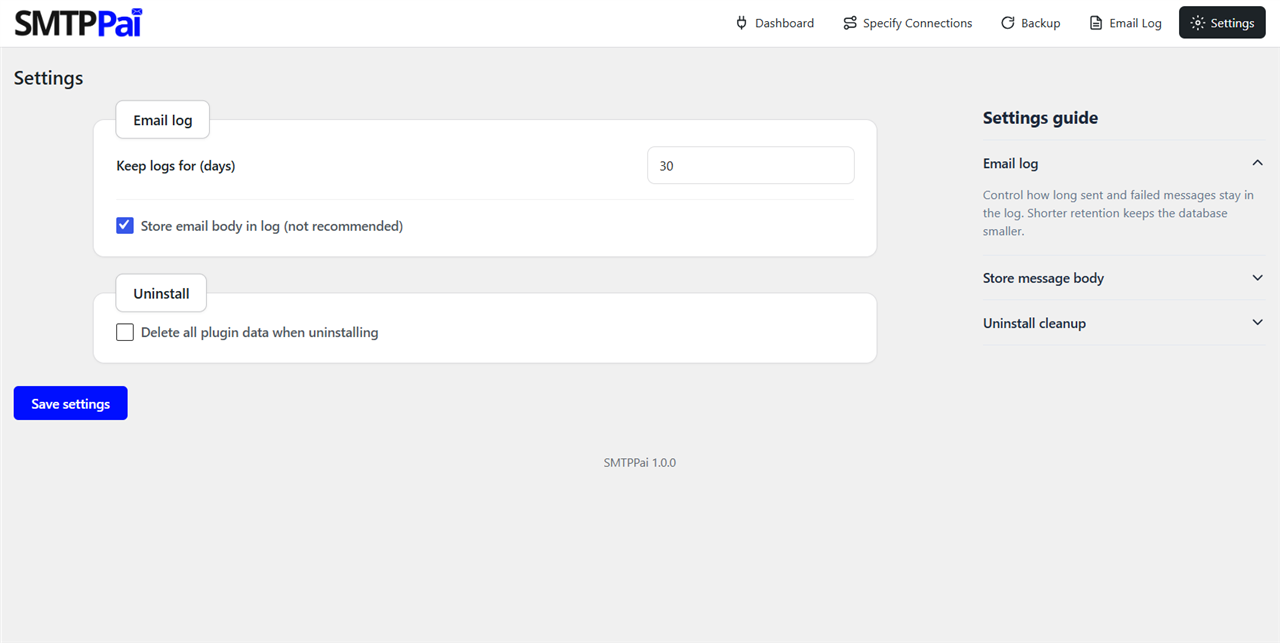
- Email log may store addresses, subjects, and optionally message bodies on your server (body logging is off by default).
- Credentials are encrypted in the database or stored in wp-config.php.
- Optional Freemius analytics only after explicit opt-in (skippable). No MailPai marketing telemetry for core SMTP delivery.
Installation
Install from WordPress.org (wp smtp download)
- In wp-admin go to Plugins → Add New.
- Search for SMTPPai.
- Click Install Now, then Activate.
Install by upload
- Download the plugin zip from WordPress.org.
- Go to Plugins → Add New → Upload Plugin.
- Upload the zip and activate.
- The folder should be
/wp-content/plugins/smtp-pai/.
Quick start with Amazon SES
- SMTPPai → Dashboard → Add connection → Amazon SES.
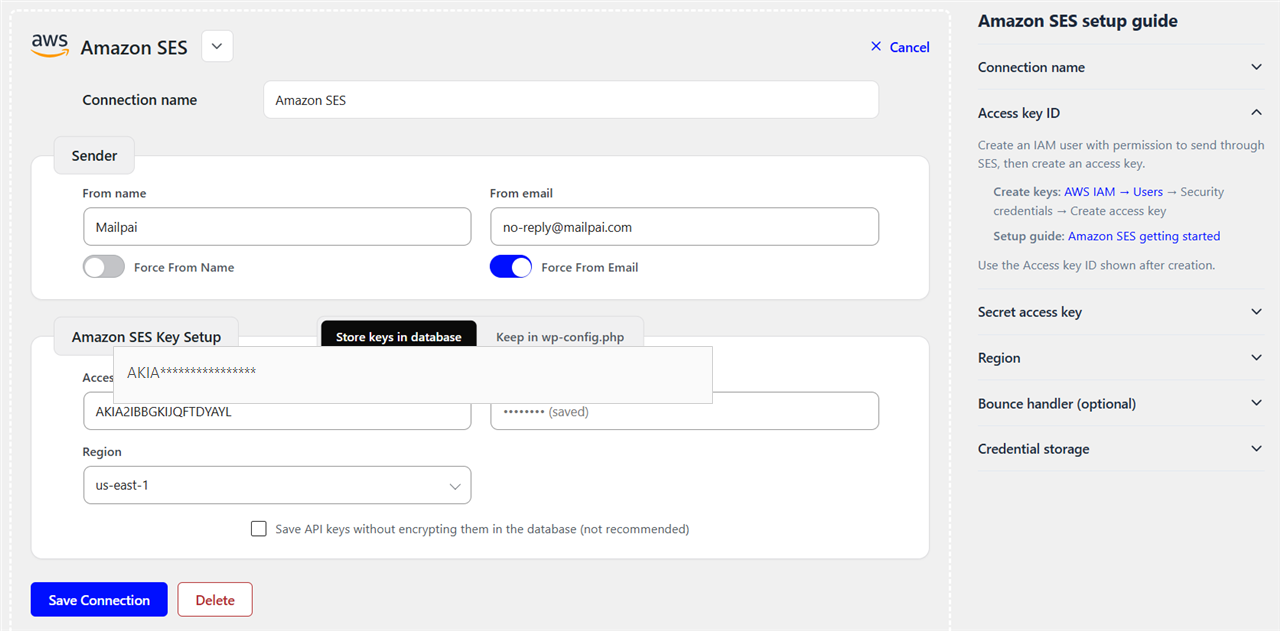
- Complete IAM keys, region, and sender fields (see FAQ → Amazon SES).
- Save and Test. Your first connection is auto-assigned to One for Everything, so WordPress and WooCommerce mail work immediately.
Quick start with another mailer
- Dashboard → Add connection and pick Mailgun, Resend, SendGrid, Gmail, or Other SMTP.
- Save and Test. Mail routes automatically through that connection.
- Optional: open Specify Connections only when you want different providers per route.
Frequently asked questions
How do I set up SMTP in WordPress?
Install SMTPPai, add a connection for your mailer, and send a test email. Your first saved connection is auto-assigned to One for Everything, so wp_mail() uses your provider instead of PHP mail() right away. Use Specify Connections only when you want separate providers for WordPress, WooCommerce, newsletter, or outreach mail.
How do I send WordPress email through Amazon SES?
Add an Amazon SES connection with IAM keys and the correct region, verify your domain in SES, and test. SMTPPai uses the native SES API. Your first connection auto-routes all mail; open Specify Connections only if you need a different provider for WooCommerce or other routes.
Is SMTPPai a free WordPress SMTP plugin?
Yes. Connections, Specify Connections, backup, email log, and Amazon SES API support are included without a paid license.
Is Amazon SES free in SMTPPai?
Yes. Native Amazon SES API setup is included. AWS still bills you for SES usage on your AWS account.
Does SMTPPai use the Amazon SES API or SMTP?
Amazon SES uses the native API with IAM keys. Gmail, Microsoft, and Other SMTP use SMTP or OAuth as shown in the wizard.
Which AWS region should I use for SES?
Use the region where your domain or sender is verified in Amazon SES.
WordPress is not sending email. Will this help?
Usually yes. Install SMTPPai, add a connection, and send a test email from the dashboard. Your first ready connection auto-routes WordPress mail through One for Everything. If mail still fails, check Email Log for the provider response and confirm your From address is verified with your mailer.
Why is WordPress not sending email?
Common causes: the host blocks PHP mail(), DNS/SPF/DKIM is missing, or no SMTP provider is configured. SMTPPai fixes the configuration side by routing wp_mail() through Amazon SES, SendGrid, Gmail, or another provider. Add a connection, test from the dashboard, and check Email Log if delivery still fails.
How do I connect Amazon SES API to WordPress for free?
In SMTPPai go to Dashboard → Add connection → Amazon SES, enter IAM Access key ID, Secret access key, and Region, set a verified From email, and test. Native SES API is included free in SMTPPai (AWS bills SES usage on your account). Your first connection auto-routes all WordPress mail.
Can I use SendGrid with WordPress?
Yes. Add SendGrid (by Twilio), paste an API key with Mail Send permission, select US or EU region, use a verified sender or authenticated domain for From email, and test. SendGrid uses SendGrid’s HTTP API, not SMTP-only relay.
Can I use multiple SMTP providers on one WordPress site?
Yes. SMTPPai supports unlimited connections. Your first connection auto-routes all mail through One for Everything. Use Specify Connections to send WordPress, WooCommerce, newsletter, and outreach mail through different providers, and optional Backup for failover.
Does SMTPPai work with WooCommerce and Contact Form 7?
Yes. WooCommerce order emails and Contact Form 7 notifications use wp_mail(). After your first connection is tested, One for Everything routes that mail automatically. Assign routes separately in Specify Connections only when you need different providers per mail type.
What is the difference between SMTP and API email in WordPress?
SMTP sends mail through your host’s outbound SMTP ports (often blocked by hosting). API mailers (Amazon SES, SendGrid, Resend, Postmark, and others) send over HTTPS with an API key, which is usually more reliable on shared hosting. SMTPPai supports both native API mailers and SMTP/OAuth options such as Gmail and Other SMTP.
Does SMTPPai work with WooCommerce?
Yes. Your first saved connection is auto-assigned to One for Everything, which includes the WooCommerce route. To send store emails through a different provider than WordPress core mail, open Specify Connections and assign WooCommerce mail separately.
Can I use Mailgun, Resend, or Mailjet instead of SES?
Yes. Add any supported mailer and test it. Your first connection auto-routes all mail. Use Specify Connections when you want different providers per route (for example Mailgun for WooCommerce and Gmail for admin mail).
Can I use Zoho Mail with SMTPPai?
Yes. Choose Other SMTP and enter Zoho’s SMTP hostname, port, and credentials from your Zoho account.
What is Specify Connections?
It maps WordPress, WooCommerce, Newsletter, and Outreach mail to different connections.
What are Newsletter and Outreach routes?
They route email marketing and outreach mail for the upcoming MailPai plugin. SMTPPai handles delivery only.
Do I need MailPai?
No for WordPress and WooCommerce mail. MailPai is optional for campaigns later.
Does SMTPPai include an email log?
Yes, with sent and failed status and server responses.
Changelog
Optional Freemius Insights (opt-in) for install and uninstall feedback. Uninstall cleanup moved for accurate reporting.
1.0.2
- Added optional Freemius Insights (opt-in) for install, feedback, and uninstall monitoring.
- Moved uninstall data cleanup to Freemius after_uninstall so uninstall reporting works correctly.
1.0.1
- Improved WordPress.org listing title and short description for search.
- First saved connection is now auto-assigned to One for Everything so mail works without a separate Specify Connections step.
- Added native SendGrid (by Twilio) API mailer with US/EU region support and inline setup guide.
1.0.0
- Initial release.
Screenshots
For developers
Is this your plugin? Show off the numbers.
Add a live badge to your site, docs or GitHub README. It updates on its own — no account needed.
FAQ
SMTPPai: quick answers
Straight answers, pulled from live WordPress.org data.
Live data from WordPress.org · checked Oct 12, 2026
Is SMTPPai free?
Yes. SMTPPai is free to download and use from the official WordPress.org plugin directory.
Is SMTPPai safe to use in 2026?
SMTPPai works, but test it on a staging site before relying on it in 2026. It runs on 10+ sites and was last updated 3 months ago, and scores 57/100 on our health check.
How many websites use SMTPPai?
SMTPPai is active on 10+ WordPress websites and has been downloaded 354 times since it launched in June 2026. It was downloaded 72 times in the last 30 days.
Does SMTPPai work with WordPress 7.1?
SMTPPai is officially tested up to WordPress 7.0.7, while the latest release is 7.1.3. It may still work, but try it on a staging site first.
What PHP version does SMTPPai need?
SMTPPai requires PHP 7.4 or higher. Most hosts run PHP 8.x today, so it works on any modern WordPress hosting.
When was SMTPPai last updated?
The latest version, 1.0.2, was released on July 18, 2026 (3 months ago).
Who makes SMTPPai?
SMTPPai is developed and maintained by Dewan Shahedur Rahman.
Powered by PageForge
Want thousands of pages that rank like these? Build them in an afternoon.
This directory runs on the same engine as PageForge. Turn any spreadsheet, CSV or API into thousands of fast, SEO-ready WordPress pages — with schema, internal links and AI-written copy baked in.
- CSV, Google Sheets & API data sources
- AI content, schema & internal links per page
- Works with Elementor, Gutenberg, Yoast & Rank Math
- Free on WordPress.org — no credit card


