


Slideshow SE
Completely free, open source plugin to easily add slideshows to your WordPress site.

Solid choice
Slideshow SE is a solid plugin choice in 2026, with a few things worth checking first. It runs on 2K+ sites, is rated 4.9/5 and was last updated 1 month ago, and scores 79/100 on our health check.
- Tested with the latest WordPress (7.1)
How does it stack up?
Side-by-side on installs, updates, ratings & support



Daily downloads
Download spikes usually follow a new release — each site that auto-updates counts as a download.
Rankings
Where Slideshow SE stands todayWordPress.org search rankings
Live position in the plugin search, top 100| Keyword | Position |
|---|---|
| carousel | >100 |
| Free | >100 |
| gallery | >100 |
| image | >100 |
| slideshow | #3 |
Version adoption
Share of active sites per release.
Rating breakdown
★★★★★★★★★★ 4.9 from 8 reviews
About Slideshow SE
From the official readme · v2.7.2Description
Slideshow SE provides an easy way to add a slideshow to any WordPress installation.
Any image can be loaded into the slideshow by picking it from the WordPress media page, even images you’ve already uploaded can be inserted into your slideshow right away!
Fancy doing something crazy? You can create and use as many slideshows as you’d like, with different images, settings, and styles for each one of them.
Features
- Gutenberg block
- Create as many slideshows with as many slides as you like
- Image slides
- Text slides
- YouTube Video slides
- Responsive
- Place it anywhere on your website
- Run multiple slideshows on the same page
- Change animations and handling
- Customizable stylesheets
- COMPLETELY FREE AND OPEN SOURCE
Need the (uncompressed) source code?
The forked code is available on GitHub.
The original project’s source code is also in a GitHub repository.
Links
Installation
-
Install Slideshow SE either via the WordPress.org plugin directory or by uploading the files to your server.
-
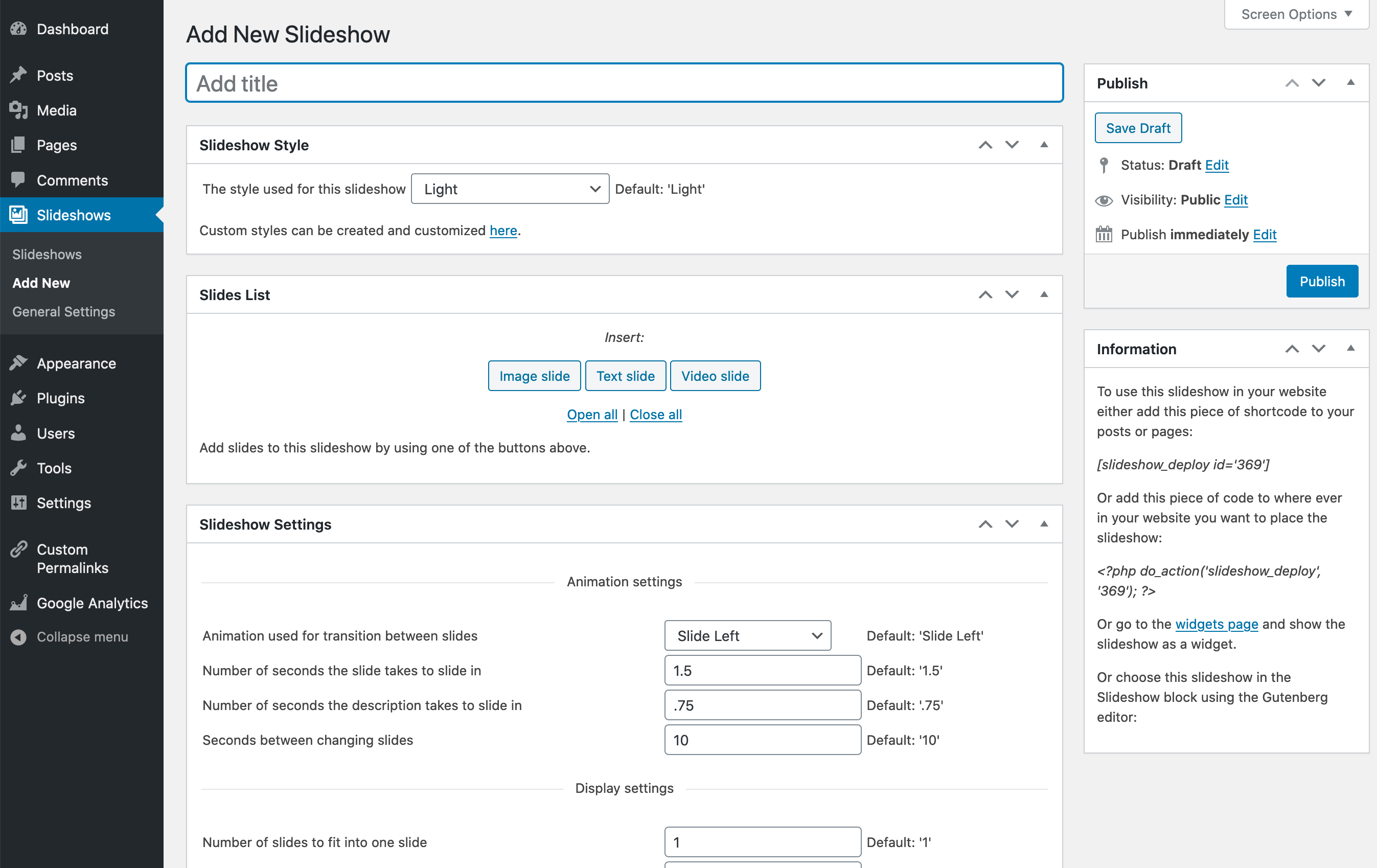
After activating Slideshow SE, click on ‘Slideshows’ and create a new slideshow.
-
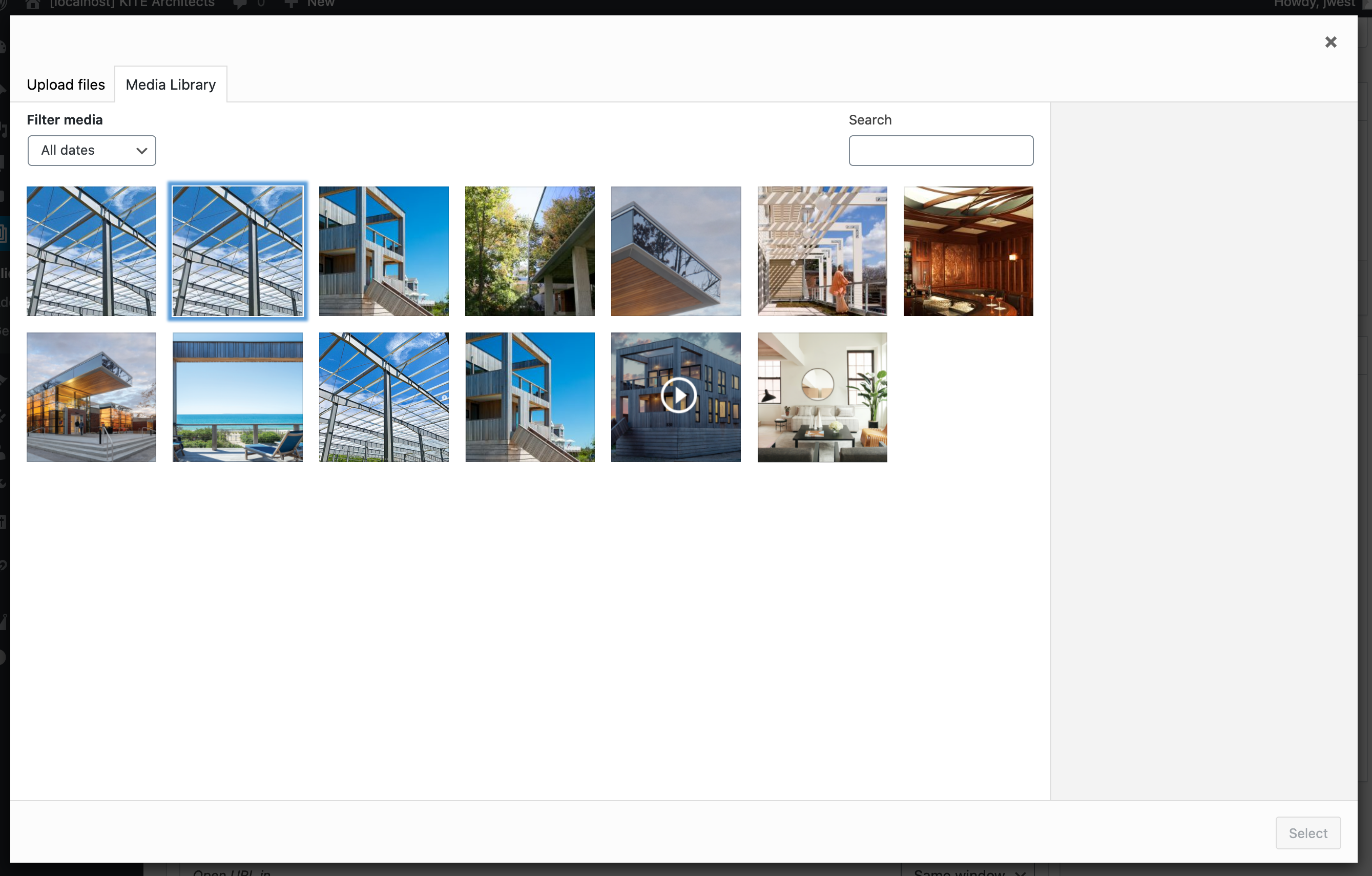
Click on ‘Insert Image Slide’ to insert an image slide, a popup will appear where you can search for the desired
image. Insert the image by clicking ‘Insert’. The same goes for text and video slides, don’t forget to save! -
Add the slideshow to your post.
If you are using the Classic editor, go to a post or a page and click the ‘Insert Slideshow’ button above the editor. A popup appears where you can select your newly created slideshow to insert. You can also use the shortcode or code snippet visible in your slideshow admin panel to deploy your slideshow anywhere on your website. Use the widget to show any of your slideshows in the sidebar of your website.
If you are using Gutenberg, add a new block and search for Slideshow SE or choose Common > Slideshow SE from the blocks list. Choose the slideshow you want to add from the popup menu.
Frequently asked questions
How do I add image slides?
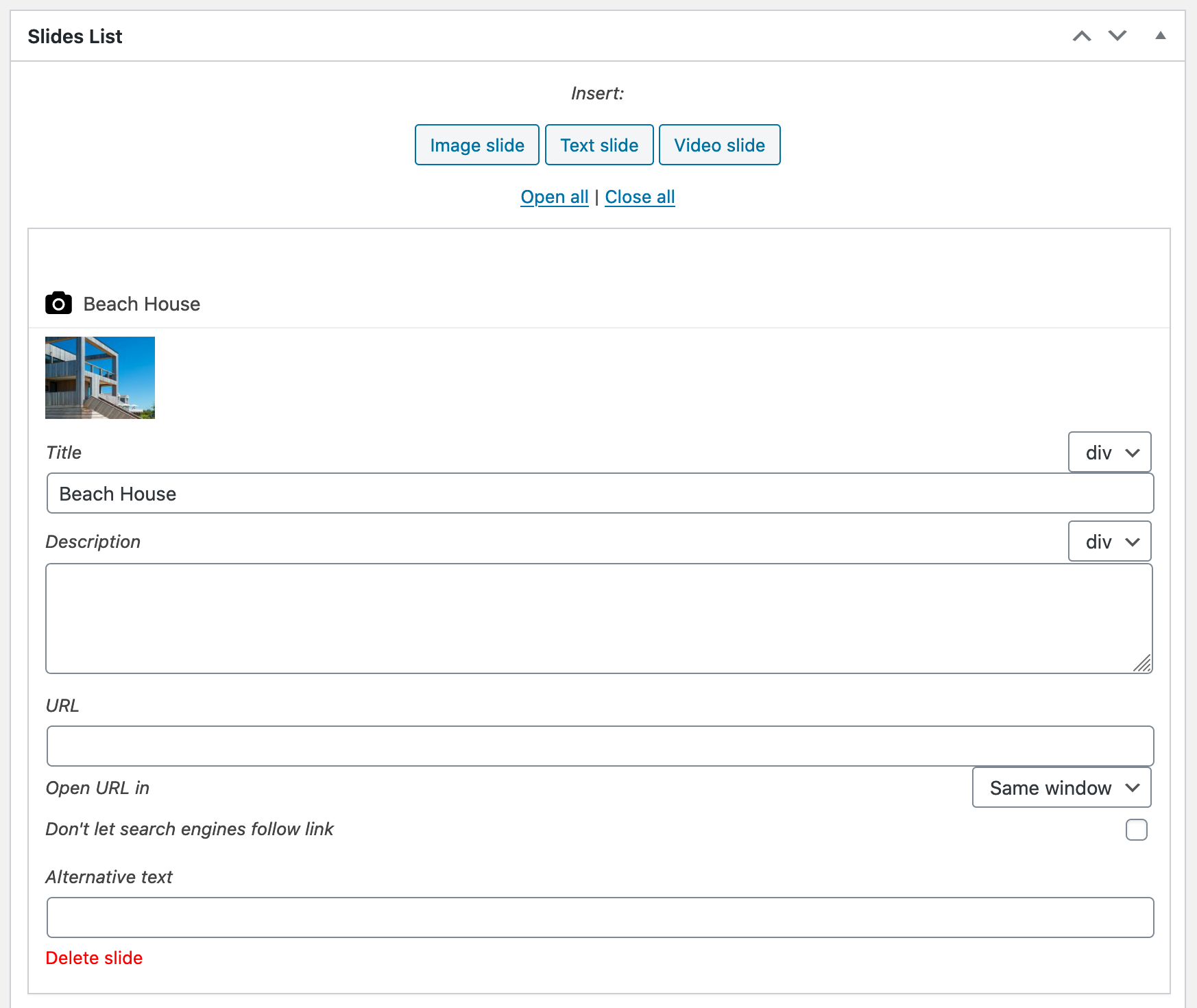
Click the ‘Image slide’ button in the ‘Slides List’ of the slideshow. A screen will pop up where you’ll be able to search though all images that have already been uploaded to your WordPress website. If you want to add new images to the slideshow, or you do not have any images yet, you’ll have to upload them to the WordPress media page first.
How do I change a slideshow’s settings?
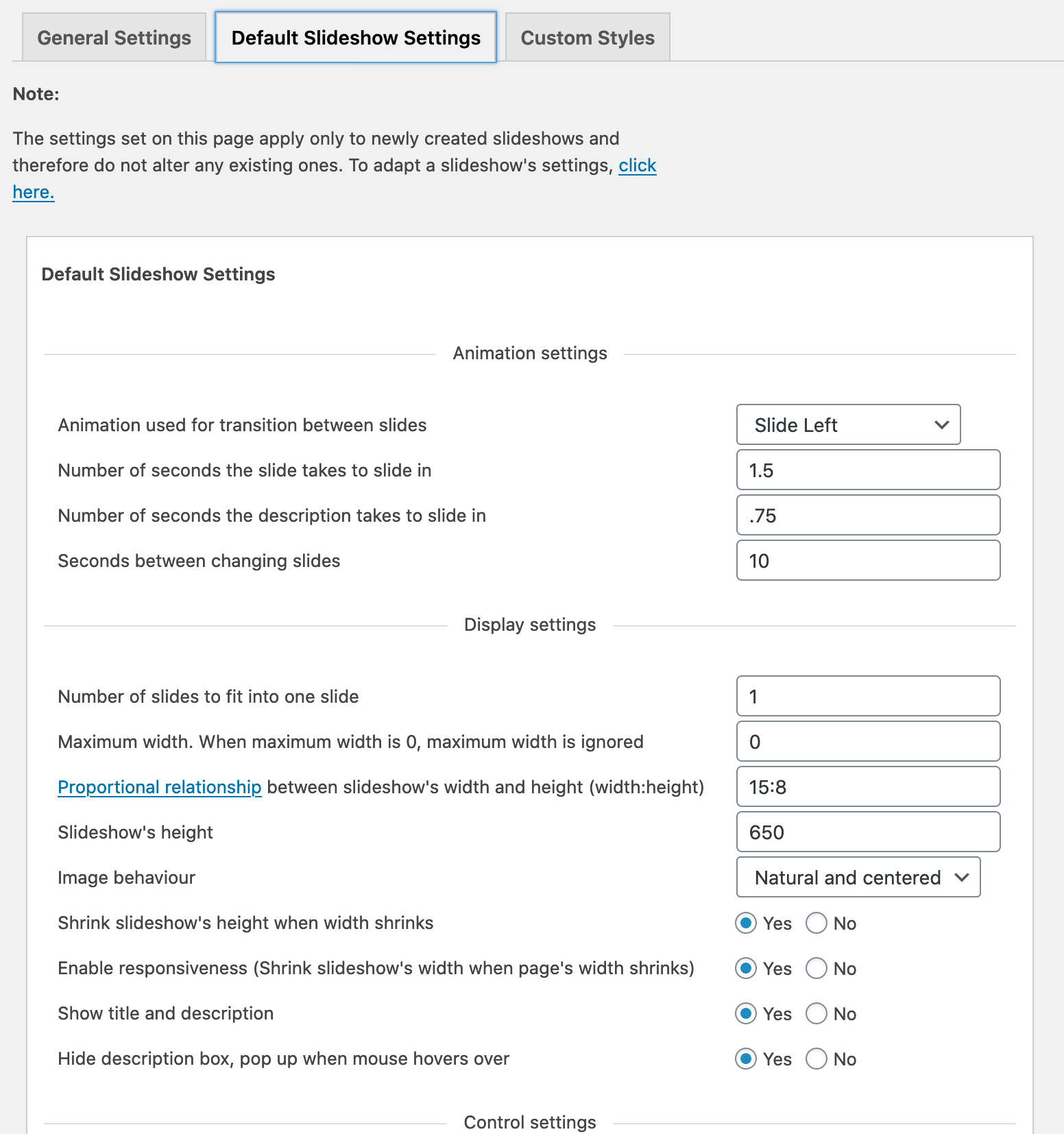
Just like the posts and pages you’re already familiar with, slideshows can be edited. Go to the ‘Slideshows’ tab in your WordPress admin, and you’ll see a list of slideshows. If you have not created a slideshow yet, you can do so by clicking ‘Add new’ on that same page. If there are slideshows in the list, click on the title of the slideshow you want to change the settings of. On the slideshow’s edit page you’ll be able to find a box titled ‘Slideshow Settings’, in this box you can change the slideshow’s settings. If you’re creating multiple slideshows that should have the same settings, but…
How do I customize the slideshow’s style?
On your WordPress admin page, go to the ‘Slideshows’ menu item and click on ‘General Settings’, then go to the ‘Custom styles’ tab. Here you’ll see a list of default stylesheets, such as ‘Light’ and ‘Dark’, and a list of custom stylesheets; The ones you created. Choose a default stylesheet you’d like to customize and click ‘Customize’ to open the ‘Custom style editor’. When you’re done editing click ‘Save Changes’ and go to the slideshow you’d like to style with the newly created stylesheet. In the ‘Slideshow Style’ box you can now find and select your custom stylesheet. You can set a…
Some users can add, edit or delete slideshows, although I do not want them to. Can I prevent this from happening?
Yes you can. On your WordPress admin page, go to the ‘Slideshows’ menu item and click on ‘General Settings’, then go to the ‘User Capabilities’ tab (If you’re not already there). The privileges that allow user groups to perform certain actions are listed here. To allow, for instance, a contributor to add a slideshow, click the box in front of ‘Contributor’ to grant him the right to add slideshows. Note that when you grant someone the right to add or delete a slideshow, you’ll also automatically grant him or her the right to edit slideshows, as this right is required to add or delete…
The slideshow does not show up
The slideshow is mostly called after the tag, which means the scripts and stylesheet need to load in the footer of the website. A theme that has no call in it’s footer will not be able to load the slideshow’s scripts. Often when the slideshow isn’t showing, there’s a javascript error somewhere on the page and this error has caused javascript to break. For the slideshow to work again, this error needs to be fixed. Check if any errors were thrown by opening Google Chrome or Firefox (with Firebug installed) and press the ‘F12’ key. Errors show in the console tab.
Why does Internet Explorer show a big blank space above the slideshow?
Internet Explorer is a very strict browser, so when a big blank space above your slideshow is showing your page may contain some invalid HTML. Most times invalid HTML is caused by placing the slideshow’s shortcode or PHP snippet into an anchor tag () or paragraph tag (), while you can only place a slideshow within a ‘div’ element ().
Why did you fork this plugin?
Good question! There are a couple reasons: First, I maintain a site that has hundreds of slideshows and, to be honest, it’s more rewarding for me to update the plugin than it is to find a new one and manually convert all the slideshows to whatever the new one is. Secondly, there is a real dearth of good quality, FREE slideshow plugins for WordPress. I’m not saying this one is the best, but it’s pretty good and more or less honors WordPress UI. There’s nothing worse than installing a new slideshow plugin only to find that your admin interface is now an ungodly color with giant, weird fonts and…
Can I help?
Absolutely! I will look at all pull requests on the Github repo. If you have any feedback or suggestions or want to volunteer, please post over on Github. While I will monitor the WordPress Support forums, I spent a lot of my day on Github so I’m more likely to see your post over there. Thanks in advance for your help in make this the best slideshow plugin available for WordPress, free or not!
Changelog
2.7.2
- Changes to the Gutenberg block preview to remove ServerSideRender and fix CSS cascading problems
- Sanitizing, escaping, and other fixes suggested by Plugin Check.
2.7.1
- Update the Gutenberg block to support useBlockProps, which is required by API v3
2.7.0
- Add preview to the Gutenberg block. The first slide of the slideshow will display as the preview.
- Fixed: styling controls now appear on a new text slide.
- Set the Block API to version 3, per WP recommendation. This means that WP 6.3 is the new minimum version.
- Start to implement some of the code recommendations from Plugin Check (minor changes).
2.6.0
- New feature: Adds styled text to Text slides
- Lots of security fixes, including a fix for CVE-2024-35769.
- Address some code style issues (linting, typos, etc).
- Changes to webpack config to combine and minimize the Javascript files as part of the build (the old process was not working any more).
2.5.20
- Fix link display issue.
2.5.19
- Fix widget display issue.
- Fix issue where settings aren’t displaying correctly.
Screenshots



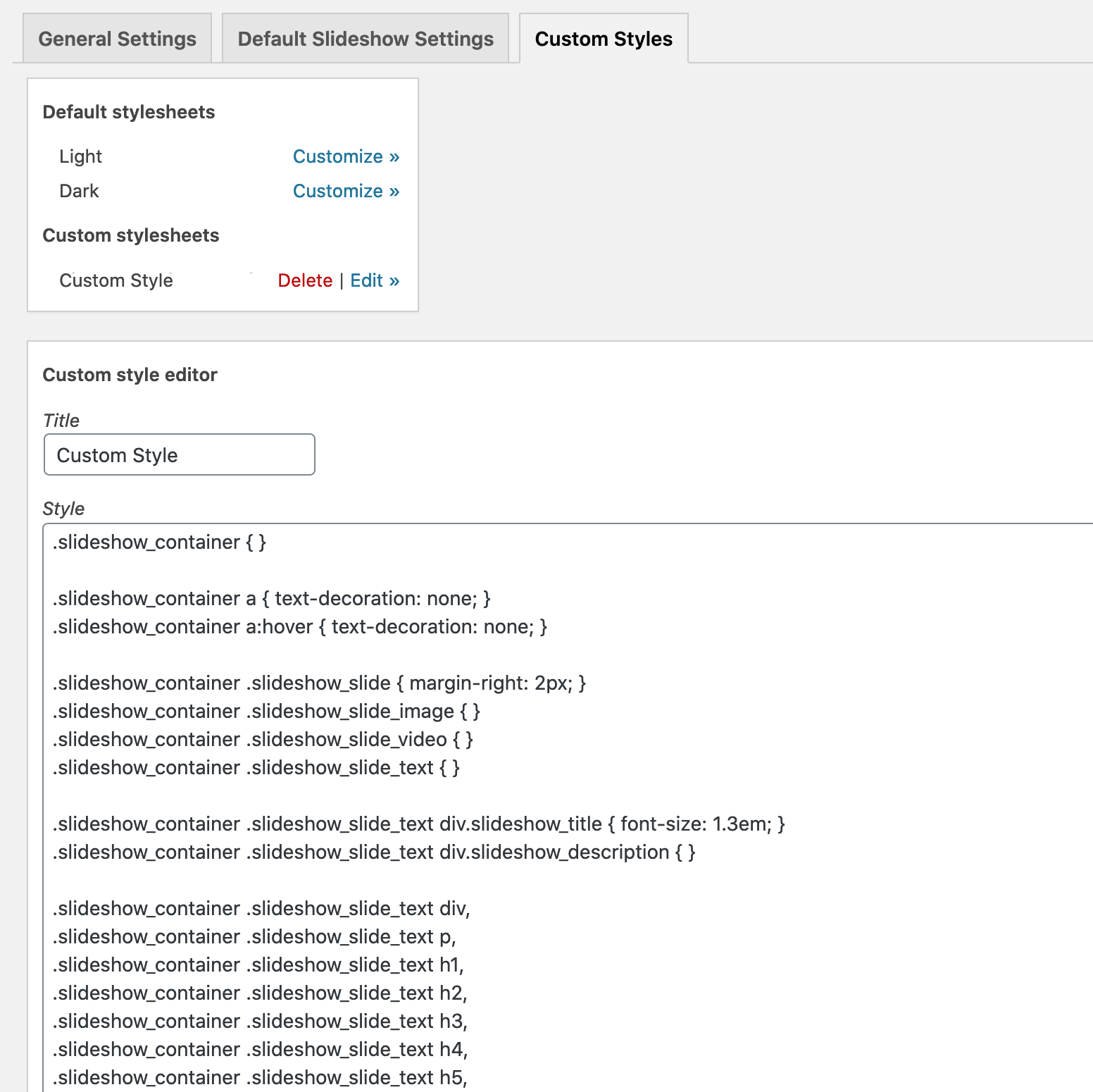

For developers
Is this your plugin? Show off the numbers.
Add a live badge to your site, docs or GitHub README. It updates on its own — no account needed.
Best Slideshow SE alternatives
All carousel plugins →




FAQ
Slideshow SE: quick answers
Straight answers, pulled from live WordPress.org data.
Live data from WordPress.org · checked Sep 26, 2026
Is Slideshow SE free?
Yes. Slideshow SE is free to download and use from the official WordPress.org plugin directory.
Is Slideshow SE safe to use in 2026?
Slideshow SE is a solid plugin choice in 2026, with a few things worth checking first. It runs on 2K+ sites, is rated 4.9/5 and was last updated 1 month ago, and scores 79/100 on our health check.
How many websites use Slideshow SE?
Slideshow SE is active on 2K+ WordPress websites and has been downloaded 35,775 times since it launched in August 2020. It was downloaded 1,230 times in the last 30 days.
Does Slideshow SE work with WordPress 7.1?
Yes. The developer has tested Slideshow SE up to WordPress 7.1.2, the latest release. It requires WordPress 6.3 or newer.
What PHP version does Slideshow SE need?
Slideshow SE requires PHP 7.0 or higher. Most hosts run PHP 8.x today, so it works on any modern WordPress hosting.
When was Slideshow SE last updated?
The latest version, 2.7.2, was released on August 23, 2026 (1 month ago).
Who makes Slideshow SE?
Slideshow SE is developed and maintained by John West.
What are the best alternatives to Slideshow SE?
The most popular alternatives to Slideshow SE are Shortcodes Ultimate (400K+ installs), Carousel, Slider, Photo Gal… (70K+ installs) and Carousel Slider Block for G… (50K+ installs).
Powered by PageForge
Want thousands of pages that rank like these? Build them in an afternoon.
This directory runs on the same engine as PageForge. Turn any spreadsheet, CSV or API into thousands of fast, SEO-ready WordPress pages — with schema, internal links and AI-written copy baked in.
- CSV, Google Sheets & API data sources
- AI content, schema & internal links per page
- Works with Elementor, Gutenberg, Yoast & Rank Math
- Free on WordPress.org — no credit card


