



Plugins List
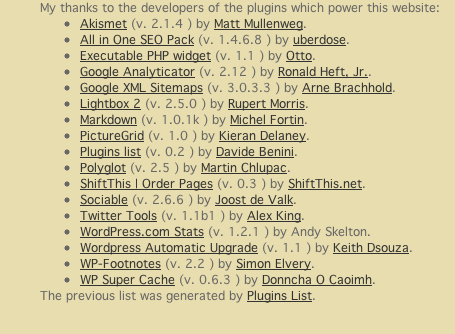
Allows you to insert a list of the Wordpress plugins you are using into any post/page.

Solid choice
Plugins List is a solid plugin choice in 2026, with a few things worth checking first. It runs on 700+ sites, is rated 5/5 and was last updated 1 month ago, and scores 78/100 on our health check.
- Tested with the latest WordPress (7.1)
- Momentum — downloads up 288.8% vs the previous 30 days
- Small user base (700+ active installs)
How does it stack up?
Side-by-side on installs, updates, ratings & support



Daily downloads
Download spikes usually follow a new release — each site that auto-updates counts as a download.
Rankings
Where Plugins List stands todayWordPress.org search rankings
Live position in the plugin search, top 100| Keyword | Position |
|---|---|
| display | >100 |
| installed | #6 |
| list | #11 |
| plugins | #19 |
| show | >100 |
Version adoption
Share of active sites per release.
Rating breakdown
★★★★★★★★★★ 5 from 12 reviews
About Plugins List
From the official readme · v2.7Description
This is a simple community WordPress plugin aimed at giving credit where credit is due.
The plugin inserts an XHTML list into any post/page through a shortcode. If you’re into customization, you can specify a format argument and indicate the exact output you are after. There’s also an option to display inactive plugins as well.
Key features include…
- A simple template system allows you to format how you’d like the plugin information to be shown
- Template tags are available for automatically linked items as well as simple text
- Choose from a number of pieces of plugin data to be output
- Display inactive plugins as well as active plugins if you wish
- Automatically limit long descriptions to specific lengths, and even remove emojis from the output
- Output is cached to provide a super-quick response
- A separate shortcode allows you to display how many plugins you have!
Thanks to Matej Nastran‘s My plugins, from which Plugins list was initially derived.
Iconography is courtesy of the very talented Janki Rathod.
Please visit the Github page for the latest code development, planned enhancements and known issues
Getting Started
To get a list of the plugins that are installed and activated in your website, insert the following into any post or page:
<ul>[plugins_list]</ul>
You can customise the output specifying the format argument and a number of pre-defined tags. Here’s an example:
[plugins_list format="{{LinkedTitle}} ({{LinkedAuthor}}) - {{Description}}{{br/}}"]
The tags are as follows, all defined within double braces…
Title– the plugin titlePluginURI– the URL of the pluginAuthor– the plugin authorAuthorURI– the author’s URLVersion– plugin version numberDescription– the plugin descriptionRequiresWP– the minimum required level of WordPressRequiresPHP– the minimum required level of PHPLinkedTitle– the title but automatically linked to the corresponding URLLinkedAuthor– the author, linking to their profileActive– shows ‘Active’ or ‘Inactive’, depending on the status of the plugin
The plugins list can be freely styled with css, just place any class or id attribute on the format string, or on the elements surrounding it.
Using HTML
If you wish to put HTML in your format then you can. However, this can cause havoc in the Visual editor and even causes extra characters to be passed into the output (rogue paragraph tags, for instance). I therefore highly recommend that, if you wish to add HTML, use double braces instead of < and > around your HTML tags – this plugin will correct this before output but it means the visual editor doesn’t try and interpret the HTML.
For example…
<ul>[plugins_list format="{{li}}{{LinkedTitle}} - {{LinkedAuthor}}{{/li}}"]</ul>
The characters will be corrected upon output and you will get a lovely, bulleted, un-ordered list as output.
If you’re using the block editor and need to wrap HTML around the outside of the short code, please see the details further below on the best way to do this.
Additional Parameters
Active & Inactive Plugins
By default, only active plugins are shown, but by using the show_active, show_inactive and show_recent parameters you can change this.
For example, this will show both active and inactive…
[plugins_list format="{{LinkedTitle}} ({{LinkedAuthor}}) - {{Description}}{{br/}}" show_inactive=true]
If you wanted to show just inactive, you’d put..
[plugins_list format="{{LinkedTitle}} ({{LinkedAuthor}}) - {{Description}}{{br/}}" show_inactive=true show_active=false]
If you wanted to show just plugins that are inactive but were recently active, you’d put…
[plugins_list format="{{LinkedTitle}} ({{LinkedAuthor}}) - {{Description}}{{br/}}" show_inactive=false show_active=false show_recent=true]
Link Targets & No Follow
By default links will be followed but you can make these “nofollow” by simply adding the parameter of nofollow=true. For example…
[plugins_list format="{{LinkedTitle}} ({{LinkedAuthor}}) - {{Description}}{{br/}}" nofollow=true]
You can also specify the link target too. For example…
[plugins_list format="{{LinkedTitle}} ({{LinkedAuthor}}) - {{Description}}{{br/}}" target="_blank"]
Truncate the Description
Two parameters exist to truncate the description, so it doesn’t get too long unwieldy. You can specify a maximum number of words or a maximum number of characters using words or chars. Here’s an example of each…
[plugins_list format="{{LinkedTitle}} ({{LinkedAuthor}}) - {{Description}}{{br/}}" words=20]

[plugins_list format="{{LinkedTitle}} ({{LinkedAuthor}}) - {{Description}}{{br/}}" chars=80]
You shouldn’t do this but if you specify both then the shortest one will be used.
By default, if a truncation occurs, ellipsis will be added to the end. However, you can change this by using the end parameter and specifying your own ending. For example…
[plugins_list format="{{LinkedTitle}} ({{LinkedAuthor}}) - {{Description}}{{br/}}" chars=80 end=" [More]"]
Remove Emoji
If you want to remove emoji from the description, use the emoji parameter to achieve this. By default this is true but set to false to have them removed. For example…
[plugins_list format="{{LinkedTitle}} ({{LinkedAuthor}}) - {{Description}}{{br/}}" emoji=false]
Sort by Author
Want so sort the output by author and not plugin name? Just use the parameter by_author. For example…
[plugins_list format="{{LinkedTitle}} ({{LinkedAuthor}}) - {{Description}}{{br/}}" by_author=true]
Cache
By default your plugin list will be cached for 5 minutes, ensuring that performance is impacted as little as possible. Use the parameter cache to change the number of minutes. Set this to false to switch off caching.
For example…
[plugins_list format="{{LinkedTitle}} ({{LinkedAuthor}}) - {{Description}}{{br/}}" cache=60]
This will cache for 1 hour. The following will switch the cache off…
[plugins_list format="{{LinkedTitle}} ({{LinkedAuthor}}) - {{Description}}{{br/}}" cache=false]<h3>Using with the block editor</h3>
You can insert shortcodes directly into the block editor without an issue and it will be automatically added to a shortcode block. However, if you need to wrap HTML around it then this will cause issues. The solution here is to add a shortcode block first and then add the whole line into that. The HTML then works just fine.
Plugin Count
A shortcode also exists to allow you to display the number of plugins that you have. Simply add [plugins_number] to your post or page and it will return the number of active plugins.
To display the number of active AND inactive plugins use…
[plugins_number inactive=true]
You can also display the number of inactive plugins by specifying…
[plugins_number inactive=true active=false]
As with the other shortcode results will be cached by default. To change the number of minutes simply use the cache parameter. Set it to false to switch off caching. For example…
[plugins_number inactive=true cache=120]
This will set the cache to 2 hours.
Reviews & Mentions
Installation
Plugins List can be found and installed via the Plugin menu within WordPress administration (Plugins -> Add New). Alternatively, it can be downloaded from WordPress.org and installed manually…
- Upload the entire
plugins-listfolder to yourwp-content/plugins/directory. - Activate the plugin through the ‘Plugins’ menu in WordPress administration.
Voila! It’s ready to go.
Frequently asked questions
You’ve changed from using hashes to double braces for tags – help!
Using double braces (i.e. {{ and {{) for templates is pretty standard so something I wanted to move towards. However, I don’t want existing usage to break so I’m supporting both the old and new methods – however, I’m not documenting the old method so my hope is for people to move towards usage of double braces.
I’m adding an HTML tag to the format parameter and it’s not appearing
For your security, not all HTML tags are allowed – we’ve limited this to any that are for the purposed of text formatting (inc. bullet points) and tables. The full list of allowed tags are: , , , , , , , , , , , , , , , , , , , , , , , , , , , , , , , , , , , , , , , , and .
Do you support this plugin on forks of WordPress?
No. It was developed for WordPress and so forks remain unsupported. I have no intention of developing and testing this on any other version.
Changelog
More code quality improvements
I use semantic versioning, with the first release being 1.0.
2.7
- Enhancement: The plugin was getting a little too large to manage within one file, so I’ve split into a number of smaller ones
- Enhancement: Assorted, small, code quality improvements
2.6.1
- Enhancement: Code quality improvements made – passes PHPCS for WordPress and WordPress VIP sniffs
- Enhancement: Added unique prefixes to all of the function names
2.6
- Enhancement: Added a new tag named
Activethat allows you to display whether the plugin is, well, active or not - Enhancement: Added tags to display the “Required PHP” and “Required WordPress” details
- Enhancement: Back in 2.4 I added the ability to turn off the display of active plugins, to completement the paramter for inactive plugins. However, I forgot to document it, so I’ve now done that
- Enhancement: Added new parameter
show_recent, which allows you to decide whether to show recently active plugins
2.5.2
- Bug: What can I say? I certainly made the plugin secure in the last release. Mainly by stopping things from working. Sorry. Hopefully that’s now fixed now. I’ve also taken the opportunity to review which HTML tags I’m allowing – the full list is in the FAQ.
2.5.1
- Enhancement: Strip HTML tags from the format parameter, unless it’s for formatting. This is to ensure no XSS vulnerabilities can occur. Thanks to Yuki Haruma and Patchstack for reporting this to me.
2.5
- Enhancement: New header, inc. GPL information, added to the plugin. A bit boring, I know, but a change is a change.
- Enhancement: New parameters added allowing you to limit the description length to either a certain number of words or characters. The latter is intelligent, not chopping the sentence off in the middle of a wo
- Enhancement: Extra spacing and HTML is now stripped from the plugin description by default. HTML in a plugin description? I’m looking at you Jetpack…
- Enhancement: A new parameter allows you to have emoji removed from the description as well. Nothing wrong with emojis, mind you, but they’re not for everyone
- Enhancement: To support the length truncation, I’ve also added a new parameter to that you can specify what happens at the end of the sentence when this happens
- Enhancement: Finally, I updated this README with improved formatting and better examples. Oh, and I better explain how to use this plugin with the block editor too.
- Maintenance: Tested under PHP 8.2. No changes required for this, but I can confirm that it works without issue /wipes sweat from brow/
Screenshots
For developers
Is this your plugin? Show off the numbers.
Add a live badge to your site, docs or GitHub README. It updates on its own — no account needed.
Best Plugins List alternatives
All display plugins →



FAQ
Plugins List: quick answers
Straight answers, pulled from live WordPress.org data.
Live data from WordPress.org · checked Sep 28, 2026
Is Plugins List free?
Yes. Plugins List is free to download and use from the official WordPress.org plugin directory.
Is Plugins List safe to use in 2026?
Plugins List is a solid plugin choice in 2026, with a few things worth checking first. It runs on 700+ sites, is rated 5/5 and was last updated 1 month ago, and scores 78/100 on our health check.
How many websites use Plugins List?
Plugins List is active on 700+ WordPress websites and has been downloaded 32,582 times since it launched in July 2008. It was downloaded 797 times in the last 30 days.
Does Plugins List work with WordPress 7.1?
Yes. The developer has tested Plugins List up to WordPress 7.1.2, the latest release. It requires WordPress 4.6 or newer.
What PHP version does Plugins List need?
Plugins List requires PHP 7.4 or higher. Most hosts run PHP 8.x today, so it works on any modern WordPress hosting.
When was Plugins List last updated?
The latest version, 2.7, was released on August 20, 2026 (1 month ago).
Who makes Plugins List?
Plugins List is developed and maintained by nutsmuggler.
What are the best alternatives to Plugins List?
The most popular alternatives to Plugins List are Show User Registration Date (900+ installs), Last Updated Shortcode (800+ installs) and Show User ID (700+ installs).
Powered by PageForge
Want thousands of pages that rank like these? Build them in an afternoon.
This directory runs on the same engine as PageForge. Turn any spreadsheet, CSV or API into thousands of fast, SEO-ready WordPress pages — with schema, internal links and AI-written copy baked in.
- CSV, Google Sheets & API data sources
- AI content, schema & internal links per page
- Works with Elementor, Gutenberg, Yoast & Rank Math
- Free on WordPress.org — no credit card


