



ONLYOFFICE DocSpace
ONLYOFFICE DocSpace plugin allows users to access ONLYOFFICE DocSpace from WordPress and add DocSpace rooms and files to the WordPress pages.

Consider an alternative
ONLYOFFICE DocSpace shows warning signs in 2026 — compare the alternatives below before installing. It runs on 90+ sites and was last updated 1 year ago, and scores 34/100 on our health check.
- Small user base (90+ active installs)
- Very few reviews so far
- No update in over a year
- Only tested up to WordPress 6.8 (latest is 7.1)
Daily downloads
Download spikes usually follow a new release — each site that auto-updates counts as a download.
Rankings
Where ONLYOFFICE DocSpace stands todayWordPress.org search rankings
Live position in the plugin search, top 100| Keyword | Position |
|---|---|
| docspace | #1 |
| integration | >100 |
| onlyoffice | #2 |
Version adoption
Share of active sites per release.
About ONLYOFFICE DocSpace
From the official readme · v3.1.0Description
With ONLYOFFICE DocSpace plugin, you are able to use ONLYOFFICE DocSpace right within WordPress to create rooms, edit and collaborate on office docs, as well as you can add DocSpace rooms and files stored within these rooms to the WordPress pages when creating posts.
Plugin installation and configuration
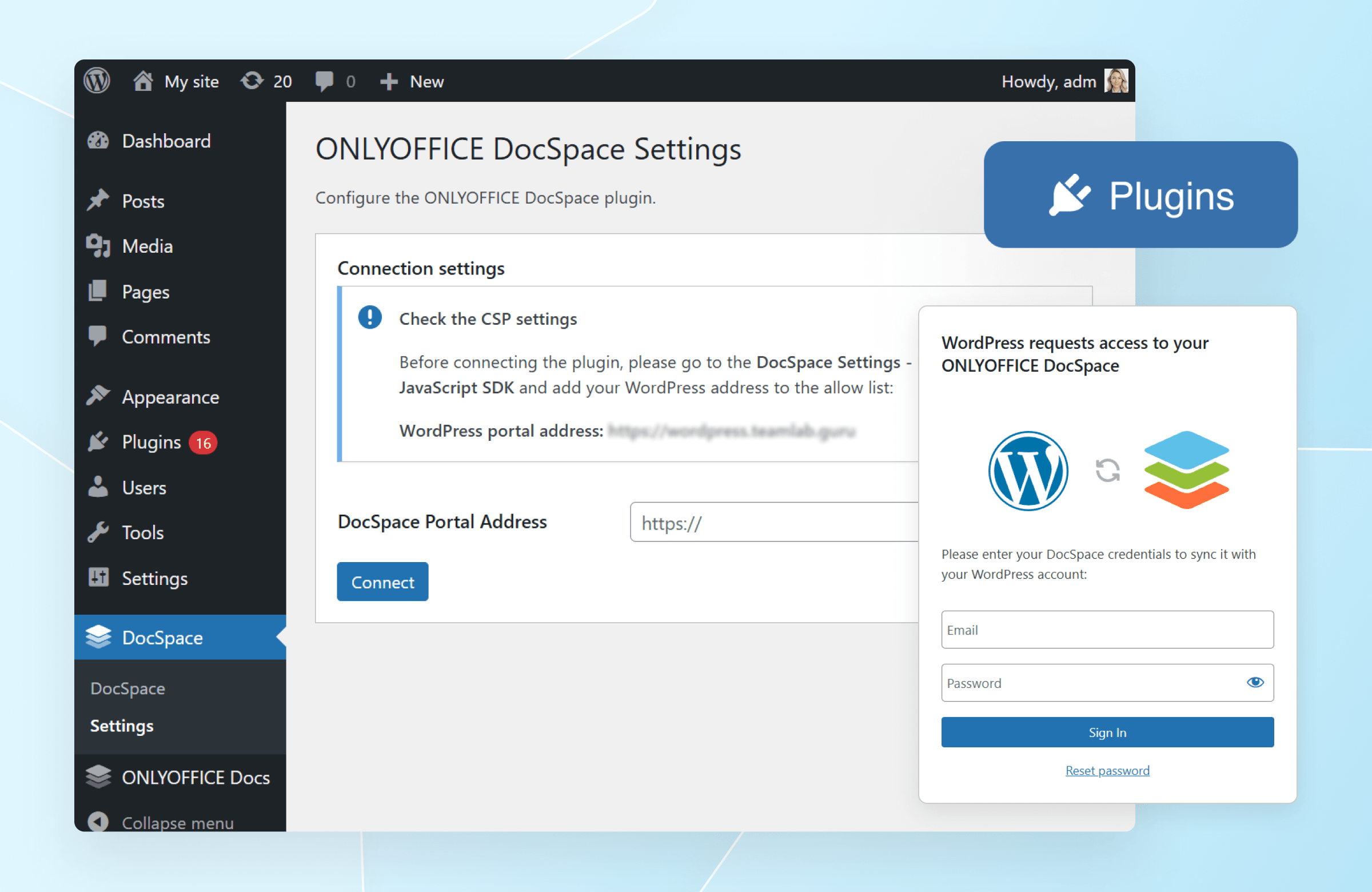
At first, go to your ONLYOFFICE DocSpace (sign in / sign up) -> “Settings -> Developer Tools – > JavaScript SDK”. There, enter your WordPress site address in the “Embed DocSpace as iframe” section.
A WordPress administrator can install the plugin via the Marketplace: https://wordpress.com/plugins/onlyoffice-docspace.
If you want to install the plugin via your WordPress administrative dashboard, navigate to the Plugins section and click “Add New”. Then, click “Upload Plugin” and select the zipped plugin.
Once ready, go to the plugin settings and specify the DocSpace address in the “Connection settings”.
Log in as DocSpace Admin
If DocSpace is successfully connected (as described above), the Log in as DocSpace Admin section appears on the Settings page. The DocSpace admin needs to log in here to perform the following actions:
- export users from WordPress to DocSpace;
- create a common user group WordPress Users in DocSpace;
- add DocSpace users to this created group when exporting users, as well as add users to the group who have already linked accounts themselves.
After logging in using the Log in as DocSpace Admin option, the “Sign in” button will change to “Sign out”. Clicking this button on behalf of the designated DocSpace admin will disable any further user management actions (as outlined in the above list). The “Sign out” button is accessible to any user with permissions to the Settings page. For instance, if another DocSpace admin (admin 2) wishes to perform actions in the plugin on behalf of the initial admin (admin 1), they can unlink admin 1’s account in this section. Admin 2 can then log in by entering their credentials in Log in as DocSpace Admin.
User export (Optional)
Once the DocSpace admin is successfully authorized, an optional “User Export” block becomes available on the Settings page.
Clicking the “Open User List” button will redirect you to the WordPress Users page, where you can export users from WordPress to DocSpace. These users are exported under the authority of the DocSpace admin currently logged in via the Settings page. This means that any WordPress administrator can perform the export, as long as the DocSpace admin is authorized within the DocSpace plugin settings.
WordPress Users
The WordPress Users page introduces a DocSpace Account column once DocSpace is connected. This column indicates the connection status between WordPress user accounts and their corresponding DocSpace accounts. If the column contains a value, it signifies an established connection. Conversely, a dash indicates no connection has been made yet. Once the DocSpace administrator is authorized, the “Export to DocSpace” action becomes accessible.
Exporting users from WordPress to DocSpace
WordPress administrators have the ability to export users from WordPress to DocSpace. Exported users will gain seamless login to DocSpace, with an automatically generated password assigned to them. Their WordPress email address will serve as their login credential in DocSpace. Once exported, the user is added to the WordPress Users group in DocSpace.
If a WordPress user with an email address already registered in DocSpace is exported, a notification will appear. In this scenario, the user’s existing DocSpace credentials, including their password, remain unchanged.
To export a user, the WordPress administrator needs to navigate to the WordPress Users page. They can then select the desired user by checking the corresponding box, choose the “Export to DocSpace” option from the drop-down menu, and click the “Apply” button. The selected user will be successfully added to DocSpace with the User role.
Unlinking WordPress-DocSpace accounts
To unlink a WordPress account from a DocSpace account, the WordPress administrator should go to the WordPress Users page and select the checkbox next to the desired user. From the drop-down menu, choose “Unlink DocSpace Account” and click “Apply”. This action will remove the connection between the selected user’s WordPress and DocSpace accounts.
Working with ONLYOFFICE DocSpace within WordPress
User authorization
If a user already has a DocSpace account, they can log in using the DocSpace plugin for WordPress. To proceed, the user should access DocSpace through the left-hand menu or by opening the file/room selector within the WordPress site builder. An authorization window will then appear, prompting the user to enter their DocSpace login credentials. Once authorized, the user will automatically be added to the “WordPress Users” group in DocSpace. Once authorized, the user can seamlessly work within DocSpace or select the desired room or file using the selectors.
Logging out of the DocSpace account
To log out of the DocSpace account, open DocSpace from the left-hand menu. Access the context menu next to the user name, then select the Sign out option. This option is available to all DocSpace users.
Password recovery
If a user forgets their password or seamless login fails, they can click the Reset Password button during the login process. This will open a password reset window. If the entered email is registered in DocSpace, password reset instructions will be sent to that email address.
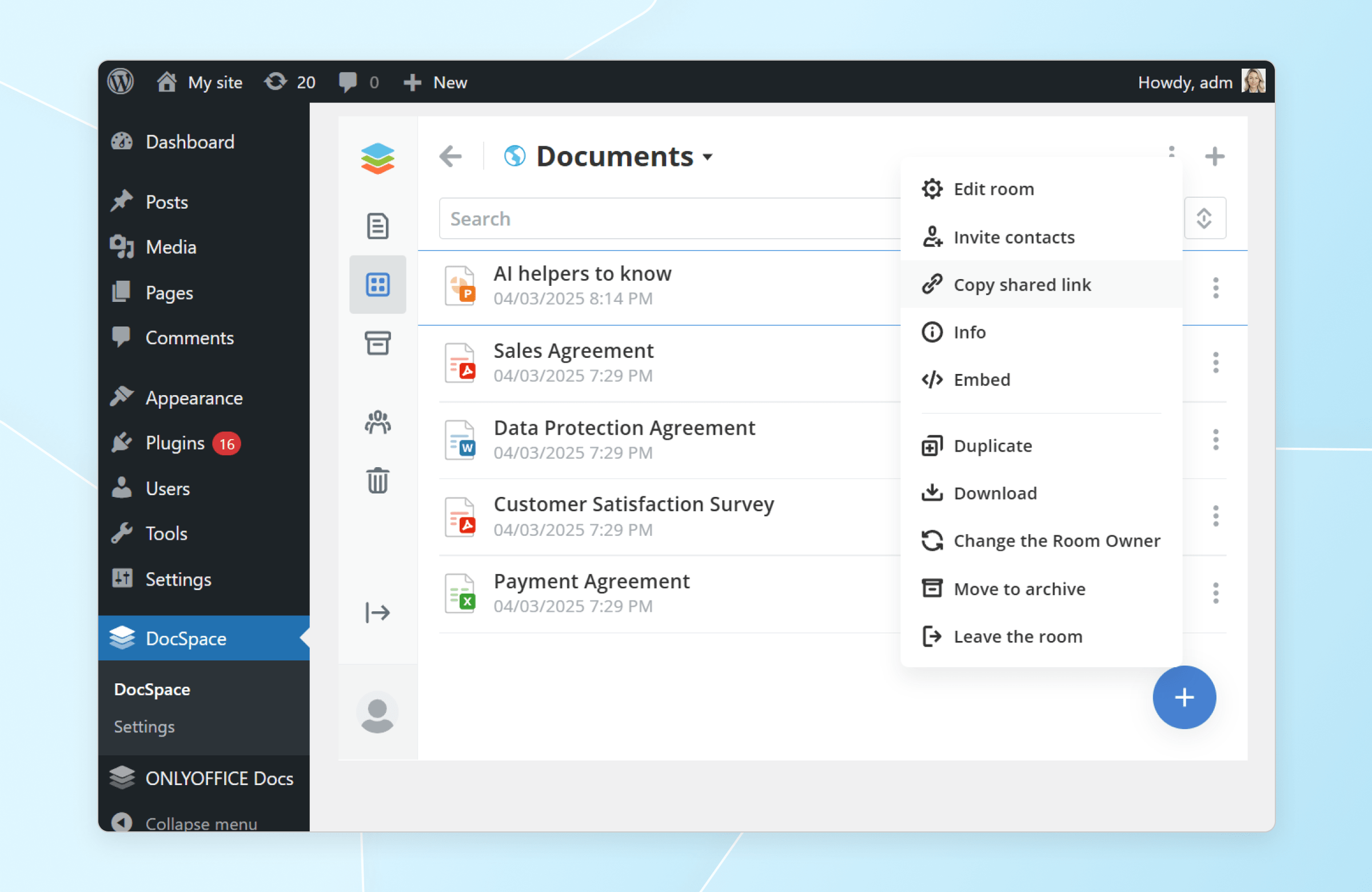
DocSpace in the left panel
Once the plugin is configured, DocSpace will become accessible to users with the upload_files capability. This includes standard WordPress roles such as Super Admin, Administrator, Editor, and Author.
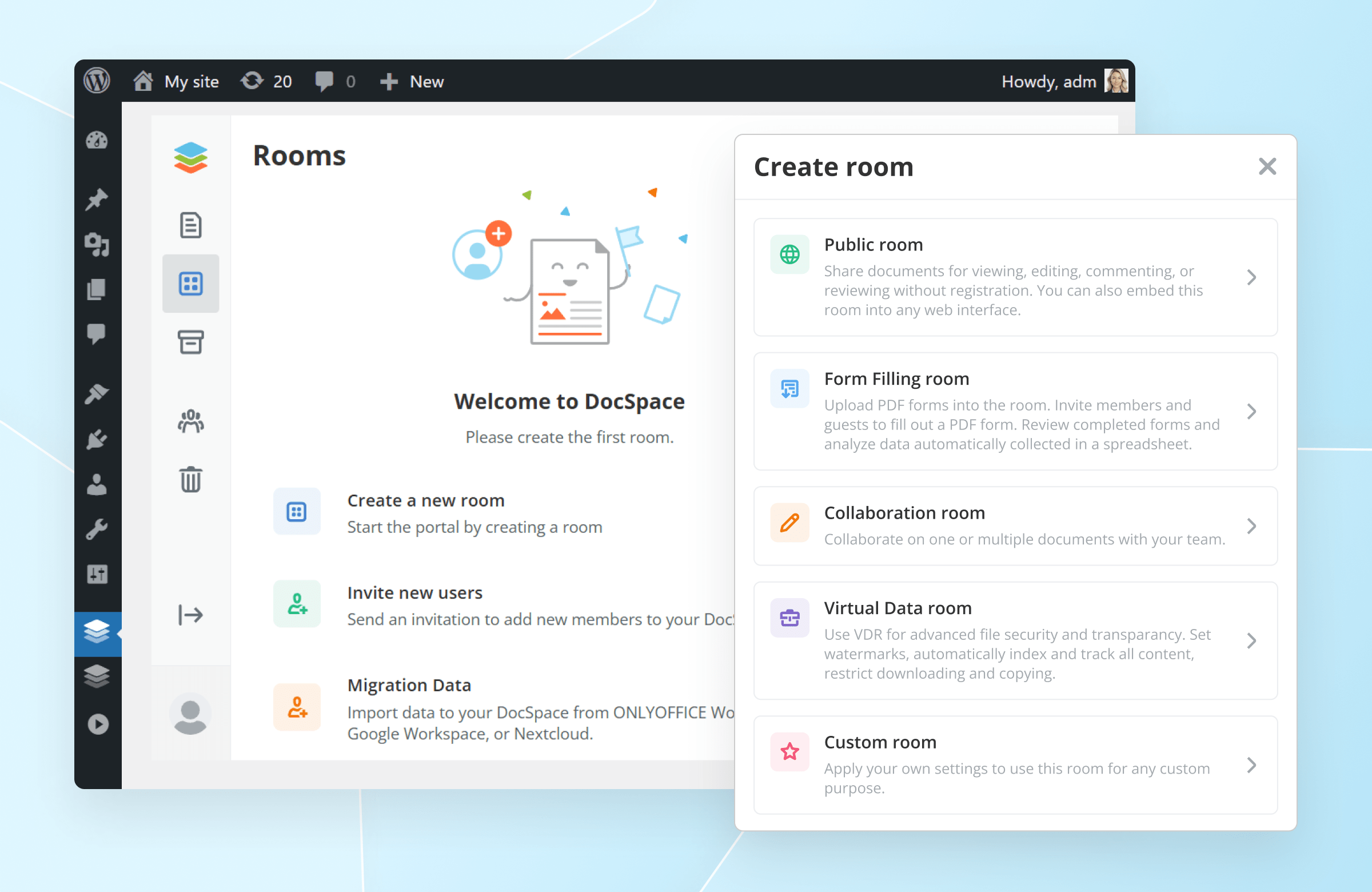
Users will gain access to a fully functional DocSpace, where they can create rooms, invite participants, and collaborate on documents within rooms, based on their assigned permissions. When inviting others to a room using the Invite users from list button, only existing DocSpace users will be displayed.
Adding a DocSpace room or file to the WordPress page
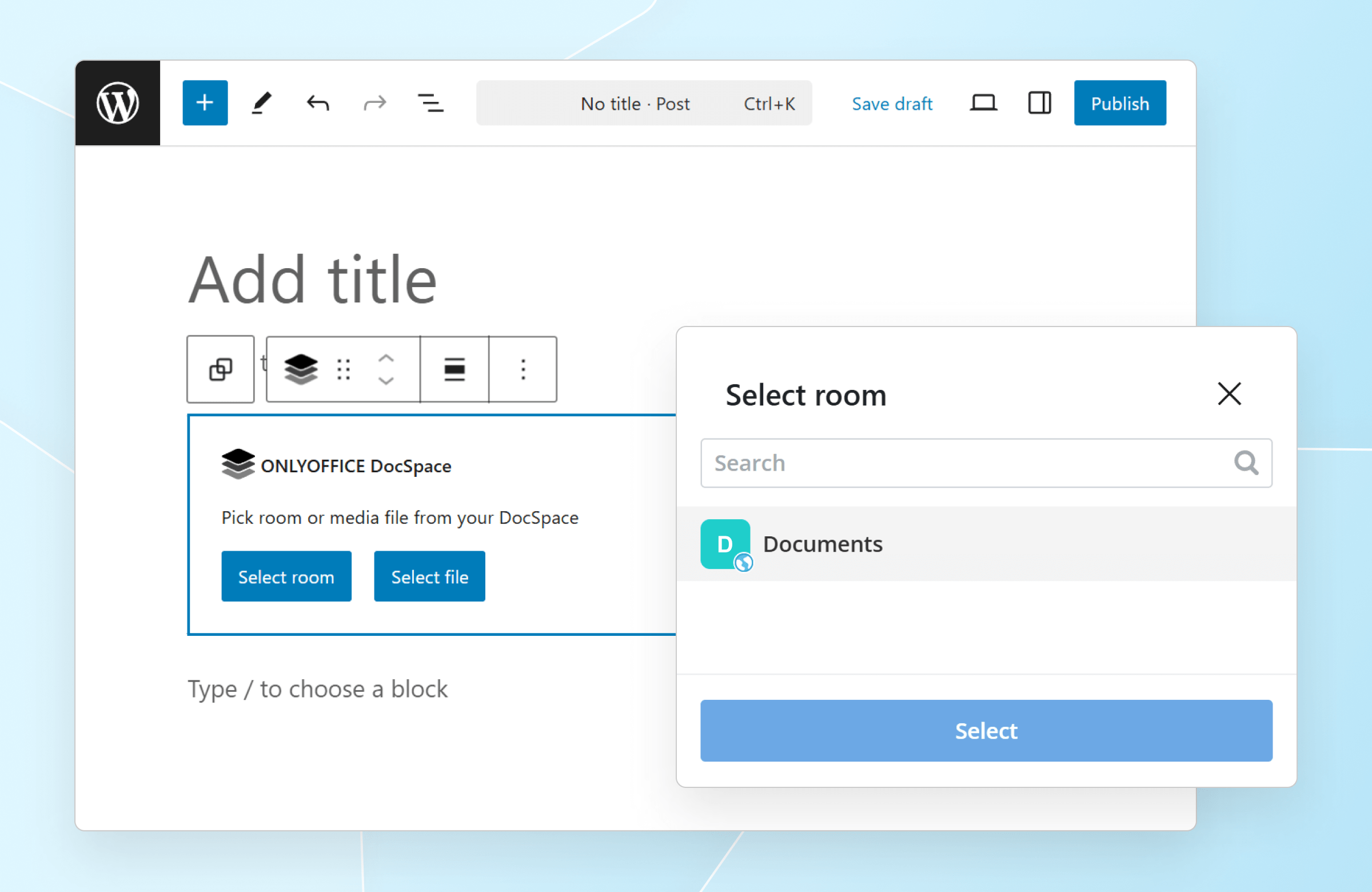
When creating a post, you can add the ONLYOFFICE DocSpace element (block) – room or file.
To add a room, click the “Select room” button, select the desired room and press Select. In the block settings, you can specify the desired width, height, and theme (light/dark) to be displayed on the page.
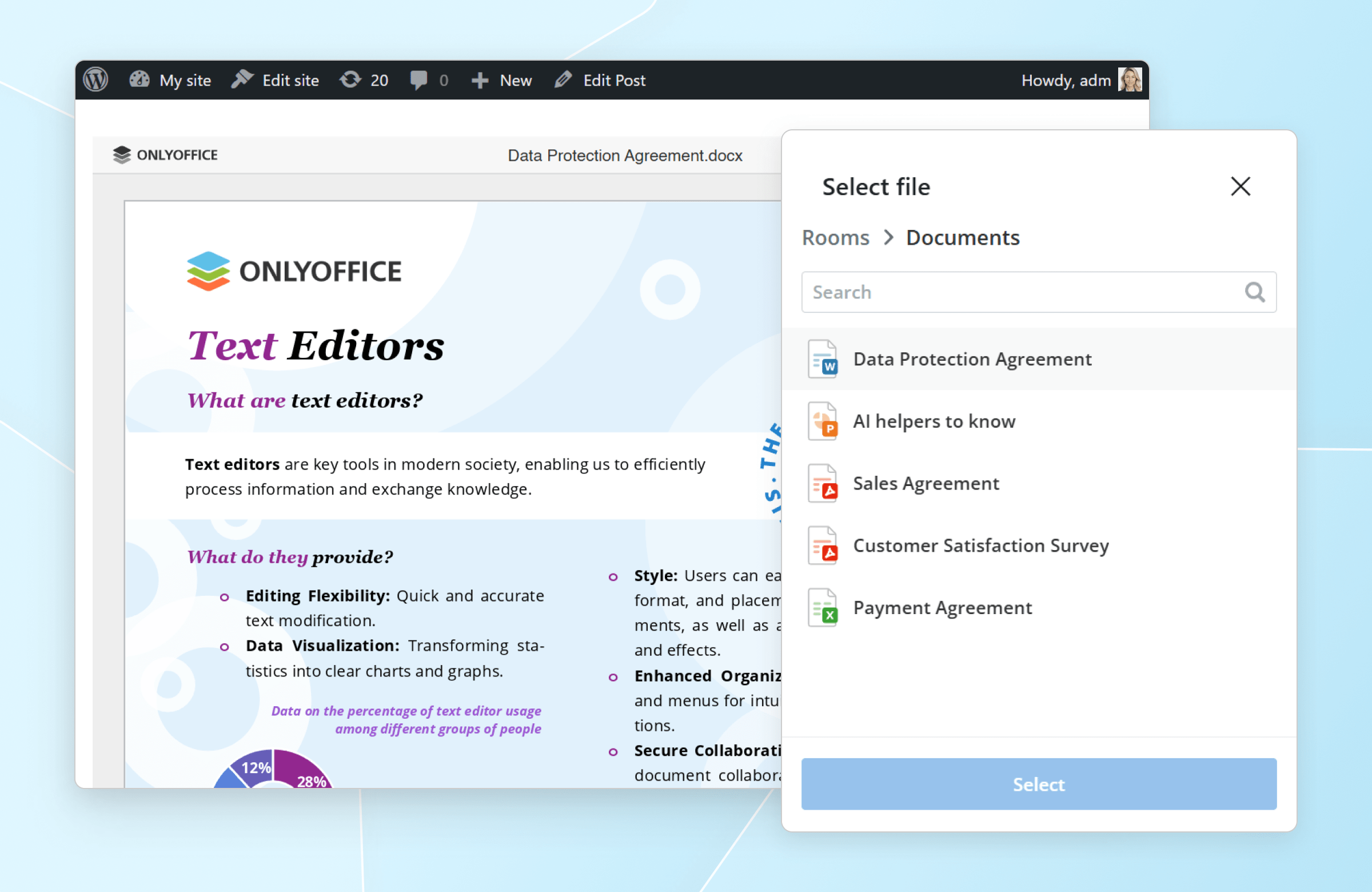
To add a file, click the “Select file” button, select the desired file from the room and press Save. In the block settings, you can specify the desired width and height to be displayed on the page, as well as the view – a full editor or Embedded.
Access rights to a room/file on a DocSpace page
Access rights to rooms and files on the published DocSpace pages are defined based on the type of room and the user’s assigned permissions within DocSpace.
- “Collaboration/Custom/VDR rooms” – Access to these rooms and their files is restricted to users who have been explicitly added. Users must be logged in to DocSpace to view them. Other users will see a placeholder instead.
- “Public/Form Filling rooms” – The content in these rooms is accessible to all users, whether or not they have a DocSpace account.
How the plugin is using the ONLYOFFICE DocSpace service
The plugin allows working with office files via ONLYOFFICE DocSpace and makes the following requests to the service on the backend:
- getting a list of DocSpace users
- creating a user in DocSpace using WordPress user data
- getting a DocSpace user by email
- setting a password for a DocSpace user
- getting authorization cookies of a DocSpace user
- getting a DocSpace file
- getting a DocSpace folder
- inviting a user to a DocSpace room
On the frontend, the following DocSpace elements are inserted:
- file selection control
- room selection control
- file display control
- room display control
- system frame for checking authorization
Useful resources:
Frequently asked questions
How to configure the plugin?
At first, go to your ONLYOFFICE DocSpace, switch to the Developer Tools and enter your WordPress URL in the JavaScript SDK section. Then, open your WordPress and enter the DocSpace address in the plugin’s connection settings. Once connected, the “Log in as DocSpace Admin” option appears; the admin must log in here. Successful authorization also activates an optional User Export option.
What is ONLYOFFICE DocSpace?
ONLYOFFICE DocSpace is a room-based collaborative environment. With ONLYOFFICE DocSpace, teams can create rooms with a clear structure entirely according to their needs and project goals and define from the start the required roles and rights that will apply to all the files stored within these rooms. DocSpace comes with the integrated online viewers and editors allowing you to work with files of multiple formats, including text docs, digital forms, sheets, presentations, PDFs.
Changelog
3.1.0
- presentation background color selector
- docspace-sdk-js v2.0.0
- improved loading speed of public room
3.0.1
- fixed compatibility of the Gutenberg editor element, ONLYOFFICE DocSpace between versions of the plugin 2.x and 3.x
3.0.0
- Disconnect button in connection settings
- setting Log in as a DocSpace Admin
- creating shared group WordPress Users after connecting DocSpace
- creating shared group WordPress Users after login System User
- inviting to shared group users which authorize in plugin
- inviting created through the plugin users to shared group WordPress Users
- drop saved DocSpace Account after sign out in DocSpace(Sign out button)
- reset password on login page
- action Unlink DocSpace Account on Users page
- export functionality to DocSpace has been moved to the main Users page
- export users from wordpress to docspace with role User (rename User to Guest, PowerUser to User)
- error stubs (unavailable, unauthorized)
- settings page design
2.1.2
- fixed xss vulnerabilities in onlyoffice-docspace page component
2.1.1
- DocSpace JS SDK version 1.0.1
- use username in user export data if first_name and last_name is empty
2.1.0
- ability to add multiple rooms/files to a page
- block settings (view mode ‘editor/embedded’)
- hide sign out button on page docspace
- hide request name for anonymous
- structure of tables with files (Name,Size,Type)
- base theme in admin panel for docspace
Screenshots
For developers
Is this your plugin? Show off the numbers.
Add a live badge to your site, docs or GitHub README. It updates on its own — no account needed.
FAQ
ONLYOFFICE DocSpace: quick answers
Straight answers, pulled from live WordPress.org data.
Live data from WordPress.org · checked Oct 18, 2026
Is ONLYOFFICE DocSpace free?
Yes. ONLYOFFICE DocSpace is free to download and use from the official WordPress.org plugin directory.
Is ONLYOFFICE DocSpace safe to use in 2026?
ONLYOFFICE DocSpace shows warning signs in 2026 — compare the alternatives below before installing. It runs on 90+ sites and was last updated 1 year ago, and scores 34/100 on our health check.
How many websites use ONLYOFFICE DocSpace?
ONLYOFFICE DocSpace is active on 90+ WordPress websites and has been downloaded 4,460 times since it launched in December 2023. It was downloaded 100 times in the last 30 days.
Does ONLYOFFICE DocSpace work with WordPress 7.1?
ONLYOFFICE DocSpace is officially tested up to WordPress 6.8.11, while the latest release is 7.1.3. It may still work, but try it on a staging site first.
What PHP version does ONLYOFFICE DocSpace need?
ONLYOFFICE DocSpace requires PHP 7.4 or higher. Most hosts run PHP 8.x today, so it works on any modern WordPress hosting.
When was ONLYOFFICE DocSpace last updated?
The latest version, 3.1.0, was released on April 28, 2025 (1 year ago).
Who makes ONLYOFFICE DocSpace?
ONLYOFFICE DocSpace is developed and maintained by onlyoffice.
Powered by PageForge
Want thousands of pages that rank like these? Build them in an afternoon.
This directory runs on the same engine as PageForge. Turn any spreadsheet, CSV or API into thousands of fast, SEO-ready WordPress pages — with schema, internal links and AI-written copy baked in.
- CSV, Google Sheets & API data sources
- AI content, schema & internal links per page
- Works with Elementor, Gutenberg, Yoast & Rank Math
- Free on WordPress.org — no credit card


