


Flexa Media Folders
Organize the WordPress Media Library into drag-and-drop folders with a fast React tree, color labels, and a REST API.

Solid choice
Flexa Media Folders is a solid plugin choice in 2026, with a few things worth checking first. Was last updated 3 days ago, and scores 64/100 on our health check.
- Actively developed — last update 3 days ago
- Tested with the latest WordPress (7.1)
- Small user base (<10 active installs)
- Very few reviews so far
- Needs PHP 8.2 or newer
How does it stack up?
Side-by-side on installs, updates, ratings & support


Daily downloads
Download spikes usually follow a new release — each site that auto-updates counts as a download.
Rankings
Where Flexa Media Folders stands todayWordPress.org search rankings
Live position in the plugin search, top 100| Keyword | Position |
|---|---|
| attachments | >100 |
| folders | >100 |
| media | >100 |
| media library | >100 |
| organize | >100 |
About Flexa Media Folders
From the official readme · v1.3.2Description
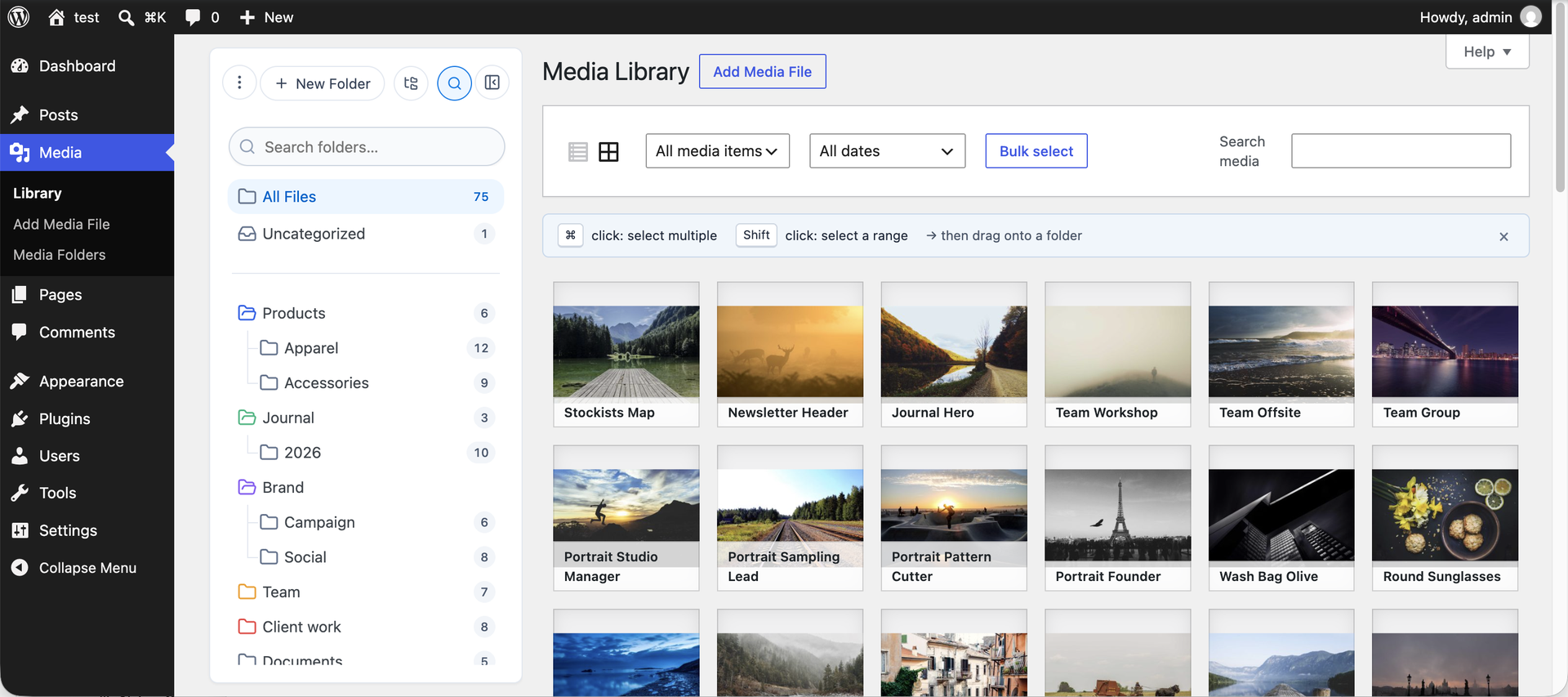
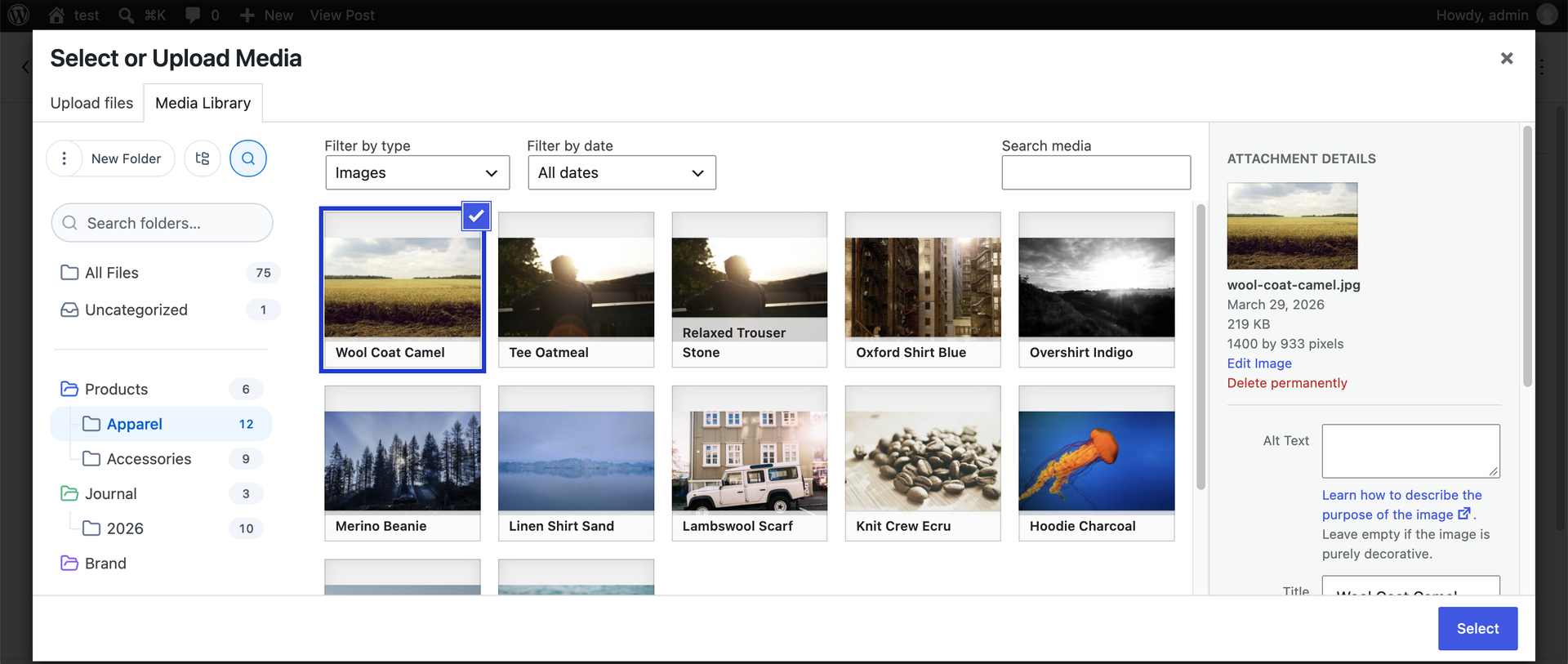
Flexa Media Folders adds a hierarchical, drag-and-drop folder tree to the WordPress Media Library. Group images, videos, documents and any other attachment into nested folders, then filter the library to a single folder with one click – in the grid view, the list view, and the media picker inside the post editor.
Folders are stored in two dedicated, indexed database tables, so your wp_term* tables stay clean and the tree loads fast even with thousands of files.
Features
- Hierarchical folder tree – create unlimited nested folders, rename them, and reorder them by drag-and-drop.
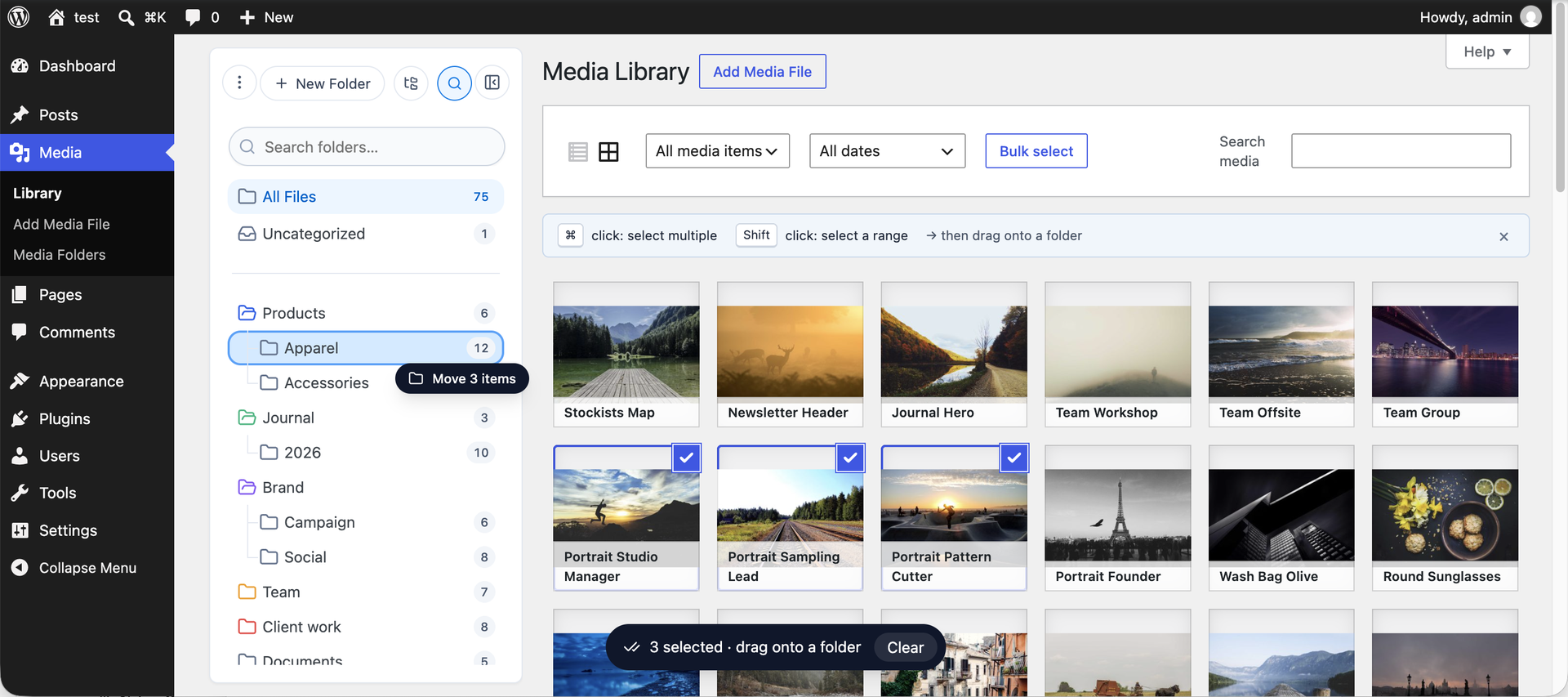
- Drag attachments into folders – drag a grid thumbnail or a list-view row straight onto a folder. Select several items first and the whole selection moves at once.
- Works everywhere the Media Library does – the folder sidebar appears on the Media grid, the list view (
upload.php), and the media modal in the block editor, the Classic Editor and on taxonomy term screens. - One-click filtering – click a folder to filter the library to it, plus built-in “All files” and “Uncategorized” views. On the list view the active folder is kept in the URL, so it survives paging and reloads.
- Keyboard control – the tree is a real ARIA tree: arrow keys walk it, Left/Right collapse and expand, Home/End jump to the ends, and typing a few letters jumps to a folder by name. F2 renames, Cmd/Ctrl+X cuts, Cmd/Ctrl+V pastes, and Cmd/Ctrl+Backspace opens the delete confirmation.
- Inline rename – click the name of an already-selected folder (Finder style) and edit it in place. Enter saves, Esc cancels.
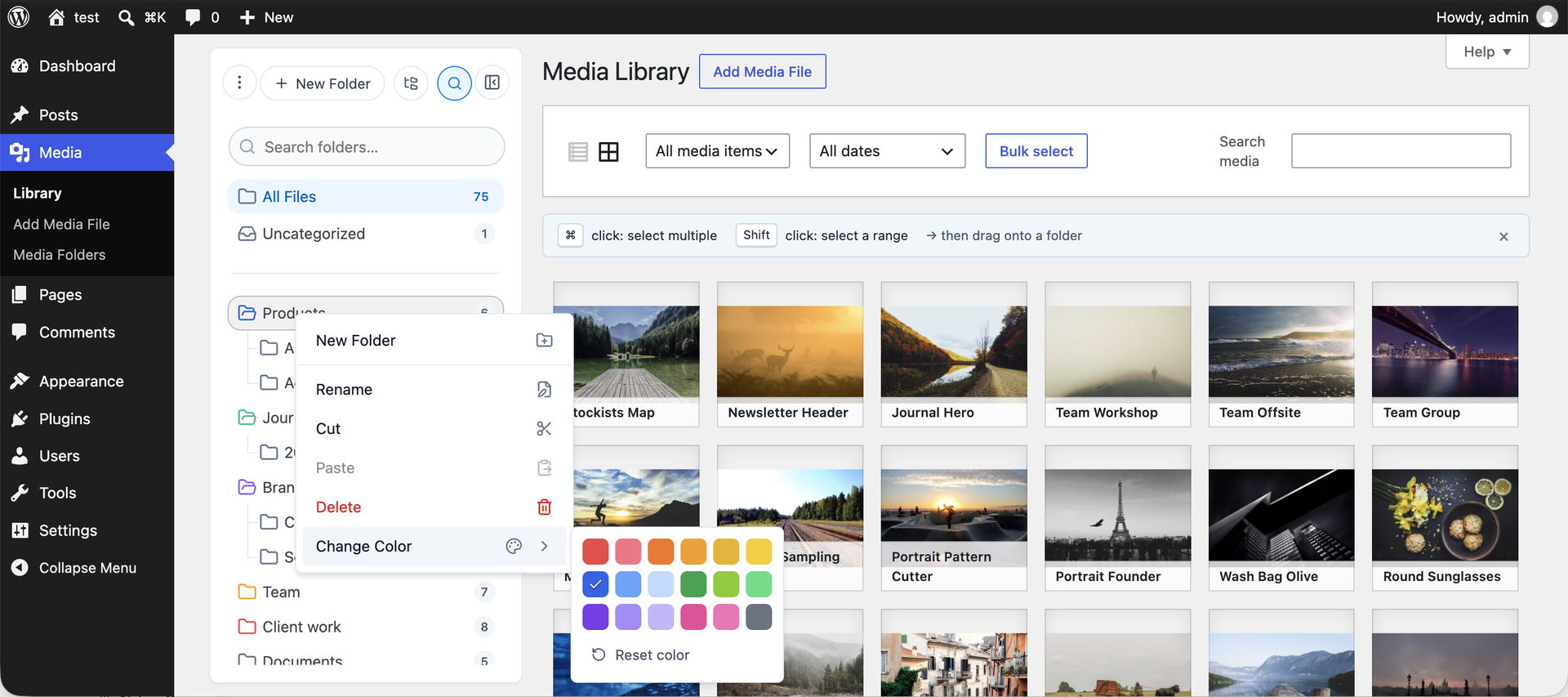
- Color labels – assign one of 18 colors to any folder from the right-click menu to spot it at a glance.
- Full context menu – New Folder, Rename, Cut, Paste, Delete and Change Color, all from a right-click.
- Bulk folder creation – paste an indented list of names and get the whole subtree in one step.
- Import from another folder plugin – bring an existing tree over from FileBird, Real Media Library, CatFolders, Folders (Premio) or Media Library Organizer, including the attachment assignments. The source plugin’s own data is left untouched.
- Pick the upload target – choose which folder new uploads land in from the uploader itself, without leaving the screen.
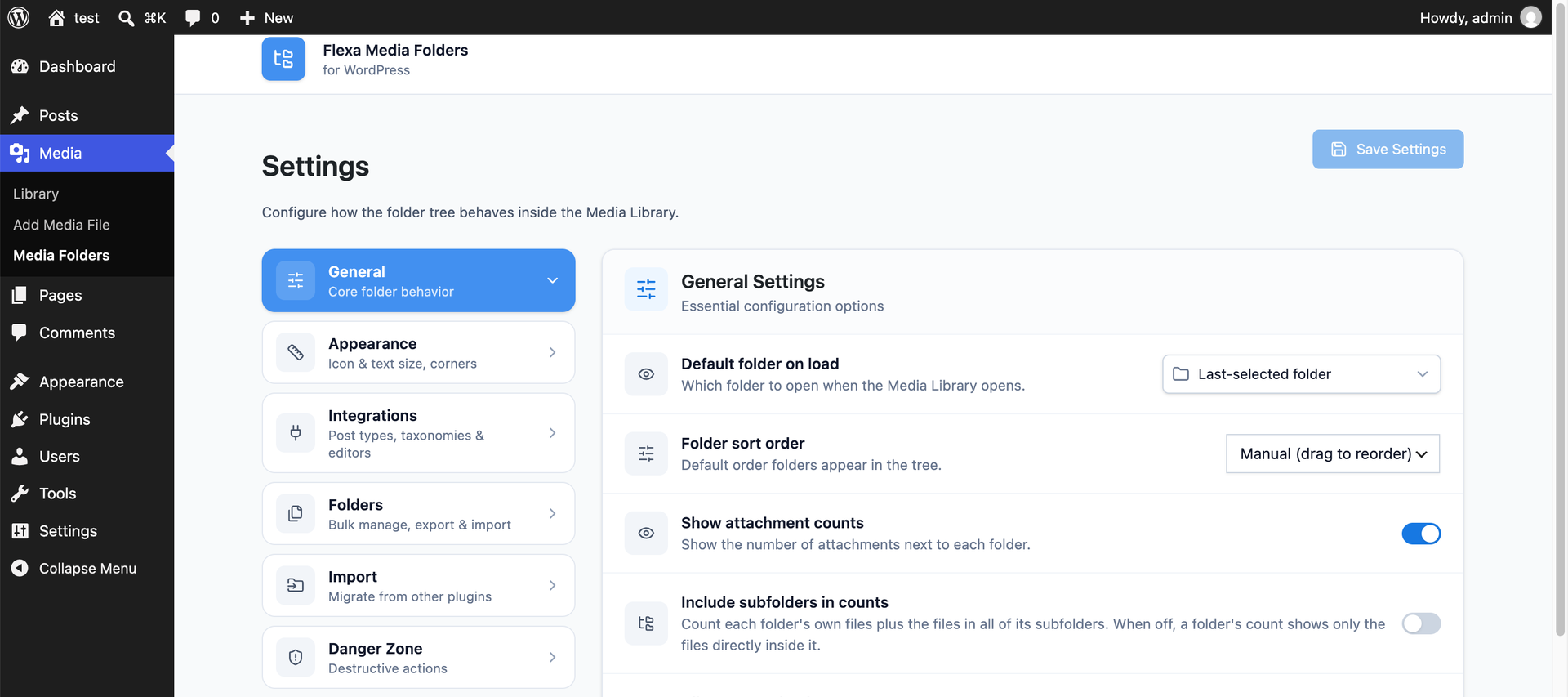
- File counts – each folder can show how many attachments it contains, counting its subfolders too if you prefer (both are Settings toggles).
- Folder search – filter the folder tree as you type.
- Settings page – choose a default folder for new uploads (none / last used / a specific folder), set the folder sort order, toggle file counts, exclude specific post types or taxonomies from showing the sidebar, and tune the sidebar’s icon size, text size and corner radii.
- Safe SVG uploads – optional, off by default. When you switch it on, every uploaded SVG is sanitized (scripts, event handlers and remote references stripped) before it is stored, and the library renders the SVG itself instead of a generic file icon.
- Multisite ready – each site in a network gets its own folder tree. Tables are provisioned when a site is created and removed when it is deleted.
- Dark mode – the tree automatically follows your WordPress admin color scheme.
- Accessible – full ARIA tree semantics, keyboard navigation, and visible focus styles.
- Translation ready – every string is internationalized, 29 locales ship with the plugin, and a
.pottemplate is bundled. - REST API – all screens are powered by a REST API under
/wp-json/flexa-mf/v1/, so external integrations and your own code can read and manage folders too. - WP-CLI – manage folders, run an import, and reset plugin data from the command line with
wp flexa-mf. - Clean uninstall – a Settings danger zone (and
wp flexa-mf reset) wipes all plugin data on demand; uninstalling the plugin drops its tables. Your media files are never touched.
Source code for compiled JavaScript and CSS
The plugin ships with minified/compiled JavaScript and CSS in assets/dist/. The human-readable source code for these assets is publicly available and maintained at:
https://github.com/flexatech/flexa-media-folders
The assets are built with pnpm and Vite. To build them from source:
pnpm installpnpm build(production build; the Vite config lives atapps/admin/vite.config.ts)
Use pnpm dev for a watched development build.
The only bundled third-party PHP library is enshrined/svg-sanitize (GPL-2.0-or-later), in vendor/, used to sanitize SVG uploads. It is installed with Composer from https://github.com/darylldoyle/svg-sanitizer.
External services
All of your folders and media stay on your own site. The plugin connects to one external service, only in the admin area, for the single reason below.
Deactivation feedback (Flexa Product Intelligence)
When you go to deactivate Flexa Media Folders on the Plugins screen, a short optional survey asks why. It is served by Flexa’s product intelligence service at https://product-intelligence.flexacommerce.com. It runs only in the admin, on wp-admin/plugins.php, never on the front end, and never blocks or delays deactivation. What is sent, and when:
- On opening the Plugins screen: a request to
/api/v1/config(product slug and tier) to load the survey configuration. The response is cached for 6 hours. - When you deactivate or interact with the survey: the reason you pick and any optional message you type, sent to
/api/v1/deactivations,/api/v1/events,/api/v1/feedback,/api/v1/feature-requestsand/api/v1/recovery-events.
Every request includes an anonymous per-site identifier (a random UUID), the plugin version and tier, and by default your WordPress version, PHP version and locale. No email, site domain, user identity or raw IP is collected. To stop sending environment data, use add_filter( 'flexa_mf/deactivation_survey/config', function ( $c ) { return array( 'collect_environment' => false ) + $c; } );. To disable the survey entirely, use add_filter( 'flexa_mf/deactivation_survey/enabled', '__return_false' );.
Terms of Service: https://flexacommerce.com/pages/terms
Privacy Policy: https://flexacommerce.com/pages/privacy
Installation
- Upload the plugin files to
/wp-content/plugins/flexa-media-folders, or install it through the WordPress Plugins screen. - Activate the plugin through the Plugins screen.
- Open Media in the admin menu – the folder sidebar appears next to your library. Visit Media → Media Folders to configure defaults.
Frequently asked questions
Does this move or rename my media files?
No. Folders are an organizational layer stored separately in the database. Your files stay exactly where WordPress put them, with the same URLs.
What happens to my folders if I deactivate or delete the plugin?
Deactivating keeps all folder data. Deleting (uninstalling) the plugin drops its database tables and removes its settings – but your media files are never deleted. You can also wipe folder data on demand from the Settings danger zone.
Does it use WordPress taxonomies?
No. Folders live in two dedicated, indexed tables. This keeps your wp_term* tables clean and lets the tree load in a single query.
I already use another folder plugin. Can I bring my tree over?
Yes. The Settings page has an Import panel that detects FileBird, Real Media Library, CatFolders, Folders (Premio) and Media Library Organizer, and copies their folders and attachment assignments across. The other plugin’s data is only read, never modified, so you can compare the result before deactivating it. The same thing is available as wp flexa-mf import.
Can I filter the Media Library by folder inside the post editor?
Yes. The folder sidebar is available in the media modal in both the block editor and the Classic Editor.
Can I use the folder tree without a mouse?
Yes. Tab into the tree and the arrow keys walk it, Left and Right collapse and expand, Home and End jump to the first and last folder, and typing a few letters jumps to a folder by name. F2 renames the focused folder, Cmd/Ctrl+X and Cmd/Ctrl+V cut and paste it, and Cmd/Ctrl+Backspace opens the delete confirmation.
Is enabling SVG uploads safe?
SVG uploads are off by default because an SVG is an XML document that can carry scripts. When you turn the setting on, the plugin sanitizes every uploaded SVG before it is stored, stripping elements, on* event handlers and remote references. Sanitization is not optional and cannot be switched off from the UI; it only runs for files uploaded after the setting is enabled, so audit any SVGs that were already in your library.
Does it work on multisite?
Yes. Every site in a network keeps its own folder tree in its own set of tables. Network activation provisions the existing sites, a newly created site is provisioned automatically, and deleting a site removes its tables.
Is there a REST API?
Yes – all folder data is exposed under /wp-json/flexa-mf/v1/. The endpoints require the same capabilities as the Media Library itself.
How does the plugin handle authentication and permissions?
Every state-changing request goes through the WordPress REST API and is gated by two checks: a capability check and the standard WordPress REST nonce (X-WP-Nonce). There are three capability gates, each filterable: flexa_mf/capabilities/edit (default manage_categories, so Editors and Administrators) for changing the folder structure itself: create, rename, move, delete, reorder, bulk create and import. The tree is shared site-wide, so reshaping it is deliberately a higher bar than uploading. flexa_mf/capabilities/manage (default upload_files) for reading the tree and filing media into an…
Can I stop the sidebar from showing on a particular post type?
Yes. The plugin’s Settings page has a per-post-type exclusion list, and a matching one for taxonomy term screens.
Changelog
The WP-CLI flag that sets a new folder's color is now --folder-color. --color belongs to WP-CLI itself and was being swallowed before the plugin saw it; the old spelling still works.
1.3.2
- Fixed:
wp flexa-mf folder create --color=#rrggbbnever set the folder’s color. WP-CLI keeps--colorfor its own output colorization and strips it before a command runs, so the flag is now--folder-color. The old spelling still works and prints a notice pointing at the new one. A hex value the plugin cannot parse now stops the command instead of creating a folder with no color.
1.3.1
- Fixed: folders could not be clicked in the block editor’s media modal on WordPress 7.1. Core wraps the attachment grid in a new container that leaves the grid itself positioned against the whole browser pane, so the list stretched across the folder sidebar as an invisible layer and absorbed the clicks.
1.3.0
- New: full keyboard control of the folder tree. Arrow keys walk it, Left/Right collapse and expand, Home/End jump to the ends, and typing a few letters jumps to a folder by name. F2 renames, Cmd/Ctrl+X cuts, Cmd/Ctrl+V pastes, and Cmd/Ctrl+Backspace opens the delete confirmation.
- New: import an existing folder tree, with its attachment assignments, from FileBird, Real Media Library, CatFolders, Folders (Premio) or Media Library Organizer. Available from an Import panel on the Settings page and as
wp flexa-mf import. The source plugin’s data is only read, never changed. - New: optional SVG uploads. Off by default; when enabled, every uploaded SVG is sanitized before it is stored and the library renders the SVG itself instead of a generic file icon.
- New: pick the folder new uploads land in from the uploader, without leaving the screen.
- New: multisite support. Each site in a network keeps its own folder tree. Tables are provisioned on network activation and when a site is created, and removed when a site is deleted.
- New: 29 translations now ship with the plugin.
- New: Settings additions – count the files in subfolders towards a folder’s badge, exclude individual taxonomies from showing the sidebar (to match the existing post-type list), and tune the sidebar’s folder-icon size, text size and corner radii.
- New: a “Reset sidebar size” entry in the sidebar menu, for when a drag-resize has left the panel somewhere awkward.
- Change: renaming now happens inline in the tree instead of in a side panel, and it is armed by clicking the name of an already-selected folder (Finder style) rather than by double-clicking. F2 and the right-click Rename option work as before.
- Removed: the “Download folder” context-menu entry, which only ever showed a notice saying the feature was coming.
1.2.8
- Added an optional, admin-only deactivation feedback survey so we can learn why the plugin is being removed. It runs only on the Plugins screen, never blocks or delays deactivation, and can be turned off with a filter. See the “External services” section for exactly what is sent.
1.2.7
- Compatibility: tested up to WordPress 7.1. Fixed the folder sidebar in the media modal (block editor “Select or Upload Media”), where WordPress 7.1 wraps the attachment grid in an absolutely-positioned container that overlapped the folder tree.
1.2.6
- Security: creating, renaming, moving, deleting, reordering and bulk-creating folders now require the
manage_categoriescapability (Editors and Administrators) instead ofupload_files. Folders are a shared, site-wide structure, so lower-privileged users could previously reorganize the tree for everyone. Reading folders and assigning your own media to them still only needsupload_files. The gate is filterable viaflexa_mf/capabilities/edit.
Screenshots
For developers
Is this your plugin? Show off the numbers.
Add a live badge to your site, docs or GitHub README. It updates on its own — no account needed.
Best Flexa Media Folders alternatives
All attachments plugins →





FAQ
Flexa Media Folders: quick answers
Straight answers, pulled from live WordPress.org data.
Live data from WordPress.org · checked Oct 10, 2026
Is Flexa Media Folders free?
Yes. Flexa Media Folders is free to download and use from the official WordPress.org plugin directory.
Is Flexa Media Folders safe to use in 2026?
Flexa Media Folders is a solid plugin choice in 2026, with a few things worth checking first. Was last updated 3 days ago, and scores 64/100 on our health check.
How many websites use Flexa Media Folders?
Flexa Media Folders is active on <10 WordPress websites and has been downloaded 398 times since it launched in June 2026. It was downloaded 220 times in the last 30 days.
Does Flexa Media Folders work with WordPress 7.1?
Yes. The developer has tested Flexa Media Folders up to WordPress 7.1.3, the latest release. It requires WordPress 6.2 or newer.
What PHP version does Flexa Media Folders need?
Flexa Media Folders requires PHP 8.2 or higher. Most hosts run PHP 8.x today, so it works on any modern WordPress hosting.
When was Flexa Media Folders last updated?
The latest version, 1.3.2, was released on October 8, 2026 (3 days ago).
Who makes Flexa Media Folders?
Flexa Media Folders is developed and maintained by FlexaTech.
What are the best alternatives to Flexa Media Folders?
The most popular alternatives to Flexa Media Folders are Export media with selected… (40K+ installs), File Upload Types by WPForms (40K+ installs) and Lightbox with PhotoSwipe (20K+ installs).
Powered by PageForge
Want thousands of pages that rank like these? Build them in an afternoon.
This directory runs on the same engine as PageForge. Turn any spreadsheet, CSV or API into thousands of fast, SEO-ready WordPress pages — with schema, internal links and AI-written copy baked in.
- CSV, Google Sheets & API data sources
- AI content, schema & internal links per page
- Works with Elementor, Gutenberg, Yoast & Rank Math
- Free on WordPress.org — no credit card


