


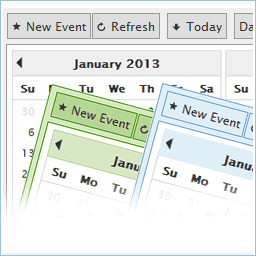
CP Multi View Events Calendar
A powerful and flexible WordPress event calendar plugin that lets you display your events in multiple calendar views, just like Google Calendar.

Safe pick
Yes — CP Multi View Events Calendar is a safe, well-maintained plugin to use in 2026. It runs on 900+ sites, is rated 4.3/5 and was last updated 2 weeks ago, and scores 88/100 on our health check.
- Actively developed — last update 2 weeks ago
- Tested with the latest WordPress (7.1)
- Small user base (900+ active installs)
How does it stack up?
Side-by-side on installs, updates, ratings & support


Daily downloads
Download spikes usually follow a new release — each site that auto-updates counts as a download.
Rankings
Where CP Multi View Events Calend… stands todayWordPress.org search rankings
Live position in the plugin search, top 100| Keyword | Position |
|---|---|
| calendar | #38 |
| calendars | #49 |
| Event | #56 |
| event calendar | #27 |
| event manager | #45 |
Version adoption
Share of active sites per release.
Rating breakdown
★★★★★★★★★★ 4.3 from 46 reviews
About CP Multi View Events Calendar
From the official readme · v1.4.41Description
CP Multi View Events Calendar is a professional and easy-to-use event calendar plugin for WordPress that allows you to display, organize, and manage events in multiple interactive views — including month, week, day, and multi-month layouts.
This all-in-one calendar and event manager helps you create visually stunning calendars for your website, with customizable styles, colors, and display options. Whether you need a simple events list or a full-featured scheduling solution, CP Multi View Events Calendar gives you the flexibility to do it all.
Perfect for:
– Businesses managing multiple events
– Schools, clubs, and communities
– Bloggers and content creators
– Anyone who needs a customizable, interactive event calendar
👉 Live demo and examples:
View 20 calendar demos and styles
✨ Key Features
- Multiple calendar views — Month, Week, Day, and Multi-Month (similar to Google Calendar)
- Fully responsive and mobile-friendly event calendars
- Support for recurring / repeating events
- Fast AJAX loading for smooth calendar navigation
- Editable events from the front end or admin area
- Multiple event calendars and views on the same page
- Customizable colors, fonts, and calendar styles
- Tooltips for event details (on hover or click)
- Event locations, rich text descriptions, and images
- Links from calendar events to custom URLs or pages
- 12- or 24-hour clock formats
- Option to display only selected weekdays
- GDPR compliant — no personal data stored unless entered manually
- Import / export events with iCal (.ics) format (available in Platinum version)
🌍 Available Languages
Czech, Danish, Dutch, English, French, German, Italian, Norwegian, Polish, Portuguese, Russian, Slovak, Slovenian, Spanish.
Don’t see your language? Open a support ticket and we’ll add it quickly!
🆕 Latest Update
New: A refreshed interface for easier editing of inserted event calendar views, plus instant preview buttons for faster verification of calendar layouts on your website.
🔁 Import / Export Events (iCal Support)
You can easily import and export calendar events using the iCal (.ics) format — fully compatible with Google Calendar.
This feature is available in the Platinum version.
📅 Calendar Insertion Settings
To insert the calendar form into some content or post use the insertion area that will appear below the editor when editing contents. It looks like the following image:
https://wordpress.dwbooster.com/UserFiles/Image/cp-multiview-calendar/insert-calendar.png
The fields on the event calendar insertion area (shown in the above image) are the following:
- MultiCalendar: Which of the calendars will be shown.
- Calendar Views: The views that will be included in the event calendar.
- Default View: Which of the calendar views will appear as default.
- Start day of the week: The start day of the week (Ex: Sunday, Monday, …).
- CSS Style: Select one of the CSS styles available to render the calendar.
- Palette Color: The palette color used for the events in the calendar.
- Allow edition: Check this box if the event calendar will allow edition on the public website.
- Other buttons: Select the buttons that will be displayed on the top of the calendar.
- Number of Months for nMonths View: Number of months shown at the same time in the nMonths View.
- Other parameters for nMonths View: Other parameters for the nMonths View (more info below).
- Other parameters: Other parameters that apply to all calendar views (more info below).
💡 Advanced Customization
The additional parameters should be added into the “Other Parameters” box in the event calendar insertion area. These parameters must be comma separated and will overwrite the initial configuration selected for the event calendar.
The “Other Parameters” box can be found in the following location (click to enlarge image): https://wordpress.dwbooster.com/demos/multi-view/screenshots/additional-parameters.png
🎨 Adding custom CSS Styles
The custom CSS styles can be added into the “Customization area >> Add Custom Styles” (at the bottom of the page that contains the list of calendars).
🧩 Calendar View Examples
The following area some sample views. You can apply or mix configurations to get your own calendar views in addition to the following samples:
-
View day only: Event calendar configured with the “day” view option only, the “Default View” should be “day”. The views “Week”, “Month”, “nMonth” should be unchecked. To fix the height, just add (for example) the parameter “height:400”. Sample: https://wordpress.dwbooster.com/demos/multi-view/01-view-day-only.html
-
View week only: Event calendar configured with the view week option only; the “Week” view should be enabled and the default view should be “week”. The views “Day”, “Month” and “nMonth” should be disabled. To fix the height, just add (for example) the parameter “height:400”. Sample: https://wordpress.dwbooster.com/demos/multi-view/02-view-week-only.html
-
View month only: Event calendar configured with the view month option only. To get this enable the “Month” view and set the default view to “month”. The views “Day”, “Week” and “nMonth” should be unchecked. To fix the height, just add (for example) the parameter “height:400”. Sample: https://wordpress.dwbooster.com/demos/multi-view/03-view-month-only.html
-
View n-Months only: Event calendar configured with the view n-Months option only. This can be done by setting the amount of months to display in the event calendar to 12, enable only the “n-Month” view and setting the “Default View” to “nMonth”. All the other views and buttons should be unchecked. In the styles for this sample we have selected to fix the calendar width. Sample: https://wordpress.dwbooster.com/demos/multi-view/04-view-n-months-only.html
-
Small event calendar: You can configure the calendar just like a single small event calendar. This can be done by selecting the n-Months view and setting the “Number of Months for nMonths View” dropdown select box to 1. Sample: https://wordpress.dwbooster.com/demos/multi-view/05-small-calendar.html
-
n-Month view, only one month, large view: Event calendar with the n-Month view configured to display a single month in a large view. To get this result enable only the “n-Month” view and add the styles specified in the following sample page: https://wordpress.dwbooster.com/demos/multi-view/06-one-month-large-view.html
-
n-Month view with 2 months using all the width: To get this result in the calendar enable only the “n-Month” view, set the “Number of Months for nMonths View” dropdown select box to 2 and add the styles specified in the following sample page to fix the width of both the event calendar area and the width of each month: https://wordpress.dwbooster.com/demos/multi-view/07-two-months-using-all-the-width.html
-
n-Month view, 3 months with vertical align: The first settings needed to get this calendar configuration is to enable only the “n-Month” view and set the “Number of Months for nMonths View” dropdown select box to show 3 months. After that proceed to add some CSS styles to fix the width to the desired column width. This way you can publish the calendar in the sidebar of your website. Sample: https://wordpress.dwbooster.com/demos/multi-view/08-various-months-with-vertical-align.html
-
Tooltip displayed on month,week and day view: In this event calendar sample, when you click over an event in the calendar, a floating tooltip panel with additional information is displayed. This type of tooltip is available for the month, week and day views. The n-Month view has a different type of tooltip panel. To enable the tooltips, the parameter “showtooltipdwm” must be set to “true” (or enable it by checking the checkbox in the visual configuration). In addition to these parameters, add also the styles mentioned in the following page as instructed: https://wordpress.dwbooster.com/demos/multi-view/09-tooltip-displayed.html
-
Lighter view for events and center align: This calendar sample features the month, week and day views showing the events with a more lighter view: a color border is used instead filled backgrounds and the text is centered. The tooltips are already enabled for this sample; to enable the tooltips you can do that by checking the tooltip checkbox in the visual configuration or just by setting parameter “showtooltipdwm” to “true”, this is also explained in other demos. To get the more lighter view you can add the styles indicated at this page: https://wordpress.dwbooster.com/demos/multi-view/10-lighter-view-center-align.html
-
Multi-line event description: Event calendar that displays a multi-line event description in the month, week and day views, this is useful to display more information directly over the calendar. Only two CSS rules should be added to the styles to get this configuration. It will work with any selection of parameters if you are using one of the mentioned views. Check the detailed instructions at this page: https://wordpress.dwbooster.com/demos/multi-view/11-multi-line-event-description.html
-
Images and HTML formatting in tooltip: The tooltips on the calendar can show images and formatted text. There are some styles that can be used to show/hide/customize the title, location, description and time: these styles are the CSS classes named “bubbletitle”, “bubblelocation”, “bubbledescription” and “bubbletime”. In this sample we have used only the class “bubbletime” to align it at the bottom of the content/image: https://wordpress.dwbooster.com/demos/multi-view/12-images-and-html-formatting-in-tooltip.html
-
Images directly on the calendar cells: You can use this plugin like a picture calendar. The images should be added to the event description and the css rules mentioned in the following page to complete the formatting: https://wordpress.dwbooster.com/demos/multi-view/13-images-directly-on-the-calendar-cells.html
-
Show only from Monday to Friday: In this event sample we have disabled the Saturday and Sunday since this is a common configuration. In the “viewWeekDays” parameter, each number in the array represents a weekday from Sunday to Saturday. An zero means that the weekday is disabled (not shown) and a 1 means that the day is enabled (shown). Details at: https://wordpress.dwbooster.com/demos/multi-view/14-show-only-from-monday-to-friday.html
-
Using 12 or 24 hour clock: This calendar supports both the 12 and the 24 hour clock (also known as military time). The 24-hour clock is enabled as default; if you prefer to use the 12-hour clock then just set the parameter “militaryTime” to “false”. Sample: https://wordpress.dwbooster.com/demos/multi-view/15-using-12-or-24-hour-clock.html
-
Showing the n-Days view: With this event calendar view you can display many days in a view similar to the single day view. First you should enable the “nDays” view and then set the number of days to view on each calendar page. The parameters are viewNDays:true for enabling the view, numberOfDays:10 for setting the number of days and viewdefault:”nDays” to make it the default view if needed. Sample: https://wordpress.dwbooster.com/demos/multi-view/16-n-days-view.html
-
Selecting hours to be shown: In some applications you may want to select only some hours to be shown in the event calendar, for example working hours. In the “Days”, “nDays” and “Week” views you can select the range of hours to be shown be setting the start and end hours. Three parameters must be specified for this: the start hour hoursStart:8, the end hour hoursEnd:17 and the height of a single hour cell cellheight:60. Hours are in military time, so 17 means 5:00pm. Sample: https://wordpress.dwbooster.com/demos/multi-view/17-selecting-hours-to-be-shown.html
-
Using drop-down lists for location and title: The location and title that are part of each event’s description in the calendar are open/editable fields by default but you can convert them in drop-down lists to make them easier to edit and keep the data consistency. Sample and detailed instructions: https://wordpress.dwbooster.com/demos/multi-view/18-lists-for-location-and-title.html
-
Multi-column day view, location or title: In this event calendar sample the location and title have been converted in drop-down lists as explained in the previous sample #18. In addition to that now we have selected to use the “title” field as the column header in the day view, this way the events are placed in different columns agrupated by their titles. The same can be done with the location instead the title. Sample and detailed instructions: https://wordpress.dwbooster.com/demos/multi-view/19-multi-column-day-view.html
-
Day view with location & title grid: The event calendar day view can be modified to show the title and location as headers of the rows and column instead the default single columns and the hour in the row header. This is useful to display informations agrupated by title and location on each day. Sample and detailed instructions: https://wordpress.dwbooster.com/demos/multi-view/20-day-view-with-location-title-grid.html
Installation
To install Calendar Event Multi View, follow these steps:
- Download and unzip the plugin.
- Upload the
cp-multi-view-calendar/folder to/wp-content/plugins/. - Activate CP Multi View Events Calendar from the Plugins menu.
- Configure your calendar settings via Admin Menu → CP Multi View Event Calendar.
- Insert your event calendar into a page or post using the provided shortcode or visual editor button.
Frequently asked questions
Where do I report security bugs found in this plugin?
Please report security bugs found in the source code of the CP Multi View Event Calendar plugin through the Patchstack Vulnerability Disclosure Program. The Patchstack team will assist you with verification, CVE assignment, and notify the developers of this plugin.
🛡️ Is the plugin GDPR compliant?
Yes. The calendar plugin does not collect or store personal data, IP addresses, or cookies — unless added manually within an event description.
What means each field in the settings area?
The product’s page contains detailed information about each settings field and customization: https://wordpress.dwbooster.com/calendars/cp-multi-view-calendar
🎨 Can I customize how the calendar looks?
Absolutely. You can use custom CSS, choose predefined themes, or tweak display options for buttons, colors, start day of the week, and more.
⚙️ How do I add events to the calendar?
Go to WordPress Dashboard → CP Multi View Event Calendar → Admin Calendar Data. From there you can add, edit, or delete events. Optionally, enable front-end editing to let users add or edit events directly from the public event calendar.
How show the entire title on month,week and day view?
Add this CSS rule into the “Customization area >> Add Custom Styles” (at the bottom of the page that contains the list of calendars):
How to show differents colors in the nMonth view?
Use the following configuration parameter: date_box_with_color_in_nmonth_view:true The parameters should be added into the “Other Parameters” box. These parameters must be comma separated and will overwrite the initial configuration selected. The “Other Parameters” box can be found in the following location (link to image): https://wordpress.dwbooster.com/UserFiles/Image/cp-multiview-calendar/additional-parameters.gif
👥 How to allow edition on the public calendar only for some registered users?
If you want to setup the calendar editable only by some users in the public website then publish a view of the calendar in a private page (restrict the access to the page with the calendar with “Edition” enabled). You can have multiple views of the same event calendar, one for read-only public access and another view with edition enabled on a private page accessible only by registered users. Note that there are two different concepts here: An event calendar: This is a unit of information and events. The events aren’t shared with other calendars. An event calendar’s view: This is the way a…
How show the entire title on month,week and day view on the event calendar?
Add this CSS rule into the “Customization area >> Add Custom Styles” (at the bottom of the page that contains the list of calendars):
Can I change the event calendar plugin date format to DD/MM/YYYY?
The date format is automatically defined with each language to the proper values, however if you want to overwrite those settings open your plugin language file “wp-content\plugins\cp-multi-view-calendar\DC_MultiViewCal\language\multiview_lang_xx-XX.js”, where xx-XX in the file name is your language identifier and into that file modify the items marked below: "fulldaykey": "MMddyyyy", "fulldayshow": "L d yyyy", "fulldayvalue": "M/d/yyyy", "Md": "W M/d", "nDaysView": "M/d", "Md3": "L d", "separator": "/", "year_index": 2, "month_index": 0, "day_index": 1, … to this: "fulldaykey": "ddMMyyyy"…
Changelog
Support for more formatting
1.4.41
- Support for more formatting
1.4.40
- Encoding improvements
1.4.39
- Compatible with WordPress 7.1
1.4.38
- Compatible with WordPress 7
1.4.37
- Access levels modified
1.4.36
- Better data cleaning
Screenshots


For developers
Is this your plugin? Show off the numbers.
Add a live badge to your site, docs or GitHub README. It updates on its own — no account needed.
Best CP Multi View Events Calendar alternatives
All calendar plugins →



FAQ
CP Multi View Events Calendar: quick answers
Straight answers, pulled from live WordPress.org data.
Live data from WordPress.org · checked Oct 8, 2026
Is CP Multi View Events Calendar free?
Yes. CP Multi View Events Calendar is free to download and use from the official WordPress.org plugin directory.
Is CP Multi View Events Calendar safe to use in 2026?
Yes — CP Multi View Events Calendar is a safe, well-maintained plugin to use in 2026. It runs on 900+ sites, is rated 4.3/5 and was last updated 2 weeks ago, and scores 88/100 on our health check.
How many websites use CP Multi View Events Calendar?
CP Multi View Events Calendar is active on 900+ WordPress websites and has been downloaded 314,938 times since it launched in June 2013. It was downloaded 1,347 times in the last 30 days.
Does CP Multi View Events Calendar work with WordPress 7.1?
Yes. The developer has tested CP Multi View Events Calendar up to WordPress 7.1.3, the latest release. It requires WordPress 3.0.5 or newer.
When was CP Multi View Events Calendar last updated?
The latest version, 1.4.41, was released on September 21, 2026 (2 weeks ago).
Who makes CP Multi View Events Calendar?
CP Multi View Events Calendar is developed and maintained by codepeople.
What are the best alternatives to CP Multi View Events Calendar?
The most popular alternatives to CP Multi View Events Calendar are The Events Calendar (600K+ installs), Events Manager (60K+ installs) and Timetable and Event Schedul… (30K+ installs).
Powered by PageForge
Want thousands of pages that rank like these? Build them in an afternoon.
This directory runs on the same engine as PageForge. Turn any spreadsheet, CSV or API into thousands of fast, SEO-ready WordPress pages — with schema, internal links and AI-written copy baked in.
- CSV, Google Sheets & API data sources
- AI content, schema & internal links per page
- Works with Elementor, Gutenberg, Yoast & Rank Math
- Free on WordPress.org — no credit card


