


Print Labels with Barcodes. Create price tags, product labels, order labels for WooCommerce
Generate & print barcode labels for WooCommerce products and orders. Put various data on labels like price, SKU, name, attributes, customer data, etc

Solid choice
Print Labels with Barcodes. Cre… is a solid plugin choice in 2026, with a few things worth checking first. It runs on 900+ sites, is rated 4.5/5 and was last updated 1 month ago, and scores 65/100 on our health check.
- Loved by users — 4.5/5 from 73 reviews
- Small user base (900+ active installs)
How does it stack up?
Side-by-side on installs, updates, ratings & support

Daily downloads
Download spikes usually follow a new release — each site that auto-updates counts as a download.
Rankings
Where Print Labels with Barcodes.… stands todayWordPress.org search rankings
Live position in the plugin search, top 100| Keyword | Position |
|---|---|
| barcode | #2 |
| ean | #9 |
| label | #16 |
| #19 | |
| upc | #7 |
Version adoption
Share of active sites per release.
Rating breakdown
★★★★★★★★★★ 4.5 from 73 reviews
About Print Labels with Barcodes. Create pric…
From the official readme · v4.0.1Description
Generate & print barcode labels for WooCommerce products and orders. Put various data on labels like price, SKU, name, attributes, customer data, etc
Core features
✔ Generate and print barcode labels for products & orders
✔ Printers support: A4, Letter, P4 & label/thermal printers
✔ Labels can contain: barcode, name, SKU, price, attributes, etc
When your store is growing it could be pretty difficult to manage inventory and orders effectively. Try to improve your workflow by printing barcode labels for your products.
Printed labels can contain various product information which helps to understand the basic details about the product.
And the barcode (on the label) allows to get all the product information from WooCommerce using your POS system.
In combination with our Barcode Scanner plugin, you can scan the barcode and get all the basic product details to manage inventory as fast as possible. And the mobile app allows to scan the barcode and manage your inventory right from the smartphone.
All Features
- Barcode can be generated from Product ID, SKU, GTIN or any other custom field.
- Labels can text like SKU, price, name, attributes, custom field or any other field.
- Print barcode labels for your existing products, purchased items or create & print labels from a bulk list.
- WooCommerce if fully supported along with product variations, attributes, custom fields, etc.
- Printers supported: A4, Letter, P4; Roll/Thermal label printers like DYMO, Zebra, Brother and other models.
- Barcode labels can be read by hand-gun scanners or iPhone/Android smartphones
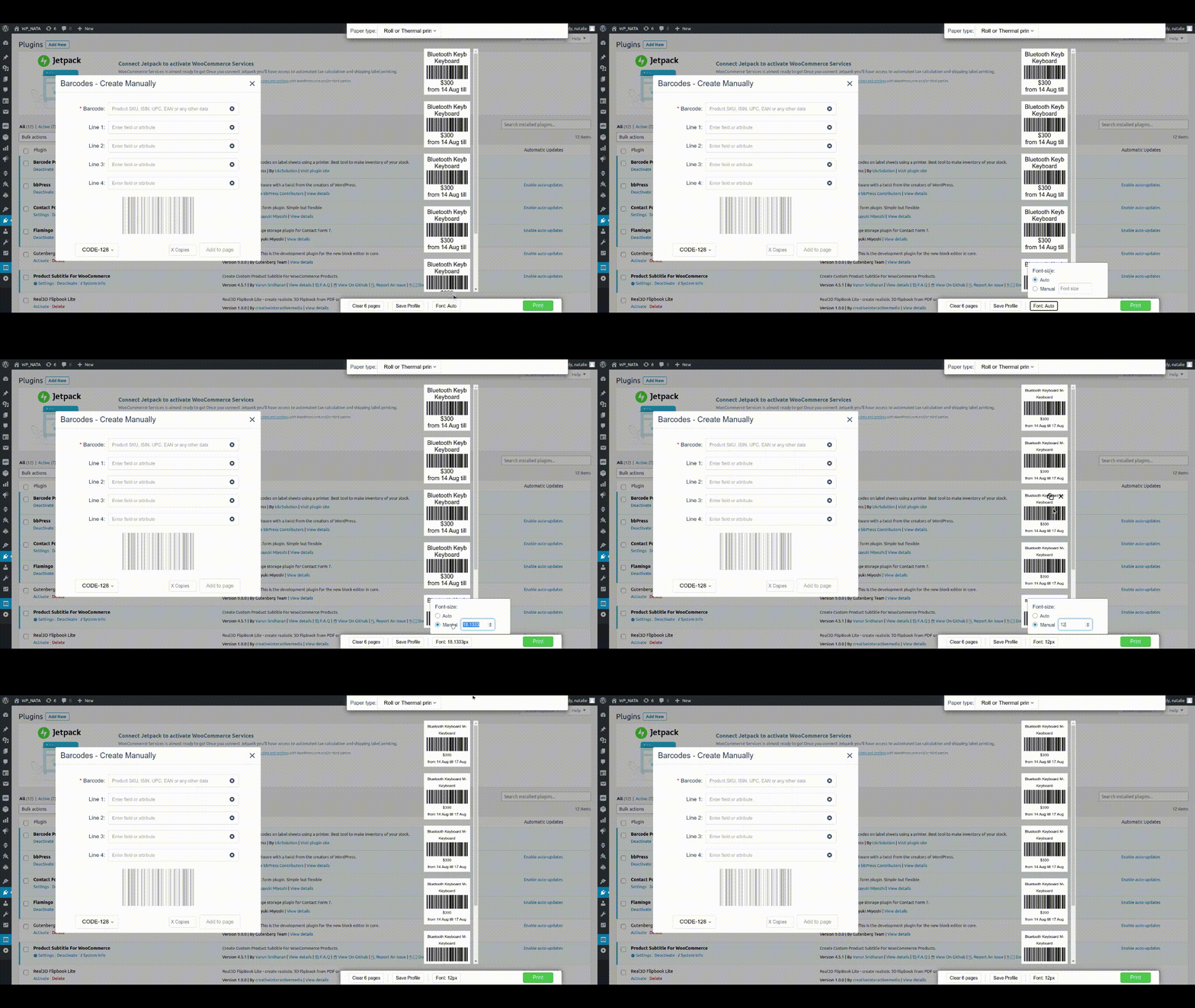
- Adaptive font size allows to fit texts on each label in the most optimal way.
- Adjustment label template via settings is possible.
- Supported barcode types: CODE128, CODE39, QRCode, DataMatrix, GTIN, GS1 family (UPC-A, UPC-E, EAN-13, EAN-8)
Possible use cases
Scanning the barcodes
The barcodes on the labels can be scanned by various software and devices. You may already have some barcode scanning plugin (or POS system) which will allow you to scan and manage the products/orders.
However, if you don’t have such plugin yet, we recomend you to use our lite Barcode Scanner plugin for fast and effective inventory/order managment.
With this plugin you simply scan the barcode and associated product or order will be shown to you in a few seconds. And the iOS/Android app will allow you to do so from the smartphone.
Printing barcode labels for existing products
Plugin allows to create labels for existing products.
You can print labels (with or without the barcode) in 4 different ways:
* “All Products” page – you can check/select a few products and then press “Product Label” button at the top of the product list.
* “All products” page – create label for 1 specific product by clicking on “Label” icon near each product in the product list.
* “Product edit” page – you will find button “Product Label” above product description for the current product.
* “Product edit” page – you will find buttons “Product Label” for each variation in the “Variations” section.
Printing barcode labels for purchased items
Use this plugin to create labels for purchased items in the order.
There 3 ways to create such labels:
* “Orders” page – check/select one or a few orders and press “Product Label” button at the top of he order list.
* “Inner Order” page – Open one specific order and press “Product Label” button on the right hand side (in a widgets section).
* “Inner Order” page – Each purchased item has a “Select” checkbox which you can mark and then press “Create Product Labels” button below the purchased items.
Consider to upgrade to full version:
** Basic version: **
1. You will get 2 more label templates with possibility to add up to 8 product fields/text to the barcode label.
First template optimized for the barcodes (CODE128, CODE39, UPC-A, UPC-E, EAN-13, EAN-8) and the second one is optimized for the 2D barcodes (QRCode, DataMatrix).
So, depending on your case you are getting label template which will fit barcode and texts in the most optimized way possible.
2. Help of configuring the printer settings in your OS (via AnyDesk or TeamViewer)
** Business version:**
Includes basic features plus:
- You are getting a few more business templates with even more possibilities like adding product image or logo to label.
We are constantly adding new business label templates, so you have quite a room in selecting the design/layout of the template. - You are getting template editor which will allow you to create new or adjust existing templates in a way you need (knowledge of HTML/CSS is required)
** Premium version:**
Includes business features plus:
- You can order development of custom label template design from our team – it will be developed to fit your specific needs.
- Includes implementings some features in the plugin by your request.
How to:
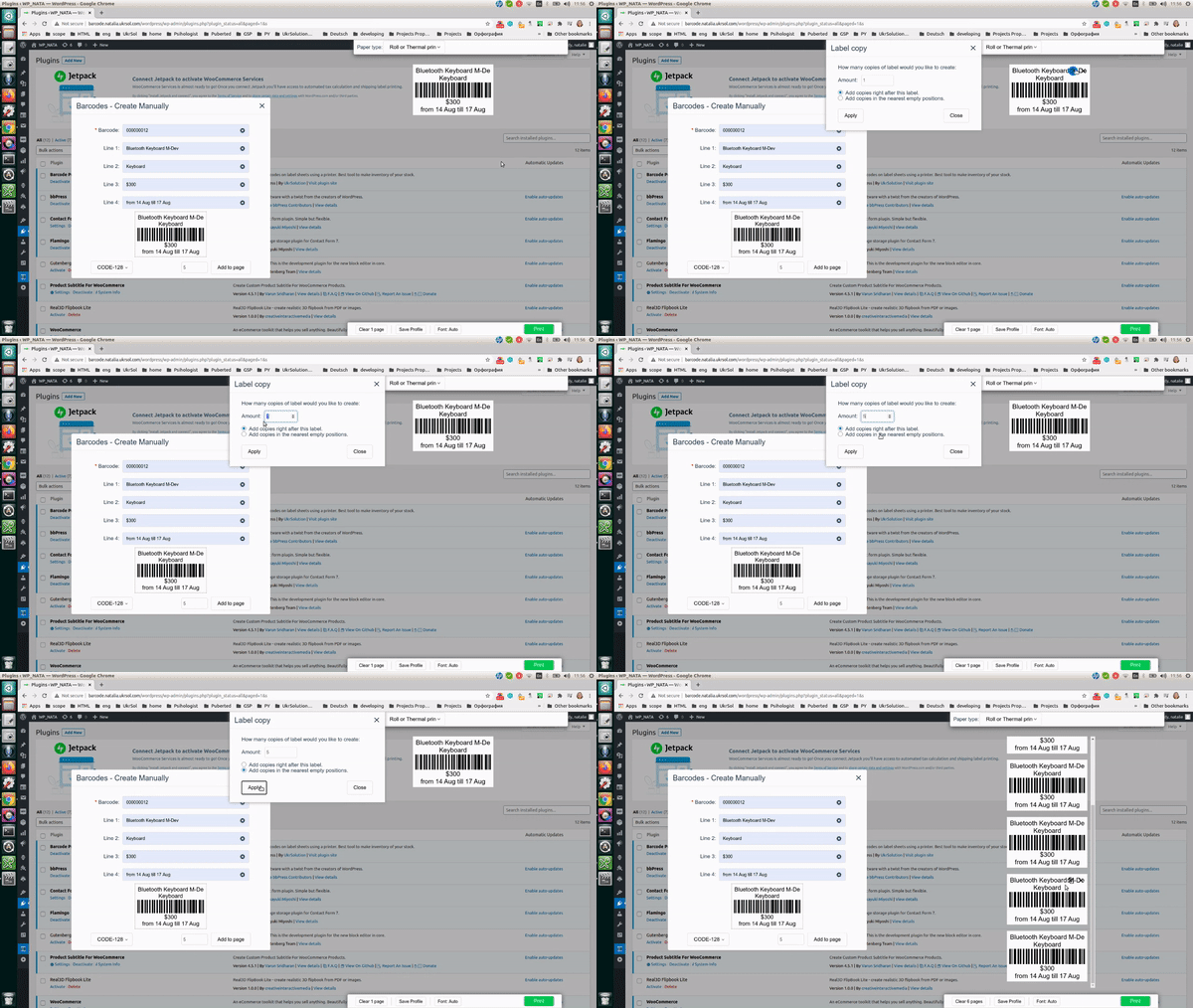
Barcode labels Manually:
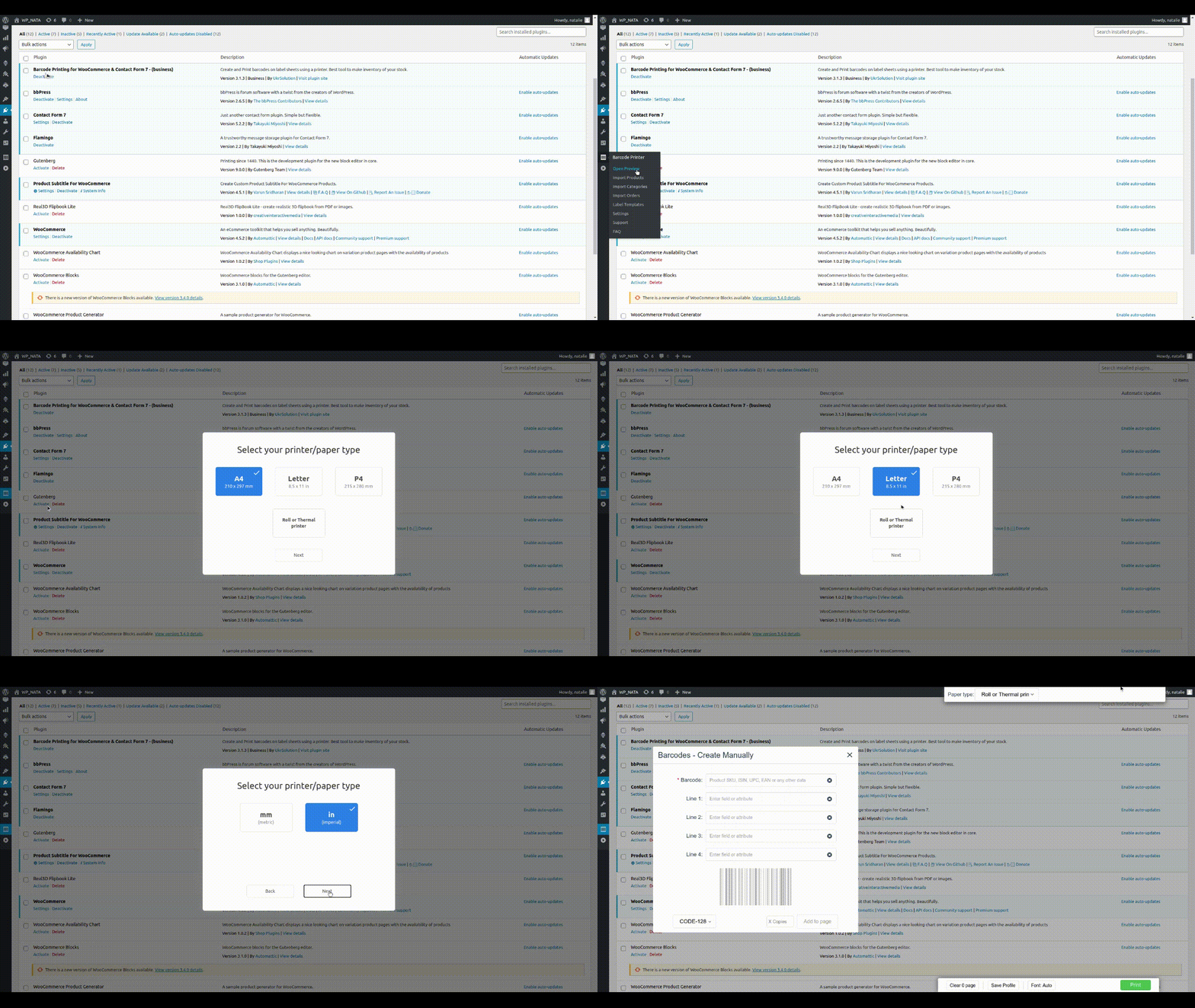
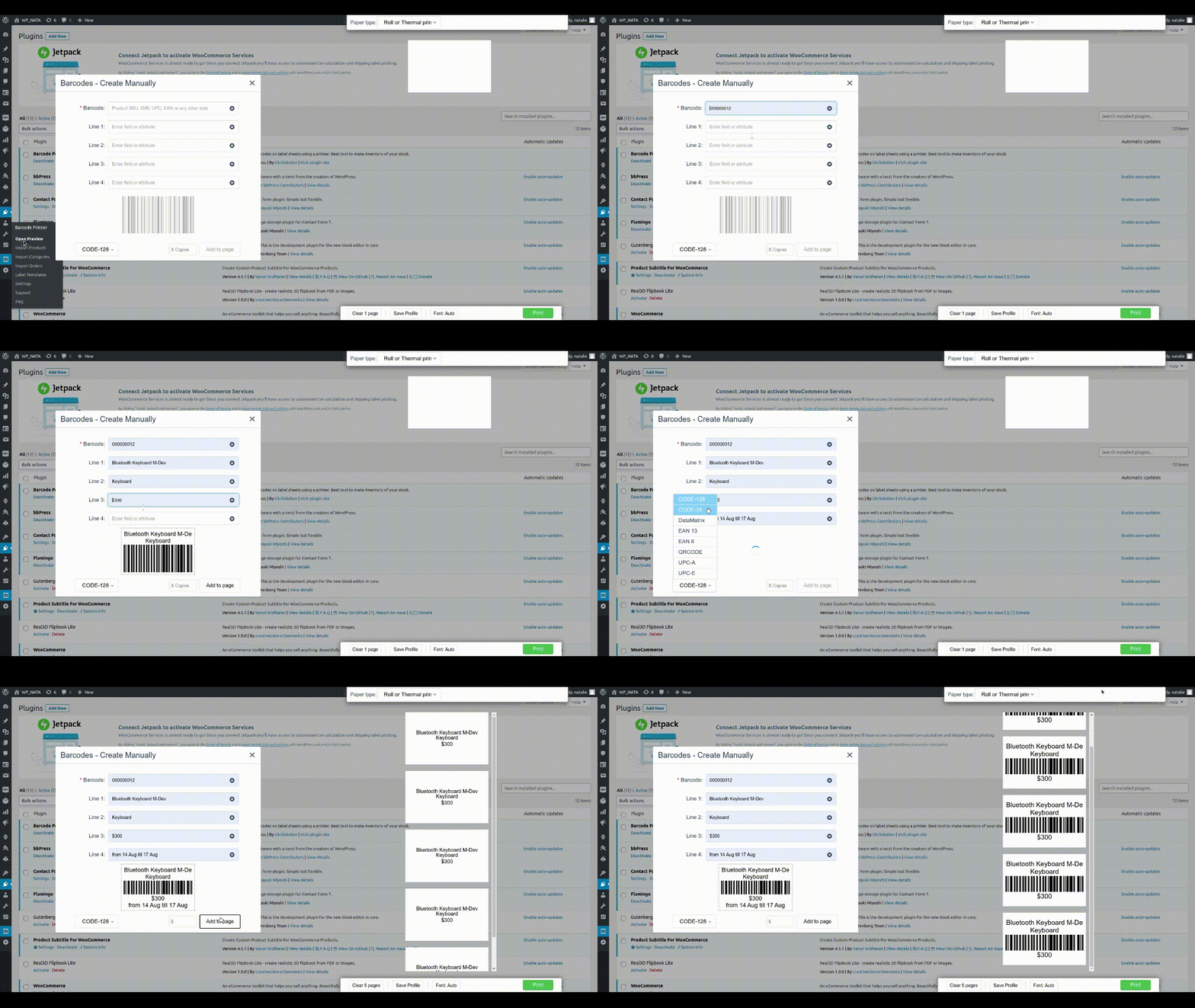
- Click at “Barcode Printer” -> “Open Preview” menu – popup will appear.
- Fill in “Barcode” field with product SKU or any other code as this field is used for barcode generating.
- You could also fill optional fields “Line1” – “Line4” for adding any additional information.
- Select “Type” of barcode – read more about barcode types here.
- Click “Add to Page” button and new label will appear at the preview.
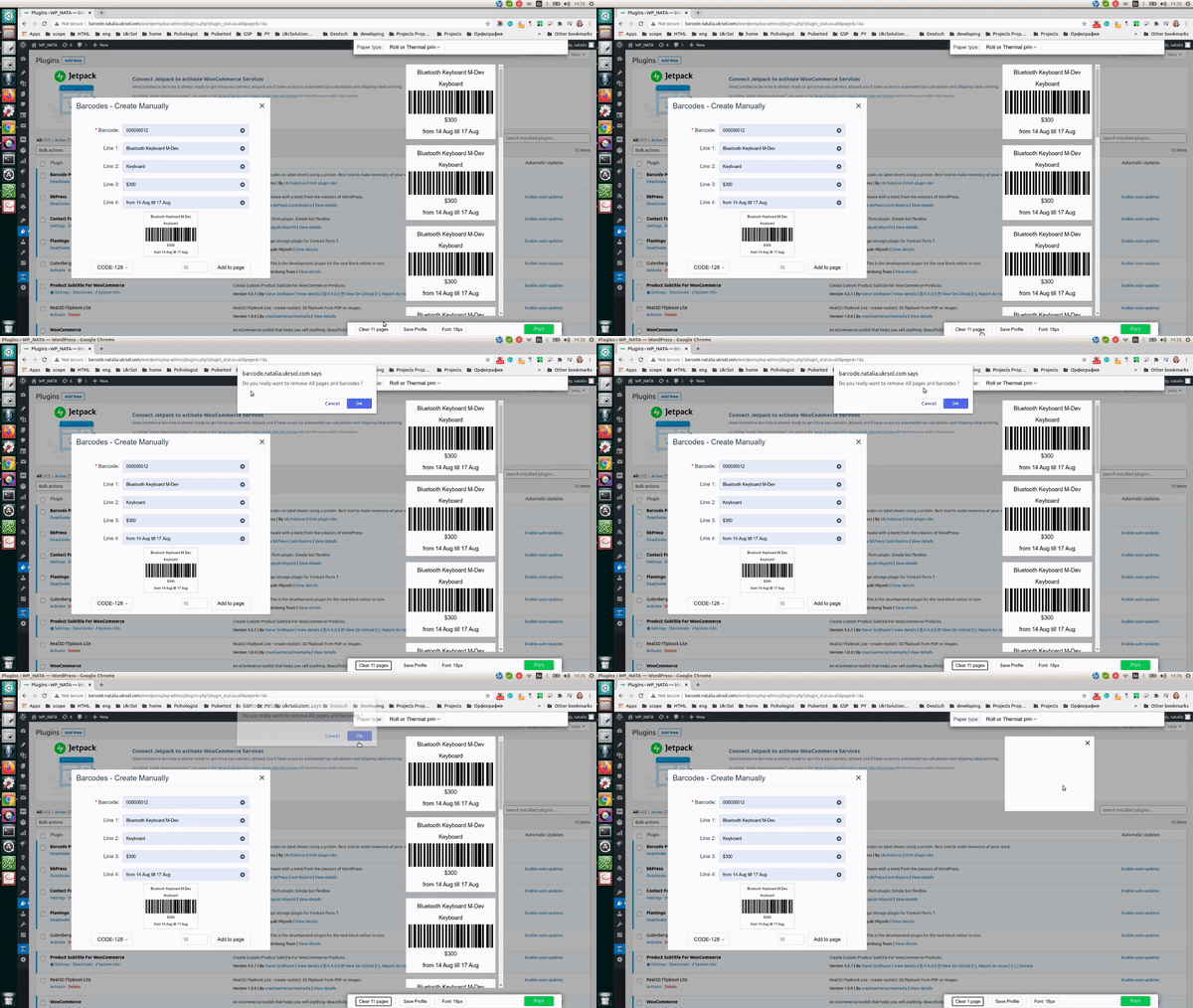
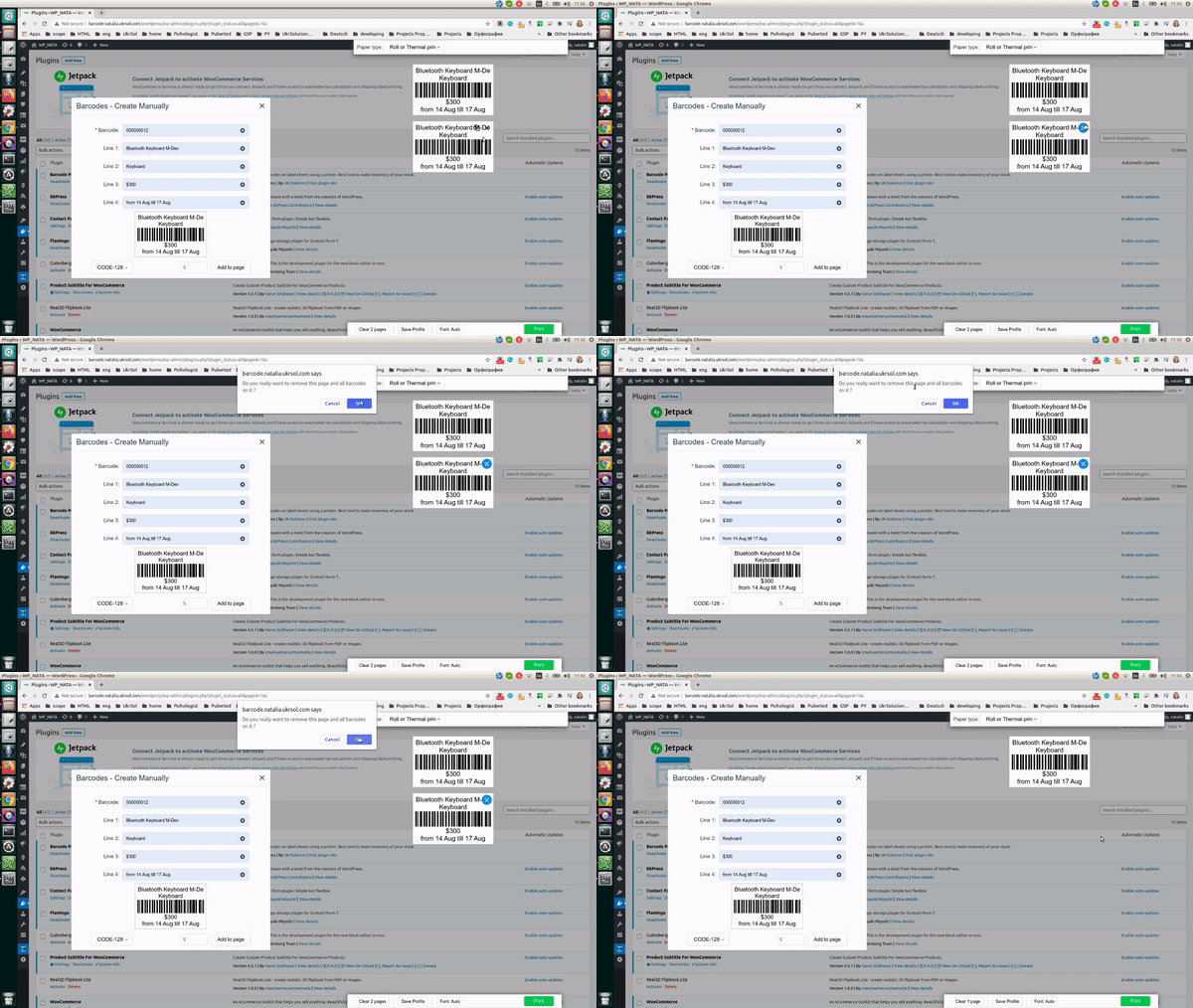
- You can add any amount of barcodes/pages before printing them.
- Press “print labels” button
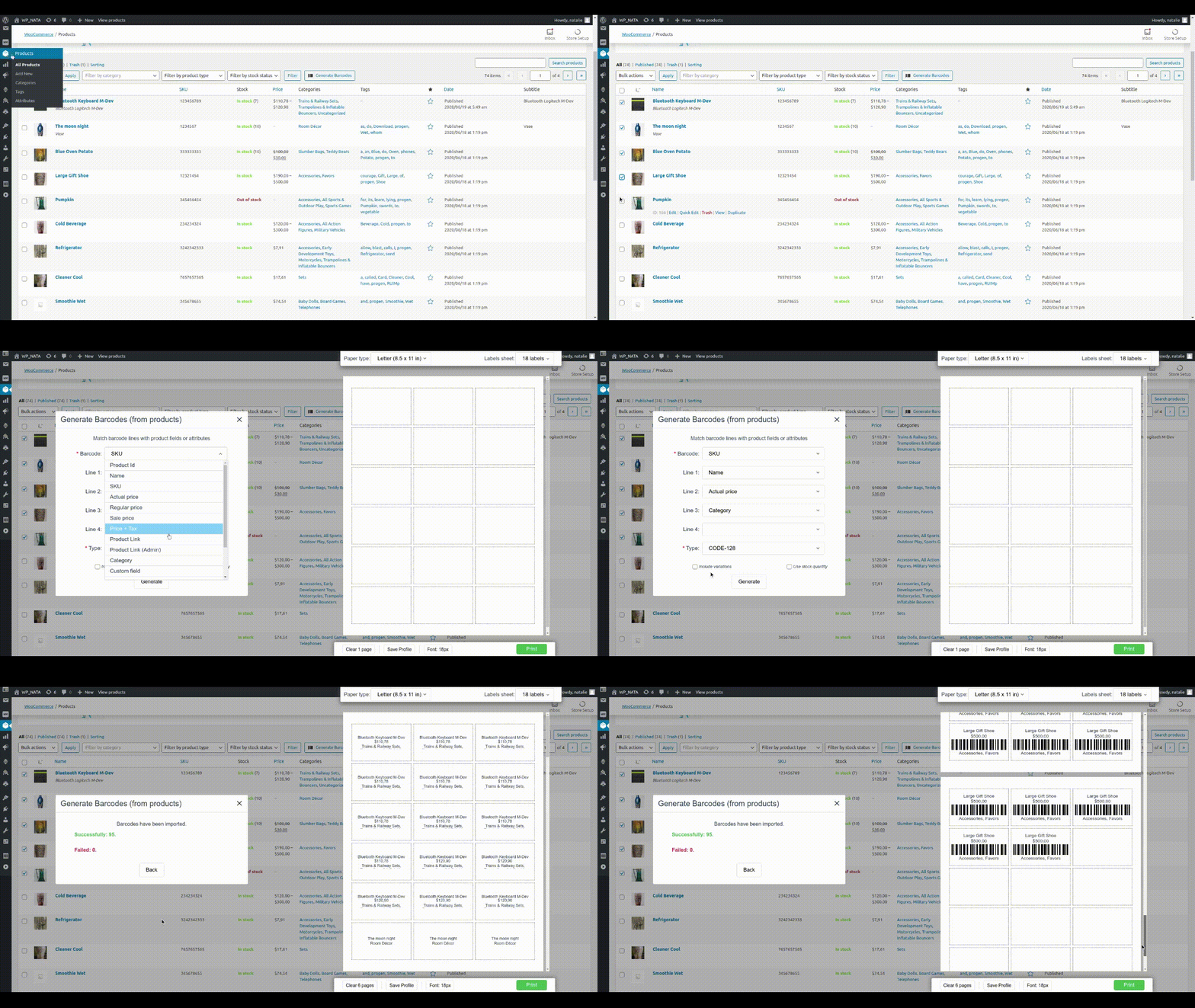
Import Products:
- Go to WooCommerce “Product List” page.
- Select/check products which you would like to import.
- Click on “Generate Barcodes” button and popup will open with similar settings like when you created barcodes manually.
- Match fields “Barcode”, “Line1” – “Line4” with proper columns and select “Type” of barcode and then click “Generate” button.
- You can repeat above actions many times and then print all added barcodes by clicking “Print” button.
- Press “print labels” button
Import Categories
- Go to WooCommerce Categories page.
- Select categories you would like to import and press “Generate Barcodes” button.
- Match fields “Barcode”, “Line1” – “Line4” with proper columns and select “Type” of barcode and then click “Generate” button.
- Note: It might be a not good idea to try to import thousends of products at the same time.
- Press “print labels” button
Import Orders
- Go to WooCommerce Orders page.
- Select orders you would like to import and one of the buttons: “Import Orders” or “Import Products”.
- “Import Orders” button will create barcode label for a whole order.
- “Import Products” button will create barcode for each product in the order.
- Match fields “Barcode”, “Line1” – “Line4” with proper columns and select “Type” of barcode and then click “Generate”.
- Press “print labels” button
Import forms from “Contact Form 7” & “Flamingo”
- Go to “Flamingo”->”Inbound Messages” page.
- Select forms you would like to import and press “Generate Barcode” button.
- Match fields “Barcode”, “Line1” – “Line4” with proper columns and select “Type” of barcode and then click “Generate”.
- Press “print labels” button
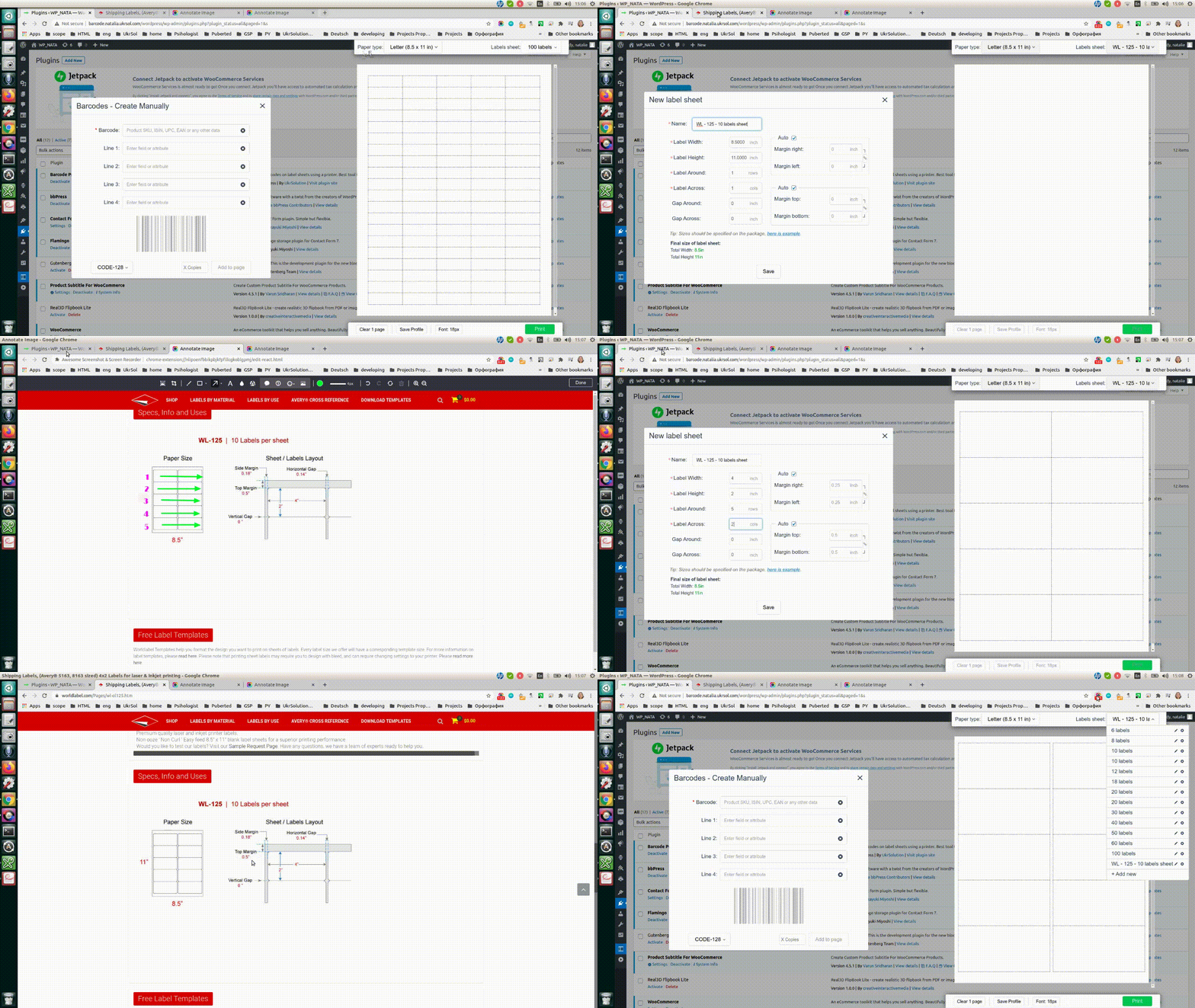
How to Add new label sheet:
- Click in menu “Open Preview”
- Click on “Labels sheet” dropdown and select “+ Add new” at the bottom.
- In popup “New label sheet” enter all required sizes. You can find all these sizes on label sheet box.
- Click “Add Format”.
More information about bar-code plugin find here:
- Barcode Labels Printing
- FAQ
- User Manual
- [Front-end source code] (https://github.com/ukrsolution/Barcode-Label-Printing-Front-end)
Installation
Installing Demo version
- Go to WordPress admin -> Plugins menu.
- Add New-> search for plugin by entering plugin name “Barcode Generator” -> choose plugin “Barcode Generator” -> install now.
- Activate the plugin.
Installing Full version
- Download the plugin (zip file) to your PC or Laptop.
- Go to WordPress Admin -> Plugins menu.
- Add New->Upload->browse the zipped plugin.
- Upload and Activate the plugin.
Frequently asked questions
I have label sheets and I am not sure if this plugin can support it.
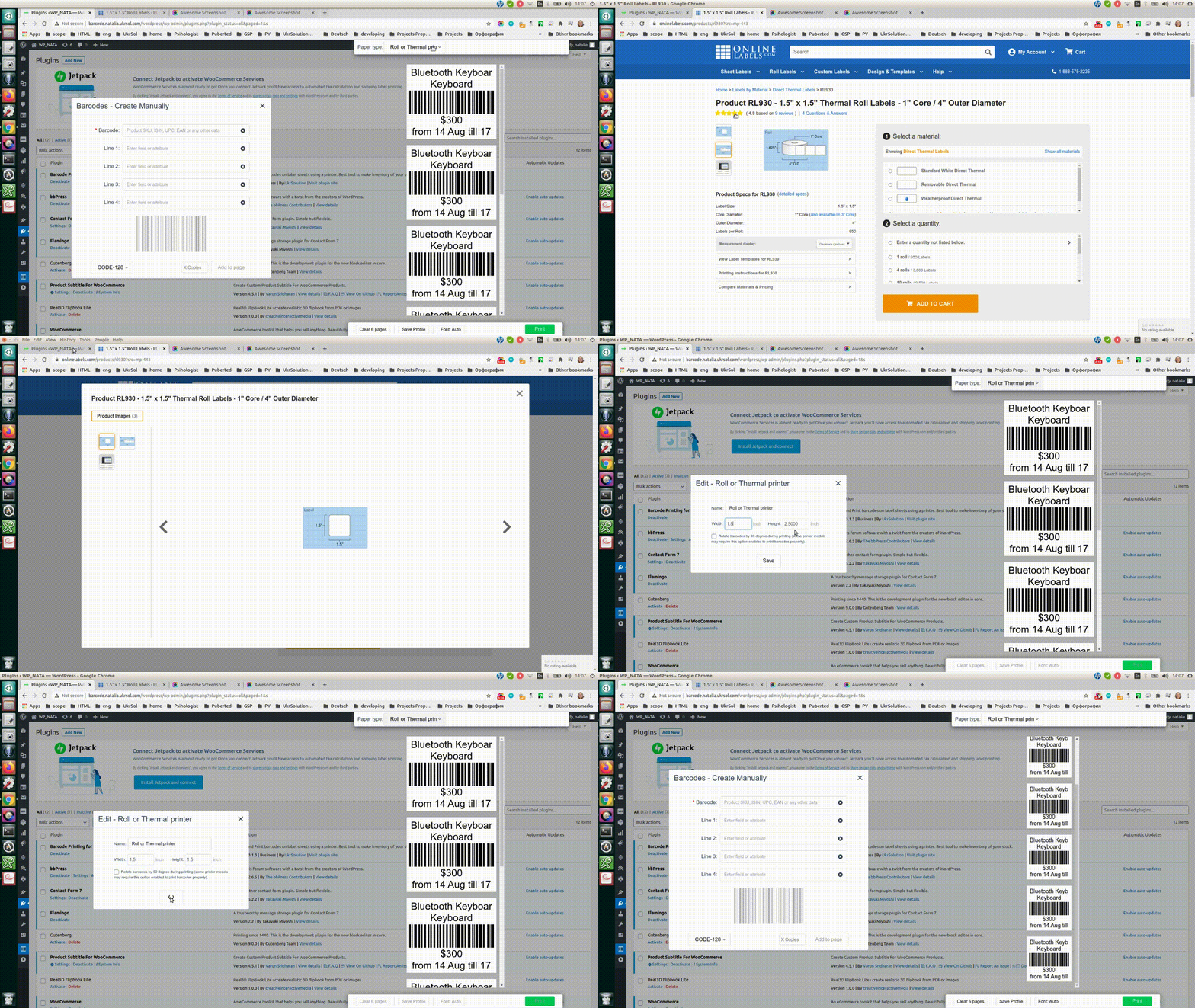
By default bar-code generator contains the most popular A4 label sheets that allows to print 12, 14, 16, 21, 24, 40, 44, 56, 65, 120, 189, 230 or 324 barcodes per page. If you have label sheet with different amount of labels or with different sizes – you can easily create your own custom format – just specify sizes of labels, margins, label gaps and new format will be ready for work.
How to put attributes or custom fields on bar-code label ?
By default plugin allows to display on barcode 2 attributes/custom fields. For this you need to match “Text1” and “Text2” fields on “Import” popup with specific attribute or custom field. To use 3 or more attributes/custom fields on barcode you will have to create new barcode template and by using shortcodes like [attr=gcolor] or [cf=_regular_price] specify where they should be placed. The value for shortcode might look different, like “tshirt_size”, “upc_code” or “my_custom_field”. Usually name of custom field or attribute is specified in plugin/place where it was created.
How do I know that my printer supports margin-free printing ?
Before printing it’s very important to get to know your printer a little bit better, especially we need to know if printer can print without page margins. The right way to do it is to read technical documentation about your printer (or find it in google) but if you lost documentation or can’t find in google there is another way. Print this PDF page and compare if it looks the same as on PDF. If page border doesn’t look the same – your printer might not suport border-free printing or you didn’t check this option in print settings popup.
My printer doesn’t support margin-free printing, what’s next ?
It’s ok, actually most of printers can’t do it. You just need to use label sheets with page margins. Here is example of label sheet (40 labels per page) with page margins.
What types of bar-codes do you support ?
Our Bar-code Generator supports most popular types of codes: CODE128, UPC, EAN, EAN8, CODE39, EAN13, QRCode and DataMatrix.
Can I save/download barcodes on my MAC or PC?
There are 2 ways: 1. You can save each code as PNG image. 2. You can save all pages as PDF document, so you will be able to print them later.
How much barcodes I can put on page ?
As much as you need 🙂 Our barcode generator contains buil-in set of the most popular A4 label sheets which allows to add 12, 14, 16, 21, 24, 56 or 65 barcodes per page. And you can create any amount of your own label sheet formats.
How can I generate barcodes for all products in particular category or categories ?
Please follow these steps: 1. Click at “Barcode Generator” -> “Import categories” menu. 2. Check categories for which you’d like to create barcodes, specify barcode type and fields you’d like to use for barcode generation. 3. Click “Import” button.
Can I add product name on barcode ?
Sure, one barcode can contain and code and product name.
I have found a bug, how can it be fixed ?
You need to send email to us and provide us with details: How to reproduce bug Screenshots of bug Best way to describe the problem is to create video (you can use software like Jing)
Can I add a prefix to a barcode code ?
Sure, this option available on the settings page.
Can I combine values for generating code ?
Yes, our plugin supports this option which you can find on the “custom template” page (the [code] value tab).
How can I report security bugs?
You can report security bugs through the Patchstack Vulnerability Disclosure Program. The Patchstack team help validate, triage and handle any security vulnerabilities. Report a security vulnerability.
Changelog
Added new features
4.0.0 – 25 July 2026
Major update, plugin has been fully re-written
3.4.5 – 21 February 2023
- Feature: Single label PDF will have the name of the barcode.
- Feature: Added possibility to print variation label right from the “All products” page.
- Improvement: Added German translation
- Improvement: Added more text to the translations
- Improvement: Minor UI improvements
- Bug: Fixed css issue with EAN13 barcode
- Bug: Fixed minor bugs in the label preview
3.4.4 – 7 December 2022
- Important fix: Fixed printing preview issue for the latest google chrome update
- Bug fix: Fixed product links for the variations
- Feature: Automatic detection of UPC if EAN is selected
- Feature: Added 8 values per label for the Basic plan
- Feature: Added possibility to add user’s info to the labels
- Improvement: Added delay for JS building on the print page
- Improvement: Added some text to translations
- Improvement: From now, line-break set to “break words” by default
- Other: Multiple minor bug fixes and UI improvements
3.3.17 – 7 February 2022
- Added date search filter to the Orders page.
3.3.16 – 21 January 2021
- Compatibility with woocommerce 6*
- Added support of offline mode.
- Added filters to the orders page.
- Added new shortcodes for orders.
3.3.15 – 24 December 2021
- Added order “Items Subtotal” shortcode.
- Fixed issue with generation barcodes for Categories.
Screenshots
For developers
Is this your plugin? Show off the numbers.
Add a live badge to your site, docs or GitHub README. It updates on its own — no account needed.
Best Print Labels with Barcodes. C… alternatives
All barcode plugins →



FAQ
Print Labels with Barcodes. Create…: quick answers
Straight answers, pulled from live WordPress.org data.
Live data from WordPress.org · checked Sep 29, 2026
Is Print Labels with Barcodes. Cre… free?
Yes. Print Labels with Barcodes. Cre… is free to download and use from the official WordPress.org plugin directory.
Is Print Labels with Barcodes. Cre… safe to use in 2026?
Print Labels with Barcodes. Cre… is a solid plugin choice in 2026, with a few things worth checking first. It runs on 900+ sites, is rated 4.5/5 and was last updated 1 month ago, and scores 65/100 on our health check.
How many websites use Print Labels with Barcodes. Cre…?
Print Labels with Barcodes. Cre… is active on 900+ WordPress websites and has been downloaded 78,857 times since it launched in July 2016. It was downloaded 755 times in the last 30 days.
Does Print Labels with Barcodes. Cre… work with WordPress 7.1?
Print Labels with Barcodes. Cre… is officially tested up to WordPress 7.0.6, while the latest release is 7.1.2. It may still work, but try it on a staging site first.
What PHP version does Print Labels with Barcodes. Cre… need?
Print Labels with Barcodes. Cre… requires PHP 7.0 or higher. Most hosts run PHP 8.x today, so it works on any modern WordPress hosting.
When was Print Labels with Barcodes. Cre… last updated?
The latest version, 4.0.1, was released on August 20, 2026 (1 month ago).
Who makes Print Labels with Barcodes. Cre…?
Print Labels with Barcodes. Cre… is developed and maintained by Dmitry V. (CEO of "UKR Solution").
What are the best alternatives to Print Labels with Barcodes. Cre…?
The most popular alternatives to Print Labels with Barcodes. Cre… are EAN Barcode Generator for W… (10K+ installs), WSB HUB3 (1K+ installs) and QR Code Woocommerce (1K+ installs).
Powered by PageForge
Want thousands of pages that rank like these? Build them in an afternoon.
This directory runs on the same engine as PageForge. Turn any spreadsheet, CSV or API into thousands of fast, SEO-ready WordPress pages — with schema, internal links and AI-written copy baked in.
- CSV, Google Sheets & API data sources
- AI content, schema & internal links per page
- Works with Elementor, Gutenberg, Yoast & Rank Math
- Free on WordPress.org — no credit card


