


Pricing Table builder – Price List
WordPress Pricing Table plugin is a great tool for adding beautiful price tables to your website. This plugin has a lot of necessary features that you will like. You can check the demo page and see some live examples.

Betrachten Sie eine Alternative
Pricing Table builder shows warning signs in 2026 — compare the alternatives below before installing. It runs on 100+ sites, is rated 3/5 and was last updated 10 months ago, and scores 41/100 on our health check.
- Kleine Benutzerbasis (100+ aktive Installationen)
- Bisher sehr wenige Bewertungen
- Nur getestet bis WordPress 6.9 (letzt ist 7.1)
Wie stapelt es sich?
Side-by-side bei Installationen, Updates, Bewertungen und Support


Tägliche Downloads
Download-Spitzen folgen normalerweise einer neuen Version - jede Website, die automatisch aktualisiert wird, gilt als Download.
Ranglisten
Where Pricing Table builder stands todayWordPress.org Ranglisten suchen
Live-Position in der Plugin-Suche, Top 100| Stichwort | Position |
|---|---|
| Comparison Tables | #89 |
| price list | #39 |
| price table | #56 |
| Preistabelle | #37 |
| Responsive Preistabelle | #38 |
Versionsübernahme
Anteil aktiver Sites pro Release.
Bewertungsaufschlüsselung
★★★★★★★★★★ 3 from 2 reviews
About Pricing Table builder – Price List
Aus der offiziellen Readme · V1.5.3Beschreibung
WordPress Pricing Table plugin is a great tool for adding beautiful price tables to your website. This plugin has a lot of necessary features that you will like. You can check the demo page and see some live examples.
Here is our plugin Demo page:
Features of Free version
- User friendly plugin
- Works with all actual WordPress versions
- Responsive design
- Unlimited tables and column themes
- Ability to set individual theme for each column
- Ability to set Distance between columns
- Unlimited columns
- Font Awesome icons 500+ nice icons
- Position control option
- Ability to set margins for all elements
- Ability to set paddings for all elements
- Title background color option
- Price background color option
- Features background color option
- Additional text background color option
- Button background color option
- Ability to set Title, feature, additional text, price colors
- Easily change the Additional text position
- Ability to set font size, font family for all elements
- Border options for all fields (color, radius, type, width)
- … and Much More
You can upgrade the free version to the WordPress Pricing Table Premium for adding more functionality.
Features of Premium version
- 37 animation effects
- 20 Awesome built-in themes
- Beautiful Background Gradients
- 15 unique and nice button styles
- Column scale option
- Column fields ordering
- Column type option
- Column outside box shadow option
If you have any question or suggestion(for example, about adding new features) about our plugin, contact us at SUPPORT FORUM.
You can use our plugin for different purposes, for example, you can create paid registration form or hosting plans. Let’s check how to use this plugin. First of all, you need to create and configure theme or use default themes. Also, you can duplicate themes and make changes to duplicated themes. It will save you time. You can duplicate themes, then make minimal changes and create several themes just in 5 minutes.
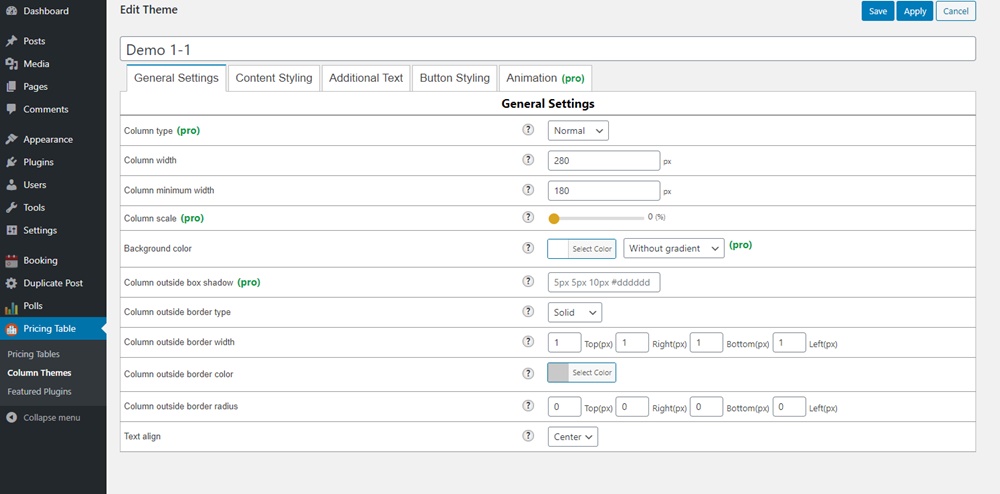
For creating themes go to the admin panel and open our plugin themes admin page(Column Themes). Click on the “Add new” button. Type the theme name and start changing options. Set the Column width and Column minimum width, the second option is an important option for responsive design.
Also, from the general settings tab, you can configure the column border options, such as border type, border width, border color and border radius. Don’t forget to set the text align as well.
Then open the content styling tab. From here you can set the title, price and features styles. You can change from this page background colors, text colors, fonts, font sizes. Also, you can set paddings for these fields(Top, Right, Bottom, Left). You can set margin options as well. Check the border options as well.
The next option is the additional text option. In the first field you can type the additional text and then configure other parameters. This field mostly will need for adding the Best Offer field. It will give an extra nice view to the current column. You can change the additional text positions and move it to Above the column, Above the title, Below the title, Above the price, Below the price. In this way, you can create unique and nice designs. Also, there are other necessary options for this field, such as background color, font family, font size, element position(left, center, right), element width and much more.
The next tab is the button styling tab. It is another important tab that will affect the column design. In the free version, you can use only the standard version of button. The other button designs available only in the premium version. The standard button has several parameters that you can use. You can configure the Button row padding from the top, right, bottom and left. You can set the margin parameters as well. Don’t forget to configure the border settings as well. The other important parameter for the button is the background color, also, you can set the background hover color as well. Set the other parameters such as button text colors, font family, border options and button paddings. The last tab is the Animation tab. This option is available only in the Premium version and it will give an extra nice look.
That’s all, just save the theme.
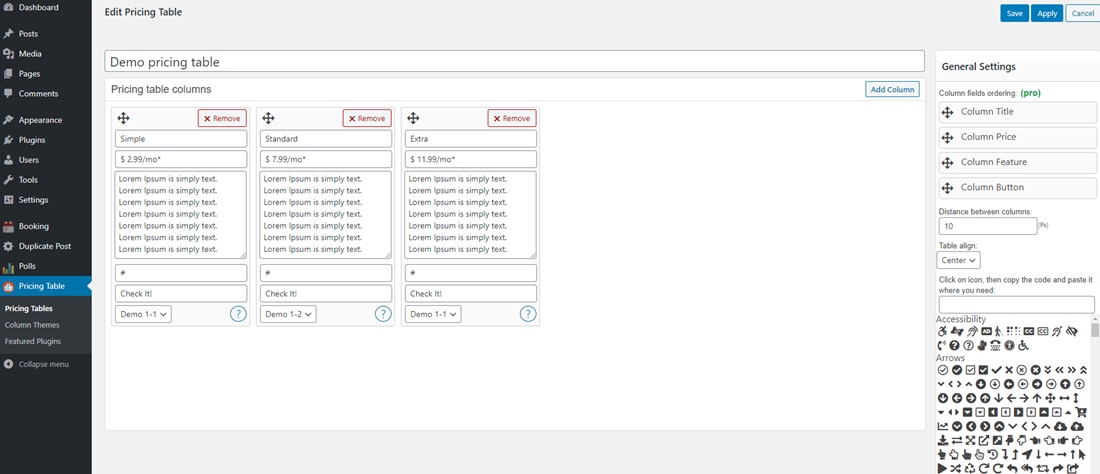
Then open the Pricing Tables page. You can add, remove and configure columns from this page. The first thing you need to do is filling the columns fields. Type the plan name, price, features(type the first feature, press enter and type the next one and so on), button URL(payment URL), button text and choose the theme you created. You can change the column fields positions from the right side using the drop-down option(we would mention, that it is a premium feature as well). After that set the column distance and table position. You can use 500+ font awesome icons for all fields of a column. Just find the icon you need(from the right bottom side) and click on it. Then you will see that the icon code appears in the field above icons. Copy this code and paste to any column field. Then save the spreadsheet.
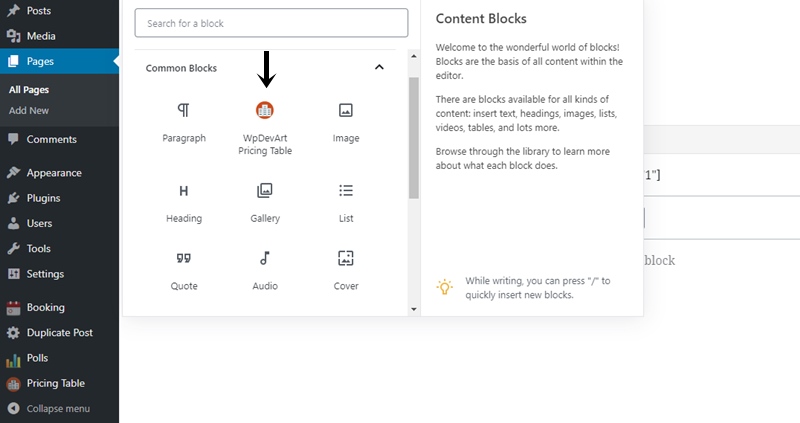
You can insert spreadsheets to the page/post using our plugin shortcode button. You will find it from page/post editor(you can check screenshots and see how to use the shortcode button).
After all, we can say, that a good plugin is part of success, including increased sales and a brightly displayed price spreadsheet, that will attract buyers to buy goods on your website.
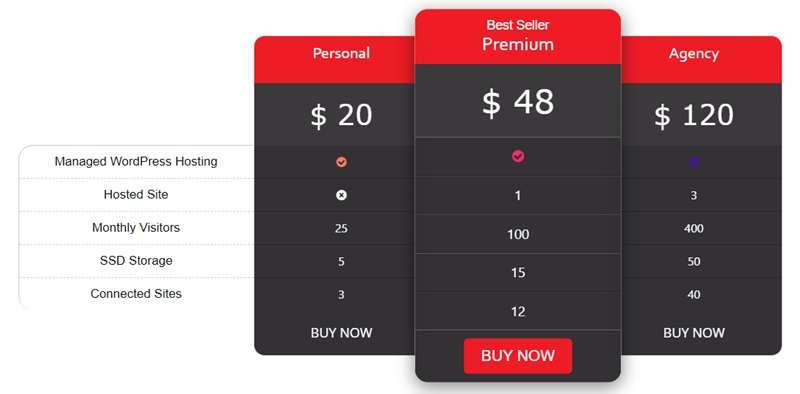
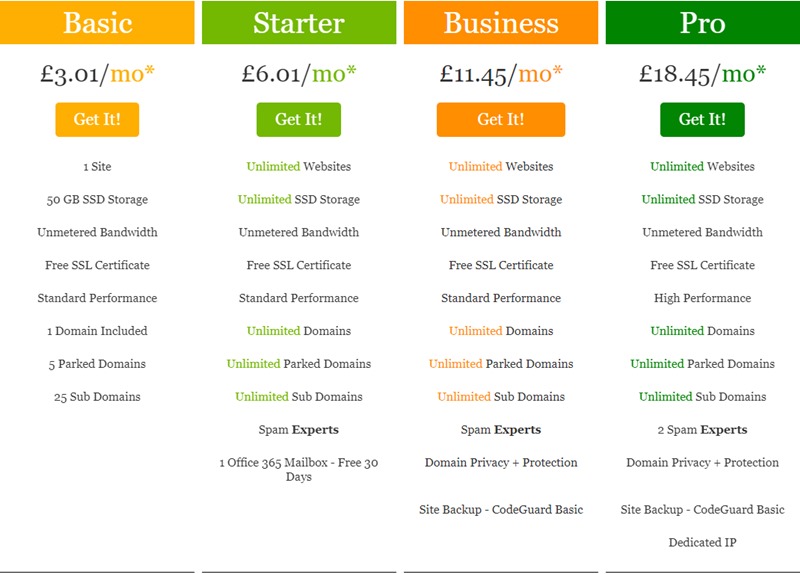
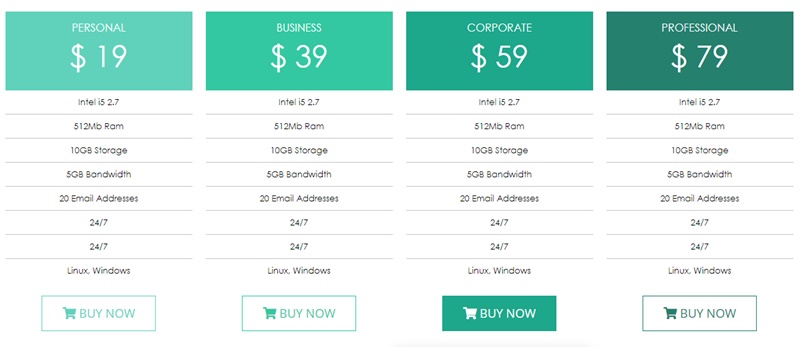
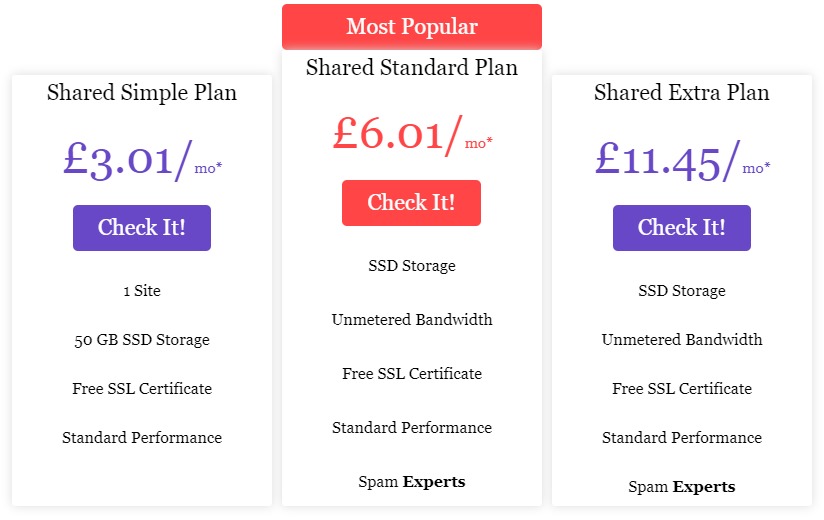
If we are talking about the beauty of style, then our plugin in the free version has a number of interesting solutions in various color options. It has several ready-made styles and they all look great with bright colors. Among the screenshots, it can be seen that our plugin can also be used as a comparative spreadsheet.
It is one of the best and smart plugins for WordPress, easy to use and configure to display anywhere on the WordPress website page/post. It has a simple and understandable interface, it has a wealth of choice of styles, it has very beautiful themes. It looks very beautiful and the style is very fashionable.
Installation
Download the ZIP file.
- Go to the Plugins page from the WordPress admin panel and click on the “Add New” button, then click on the “Upload Plugin” button.
- Click “Choose file” then select our plugin zip file.
- Install and activate it.
- That’s all, now you can use it.
Änderungsprotokoll
1.5.3
- admin UI changes.
1.5.2
- code improved.
1.5.1
- bug fixed.
1.5.0
- bug fixed.
1.4.9
- bug fixed.
1.4.8
- bug fixed.
Screenshots
Für Entwickler
Ist das dein Plugin? Zeigen Sie die Zahlen.
Fügen Sie Ihrer Website, Docs oder GitHub Readme ein Live-Badge hinzu. Es wird von selbst aktualisiert - kein Konto erforderlich.
Best Pricing Table builder alternatives
All Comparison Tables plugins →Fragen und Antworten
Pricing Table builder – Price List: quick answers
Gerade Antworten, gezogen von Live WordPress.org Daten.
Quelle: WordPress.org
Is Pricing Table builder free?
Yes. Pricing Table builder is free to download and use from the official WordPress.org plugin directory.
Is Pricing Table builder safe to use in 2026?
Pricing Table builder shows warning signs in 2026 — compare the alternatives below before installing. It runs on 100+ sites, is rated 3/5 and was last updated 10 months ago, and scores 41/100 on our health check.
How many websites use Pricing Table builder?
Pricing Table builder is active on 100+ WordPress websites and has been downloaded 15,572 times since it launched in February 2020. It was downloaded 294 times in the last 30 days.
Does Pricing Table builder work with WordPress 7.1?
Pricing Table builder is officially tested up to WordPress 6.9.12, while the latest release is 7.1.5. It may still work, but try it on a staging site first.
When was Pricing Table builder last updated?
The latest version, 1.5.3, was released on February 2, 2026 (10 months ago).
Who makes Pricing Table builder?
Pricing Table builder is developed and maintained by wpdevart.
What are the best alternatives to Pricing Table builder?
The most popular alternatives to Pricing Table builder are Tableberg (4K+ installs), NicheTable (600+ installs) and AffiEasy (30+ installs).
Angetrieben von PageForge
Eine Vorlage und eine Tabelle. Eine echte Seite für jede Suche.
PageForge Verwandelt jede Zeile eines CSV in eine WordPress-Seite mit eigenem Titel, URL, SEO Felder und Schema entworfen. Kostenlos auf WordPress.org.
- CSV und XLSX, plus Google Sheets auf Beruf und Unternehmen
- seinen eigenen Titel, URL, SEO Felder und Schema für jede Seite
- Arbeitet mit dem Blockeditor, Elementor, Divi und Avada
- Kostenlos auf WordPress.org, keine Kreditkarte