


Slideshow Gallery LITE
Feature content in a JavaScript powered slideshow gallery showcase on your WordPress website.

Solide Wahl
Slideshow Gallery LITE is a solid plugin choice in 2026, with a few things worth checking first. It runs on 5K+ sites, is rated 4.6/5 and was last updated 6 months ago, and scores 72/100 on our health check.
- Loved by users — 4.6/5 from 743 reviews
- Momentum — downloads up 34.1% vs the previous 30 days
Wie stapelt es sich?
Side-by-side bei Installationen, Updates, Bewertungen und Support



Tägliche Downloads
Download-Spitzen folgen normalerweise einer neuen Version - jede Website, die automatisch aktualisiert wird, gilt als Download.
Ranglisten
Where Slideshow Gallery LITE stands todayWordPress.org Ranglisten suchen
Live-Position in der Plugin-Suche, Top 100| Stichwort | Position |
|---|---|
| Bildergalerie | #53 |
| slides | #8 |
| Diashow | #2 |
| wordpress plugins | >100 |
| wordpress slideshow gallery | #4 |
Versionsübernahme
Anteil aktiver Sites pro Release.
Bewertungsaufschlüsselung
★★★★★★★★★★ 4.6 from 743 reviews
About Slideshow Gallery LITE
From the official readme · v1.8.6Beschreibung
Feature content in beautiful and fast JavaScript powered slideshow gallery showcases on your WordPress website.
You can easily display multiple galleries throughout your WordPress website displaying your custom added slides, slide galleries or showing slides from WordPress posts/pages.
The slideshow is flexible, all aspects can easily be configured and embedding/hardcoding the slideshow gallery is a breeze.
See the online demonstration.
Here are several ways to display a slideshow:
Shortcode for all slides
To embed a slideshow with all slides under Slideshow > Manage Slides in the plugin, simply insert the shortcode below into the content of a post/page.
[tribulant_slideshow]
Shortcode for featured posts
You can create a slideshow from featured posts, each post being a slide and it’s featured image used as the slide image. The link of the slide will be the link of the post so clicking on the slide will take users to that post.
Here is a sample shortcode that you can use for this:
[tribulant_slideshow featured="true" featurednumber="10" featuredtype="post"]
Shortcode for a gallery’s slides
To embed a slideshow with slides from a specific gallery under Slideshow > Manage Galleries in the plugin, simply insert the shortcode below (where X is the ID value of the gallery) into the content of a post/page.
[tribulant_slideshow gallery_id="X"]
Shortcode for the images of a WordPress post/page
To embed a slideshow with the images uploaded to a WordPress post/page through it’s media gallery, simply insert the shortcode below (where X is the ID value of the post). Whether you want to display the images from a post or a page, the parameter remains post_id.
[tribulant_slideshow post_id="X"]
Shortcode for latest/featured products
In order to display latest or featured products in a slideshow, you need the Shopping Cart plugin from Tribulant. Once you have this installed and activated, you can easily display recent or featured products. To display recent products use the shortcode below.
[tribulant_slideshow products="latest"]
And to display featured products, use the one below.
[tribulant_slideshow products="featured"]
For both, you can use the productsnumber parameter to limit the number of products eg.
[tribulant_slideshow products="latest" productsnumber="5"]
Hardcode into any plugin/theme with PHP
To hardcode into any PHP file of your WordPress theme, simply use
<?php if (function_exists('slideshow')) { slideshow($output = true, $gallery_id = false, $post_id = false, $params = array()); } ?>.
Parameters for shortcode/hardcode to customize each slideshow
You can use any of the following parameters with both the hardcoding and shortcode to customize each slideshow gallery:
Shortcode example 1:
[tribulant_slideshow layout=”responsive” gallery_id=”3″ auto=”true” navopacity=”0″ showthumbs=”true”]
Shortcode example 2:
[tribulant_slideshow layout=”specific” post_id=”379″ width=”600″ height=”300″ auto=”false” showinfo=”false”]
Hardcode example 1:
“responsive”, ‘auto’ => “true”, ‘navopacity’ => “0”, ‘showthumbs’ => “true”)); ?>
Hardcode example 2:
“specific”, ‘width’ => “600”, ‘height’ => “300”, ‘auto’ => “false”, ‘showinfo’ => “false”)); ?>
This way you can customize each slideshow you embed or hardcode, despite the settings you saved under Slideshow > Settings.
effect[ fade | slide ] = Choose the transition effect of the slideshow. Either fade or slideslide_direction[ lr | tb ] = If you’re usingslidefor theeffect, you can choose left/right or top/bottom slidingeasing[ swing ] = Choose the easing effect you’d like. The default isswingproducts[ latest | featured ] = String “latest” or “featured” to display products from the Checkout plugin.productsnumber[ productsnumber ] = Numeric/integer to limit the number of products to display.featured[ true | false ] = Show posts with their featured imagesfeaturednumber[ number ] = A numeric/integer value. The default is 10featuredtype[ post_type ] = A post type slug like ‘post’, ‘page’, etc. The default is ‘post’gallery_id[ gallery_id ] = Numeric/integer ID of a gallery to display images from.post_id[ post_id ] = Numeric/integer ID of a post to take images from it, uploaded through it’s “Add Media” button.numberposts[ numberposts ] = Numeric value of the number of images to take from the post/page. “-1” for unlimited/alllayout[ responsive | specific ] = Set to ‘responsive’ for mobile/tablet compatible theme and ‘specific’ for fixed width/height.resizeimages[ true | false ] = Set to ‘true’ to resize images to fit the slideshow dimensions.imagesoverlay[ true | false ] (default: setting) = Set to ‘true’ to display links of slides that are images in a Colorbox overlay on the page.orderby[ random ] = Set to ‘random’ to randomly order the slides. Leave this shortcode parameter to order by the order set on the slides.width[ width | auto ] = (only with layout=”specific”) Width of the slideshow in pixels. Don’t specify ‘px’ part, just the numeric value for the height.resheight[ resheight ] = (only with layout=”responsive”) Numeric/integer value such as “30” to be used with ‘resheighttype’ below- `resheighttype [ resheighttype ] = (only with layout=”responsive”) “px” (pixels) or “%” (percent) as the value e.g., resheighttype=”%”
height[ height ] (only with layout=”specific”; default: setting) = Height of the slideshow in pixels. Don’t specify the ‘px’ part, just the numeric value for the height.autoheight[ true | false ] = Should the gallery adjust it’s height for each slide?auto[ true | false ] (default: setting) = Set this to ‘true’ to automatically slide the slides in the slideshow.autospeed[ speed ] (default: setting) = Speed of the auto sliding. 10 is normal. Lower number is faster. Between 5 and 15 is recommended.fadespeed[ speed ] (default: setting) = Speed of the fading of images. 10 is normal. Lower number is faster. Between 1 and 20 is recommended.shownav[ true | false ] (default: setting) = Set to ‘true’ to show the next/previous image navigation buttons.navopacity[ opacity ] (default: setting) = The opacity of the next/previous buttons. Between 0 and 100 with 0 being transparent and 100 being fully opaque.navhoveropacity[ opacity ] (default: setting) = The opacity of the next/previous buttons on hovering. Between 0 and 100 with 0 being transparent and 100 being fully opaque.showinfo[ true | false ] (default: setting) = Set to ‘true’ to show the information bar for each slide.infospeed[ speed ] (default: setting) = Speed at which the information bar will slide up. Between 5 and 15 is recommended.showthumbs[ true | false ] (default: setting) = Set to ‘true’ to show the thumbnails for the slides.thumbsposition[ top | bottom ] (default: setting) = Set to “top” to show above the slideshow.thumbsborder[ hexidecimal color ] (default: setting) = Hex color of the active thumb border. For example #333333.thumbsspeed[ speed> ] (default: setting) = Speed of the thumbnail bar scrolling. Lower is slower. Between 1 and 20 is recommended.thumbsspacing[ spacing ] (default: setting) = An integer value in pixels to space the thumbnails apart. Don’t include the ‘px’ part, just the number. Between 0 and 10 is recommended.
Sprachen
Thank you to these wonderful people who contributed to translating the Slideshow Gallery plugin:
- Afrikaans (af_ZA) by Antonie Potgieter | Tribulant
- Slovak (sk_SK) by Branco Radenovich
Contact us to submit your language file and be mentioned here!
Installation
Installing the WordPress slideshow gallery plugin is very easy. Simply follow the steps below.
-
In WordPress, navigate to Plugins > Add New and upload it there (or search and install it there), and then skip to step 6. Or, for manual installation, extract the package to obtain the
slideshow-galleryfolder and continue below. -
Laden Sie den Ordner
slideshow-galleryin das/wp-content/plugins/-Verzeichnis hoch. -
Aktivieren Sie das Plugin über das „Plugins“-Menü in WordPress.
-
Configure the settings according to your needs through the Slideshow > Settings menu.
-
Add and manage your slides in the ‘Slideshow’ section.
-
Use
[tribulant_slideshow post_id="X"]to embed a slideshow with the images of a post into your posts/pages or use[tribulant_slideshow gallery_id="X"]to display the slides of a specific gallery by ID or use[tribulant_slideshow]to embed a slideshow with your custom added slides under Slideshow > Manage Slides or<?php if (function_exists('slideshow')) { slideshow($output = true, $gallery_id = false, $post_id = false, $params = array()); } ?>into your WordPress theme using PHP code.
Änderungsprotokoll
See all releases and full changelogs in our docs.
1.8.6
- IMPROVE: Radio buttons and checkboxes styling.
- FIX: ‘menu_order’ issue in the slideshow.
- FIX: ‘exclude’ attribute handling in the shortcode.
- FIX: Stored Cross-Site Scripting (XSS) vulnerability in the ‘alwaysauto’ shortcode attribute. Added input validation and proper JavaScript escaping to prevent injection attacks.
1.8.5
- IMPROVE: Responsive images are able to get resized now.
- IMPROVE: PHP 8.4 compatibility.
- FIX: Slow loading of slideshow images.
1.8.4
- ADD: “Dismiss forever” button on the admin area rating notice to dismiss it forever.
- FIX: Order slides by random (orderby=”random”) was not working.
- FIX: XSS vulnerability.
1.8.3
- IMPROVE: PHP 8.2 and 8.3 compatibility.
- FIX: Cannot order slides after previous vulnerability fix.
1.8.2
- FIX: Vulnerability SQL injection on shortcode gallery.
1.8.1
- FIX: Saving slides and galleries that are multilingual don’t save the title and description.
- FIX: Disabling direct access to plugin log file using htaccess rules added on plugin activation.
Screenshots
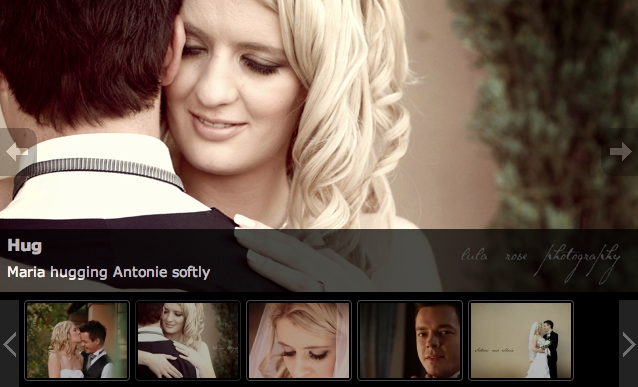

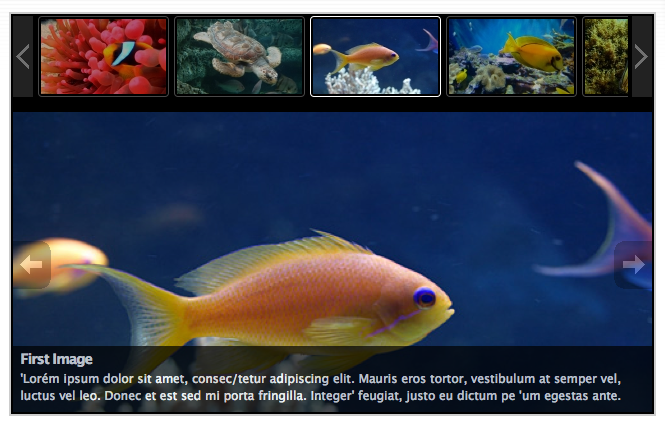
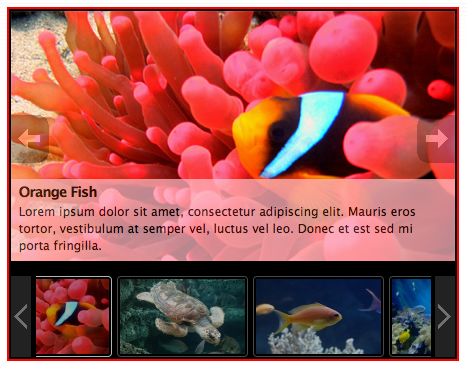
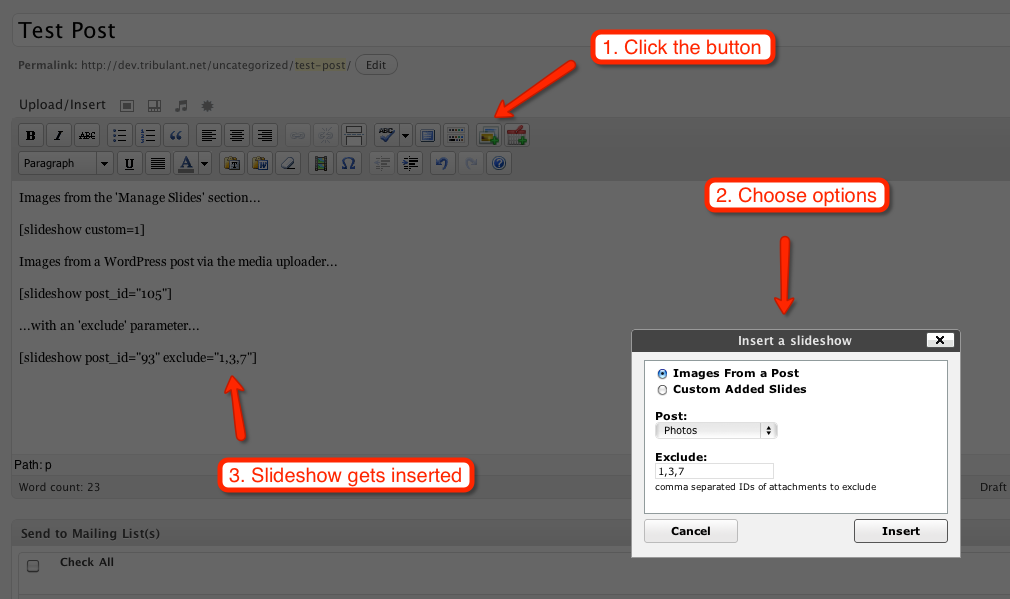
Für Entwickler
Ist das dein Plugin? Zeigen Sie die Zahlen.
Fügen Sie Ihrer Website, Docs oder GitHub Readme ein Live-Badge hinzu. Es wird von selbst aktualisiert - kein Konto erforderlich.
Best Slideshow Gallery LITE alternatives
All image gallery plugins →



Fragen und Antworten
Slideshow Gallery LITE: quick answers
Gerade Antworten, gezogen von Live WordPress.org Daten.
Quelle: WordPress.org
Is Slideshow Gallery LITE free?
Yes. Slideshow Gallery LITE is free to download and use from the official WordPress.org plugin directory.
Is Slideshow Gallery LITE safe to use in 2026?
Slideshow Gallery LITE is a solid plugin choice in 2026, with a few things worth checking first. It runs on 5K+ sites, is rated 4.6/5 and was last updated 6 months ago, and scores 72/100 on our health check.
How many websites use Slideshow Gallery LITE?
Slideshow Gallery LITE is active on 5K+ WordPress websites and has been downloaded 786,091 times since it launched in September 2009. It was downloaded 1,599 times in the last 30 days.
Does Slideshow Gallery LITE work with WordPress 7.1?
Slideshow Gallery LITE is officially tested up to WordPress 7.0.9, while the latest release is 7.1.5. It may still work, but try it on a staging site first.
When was Slideshow Gallery LITE last updated?
The latest version, 1.8.6, was released on June 10, 2026 (6 months ago).
Who makes Slideshow Gallery LITE?
Slideshow Gallery LITE is developed and maintained by Tribulant Software.
What are the best alternatives to Slideshow Gallery LITE?
The most popular alternatives to Slideshow Gallery LITE are Photo Gallery, Sliders, Pro… (300K+ installs), Photo Gallery by 10Web (100K+ installs) and FooGallery Photo Gallery (100K+ installs).
Angetrieben von PageForge
Eine Vorlage und eine Tabelle. Eine echte Seite für jede Suche.
PageForge Verwandelt jede Zeile eines CSV in eine WordPress-Seite mit eigenem Titel, URL, SEO Felder und Schema entworfen. Kostenlos auf WordPress.org.
- CSV und XLSX, plus Google Sheets auf Beruf und Unternehmen
- seinen eigenen Titel, URL, SEO Felder und Schema für jede Seite
- Arbeitet mit dem Blockeditor, Elementor, Divi und Avada
- Kostenlos auf WordPress.org, keine Kreditkarte