


FormsCRM – Connect Forms to CRM directly
Connects your CRM, ERP and Email Marketing with your Forms plugin and create new Leads/Entries as the forms are filled automatically. GDPR compliant.

Solide Wahl
FormsCRM is a solid plugin choice in 2026, with a few things worth checking first. It runs on 1K+ sites, is rated 5/5 and was last updated 3 days ago, and scores 66/100 on our health check.
- Aktiv entwickelt – letztes Update vor 3 Tagen
- Getestet mit dem neuesten WordPress (7.1)
- Momentum — downloads up 401.4% vs the previous 30 days
- Bisher sehr wenige Bewertungen
Wie stapelt es sich?
Side-by-side bei Installationen, Updates, Bewertungen und Support



Tägliche Downloads
Download-Spitzen folgen normalerweise einer neuen Version - jede Website, die automatisch aktualisiert wird, gilt als Download.
Ranglisten
Where FormsCRM stands todayWordPress.org Ranglisten suchen
Live-Position in der Plugin-Suche, Top 100| Stichwort | Position |
|---|---|
| crm | #25 |
| GravityForms | #5 |
| odoo | #3 |
| vtiger | #2 |
| WpForms | >100 |
Versionsübernahme
Anteil aktiver Sites pro Release.
Bewertungsaufschlüsselung
★★★★★★★★★★ 5 from 3 reviews
About FormsCRM – Connect Forms to CRM directly
From the official readme · v4.4.6Beschreibung
Connects your CRM with the main Form Plugin directly, and send to your CRM when the form is filled automatically.
With this plugin, you don’t have to use third party software to send your Leads/data to your CRM. You will have a direct connection between your website and your CRM. It’s a connector between Web <> CRM/ERP/Email.
This plugin will connect different Forms plugins to CRM. We support at this time these forms plugins:
– GravityForms
– Elementor Forms
– Contact Form 7
– WooCommerce
– WPForms PRO
– JetForms
If you need to support more Forms plugins, please contact in forum support.
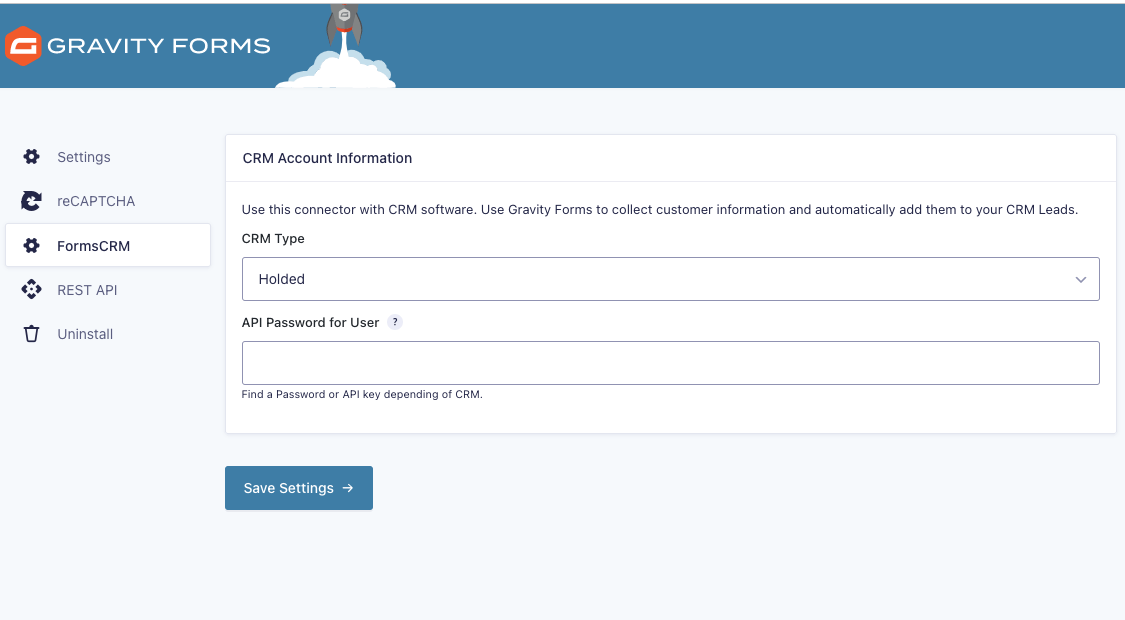
The plugin setup is very easy. Once you have uploaded the plugin, you configure the plugin with the URL, user and password of the user that will create the entries in the CRM.
After that, you’ll go to each form feed that you want to connect with the CRM. You will see a mapping fields where you choose for every field, the equivalent for CRM software field.
The plugin connects with the CRM via API webservice, a secure and best way to connect it. It doesn’t use a third party software. You’ll comply GDPR becaouse of not having a third provider.
At this time, FormsCRM supports in free version:
– Holded
– Clientify
– AcumbaMail
– MailerLite Classic
– Brevo
And you will find, that there are Premium Addons to support:
– Odoo
– RedSys
– Holded CRM
– vTiger 7
– PipeDrive
– Inmovilla
– SuiteCRM
– FacturaDirecta
– WHMCS
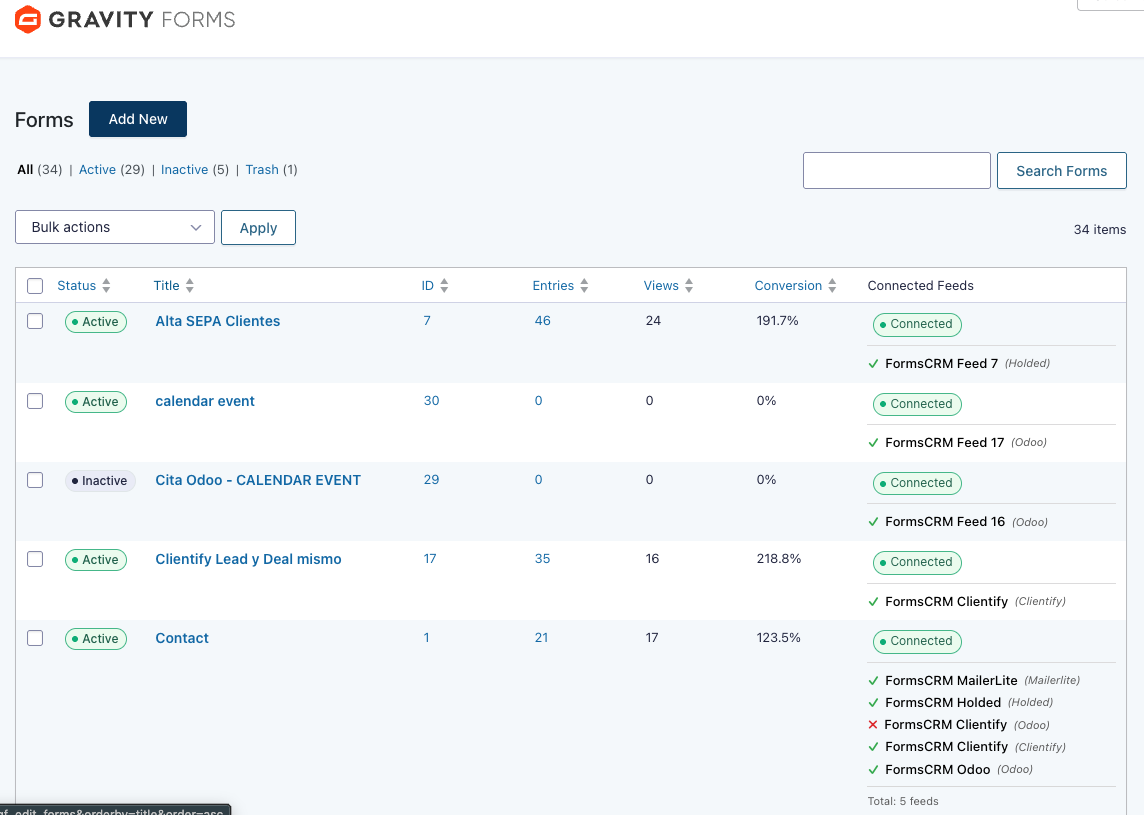
You can use multiple feed connector in GravityForms, WPForms PRO, Elementor Forms and ContactForm7, and you can use multiple CRM connectors in the same form.
Demo:
RedSys
Turn any FormsCRM form into a secure payment opportunity with RedSys. Whether you are taking a booking deposit, selling a service, collecting a registration fee, or charging for an order, customers complete their payment on the familiar, bank-hosted Redsys checkout.
Set the amount you want to charge, connect your existing Redsys virtual POS, and let FormsCRM take care of the handoff. Your customer is sent to the bank to pay and returned to your form confirmation page when they finish, so the experience stays smooth from first click to final confirmation.
Built for Spanish businesses that already use Redsys through their bank, the integration gives you a straightforward way to accept card payments without building or maintaining a separate checkout.
** UTM Tracker Addon **
Know exactly where every lead comes from. The UTM Tracker Addon captures UTM parameters from the URL and automatically attaches them to every form submission sent to your CRM — no hidden fields required.
When a visitor lands on your site with UTM parameters (e.g. ?utm_source=google&utm_medium=cpc&utm_campaign=spring), the addon:
- Reads the UTM values from the URL.
- Stores them in a browser cookie that persists for 90 days across page navigation.
- Preserves first-touch attribution — if the visitor returns later via a different channel, the original source is kept alongside the latest one.
- Injects the values directly into the CRM payload when the form is submitted, using merge tags in the field mapping (e.g.
formscrm_utm:utm_source).
Supported parameters: utm_source, utm_medium, utm_campaign, utm_term, utm_content — plus _first variants for first-touch attribution.
Dynamic values in GravityForms and WPForms
We have developed a way to get values from other fields in GravityForms and WPForms. You can use this in the field mapping in the feed. You can use:
{id:N} in order to get the value from field N
{label:N} in order to get the label from field N (only in GravityForms)
Expert Mode
You can enable Expert Mode in the form feed. This mode will show all fields of the CRM in the form mapping. This is useful if you want to connect all fields of the CRM to the form. Now currently works for Odoo.
We recommend to use this in the field mapping in the feed and hidden field that gets the value.
Slack Error Notifications
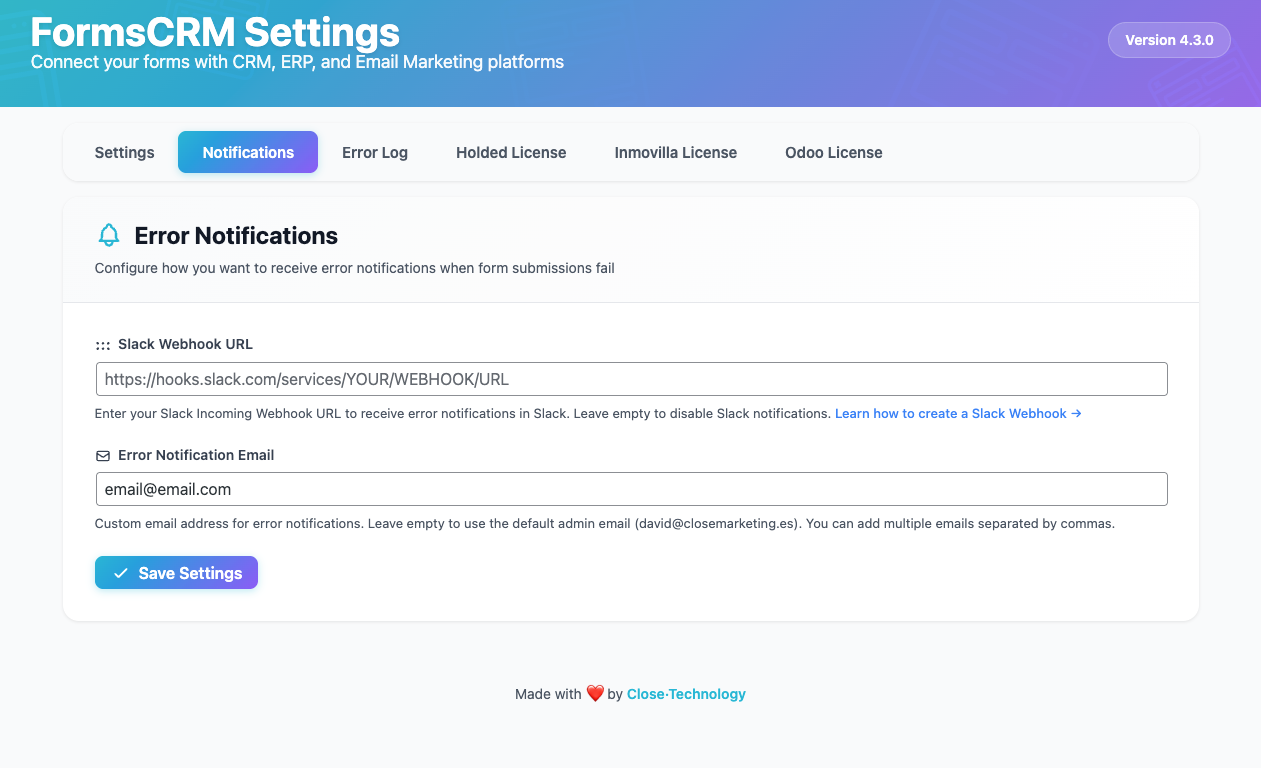
Receive instant error notifications in your Slack workspace! When a form submission fails to send to your CRM, you’ll get real-time alerts directly in your Slack channel.
How to Configure Slack Notifications:
- Create an Incoming Webhook in Slack (https://api.slack.com/messaging/webhooks)
- Go to Settings > FormsCRM in WordPress
- Paste your webhook URL in the “Slack Webhook URL” field
- Choose the Slack channel where you want to receive notifications
- Save changes
What Information is Included:
When an error occurs, the Slack notification includes:
– Site Information: Site name and URL in a single line
– Form Details: Form type (Gravity Forms, WPForms, Elementor, etc.), Form ID, Form name, and Entry ID
– Error Details: CRM name and complete error message
– Lead Data Preview: First 3 fields from the form submission (+ indicator if more fields exist)
– Technical Details: API endpoint URL for debugging
Message Format:
All Slack notifications use a compact, easy-to-read format with information presented in single lines. Messages are color-coded in red (danger) to stand out in your channel and ensure immediate attention to critical errors.
Error Notifications
Custom Email for Error Reports
You can configure a custom email address to receive error notifications when a form submission fails to send to your CRM. This is useful when you want different team members to receive error alerts without using the admin email.
To configure:
1. Go to Settings > FormsCRM
2. Enter one or multiple email addresses (comma-separated) in the “Error Notification Email” field
3. Save changes
Enhanced Error Email Information
When an error occurs, you’ll receive a detailed email notification that includes:
– Site Information: Site name, URL, and timestamp of the error
– Form Information: Form type (Gravity Forms, WPForms, Elementor, etc.), Form ID, Form name, and Entry ID
– Error Details: CRM name, complete error message, and all form data in a formatted table
– Technical Details: API URL and JSON request for debugging purposes
The email is professionally formatted with color-coded sections for easy reading and quick troubleshooting.
Error Log with Automatic Retry System
Track, Manage, and Automatically Retry Failed Form Submissions
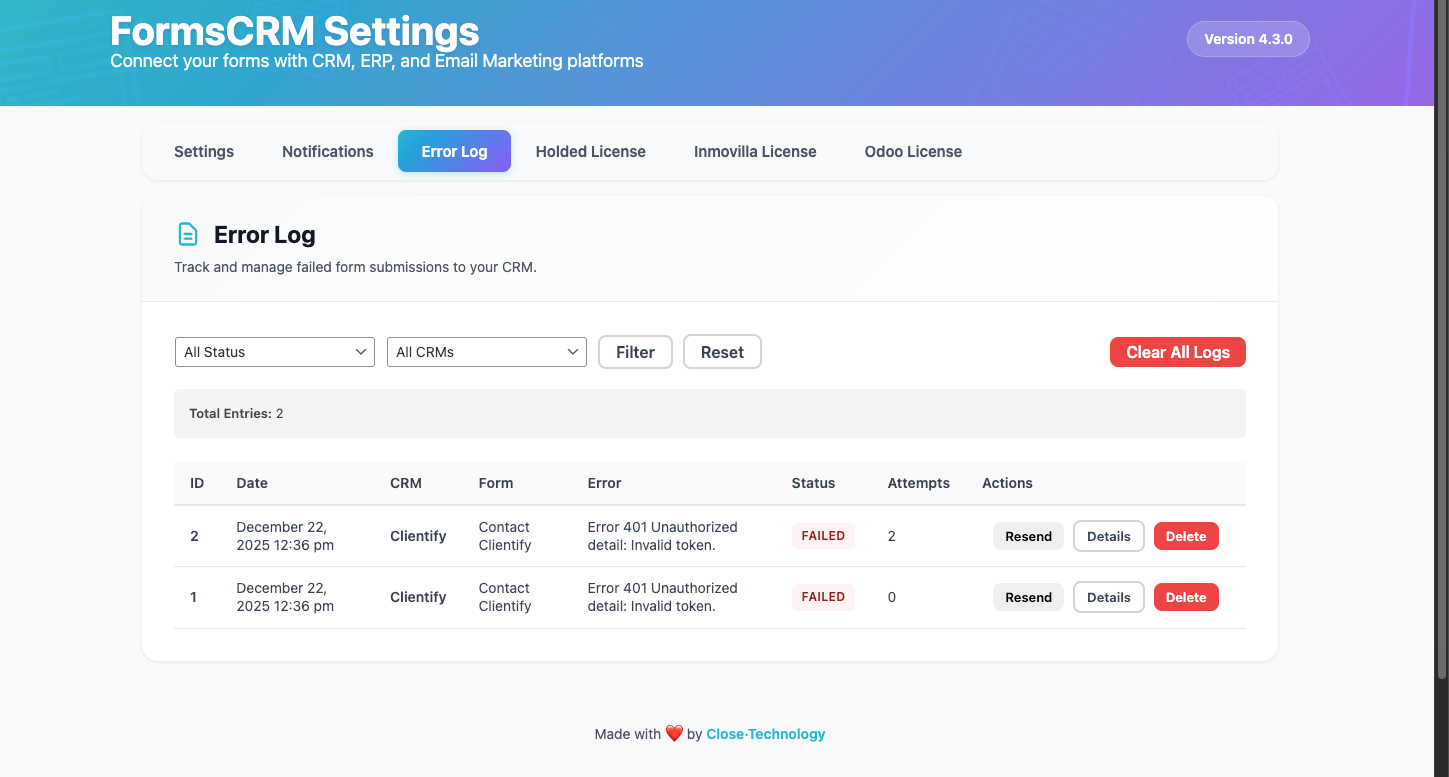
The Error Log feature provides a comprehensive interface to view, track, and manage all errors that occur when sending form submissions to your CRM. This powerful tool includes an automatic retry system that helps you troubleshoot issues and recover from failed submissions without requiring manual intervention or users to resubmit forms.
Hauptmerkmale:
- Automatic Retry System: Failed entries are automatically retried up to 3 times with 1-hour intervals between attempts
- Smart Retry Management: Retries stop automatically when an entry is successfully sent or manually deleted
- Complete Error Tracking: All errors are automatically saved to the database with complete context including CRM type, error message, form information, lead data, and technical details
- Advanced Filtering: Filter errors by status (failed/success) and CRM type to quickly find specific issues
- Detailed Error Information: View complete error details including lead data, API URLs, JSON requests, and full error messages
- One-Click Manual Resend: Manually resend failed entries directly from the error log with a single click
- Error Management: Delete individual entries or clear all logs with confirmation dialogs
- Pagination: Navigate through large numbers of error logs with built-in pagination (20 entries per page)
- Visual Status Tracking: Status badges show failed and successful entries at a glance
- Retry Progress Counter: Shows retry attempts (e.g., “2/3”) and displays time until next automatic retry
- Responsive Design: Fully responsive interface that works on all devices
Automatic Retry System:
When a form submission fails to send to your CRM:
- The error is logged immediately and the first retry is scheduled for 1 hour later
- If the retry fails, another retry is scheduled for 1 hour after that
- This continues for up to 3 total attempts (original submission + 2 retries)
- If an attempt succeeds, all future retries are automatically cancelled
- You can manually resend at any time, which counts toward the 3-attempt limit
- The interface shows the current attempt count (e.g., “1/3”, “2/3”) and time until next retry
How to Use:
- Go to WordPress Admin → Settings → FormsCRM → Error Log tab
- View all form submission errors in an organized table
- Filter by status or CRM type to find specific errors
- Click Details to view complete error information including retry schedule
- Click Resend to manually retry sending a failed entry to your CRM
- Click Delete to remove individual log entries and cancel any pending retries
- Use Clear All Logs to remove all entries at once and cancel all pending retries
What Information is Displayed:
- Date and time of error
- CRM type (Holded, Clientify, etc.)
- Form information (type, ID, name, entry ID)
- Complete error message
- All lead data from the form submission
- API endpoint URL
- JSON request payload
- Retry attempts count (e.g., “2/3”)
- Time until next automatic retry (e.g., “Next: in 45 minutes”)
- Last resend date and time
The Error Log with automatic retry system helps you maintain data integrity by ensuring no form submissions are lost due to temporary errors, connectivity issues, or API downtime. The automatic retry mechanism increases the success rate of form submissions without requiring manual intervention.
Markdown Export for GravityForms Entries
Export your GravityForms entries as portable, human-readable Markdown files
The Markdown Export feature allows you to export GravityForms entries into clean, well-structured .md files. This makes it easy to document, share, version control, or integrate form submissions with knowledge bases, static site generators, or any Markdown-compatible system.
Hauptmerkmale:
- Single Entry Export: Export individual entries directly from the entry detail page
- Bulk Export: Export multiple selected entries at once as a convenient ZIP file
- Clean Formatting: Produces readable, well-structured Markdown with proper headers and field organization
- Comprehensive Field Support: Handles all GravityForms field types including text, email, number, textarea, checkboxes, multiselect, name fields, address fields, file uploads, and list fields
- Smart Content Handling: Properly formats multi-line content, preserves line breaks, and handles file attachments with Markdown links
- Metadata Included: Each export includes form title, entry ID, submission date, and all field labels and values
- Safe Character Escaping: Automatically escapes Markdown special characters to ensure valid output
How to Use:
Single Entry Export:
1. Go to Forms → Entries in GravityForms
2. Click on any entry to view its details
3. Find the Export to Markdown widget in the right sidebar
4. Click Download Markdown to get the .md file
Bulk Export:
1. Go to Forms → Entries in GravityForms
2. Select one or multiple entries using the checkboxes
3. Choose Export to Markdown from the bulk actions dropdown
4. Click Apply to download a ZIP file containing all selected entries as separate Markdown files
Exported Markdown Format:
Each Markdown file includes:
– Form title as the main heading
– Entry ID and submission timestamp
– All filled fields organized in a clean bullet list format
– Field labels in bold with their corresponding values
– Multi-line content properly formatted with preserved line breaks
– File attachments as clickable Markdown links
Use Cases:
- Document form submissions for record-keeping
- Share entry data with team members in a readable format
- Version control form submissions using Git or similar tools
- Import entries into knowledge bases or wikis
- Generate reports or documentation from form data
- Backup form entries in a portable, future-proof format
- Integrate with static site generators (Jekyll, Hugo, etc.)
Settings for Clientify
Important: API v2 Migration
Since version 4.3.2, FormsCRM uses the Clientify API v2 (api-plus.clientify.com). Your existing API key will continue to work without changes. The migration is fully backward compatible with existing feed configurations.
Clientify tracking and attribution (visitor_key)
FormsCRM automatically captures Clientify’s visitor tracking identifier in the visitor’s browser and forwards it as visitor_key when the contact is created — no field mapping, hidden field, or extra setup needed on any Clientify-connected form. It prefers the Analytics PLUS pixel’s visitor_uuid (from the __<pixel_key>_visitor_uuid key in the browser’s localStorage), for attribution to the visit Analytics PLUS tracked, falling back to the legacy vk tracking cookie when Analytics PLUS isn’t present. (Clientify’s visitor_key2 field isn’t processed by their production API yet, so Analytics PLUS attribution goes through visitor_key for now.)
Neither value can be read reliably on the server (the cookie may be set/refreshed by the pixel after the page loads, and localStorage is browser-only), so both are read by a small script FormsCRM adds automatically to any page with a Clientify-connected form.
Add Pipeline name or ID in Opportunities
You can add a new field that fits with the Pipeline name (pipeline_desc) or Pipeline ID (pipeline_id) in Opportunities in Clientify. You can also specify the Pipeline Stage Name (pipeline_stage_desc). You will need to use the same name or ID as the Pipeline in Clientify.
Add expected closure date for Deals in Clientify
You can add a new field that fits with expected closure date for Deals in Clientify. This field is optional, and you need to add a number of days to the expected closure date. The plugin will calculate the date from today and will add it to the Deal in Clientify.
Marketing Status in Clientify
You can set the marketing status for contacts using the marketing_status field. Use value 1 for Sales Contact or value 2 for Marketing Contact.
Autoassignment in Clientify
Field that applies the autoassignment to the contact. You can add a string with the list of usernames (property emails) separated by comma (,) to apply the autoassignment.
Webhook in GravityForms
You can add a new field that fits with the Webhook in GravityForms. This field is optional, and you need to add the webhook url. The plugin will send the form data received from CRM to the webhook url.
Entwickler
Golfplatz
Installation
Extract the zip file and just drop the contents in the wp-content/plugins/ directory of your
WordPress installation and then activate the Plugin from Plugins page.
Änderungsprotokoll
4.4.6
- Fixed: Gravity Forms feed settings no longer stop with a fatal error (“Cannot access offset of type string on string”) when the CRM returns an error instead of its field list (e.g. invalid API key). The field map is shown empty and the CRM error is written to the PHP error log.
- Added: CRM columns in the Gravity Forms entries list. For every CRM connected to a form, a status column and a contact ID column show the result of the latest send, resend or automatic retry. Nothing is shown by default: each column is added manually from Gravity Forms’ own column selector (gear icon of the entries list). The columns are offered for every CRM connected through the form’s feeds, and entries sent before this version are filled in automatically from their FormsCRM notes the first time they are listed.
- Added: FormsCRM now records the latest sync result (status, contact ID, CRM name, message) per entry and CRM in its own table, for Gravity Forms and WPForms.
- Fixed: Clientify contacts were not found by the “Taxpayer Identification number” merge strategy, so an existing contact was created again and Clientify answered with
HTTP 409: Conflict, leaving the submission in the error log. The v2 API never returns the tax number in its search results, so the exact match could not succeed. It is now read from the contact in the v1 API, and compared ignoring case, spaces, dots and dashes. If Clientify still answers 409 on create (the contact exists but could not be matched), the contact is now found by its exact email, or by the merge search when it returned a single candidate, and updated instead of failing. With several candidates nothing is guessed and the submission stays in the error log. - Added:
formscrm_clientify_taxpayer_custom_fieldfilter. Sites that keep a copy of the tax number in a Clientify custom field can return that field’s name to verify the exact match of the “Taxpayer Identification number” merge strategy from the v2 API alone, without depending on v1. Off by default: no custom field is assumed. - Added: Field mappings can send a fixed value to a CRM field instead of requiring a hidden form field. Choose “Add Custom Value” (Gravity Forms) or “Custom value” (Contact Form 7, Elementor, WPForms, JetFormBuilder) and type the value; it can include
{id:field}placeholders, plus merge tags and{label:X}in Gravity Forms. Existing mappings keep working unchanged. - Fixed: Saving a Gravity Forms feed that uses its own CRM settings with a blank credential field (e.g. API password) no longer breaks the field mapping. The blank field overrode the inherited credential, the CRM login failed while saving, and the mapping was stored in a format the feed could not read, so entries were sent without mapped fields. Feeds already saved this way are read correctly again, and a mapping saved while the CRM login fails is now stored in the right format instead of the broken one.
- Fixed: the CRM Module dropdown of AcumbaMail feeds came out empty. Building the feed screen asked AcumbaMail for the lists several times in a row (login, modules, fields) and its API only allows 5 requests per second, so the extra requests were rejected. The lists are now requested once and cached for a minute, and a throttled request is retried once.
- Fixed: the AcumbaMail connector logged every request to the PHP error log, including the API token and the subscriber data. It no longer does.
4.4.5
- Fixed: Gravity Forms entries on forms with a Clientify feed were flagged as spam by the honeypot since 4.4.4. The Clientify tracking field was added as a Gravity Forms field only when rendering the form, which shifted the honeypot field ID, so the honeypot check read the filled tracking field. It is now a plain hidden input stored as entry meta, which also restores
visitor_keyattribution for Gravity Forms. Entries already flagged as spam can be marked as not spam and their feeds resent.
4.4.4
- Added: Support for Clientify’s Analytics PLUS contact attribution. FormsCRM automatically captures the pixel’s
visitor_uuidfromlocalStoragein the browser and forwards it asvisitor_keyon contact creation, linking the contact to the visit the Analytics PLUS pixel tracked. (Clientify’svisitor_key2field isn’t processed by their production API yet, so this rides onvisitor_keyfor now — confirmed directly against the API.) - Enhanced: Clientify’s legacy
vktracking cookie is now captured client-side (the cookie may be set/refreshed by the pixel after the page has already loaded, so the server-side copy isn’t reliable) and forwarded automatically asvisitor_keytoo, as a fallback when there’s no Analytics PLUS visitor_uuid. - Changed: Every Clientify-connected form (Gravity Forms, Contact Form 7, Elementor) now gets FormsCRM’s own hidden field injected automatically to carry the tracking identifier, filled by a small script FormsCRM enqueues on demand. It’s not a mappable field — its value is dynamic per visit and can’t be entered by hand.
- Fixed: Clientify merge strategy could update the wrong contact/company. Clientify’s
querysearch param is a substring match (e.g. searching “molina@gmail.com” could match “aestepamolina@gmail.com”), and the merge strategy took the first search result without verifying it was an exact match. It now only updates when there is exactly one exact match for the searched field, and creates a new entry otherwise. - Fixed: the “Email Main” field-mapping option and the “Email Main” typed-email option showed the same label, so mapping the wrong one silently defeated the merge strategy (fell back to creating instead of updating) with no warning. The native field is now labeled “Email Main (single field)”.
- Fixed:
marketing_statusdefaulted to “Marketing Contact” was also sent when updating an existing contact via the merge strategy, silently overwriting a contact intentionally set as “Sales Contact”. The default is now only applied when creating a new contact. - Enhanced: Added support for GravityForms 3.0’s international Phone field format, normalizing the number (digits and leading “+”) before sending it to the CRM.
- Fixed: Elementor forms connected to Clientify always forced contact creation (
force_insert=true), causing an HTTP 409 Conflict on every resubmission from an existing contact. The merge strategy field (used to search and update instead of create) is now available for Elementor, same as Gravity Forms. - Developers: New
formscrm_alert_error_labelsfilter to customize the wording of error alerts (email subject, headers, Slack title and labels), so addons can describe their own failure types (e.g. a payment error) instead of the generic lead creation error. - Tests: Pinned Contact Form 7 to 6.1.7 in the PHPUnit installer, since Contact Form 7 6.2+ requires PHP 8.3 and broke the test suite on PHP 7.4 and 8.1.
4.4.3
- Fixed: Clientify API v1 requests occasionally failing with
HTTP 504 Gateway Timeoutonapi.clientify.net. All requests (reads, lead/contact creation, updates, deals) now retry once against theapi.clientify.comfallback before failing; this is a temporary workaround suggested by Clientify support while they investigate the root cause.
4.4.2
- Added: Holded API v2 support. The API version is now auto-detected from the key’s shape (keys prefixed with
pat_use v2, existing keys keep using v1) — both versions work through the same connector with no new setting. - Enhanced: “API Connection Status” badge and entry success notes now show the detected Holded API version (e.g. “Connected (Holded v2)”) instead of a generic “(Holded)”.
- Fixed:
CRMLIB_HOLDED::login()andlist_modules()signature mismatch with theCRMLIB_Abstractcontract, which caused a PHP fatal error on the Holded feed settings page in production. - Fixed: Holded v2 field names (e.g.
bill_address,trade_name,is_person) are now translated from the existing v1 camelCase field IDs, so feeds configured before the v2 migration keep working unmodified. - Fixed: Clientify API v2 contact merge returning a 409 conflict when matching by
taxpayer_identification_number; the field is now supported as a search/merge key. - Fixed: Clientify API v2 now sends
emailinside theemailsarray (type Main) instead of a top-level field, matching the v2 schema. - Fixed: Clientify API v2 GET requests now always include the required
fieldsparameter, even when other query params are already set. - Tests: Added PHPUnit coverage for both Holded API v1 and v2 using fixtures captured from real sandbox accounts.
4.4.1
- Fixed: GravityForms
{label:X}merge tag returning wrong label when select/radio fields have duplicate values. - Fixed: Merge strategy field not showing correctly.
Screenshots


Für Entwickler
Ist das dein Plugin? Zeigen Sie die Zahlen.
Fügen Sie Ihrer Website, Docs oder GitHub Readme ein Live-Badge hinzu. Es wird von selbst aktualisiert - kein Konto erforderlich.
Best FormsCRM alternatives
All crm plugins →





Fragen und Antworten
FormsCRM: quick answers
Gerade Antworten, gezogen von Live WordPress.org Daten.
Quelle: WordPress.org
Is FormsCRM free?
Yes. FormsCRM is free to download and use from the official WordPress.org plugin directory. The developer also sells premium add-ons or a Pro version with extra features.
Is FormsCRM safe to use in 2026?
FormsCRM is a solid plugin choice in 2026, with a few things worth checking first. It runs on 1K+ sites, is rated 5/5 and was last updated 3 days ago, and scores 66/100 on our health check.
How many websites use FormsCRM?
FormsCRM is active on 1K+ WordPress websites and has been downloaded 44,556 times since it launched in June 2021. It was downloaded 3,465 times in the last 30 days.
Does FormsCRM work with WordPress 7.1?
Yes. The developer has tested FormsCRM up to WordPress 7.2, the latest release. It requires WordPress 5.5 or newer.
When was FormsCRM last updated?
The latest version, 4.4.6, was released on November 26, 2026 (3 days ago).
Who makes FormsCRM?
FormsCRM is developed and maintained by closemarketing.
What are the best alternatives to FormsCRM?
The most popular alternatives to FormsCRM are Flamingo (800K+ installs), HubSpot All-In-One Marketing (200K+ installs) and FluentCRM (80K+ installs).
Angetrieben von PageForge
Eine Vorlage und eine Tabelle. Eine echte Seite für jede Suche.
PageForge Verwandelt jede Zeile eines CSV in eine WordPress-Seite mit eigenem Titel, URL, SEO Felder und Schema entworfen. Kostenlos auf WordPress.org.
- CSV und XLSX, plus Google Sheets auf Beruf und Unternehmen
- seinen eigenen Titel, URL, SEO Felder und Schema für jede Seite
- Arbeitet mit dem Blockeditor, Elementor, Divi und Avada
- Kostenlos auf WordPress.org, keine Kreditkarte