


Document Gallery
This plugin generates thumbnails for documents and displays them in a gallery-like format for easy sharing.

Escolha segura
Yes — Document Gallery is a safe, well-maintained plugin to use in 2026. It runs on 8K+ sites, is rated 4.8/5 and was last updated 3 weeks ago, and scores 92/100 on our health check.
- Loved by users — 4.8/5 from 112 reviews
- Desenvolvido ativamente — última atualização 3 semanas atrás
- Testado com as últimas WordPress (7.1)
- Momentum — downloads up 492.9% vs the previous 30 days
Como ele se acumula?
Lado a lado em instalações, atualizações, avaliações e suporte


Downloads diários
Os picos de download geralmente seguem uma nova versão — cada site que atualiza automaticamente é um download.
Rankings
Where Document Gallery stands todayWordPress.org Classificações de pesquisa
Posição ao vivo na pesquisa de plugins, top 100| Palavra chave | Posição |
|---|---|
| attachments | #21 |
| documents | #3 |
| biblioteca | #78 |
| >100 | |
| word | #19 |
Adoção da versão
Compartilhamento de sites ativos por lançamento.
Divisão de classificação
★★★★★★★★★★ 4.8 from 112 reviews
About Document Gallery
From the official readme · v5.1.2Descrição
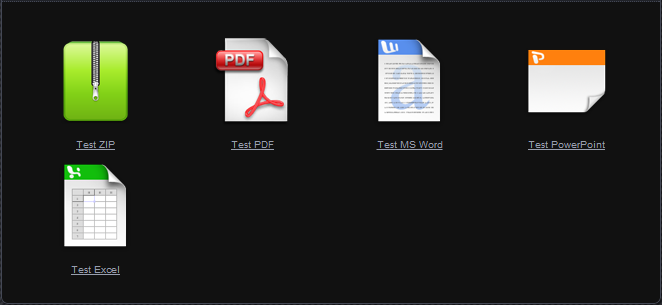
Display your documents beautifully! Document Gallery creates thumbnail galleries for PDFs, Word documents, PowerPoint presentations, and other file types—just like WordPress does for images.
Key Features
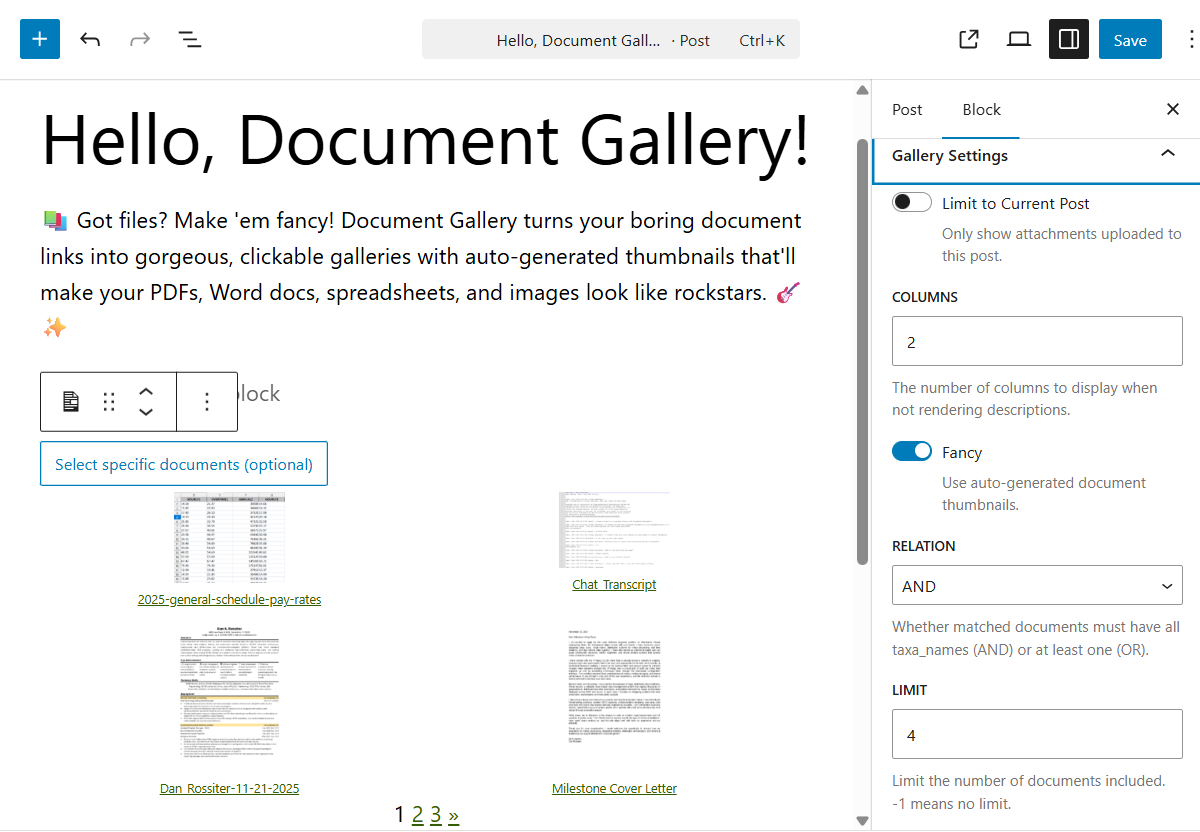
- WordPress Block Editor – Insert galleries with a single click, configure visually
- Automatic Thumbnails – Generates preview images for documents (PDF, Office files, etc.)
- Modern Image Formats – Full support for WebP and AVIF images (WordPress 6.5+)
- Flexible Display – Grid or list layout with optional descriptions
- Smart Filtering – Show all attachments, current post only, or specific documents
- Pagination Support – Handle large document libraries efficiently
- Fully Customizable – Control columns, sorting, links, and styling
- Classic Shortcode –
[dg]shortcode available for template use
Perfect For
- Document libraries and resource centers
- Portfolio and work sample galleries
- Publication and whitepaper collections
- Course materials and downloads
- Legal document repositories
Block Editor Integration
Click the ‘+’ button in the editor and search for “Document Gallery” to insert a gallery block. All configuration options appear in the sidebar—no shortcode knowledge required. Select specific documents or let the gallery auto-populate based on your criteria.
Shortcode Support
The classic [dg] shortcode continues to work perfectly for template files, widgets, and power users who prefer code-based configuration. See the Installation tab for all available options.
Developer Friendly
Document Gallery provides extensive filters and actions for customizing thumbnail generation, HTML output, and gallery queries. See the Installation tab for complete developer documentation.
Partners
- WP Real Media Library: Document Gallery seamlessly integrates with RML by way of a
helper plugin.
Translation
Document Gallery has to-date been translated into 6 languages, listed below.
- Finnish — Thanks, villevetela!
- French — Thanks, Marc Liotard and Traffic Influence!
- Russian — Thanks, demur!
- Spanish — Thanks, Andrew Kurtis and WebHostingHub!
- Swedish — Thanks, mepmepmep!
- Ukrainian — Thanks, demur!
Desenvolvedores
Document Gallery includes features intended to make integration with other plugins
simple. See the bottom of the Installation tab for specific documentation on
the various features provided.
If this plugin has helped you, please take a moment to rate it!
5.1.2
- Bug Fix: Address Cross-Site Scripting security vulnerability.
5.1.1
- Bug Fix: Address Cross-Site Scripting security vulnerability, identified by
João Ramos Maciel with WPScan.
5.1.0
- Feature: Restores support for the classic editor which was removed in 5.0.
Don’t worry – Block Editor support remains as well!
5.0.0
- Major Enhancement: Full WordPress Block Editor integration! Insert and configure
document galleries directly in the editor with an intuitive visual interface. - Enhancement: All gallery settings now available in the block settings panel with
real-time preview updates. - Enhancement: Added support for modern image formats: WebP (WordPress 5.8+) and
AVIF (WordPress 6.5+). Document Gallery now leverages WordPress core thumbnail
generation for these formats. - Removed: TinyMCE/classic editor integration has been removed in favor of modern
block editor. The[dg]shortcode remains fully supported. - Code Quality: Replaced deprecated WordPress functions (
get_option('blog_charset'),
improper use ofaddslashes()) with modern equivalents. - Code Quality: Improved AJAX response handling using WordPress best practices
(wp_send_json(), proper header checking). - Code Quality: Removed all dead code from legacy editor integrations.
- Compatibility: Minimum WordPress version updated to 6.1 (Block API v2 requirement).
- Compatibility: Minimum PHP version remains 5.6.
- Tested Up To: Document Gallery has been tested in WordPress 6.9.
4.4.4
- Bug Fix: We’re BACK! After 6+ years dormant, we’re working to make Document Gallery fully
functional with current WordPress versions. This initial minor release addresses major bugs.
Future more major revisions forthcoming, which will provide deeper integration with the current
WordPress editor.
4.4.3
- Bug Fix: The pagination logic was not working correctly, resulting in the gallery not returning to the
top after changing to a new page in some situations.
4.4.2
- Enhancement: When pagination is enabled for a gallery, navigating to another page will now scroll the page
back to the top of the gallery. - Enhancement: Added support for
%author%todg_icon templatefilter.
4.4.1
- Enhancement: Added support for
%date%and%time%todg_icon_template.
4.4
- Enhancement: Document Gallery updated to support integration with
WP Real Media Library.
Simply install the RML/DG helper plugin to use your RML
folders right from Document Gallery!
4.3.2
- Bug Fix: Bug in editing gallery from post editor has been resolved.
- Note: Minimum WordPress version has been bumped from 4.1 to 4.2.
4.3.1
- Enhancement: WordPress 4.7 includes native support for PDF thumbnails. Document Gallery was already using some
of this, but this update ensures that DG takes full advantage of the new core functionality, including some new
logic to allow older WordPress installs running Document Gallery to take advantage of some of the new goodies. - Tested Up To: Document Gallery has been tested in WP 4.7. Big thanks to
Bjarne for help with testing. - Reminder: Don’t forget that Thumber.co can integrate with Document Gallery to greatly
expand supported file types (eg: Word, PowerPoint, Publisher, and Photoshop). Thumber.co offers a free 1-week trial
if you want to try it before you buy it!
4.2.6
- Bug Fix: Document Gallery was impossible to uninstall on some WordPress systems. This is addressed now.
4.2.5
- Bug Fix: Resolves issue where visual editor gallery preview got stuck loading.
4.2.4
- Tested Up To: Document Gallery has been tested in WP 4.6.
- Bug Fix: Resolves bug in visual editor that would result in the gallery preview never loading in some circumstances.
4.2.3
- Bug Fix: Ghostscript thumbnail generation where the attachment name includes non-ASCII characters was failing
on some server configurations. Kevin Hock identified the bug AND provided the fix. Gold star!
4.2.2
- Bug Fix: Ghostscript-based thumbnail generation was failing in a rare corner case. Thanks
sigvevidnes for identifying this issue!
4.2.1
- Bug Fix: There was a bug in validating user secrets for Thumber.co that has now been addressed.
4.2
- Enhancement: Adding support for
tax_name_include_children attribute, as requested by
John. Thanks for the suggestion! - Enhancement: Thumber.co authentication secret is no longer output in the options
dump on the admin settings tab, removing the possibility of this information being inadvertently printed in the
support forum.
4.1.14
- Bug Fix: The handling of saving Thumber.co subscriptions was broken for some use cases.
The logic has been updated to work correctly in all cases.
4.1.13
- Enhancement: HostGator users were noticing an issue where HTTP connection failures would show up while Document
Gallery was enabled. This resulted in symptoms like not being able to update plugins. This release modifies behavior
to try and bypass this HostGator shortcoming. Work is still being done working with HostGator to try and identify
a more complete resolution.
4.1.12
- Bug Fix: Resolves issues where the visual editor gallery preview was missing for a small subset of shortcode types.
4.1.11
- Bug Fix: Resolves bug that resulted in various issues, including Jetpack and some core WordPress functionality
not working correctly.
4.1.10
- Bug Fix: Resolves drag/drop issues in the meida manager.
4.1.9
- Bug Fix: Addresses issues with the IMagick thumbnail generation.
- Enhancement: Handling thumbnail generation for image attachments better (should be faster & more reliable).
4.1.8
- Bug Fix: There was a minor bug in how thumbnails for image attachments were being generated. It has been addressed.
4.1.7
- Bug Fix: There was a minor issue on some admin pages that has been resolved.
4.1.6
- Enhancement: Added warning to plugins page when a PHP version < 5.3 is being used.
- Bug Fix: Resolves a “class not found” error.
4.1.5
- Bug Fix: For a subset of the users upgrading from
4.0to4.1.x, the thumbnail images will have been corrupted
during the upgrade process. This release addresses the problem.
4.1.1 & 4.1.2 & 4.1.3 & 4.1.4
- Bug Fix: Resolves various errors reported following
4.1release.
4.1
- Enhancement: At long last, support for Microsoft Office files (Word, PowerPoint, Publisher, Visio), as well as a
boat-load of other formats, has been re-added to Document Gallery by way of
integration with the Thumber.co service. For a small fee you can generate images for all of your
attachments using a service designed specifically to work well with Document Gallery. For a limited time,
Thumber.co is offering a free 7-day trial of the basic subscription. If you don’t like it, all you have to do is
cancel and you won’t pay a penny. - Enhancement: The pagination footer now includes more than just “prev” and “next”, allowing for quicker navigation
of long multi-page galleries. Additionally, the pagination footer will no longer be included if pagination is enabled,
but there are less than a page-length’s worth of attachments in the gallery. - Enhancement: Massive rewrite of some core logic that had become unmaintainable. This will mean nothing to most
users, with the noted exception that if you were using thedg_thumbersfilter you’ll need to change some things.
If this applies to you then you’ll want to hold off on upgrading until you’ve had a chance to rework your usage of the
filter to map to the new expected values.
4.0
- Enhancement: The WordPress visual editor now displays a full gallery preview.
- Enhancement: You can now paginate your galleries. This is especially useful in large multi-hundred item galleries.
To enable pagination in your galleries, simply uselimit=##. - Enhancement: All CSS & JavaScript is now served minified to ensure the fastest possible load time for your site.
- Enhancement: When using taxonomies to generate your galleries (eg: media categories) you can now use term slug
instead of the name. Thanks andremalenfant for suggesting this! - Enhancement: The structure of the gallery output has been cleaned up, making it easier to style if you chose to
use custom CSS. NOTE: This modified structure may break existing custom CSS or PHP filtering, so be sure to check
this if you’re using either of those features. - Bug Fix: The storage of the DG thumbnail cache was very broken. Due to how the cache was originally designed, it
ran into issues at large scale and on busy sites, which resulted in difficult to track bugs. The entire storage
mechanism for the cache has been rewritten from the ground up to address this issue, which will result in faster
gallery generation and more reliable performance. - Bug Fix: In the thumbnail management tab of the DG settings, sorting by title was broken. This has been fixed.
- Bug Fix:
Limitwas not working in cases where theidsorincludeattribute were present. This has been fixed. - Tested Up To: Document Gallery has been tested in WP 4.4 beta.
NOTE: All earlier changes may be found in the CHANGELOG.md file.
Instalação
Instalação automática
- Go to Plugins > Add New in your WordPress admin
- Search for “Document Gallery”
- Click Install Now, then Activate
Getting Started
Block Editor (Recommended)
- Create or edit a post/page
- Click the ‘+’ button and search for “Document Gallery”
- Insert the block and configure options in the sidebar
- Optionally select specific documents, or let it auto-populate
Shortcode Method
Add [dg] to any post, page, or text widget. See Document Gallery Options below for configuration.
Manual Installation
- Download the plugin from WordPress.org
- Upload the
document-galleryfolder to/wp-content/plugins/ - Activate through the Plugins menu
Document Gallery Options
In order to include all compatible documents from a given page or post, you
must include the following shortcode in the post: [dg].
In addition to the default behavior, the plugin provides many options to
customize behavior with various attributes, some of which are shown below:
[dg [fancy=<true/false>] [attachment_pg=<true/false>] [descriptions=<true/false>] [order=<ASC/DESC>] [orderby=<**see below**>]]
Though the shortcode above may seem far from “short,” none of the attributes are
required and most users will find that the plugin meets your needs “out of the box”
without any added attributes.
Default Values
Default document gallery behavior can be configured in your dashboard under Settings -> Document Gallery.
Attachment Page Option (New in Version 1.1)
This option determines whether each document icon will link to the actual file
or to its attachment page. If you want the user to be able to click on the
icon and directly receive the option to download then use attachment_pg=false
(the default). If you have information on the attachment page that you want the
link to go to, use attachment_pg=true.
Categories/Custom Taxonomy Option (New in Version 1.4)
With the categories option you are able to select attachments based on
their assigned category or any other
custom taxon. Categories
or any custom taxon can be referenced simply by including category=category_value
or taxon_name=taxon_value. Multiple values for a single taxon may be separated
by commas. Note that if a taxon value contains spaces then the entire comma-
delimited list must be quoted.
Columns Option (New in Version 3.0)
The columns option does what it sounds like — sets how many columns to use in
rendering your gallery. With columns=-1, you will get an infinite number of
columns. In other words, only 1 row with all icons.
Descriptions Option
If true, each document will take its own line with the description displayed
alongside it.
Note: this will use the description field, not the caption. Be
careful when entering your document data.
Fancy Option (New in Version 2.0)
If true, we will try to generate a thumbnail for each document in the gallery.
The success in generating thumbs will depend mostly on what your server supports.
To fine-tune how thumbnails are generated, visit Settings -> Document Gallery
in your site’s dashboard.
ID Option (New in Version 3.0)
This option indicates from which parent post/page to retrieve attachments.
If not explicitly set, the default will be the post/page where the shortcode
is being used.
If you do not wish to filter by parent, id=-1 will match all attachments.
IDs Option (New in Version 1.2)
This is an advanced option intended for experienced WordPress users. If this
option is used, the plugin will ignore attached documents, instead including
all attachments defined by the ids attribute (e.g.: ids=10,2,4,42).
Note: If this attribute is used, order defaults to the order of IDs given
rather than menu_order unless order is explicitly stated.
Images Option (New in Version 1.2)
This option will tell the plugin to include all images attached to to a page or
post in addition to all documents.
Include/Exclude Options (New in Version 3.0)
As the name suggests, these options allow for explicitly adding or removing
matched attachments in your gallery. Like with the IDs options above, these
options take a comma-delimited list of attachment IDs.
Limit Option (New in Version 2.3)
As the name suggests, this value will limit how many results are returned in the gallery.
If set to -1, the limit is infinite.
MIME Types Option (New in Version 3.0)
This is a comma-delimited list of all
MIME types
to be included in the gallery. Most users will not need to modify this value.
One example use-case would be to include images in your gallery (which are
not included by default). To do this, you would simply set
mime_types=application,video,text,audio,image, where “image” is the only difference
from the default value. You could also create a gallery which only includes PDFs
by setting mime_types=application/pdf.
New Window Option (New in Version 3.2)
If true, clicking one of the documents in your gallery will open the target link in a new window/tab.
Order Option
This option works alongside the orderby option to determine whether the
documents are displayed in ascending or descending order.
Orderby Option
menu_order– This is probably the one you want to use. Menu order is
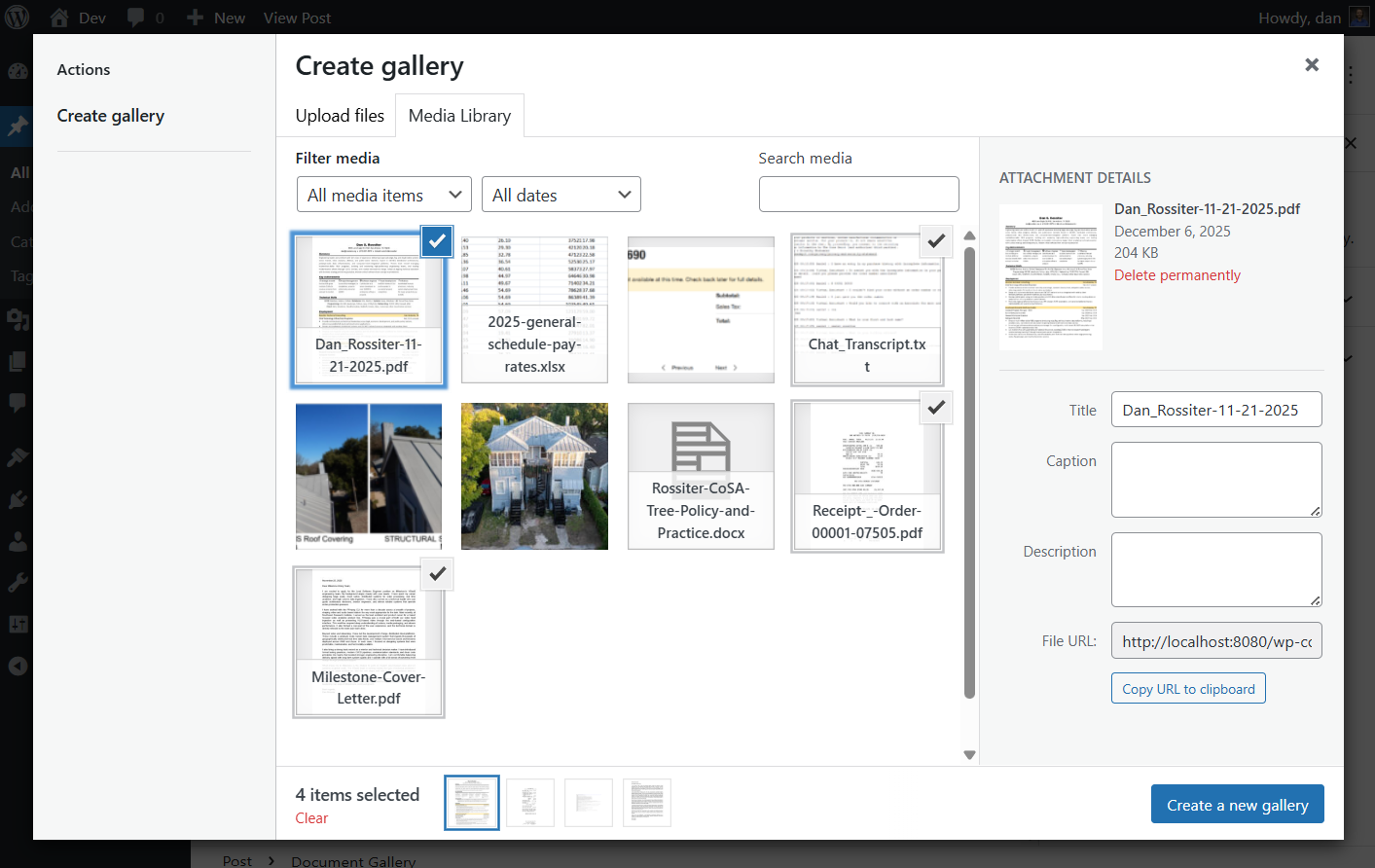
the order that icons appear when seen in the Insert / Upload Media Gallery
dialog. To change this order, you simply drag the icons around until they
are where you want them. In earlier versions of WordPress, menu_order was
modified by the integer fields in the Insert / Upload Media Gallery dialog.
These fields no longer exist in recent releases.title– Order by title.date– Order by upload date.modified– Order by last modified date.rand– Random order.ID– Order by post id.author– Order by author.name– Order by attachment slug.parent– Order by post/page parent id.
(Only useful in conjunction withlocalpost=falseoption.)comment_count– Order by number of comments (available with WP >= 2.9).none– No order (available with Version 2.8).post__in– Preserve post ID order given in the post__in array.
Relation Option (New in Version 1.4)
The relation option should only be used when also using the category or custom
taxonomy option (see above).
When using multiple taxa this option allows you to decide whether the attachments
returned must match all of the different taxa specified (AND) or a minimum of one
taxa match (OR).
NOTE: This has no bearing on the relationship between different terms for a single
taxon (eg: [dg category=x,y,z relation=AND] will return any attachments where the
category is x, y, OR z). If you wish to return only attachments with all 3 categories,
you will instead need to use the following syntax: [dg category=x,y,z category_relation=AND].
This syntax of *taxon_relation will work for any taxon, not just “category.”*
Customize Appearance
The Default Document gallery will often fit quite well with whatever theme you
are using. But, if you want to change things, Document Gallery makes that easy.
Just navigate to Settings -> Document Gallery and put any custom CSS in the
provided text box.
See style.css
for all of the ids and classes being used in a Document Gallery.
Exemplo
Say I would like to include a border for the right and bottom of the document
icon, but only when descriptions are shown (to delineate the icon from the
description text). To do this, I would need to use the following CSS:
.document-icon-wrapper.descriptions .document-icon{
   border-right: 1px solid #37824A;
   border-bottom: 1px solid #37824A;
}
Now, if I wanted to modify that code to instead add the same border to all of
the document-icons, regardless of whether they have a description or not, I
would just change the first line, removing the descriptions class like so:
.document-icon-wrapper .document-icon
Desenvolvedores
For those unfamiliar with content filters, here is some
documentation that you
should read before continuing.
Filter HTML Output
In Documnet Gallery version 2.2, we’ve released a more powerful HTML
templating framework, making all generated output filterable, and thus
configurable, by developers wishing to control the gallery output. Three
different filters are provided in order to access the various segments
of a gallery: dg_gallery_template, dg_row_template, and dg_icon_template.
These filtered templates are used when dynamically generating output for each
gallery.
Each of the following filters provides an bool argument which indicates
whither the gallery being generated will display descriptions, which
allows you to handle galleries with and without descriptions differently.
If you wish to wrap your galleries in some additional content,
the dg_gallery_template is the tool for the job. With it you can include
content prior to or following your document galleries. The filter
exposes 2 special tags which are replaced during gallery generation
with data specific to that gallery. The tag is described below:
- %id%: The id attribute value for this gallery.
- %class%: The class attribute value for this gallery.
- %data%: The one ore more data-* attributes for the gallery, which are necessary for client-side operations.
- %rows%: This tag is replaced by all of the document gallery rows.
Everything before this string will be rendered before the gallery and
everything after this string will be rendered following the gallery.
If you wish to modify how gallery rows are generated, dg_row_template,
is provided for this purpose. This filter gives you control at the row
level for how a gallery will be generated. The filter exposes 2 special tags
which are replaced during gallery generation with row-specific data.
These tags are as follows:
- %class%: The class attribute value for this row.
- %icons%: The icon data for this row.
If you wish to modify the HTML that wraps individual icons,
the dg_icon_template filter is what you will use. The filter is passed
two arguments which may be used to gain additional information about
the document that will be used in generating this icon. The first
argument is a bool value which indicates whether descriptions will
be used along with the icon and the second value is an integer WordPress
attachment ID which may be used to lookup any relevant information
you need specific to that document. The filter exposes 5 special tags
which are replaced during gallery generation with document-specific data.
These tags are as follows:
- %date%: The date that the attachment was added to WordPress.
- %description%: The attachment description (only present when rendering descriptions).
- %extension%: The document file extension.
- %img%: The URL pointing the the image that will be displayed.
- %link%: The URL that will be loaded when the user clicks the icon.
- %path%: The system path pointing to the document.
- %size%: The human-readable file size formatted by
size_format. - %target%: The target attribute for the anchor tag (e.g.: _blank, _self).
- %time%: The time that the attachment was added to WordPress.
- %title%: The human-readable title of the attachment.
- %title_attribute%: The escaped title (above), safe for using HTML tag attributes.
Below is an example that uses all three above filter methods to convert the output from a div-based
layout to a table-based layout with no icons, displaying the date of upload in the left column and
the title as a hyperlink to the attachment in the right column.
function dg_gallery_template($gallery, $use_descriptions) {
     if ( ! $use_descriptions ) {
         $gallery = '<table id="%id%" class="%class%" %data%>%rows%</table>';
     }
     return $gallery;
 }
 add_filter( 'dg_gallery_template', 'dg_gallery_template', 10, 2 );

 function dg_row_template($row, $use_descriptions) {
     if ( ! $use_descriptions ) {
         $row = '<tr class="%class%">%icons%</tr>';
     }
     return $row;
 }
 add_filter( 'dg_row_template', 'dg_row_template', 10, 2 );

 function dg_icon_template($icon, $use_descriptions, $id) {
     if ( ! $use_descriptions ) {
         $icon = '<td>%date%</td><td><a href="%link%" target="%target%"><span class="title">%title%</title></td>';
     }
     return $icon;
 }
 add_filter( 'dg_icon_template', 'dg_icon_template', 10, 3 );
Filter Thumbnail Generation Methods
Document Gallery provides the dg_thumbers filter, which allows developers to
add, remove, or even re-order which methods are used to generate a thumbnail
for a given attachment.
The value being filtered is an array of DG_AbstractThumber objects. You will want to look at this abstract class,
located in the DG source under inc/thumbers to see how to correctly implement the abstract methods. You’ll notice
that DG_AbstractThumber::init() will handle creating a singleton instance of your class (though you can opt not
to use this logic if you prefer). To register your implementation of DG_AbstractThumber using init(), you would
simply call YourThumberClass::init() and all of the work setting up the dg_thumbers filter to include your thumber
will be done for you.
The following is an example taken from the Document Gallery source (with a few
modifications for ease of readability), where we add thumbnail generation for
all Audio/Video filetypes supported by WordPress:
class ImageThumber extends DG_AbstractThumber {

    /**
     * @return string[] The extensions supported by this thumber.
     */
    protected function getThumberExtensions() {
        return array( 'jpg', 'jpeg', 'jpe', 'gif', 'png' );
    }

    /**
     * @param string $ID The attachment ID to retrieve thumbnail from.
     * @param int $pg Unused.
     *
     * @return bool|string  False on failure, URL to thumb on success.
     */
    public function getThumbnail( $ID, $pg = 1 ) {
        $options = DG_Thumber::getOptions();
        $ret     = false;

        if ( $icon = image_downsize( $ID, array( $options['width'], $options['height'] ) ) ) {
            $ret = $icon[0];
        }

        return $ret;
    }

    /**
     * @return int An integer from 0 to 100. Higher priorities will be attempted before lower priority thumbers.
     */
    public function getPriority() {
        return 100;
    }
 }

 // tells DG_AbstractThumber to create an instance of the class and apply to dg_thumbers filter
 ImageThumber::init();
Filter Inclusion of Default Document Gallery CSS
If you wish to completely replace Document Gallery styling with your own CSS, you can prevent any any
CSS being loaded by returning false in dg_use_default_gallery_style filter, like so:
add_filter(‘dg_use_default_gallery_style’, ‘__return_false’);
NOTE: By design, this will NOT disable inclusion of any custom CSS set at
Dashboard -> Settings -> Document Gallery
Modify Gallery Query
If you wish to modify the query used by Document Gallery to retrieve attachments to be included in a gallery then
the dg_query action allows you to do exactly that. The signature for the action
is function dg_query(&$query, $taxa, &$excluded_keys, &$errs). Each parameter is described below:
- &$query: This is the query to be modified as documented in WordPress Codex.
- $taxa: The list of key/value pairs for arguments passed into
[dg]that do not match known keys. - &$excluded_keys: The list of keys to not be processed by DG. If your extension uses a key and is not intended for
DG to process, then the key should be added to this list. - &$errs: The list of errors. If something goes wrong, this list should be appended with a description of what happened.
Log de Changes
Features For The Future
To see a list of features planned for the future as well as to propose your own
ideas for future Document Gallery development, take a look at our
issue tracker.
Capturas de tela


Para desenvolvedores
Este é o seu plugin? Mostre os números.
Adicione um crachá ao vivo ao seu site, Documentos ou Readme do GitHub. Ele é atualizado por conta própria - nenhuma conta necessária.
Best Document Gallery alternatives
All attachments plugins →



FAQ
Document Gallery: quick answers
Respostas diretas, extraídas de dados ao vivo WordPress.org.
Fonte: WordPress.org
Is Document Gallery free?
Yes. Document Gallery is free to download and use from the official WordPress.org plugin directory.
Is Document Gallery safe to use in 2026?
Yes — Document Gallery is a safe, well-maintained plugin to use in 2026. It runs on 8K+ sites, is rated 4.8/5 and was last updated 3 weeks ago, and scores 92/100 on our health check.
How many websites use Document Gallery?
Document Gallery is active on 8K+ WordPress websites and has been downloaded 338,019 times since it launched in August 2012. It was downloaded 5,532 times in the last 30 days.
Does Document Gallery work with WordPress 7.1?
Yes. The developer has tested Document Gallery up to WordPress 7.1.5, the latest release. It requires WordPress 6.1 or newer.
What PHP version does Document Gallery need?
Document Gallery requires PHP 5.6 or higher. Most hosts run PHP 8.x today, so it works on any modern WordPress hosting.
When was Document Gallery last updated?
The latest version, 5.1.2, was released on October 28, 2026 (3 weeks ago).
Who makes Document Gallery?
Document Gallery is developed and maintained by Dan Rossiter.
What are the best alternatives to Document Gallery?
The most popular alternatives to Document Gallery are Export media with selected… (40K+ installs), File Upload Types by WPForms (40K+ installs) and Lightbox with PhotoSwipe (20K+ installs).
Alimentado por PageForge
Um modelo e uma planilha. Uma página real para cada pesquisa.
PageForge Transforma cada linha de um CSV em uma página WordPress com seu próprio título, URL, SEO campos e esquema, construído no layout que você já desenhou. Gratuito em WordPress.org.
- CSV e XLSX, mais Google Sheets em Profissional e Empresarial
- Seu próprio título, URL, SEO campos e esquema para cada página
- Funciona com o editor de blocos, Elementor, Divi e Avada
- Gratuito em WordPress.org, sem cartão de crédito